
1. Introduction
This manual provides essential instructions for the proper use and maintenance of your ZTE MF971R LTE CAT6/4G Portable Wi-Fi Hotspot. Please read this manual thoroughly before operating the device to ensure optimal performance and to prevent damage.
The ZTE MF971R is a mobile Wi-Fi device designed to provide high-speed internet access on the go, supporting up to 32 connected devices simultaneously.
2. Package Contents
Verify that all items are present in your product package:
- 1 x ZTE MF971R Portable Wi-Fi Hotspot (Black)
- 1 x USB Charging Cable
- 1 x Quick Start Guide
3. Device Overview
Familiarize yourself with the physical components and indicators of your ZTE MF971R hotspot.
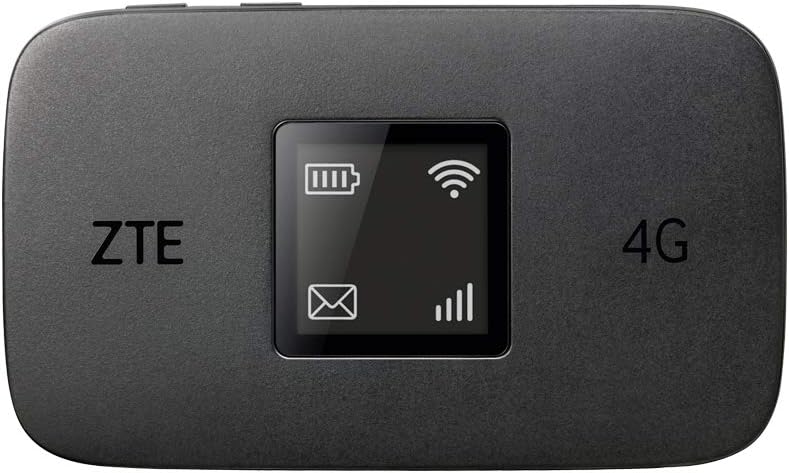
Figure 3.1: Front view of the ZTE MF971R hotspot, showing the screen with battery, Wi-Fi, and signal indicators.

Figure 3.2: Rear view of the ZTE MF971R hotspot, displaying model information and certifications.
The device features a compact design for portability.

Figure 3.3: The ZTE MF971R hotspot held in a hand, illustrating its compact and portable design.
4. Setup
4.1. Inserting the SIM Card
- Ensure the device is powered off.
- Locate the SIM card slot, typically under the battery cover.
- Insert a data-enabled SIM card into the slot with the gold contacts facing down and the notched corner aligned correctly.
- Close the battery cover securely.
Note: The MF971R is unlocked and compatible with any network's SIM card.
4.2. Charging the Device
Before first use, fully charge the device. Connect the supplied USB charging cable to the device's charging port and to a compatible USB power adapter or computer USB port.
4.3. Powering On/Off
- To Power On: Press and hold the Power button until the screen illuminates.
- To Power Off: Press and hold the Power button until the device powers down.
5. Operating Instructions
5.1. Connecting Devices to the Hotspot
The ZTE MF971R can connect up to 32 Wi-Fi enabled devices.
- Ensure your MF971R hotspot is powered on and has an active internet connection (indicated by the signal strength icon on the screen).
- On your Wi-Fi enabled device (e.g., smartphone, laptop, tablet), open the Wi-Fi settings.
- Scan for available Wi-Fi networks.
- Select the network name (SSID) displayed on your MF971R's screen.
- Enter the Wi-Fi password (Key) also displayed on the MF971R's screen when prompted.
- Your device should now be connected to the internet via the hotspot.

Figure 5.1: The ZTE MF971R hotspot placed on a desk next to a laptop, demonstrating its use in connecting multiple devices.
5.2. Managing Wi-Fi Settings
Advanced Wi-Fi settings, such as changing the SSID or password, can typically be accessed through the device's web interface. Refer to the Quick Start Guide for instructions on accessing the web interface and default login credentials.
6. Maintenance
6.1. Battery Care
The MF971R is equipped with a 2000 mAh rechargeable Lithium-ion battery, providing approximately 7 hours of working time.

Figure 6.1: A graphic representation of the device's battery, highlighting its 2000 mAh capacity and 7 hours of operating time.
- Avoid exposing the device to extreme temperatures.
- Do not puncture, disassemble, or modify the battery.
- Use only the supplied charging cable or a compatible charger.
- If the device will not be used for an extended period, charge it to about 50% and store it in a cool, dry place.
6.2. Cleaning
Wipe the device with a soft, dry cloth. Avoid using liquid cleaners or aerosols.
7. Troubleshooting
If you encounter issues with your ZTE MF971R, refer to the following common solutions:
- No Internet Connection:
- Ensure the SIM card is correctly inserted and active.
- Check if you have an active data plan with your service provider.
- Verify network coverage in your current location.
- Restart the hotspot and the connected device.
- Slow Connection Speed:
- Reduce the number of connected devices.
- Move to an area with better network signal.
- Ensure no background applications are consuming excessive bandwidth on connected devices.
- Device Not Powering On:
- Ensure the battery is charged. Connect the device to a power source.
- If the battery is completely drained, it may take a few minutes for the charging indicator to appear.
- Unable to Connect to Wi-Fi:
- Double-check the Wi-Fi password.
- Ensure the hotspot's Wi-Fi is enabled.
- Restart both the hotspot and the client device.
For further assistance, consult the Quick Start Guide or contact customer support.
8. Specifications
| Feature | Description |
|---|---|
| Brand | ZTE |
| Model Name | MF971R |
| Color | Black |
| Operating System | RouterOS |
| Connectivity Technology | Wi-Fi |
| Special Features | Dual-band frequency, Portable design, Long battery life |
| Compatible Devices | Personal computer, Laptop, Smartphone, Tablet |
| Battery Type | Lithium-ion (Rechargeable) |
| Battery Capacity | 2000 mAh |
| Working Time | Up to 7 hours |
| Dimensions (L x W x H) | 109 x 65 x 14.05 mm |
| Wireless Standard | 802.11ac, 802.11b, 802.11g, 802.11n |
| Frequency Band | Dual-band |
| Download Speed | Up to 300 Mbps |
| Upload Speed | Up to 50 Mbps |
| Max Connected Devices | 32 |
| Supported Bands | LTE FDD B1, 3, 5, 7, 8, 20, 28 - TDD B38, B40, B41 - UMTS B1, 2,5, 8 - GSM quad-band |
9. Warranty and Support
The ZTE MF971R comes with a 2-year warranty. For warranty claims or technical support, please refer to the contact information provided in your Quick Start Guide or the retailer's support channels.

Figure 9.1: Graphic showing icons for "Secure Transaction" and "Technical Support," along with text indicating a "2 year full UK warranty."


