
1. Introduction
This manual provides detailed instructions for the installation, operation, and maintenance of the Xprinter XP-470B Direct Thermal Label Printer. The XP-470B is designed for efficient label printing in various applications, including manufacturing, healthcare, and retail. It features a high-quality double-walled clamshell design and supports multiple interfaces for versatile connectivity.
Please read this manual thoroughly before operating the printer to ensure proper usage and to prevent damage.
2. Safety Information
- Always use the power adapter supplied with the printer.
- Do not expose the printer to water or excessive humidity.
- Avoid placing the printer in direct sunlight or near heat sources.
- Ensure the printer is placed on a stable, level surface.
- Do not attempt to disassemble or repair the printer yourself. Refer to qualified service personnel.
- Unplug the printer from the power outlet before cleaning or if it will not be used for an extended period.
3. Package Contents
Please check the contents of your package. If any items are missing or damaged, contact your vendor immediately.
- Xprinter XP-470B Direct Thermal Label Printer
- Power Adapter and Power Cord
- USB Cable
- Quick Start Guide (or User Manual CD/Link)
- Label Roll Spindle (if not pre-installed)
4. Product Features
The Xprinter XP-470B is equipped with features designed for reliable and efficient label printing:
- High-Quality Design: Features a durable double-walled clamshell design.
- Head-Up Sensor: For improved label detection and error prevention.
- Memory: Includes 8MB SDRAM and 8MB Flash memory.
- Resolution: 203 dpi resolution for clear print quality.
- High Printing Speed: Capable of up to 152mm (6 inches) per second maximum printing speed.
- Multiple Interfaces: Standard USB and TF card support. Optional interfaces include Serial, LAN (Ethernet), Wi-Fi, and Bluetooth.
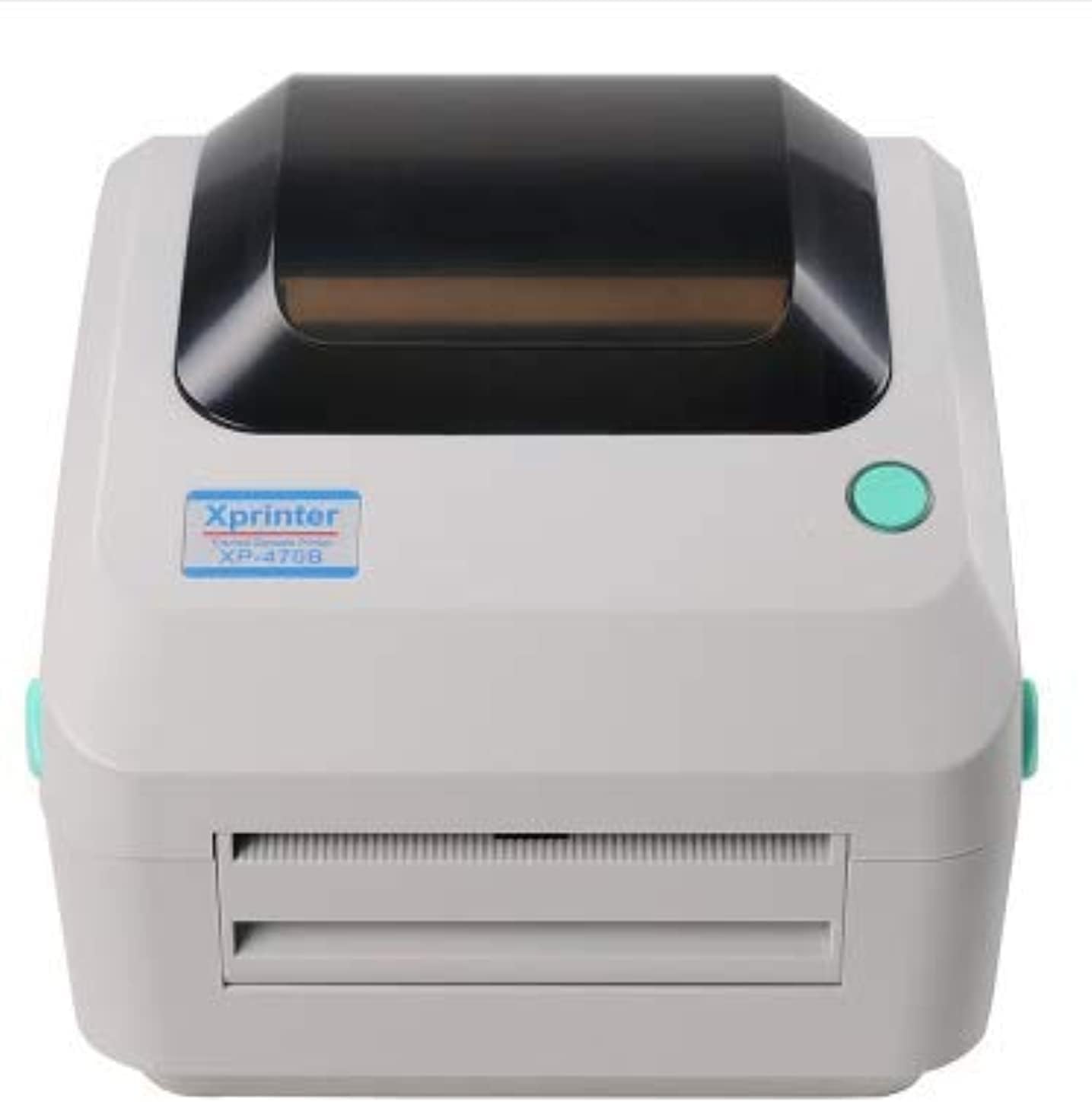
Figure 4.1: Front view of the Xprinter XP-470B printer. This image displays the printer's front panel, including the label output slot and the Xprinter branding.
5. Setup
5.1 Connecting the Printer
- Place the printer on a stable, flat surface.
- Connect the power cord to the power adapter, then connect the adapter to the printer's power port. Plug the power cord into a suitable electrical outlet.
- Connect the USB cable from the printer's USB port to an available USB port on your computer. If using Ethernet, connect an Ethernet cable from the printer's LAN port to your network router or switch.
- Turn on the printer using the power switch located at the rear.

Figure 5.1: Rear view of the Xprinter XP-470B printer. This image highlights the various connectivity options available on the back of the printer, including the Ethernet port, USB port, and power input.
5.2 Loading Labels
- Open the printer's top cover by pulling the release levers on both sides.
- Place the label roll onto the label roll spindle, ensuring the labels feed from the bottom of the roll.
- Insert the spindle with the label roll into the label compartment.
- Pull the leading edge of the labels through the label guide until it extends slightly past the print head.
- Adjust the label guides to fit the width of your labels snugly, without pinching them.
- Close the top cover firmly until it latches.
5.3 Driver Installation
Before printing, you must install the appropriate printer drivers on your computer. Drivers are typically provided on a CD included with the printer or can be downloaded from the Xprinter official website.
- Insert the driver CD into your computer's CD-ROM drive, or navigate to the downloaded driver file.
- Run the setup executable (e.g., "setup.exe" or "install.exe").
- Follow the on-screen instructions to complete the driver installation. Select your printer model (XP-470B) and the correct connection type (USB, Ethernet, etc.).
- After installation, it is recommended to restart your computer.
5.4 Printer Calibration
To ensure accurate label printing and proper label detection, calibrate the printer after loading new labels or changing label types.
- With the printer powered on and labels loaded, press and hold the FEED button (usually a green button on top) until the printer feeds a few blank labels and stops. This typically calibrates the sensor to the label gap or black mark.
- Refer to the detailed driver settings for advanced calibration options if needed.
6. Operating Instructions
6.1 Basic Printing
- Ensure the printer is connected to your computer and powered on.
- Open the document or application from which you wish to print labels (e.g., label design software, word processor).
- Go to "File" > "Print" or click the print icon.
- Select "Xprinter XP-470B" as your printer.
- Access "Printer Properties" or "Preferences" to configure label size, orientation, and print quality settings to match your labels and desired output.
- Click "Print" to send the print job to the printer.

Figure 6.1: Xprinter XP-470B in operation. This image shows the printer actively dispensing a printed label, demonstrating its primary function.
6.2 Connectivity Options
The XP-470B offers flexible connectivity:
- USB: Direct connection to a single computer. Most common for desktop use.
- Ethernet (LAN): Connects the printer to a network, allowing multiple users to print from different computers on the same network. Requires network configuration.
- Wi-Fi (Optional): Wireless network connectivity. Configuration typically done via a utility or web interface.
- Bluetooth (Optional): Short-range wireless connection, often used with mobile devices. Pairing instructions will be specific to your device.
Refer to the printer's network configuration guide or driver utility for detailed setup instructions for Ethernet, Wi-Fi, or Bluetooth connections.
7. Maintenance
7.1 Cleaning the Printer
Regular cleaning helps maintain print quality and extends the printer's lifespan.
- Print Head: Use an alcohol swab or a specialized print head cleaning pen. Gently wipe the print head surface from center to edge. Allow it to dry completely before use. Clean every few label rolls or if print quality degrades.
- Platen Roller: Use an alcohol swab to clean the rubber roller. Rotate the roller manually to clean the entire surface.
- Exterior: Wipe the exterior of the printer with a soft, damp cloth. Do not use abrasive cleaners or solvents.
Caution: Always turn off the printer and unplug the power cord before cleaning. The print head can be hot immediately after printing; allow it to cool down.
7.2 Replacing Labels
Follow the instructions in Section 5.2 "Loading Labels" when your current label roll runs out. Ensure you use labels compatible with direct thermal printing.
8. Troubleshooting
This section addresses common issues you might encounter with your XP-470B printer.
| Problem | Possible Cause | Solution |
|---|---|---|
| Printer does not power on. | Power cord not connected; power outlet faulty. | Ensure power cord is securely connected. Try a different power outlet. |
| No labels are printing. | No labels loaded; labels loaded incorrectly; printer not connected; driver not installed. | Load labels correctly (Section 5.2). Check USB/Ethernet connection. Install printer driver (Section 5.3). |
| Poor print quality (faded, lines). | Print head dirty; incorrect label type; low print density setting. | Clean the print head (Section 7.1). Ensure you are using direct thermal labels. Adjust print density in printer driver settings. |
| Labels are skipping or misfeeding. | Labels not calibrated; label guides too loose/tight; incorrect label sensor setting. | Perform printer calibration (Section 5.4). Adjust label guides. Check sensor type (gap/black mark) in driver settings. |
| Printer is connected but not responding. | Incorrect port selected in driver; printer in error state; driver issue. | Verify the correct port (e.g., USB001, COM, LPT) is selected in printer properties. Restart printer and computer. Reinstall driver if necessary. |
If the problem persists after trying these solutions, please contact Xprinter customer support or your vendor for further assistance.
9. Specifications
| Feature | Detail |
|---|---|
| Model Name | XP-470B |
| Printing Technology | Direct Thermal |
| Printer Output | Monochrome |
| Connectivity Technology | USB, Ethernet (LAN), Wi-Fi (Optional), Bluetooth (Optional) |
| Special Features | Network-Ready, Head-Up Sensor, Double-Walled Clamshell Design |
| Memory | 8MB SDRAM, 8MB Flash |
| Max Printing Speed | 152mm (6 inches)/s |
| Resolution | 203 dpi |
| Print Media | Labels |
| Item Weight | 2.58 Kilograms |
| Package Dimensions | 34 x 25 x 23.4 cm |
10. Warranty and Support
Warranty information for the Xprinter XP-470B is typically provided with your purchase documentation. Please refer to the warranty card or contact your point of purchase for details regarding warranty coverage and terms.
For technical support, driver downloads, or further assistance, please visit the official Xprinter website or contact their customer service department. Keep your product model number (XP-470B) and serial number (if applicable) ready when contacting support.


