
1. Introduction
This manual provides detailed instructions for the installation, operation, and maintenance of your new ATA 43 Inch Full HD LED Smart TV, Model 43S1. Please read this manual thoroughly before using the television to ensure proper functionality and to maximize your viewing experience. Keep this manual for future reference.
2. Important Safety Information
- Power Source: Ensure the TV is connected to a power supply within the specified voltage range.
- Ventilation: Do not block ventilation openings. Allow adequate space around the TV for proper airflow.
- Water and Moisture: Do not expose the TV to rain or moisture. Avoid placing objects filled with liquids, such as vases, on the TV.
- Cleaning: Unplug the TV before cleaning. Use a soft, dry cloth. Do not use liquid cleaners or aerosol cleaners.
- Placement: Place the TV on a stable, level surface. Avoid placing it in direct sunlight or near heat sources.
- Servicing: Do not attempt to service this product yourself. Refer all servicing to qualified service personnel.
3. Package Contents
Please check the box for the following items:
- ATA 43 Inch Full HD LED Smart TV (Model 43S1)
- Remote Control
- TV Stand (2 pieces)
- Power Cord
- User Manual (this document)
- Screws for TV Stand
4. Product Overview
4.1. Front View
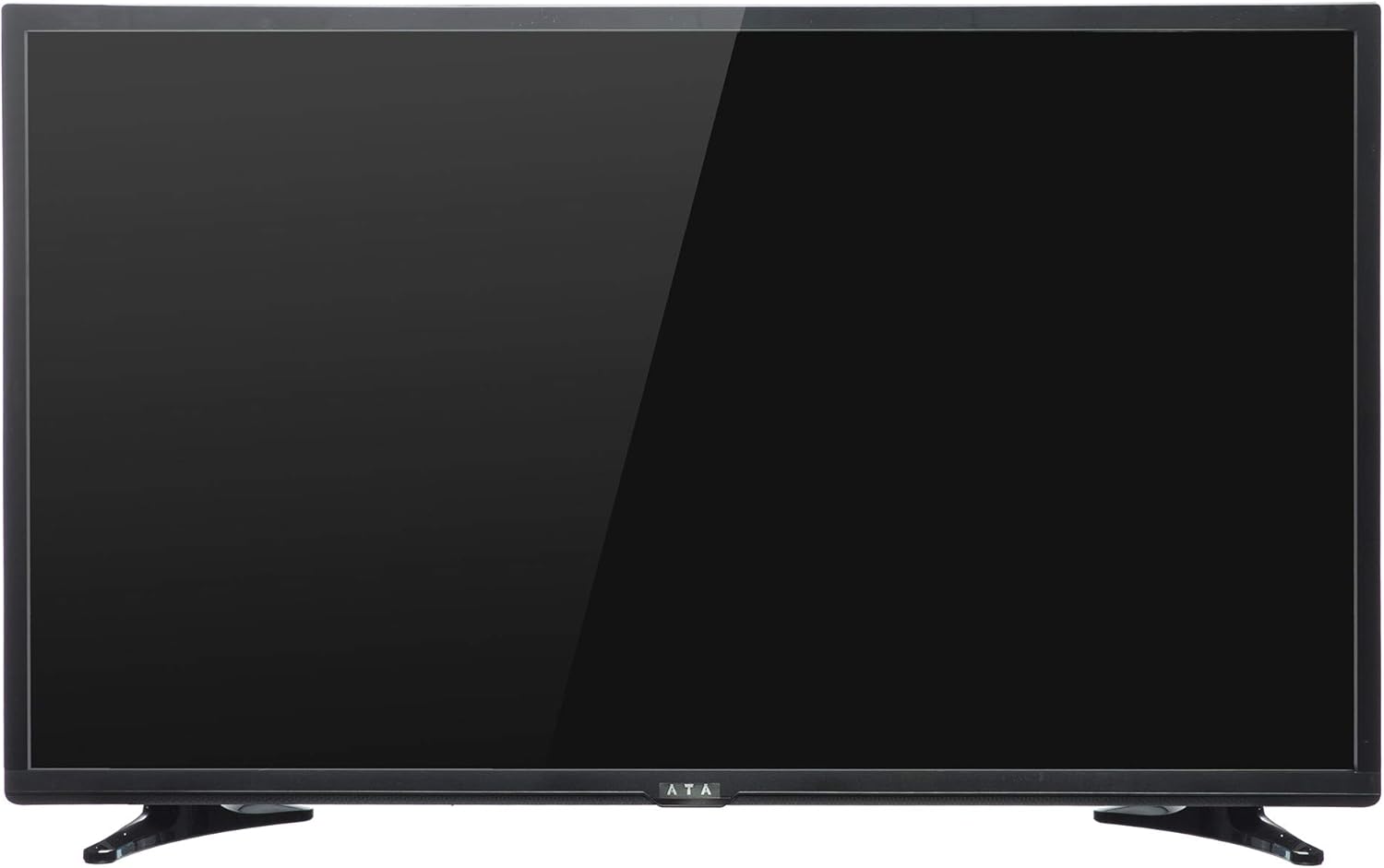
Image 1: Front view of the ATA 43 Inch Smart TV. The screen is black, indicating it is powered off or in standby mode. The ATA logo is visible at the bottom center.
The front of the ATA 43S1 TV features a sleek design with a narrow bezel, maximizing the screen area. The ATA brand logo is centrally located at the bottom of the frame. An indicator light (not visible in image) and IR receiver for the remote control are typically located near the logo.
4.2. Rear View

Image 2: Rear view of the ATA 43 Inch Smart TV. This image displays the back panel, including VESA mounting holes for wall installation and designated areas for input/output ports.
The rear panel of the TV includes VESA mounting points for wall installation (wall mount bracket sold separately). Various input and output ports are located on the side and bottom sections of the back panel for easy access.
4.3. Input/Output Ports
Your ATA Smart TV is equipped with a variety of ports to connect external devices.

Image 3: Close-up of the side-facing ports, showing three HDMI ports (HDMI1, HDMI2, HDMI3) and two USB ports (USB2.0, USB2.0).
- HDMI Ports (x3): For connecting high-definition devices such as Blu-ray players, gaming consoles, and set-top boxes.
- USB Ports (x2): For connecting USB storage devices to play media files or for software updates.

Image 4: Close-up of the bottom-facing ports, including Earphone, RJ45 (Ethernet), PC Audio, PC(VGA), Mini YPbPr, Video, L/R Audio (AV In), and Coaxial.
- RJ45 (Ethernet) Port: For wired internet connection.
- PC(VGA) Port: For connecting a computer.
- PC Audio In: Audio input for VGA connection.
- AV In (Video, L/R Audio): For connecting older devices with composite video and stereo audio outputs.
- Mini YPbPr: Component video input.
- Coaxial: For connecting an antenna or cable TV.
- Earphone Jack: For connecting headphones.
4.4. Remote Control

Image 5: The remote control for the ATA Smart TV. It features standard TV controls, navigation buttons, and dedicated function keys.
The remote control allows you to operate all functions of your TV. It includes buttons for power, input source selection, volume control, channel navigation, menu access, smart TV functions, and media playback controls.
- STANDBY (Red Button): Power On/Off.
- SOURCE: Select input source (HDMI, AV, TV, etc.).
- Number Buttons (0-9): Direct channel selection.
- VOL +/-: Adjust volume.
- CH +/-: Change channels.
- MUTE: Mute/unmute sound.
- MENU: Access the main menu.
- ENTER: Confirm selection.
- Navigation Buttons (Up/Down/Left/Right): Navigate through menus.
- EXIT: Exit current menu or function.
- HOME: Access the Smart TV home screen.
- P.MODE / S.MODE: Picture Mode / Sound Mode.
- SUBTITLE / AUDIO / REFRESH: Specific function buttons.
- PLAY/PAUSE, STOP, FF, FB, PREV, NEXT: Media playback controls.
5. Setup
5.1. Attaching the TV Stand
- Carefully place the TV face-down on a soft, clean surface to prevent screen damage.
- Align the stand pieces with the corresponding slots on the bottom of the TV.
- Secure the stand pieces using the provided screws. Ensure they are tightened firmly.
- Carefully lift the TV and place it on a stable, level surface.
Alternatively, you can use a VESA-compatible wall mount (not included) to mount the TV on a wall. Refer to the wall mount's instructions for installation.
5.2. Connecting Power
Connect the power cord to the TV's power input and then plug the other end into a wall outlet. The TV will enter standby mode.
5.3. Initial Setup Wizard
The first time you power on the TV, an initial setup wizard will guide you through basic settings.
- Press the STANDBY button on the remote control to turn on the TV.
- Follow the on-screen prompts to select your preferred language, country/region, and time zone.
- Network Connection:
- Wi-Fi: Select your Wi-Fi network from the list and enter the password.
- Ethernet: If you connected an Ethernet cable to the RJ45 port, the TV should automatically detect the wired connection.
- Complete any remaining steps in the setup wizard, such as channel scanning (if connecting an antenna/cable).
6. Operating Instructions
6.1. Power On/Off
- To turn on the TV from standby, press the STANDBY button on the remote.
- To put the TV into standby mode, press the STANDBY button again.
6.2. Input Source Selection
To switch between connected devices (e.g., HDMI, AV, TV tuner):
- Press the SOURCE button on the remote control.
- Use the Navigation buttons (Up/Down) to highlight the desired input source.
- Press ENTER to confirm your selection.
6.3. Volume and Channel Control
- Press VOL + to increase volume, VOL - to decrease volume.
- Press CH + to go to the next channel, CH - to go to the previous channel.
- Use the Number buttons to directly enter a channel number.
- Press MUTE to temporarily turn off the sound. Press again to restore.
6.4. Smart TV Features (Android 4.4.2)
Your TV runs on Android 4.4.2, providing access to various smart features and applications.
- Press the HOME button on the remote to access the Smart TV home screen.
- From the home screen, you can navigate to pre-installed applications or access settings.
- Ensure your TV is connected to the internet via Wi-Fi or Ethernet to utilize online features.
- Use the Navigation buttons and ENTER to select and launch applications.
7. Maintenance
- Cleaning the Screen: Gently wipe the screen with a soft, lint-free cloth. For stubborn marks, slightly dampen the cloth with water or a specialized screen cleaner (do not spray directly onto the screen).
- Cleaning the Cabinet: Use a soft, dry cloth to wipe the TV cabinet. Do not use abrasive cleaners or solvents.
- Dusting: Regularly dust the ventilation openings on the back of the TV to prevent overheating.
- Power Cord: Periodically check the power cord for any damage. If damaged, contact service personnel for replacement.
8. Troubleshooting
| Problem | Possible Cause | Solution |
|---|---|---|
| No power | Power cord not connected; Power outlet not working. | Ensure power cord is securely plugged in. Test the outlet with another device. |
| No picture, but sound is present | Incorrect input source selected; Backlight issue. | Press the SOURCE button to select the correct input. Check picture settings. |
| No sound, but picture is present | Volume is muted or too low; Audio cables not connected properly. | Press MUTE or increase volume. Check audio cable connections. |
| Remote control not working | Batteries are dead or incorrectly inserted; Obstruction between remote and TV. | Replace batteries. Ensure line of sight to the TV's IR receiver. |
| Cannot connect to Wi-Fi | Incorrect password; Router issue; TV too far from router. | Verify Wi-Fi password. Restart router. Move TV closer or use Ethernet. |
9. Specifications
| Feature | Detail |
|---|---|
| Brand | ATA |
| Model Number | 43S1 (ATA43FOS) |
| Screen Size | 43 Inches |
| Display Type | LED FHD |
| Resolution | 1920 x 1080 (Full HD) |
| Refresh Rate | 60 Hz |
| Operating System | Android 4.4.2 |
| Connectivity Technology | HDMI (x3), USB (x2), VGA, Ethernet (RJ45) |
| Special Features | Smart TV functionality, Flat Screen |
| Product Dimensions (D x W x H) | 9 x 96.5 x 56 cm |
| Item Weight | 6.01 kg |
| Included Components | TV, Stand |
10. Warranty and Support
For warranty information, please refer to the warranty card included with your product or contact your local ATA authorized dealer or service center. Keep your purchase receipt as proof of purchase for warranty claims.
For technical support or service inquiries, please contact ATA customer service through their official website or the contact information provided in your product documentation.


