
1. Introduction
Thank you for purchasing the ONIKUMA K1 RGB Gaming Headset. This manual provides detailed instructions for setup, operation, maintenance, and troubleshooting to ensure optimal performance and longevity of your headset. Please read this manual carefully before use and retain it for future reference.
2. Product Overview
The ONIKUMA K1 is a wired gaming headset designed for multi-platform compatibility, featuring vibrant RGB lighting, 7.1 surround sound, and a noise-cancelling microphone. It is built for comfort during extended gaming sessions.
Key Features:
- 7.1 Surround Sound: Provides immersive audio for an enhanced gaming experience.
- Noise-Cancelling Microphone: Ensures clear communication by reducing background noise.
- RGB Lighting: Dynamic lighting effects for an aesthetic appeal.
- Multi-Platform Compatibility: Works with PC, PlayStation (PS3, PS4), Mobile devices, and Xbox (Xbox One requires an adapter, not included).
- Comfortable Design: Features soft protein earpads, an adjustable headband, and cozy head cushions.
- In-line Controls: Easy access to volume adjustment and microphone mute.
Components:
The headset includes the main unit with integrated microphone and a wired connection featuring a 3.5mm audio jack and a USB connector for RGB lighting.

Figure 1: Headset with in-line volume and microphone mute control, USB connector for RGB lighting, and 3.5mm audio jack.

Figure 2: Flexible microphone with 160-degree adjustment and 360-degree voice pick-up for clear communication.

Figure 3: Soft protein earpads, adjustable headband, and cozy head cushions designed for supreme comfort.
3. Setup Instructions
Follow these steps to connect your ONIKUMA K1 headset to your device.
Multi-Platform Compatibility:
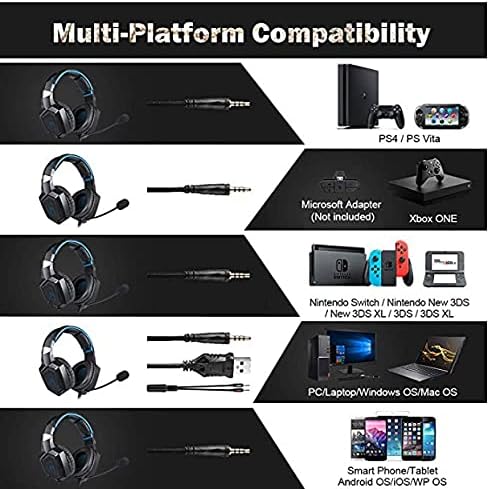
Figure 4: Compatibility overview for PC, PlayStation, Xbox, Nintendo Switch, and mobile devices.
- For PC/Laptop (Windows OS/Mac OS):
Connect the 3.5mm audio jack to your computer's audio output/input port. Connect the USB cable to a USB port for RGB lighting. Ensure your sound settings are configured to use the headset. - For PlayStation (PS4/PS Vita/PS3):
Connect the 3.5mm audio jack to the controller or console's audio port. For PS4, go to Settings > Devices > Audio Devices > Output to Headphones > All Audio. Connect the USB for RGB lighting if a USB port is available. - For Xbox ONE:
An additional Microsoft Adapter (not included) is required for older Xbox One controllers. Connect the 3.5mm audio jack to the adapter, then connect the adapter to your controller. Newer Xbox One controllers have a built-in 3.5mm jack. Connect the USB for RGB lighting if a USB port is available on the console. - For Nintendo Switch/New 3DS XL/3DS/3DS XL:
Connect the 3.5mm audio jack directly to the console's audio port. - For Smart Phone/Tablet (Android OS/iOS/WP OS):
Connect the 3.5mm audio jack directly to your mobile device's headphone jack.
4. Operating Instructions
Once connected, you can begin using your headset. Here are the basic operating functions:
- Volume Control: Use the in-line volume roller to adjust the audio output level. Roll up to increase volume, roll down to decrease.
- Microphone Mute: Use the in-line switch to mute or unmute the microphone. Slide the switch to the 'OFF' position to mute and 'ON' to unmute.
- Microphone Adjustment: The microphone is flexible. Adjust its position closer to your mouth for optimal voice pickup or away when not in use.
- RGB Lighting: The RGB lighting is powered via the USB connection. Once the USB is plugged in, the lighting will activate automatically. There are no user-adjustable controls for the RGB lighting patterns on the headset itself.
- Headset Fit: Adjust the headband to ensure a comfortable and secure fit over your ears. The earpads should fully cover your ears for optimal sound isolation and comfort.
5. Maintenance
Proper care will extend the life of your headset.
- Cleaning: Use a soft, dry cloth to clean the headset. Do not use liquid cleaners or abrasive materials.
- Storage: Store the headset in a cool, dry place away from direct sunlight and extreme temperatures.
- Cable Care: Avoid sharp bends or excessive pulling on the cables to prevent damage. The cable is designed to be tangle-free.
- Avoid Moisture: The headset is not water-resistant. Keep it away from liquids.
6. Troubleshooting
If you encounter issues with your headset, please refer to the following common solutions:
| Problem | Possible Solution |
|---|---|
| No sound or low volume |
|
| Microphone not working |
|
| RGB lighting not working |
|
| Sound quality issues (e.g., no 7.1 surround sound) |
|
7. Specifications
| Feature | Detail |
|---|---|
| Model Name | K1-B-Black RGB |
| Connectivity Technology | Wired |
| Headphone Jack | 3.5 mm Jack |
| Sensitivity | 104 dB |
| Frequency Response | Not specified (Original data: 3045 Unknown Rate) |
| Noise Control | Active Noise Cancellation |
| Headphone Form Factor | Over-Ear |
| Ear Placement | Over-Ear |
| Color | Black |
| Brand Name | ONIKUMA |
| Product Dimensions | 22.5 x 19.5 x 10.5 cm |
| Item Weight | 394 grams |
| Cable Feature | Tangle-free |
| Control Type | Volume Control |
| Compatible Devices | Multi-platform |
| Recommended Uses | Gaming, Making Calls |
| Specific Product Uses | Gaming Headset |
| Materials | Plastic, Polycarbonate Leather (PC) |
| Age Range Description | Adult |
| Water Resistance Level | Not water resistant |
8. Warranty and Support
For warranty information or technical support, please refer to the documentation included with your purchase or contact the seller directly. Keep your proof of purchase for any warranty claims.


