1. Introduction
This manual provides detailed instructions for the installation, operation, and maintenance of your SONOFF S31 WiFi Smart Plug. Please read this manual carefully before using the device to ensure proper functionality and safety. The SONOFF S31 is designed to transform your standard outlets into smart, controllable power sources with integrated energy monitoring capabilities.

Image 1.1: Four SONOFF S31 WiFi Smart Plugs, showcasing their compact design.
2. Safety Information
Ensure all safety precautions are followed to prevent damage or injury.
- The SONOFF S31 is ETL Certified, ensuring compliance with safety standards.
- Constructed with V-0 rated PC fire-resistant material, capable of withstanding temperatures up to 750°C.
- Features overload protection to safeguard connected appliances and the plug itself from excessive current (15A Max Current).
- Do not exceed the maximum current rating of 15 Amps.
- Operate only within the specified voltage range of 120 Volts.
- For indoor use only.

Image 2.1: Visual representation of the SONOFF S31's safety features, including ETL certification and overload protection.
3. Product Features
The SONOFF S31 WiFi Smart Plug offers a range of features to enhance your smart home experience:
- Energy Monitoring: Track real-time power, current, and voltage of connected appliances. Access 100-day daily/monthly energy usage data and total electricity cost via the eWeLink App.
- Voice Control: Compatible with Amazon Alexa and Google Home for hands-free control of your devices.
- Remote Control: Turn appliances ON/OFF from anywhere using the eWeLink App on your smartphone or tablet.
- Scheduling & Timers: Set countdown, single, or repeat timers to automatically turn devices ON/OFF.
- Group Control: Control multiple smart plugs simultaneously with a single command.
- Device Sharing: Share control of your smart plugs with family members.
- Compact Design: Designed to occupy minimal space, allowing access to adjacent outlets.

Image 3.1: Overview of the SONOFF S31's key features and smart home integrations.
4. Setup Instructions
Follow these steps to set up your SONOFF S31 WiFi Smart Plug:
- Download the eWeLink App: Search for "eWeLink" in your smartphone's app store (iOS or Android) and download it.
- Register/Log In: Open the eWeLink App and register a new account or log in with an existing one.
- Plug In the Smart Plug: Insert the SONOFF S31 into a standard wall outlet. Ensure the outlet is functioning correctly.
- Enter Pairing Mode: Press and hold the button on the smart plug for approximately 5-7 seconds until the LED indicator starts flashing rapidly (usually three short flashes followed by one long flash). This indicates it's in pairing mode.
- Add Device in App: In the eWeLink App, tap the "+" icon at the bottom center or top right to add a new device. Select "Quick Pairing" or the appropriate device type.
- Connect to 2.4GHz WiFi:
- The SONOFF S31 only supports 2.4GHz WiFi networks. It is not compatible with 5GHz WiFi or combined 2.4GHz/5GHz dual-band networks where the SSIDs are the same.
- If you have a dual-band router, ensure your 2.4GHz and 5GHz networks have distinct SSIDs (network names). Connect your smartphone to the 2.4GHz network before pairing.
- Enter your 2.4GHz WiFi network password when prompted in the app.
- Complete Pairing: The app will search for and connect to the smart plug. Once connected, you can rename the device and assign it to a room.
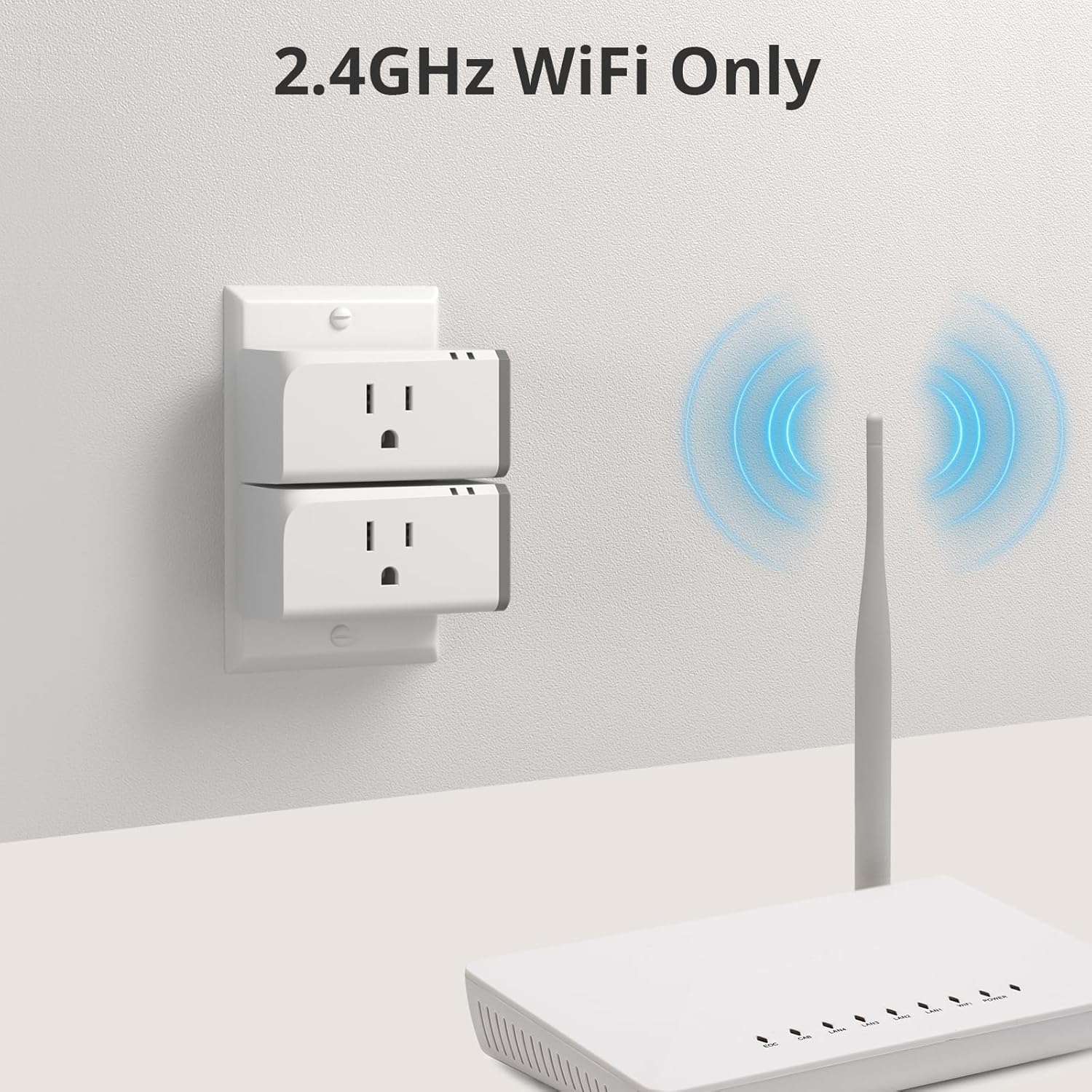
Image 4.1: Illustration emphasizing the requirement for a 2.4GHz WiFi network for the SONOFF S31.
5. Operating Instructions
5.1 Remote Control
Once paired, you can control your appliances from anywhere:
- Open the eWeLink App.
- Tap on the device name to toggle its power ON/OFF.
- The app will display the current status of the plug (ON/OFF).
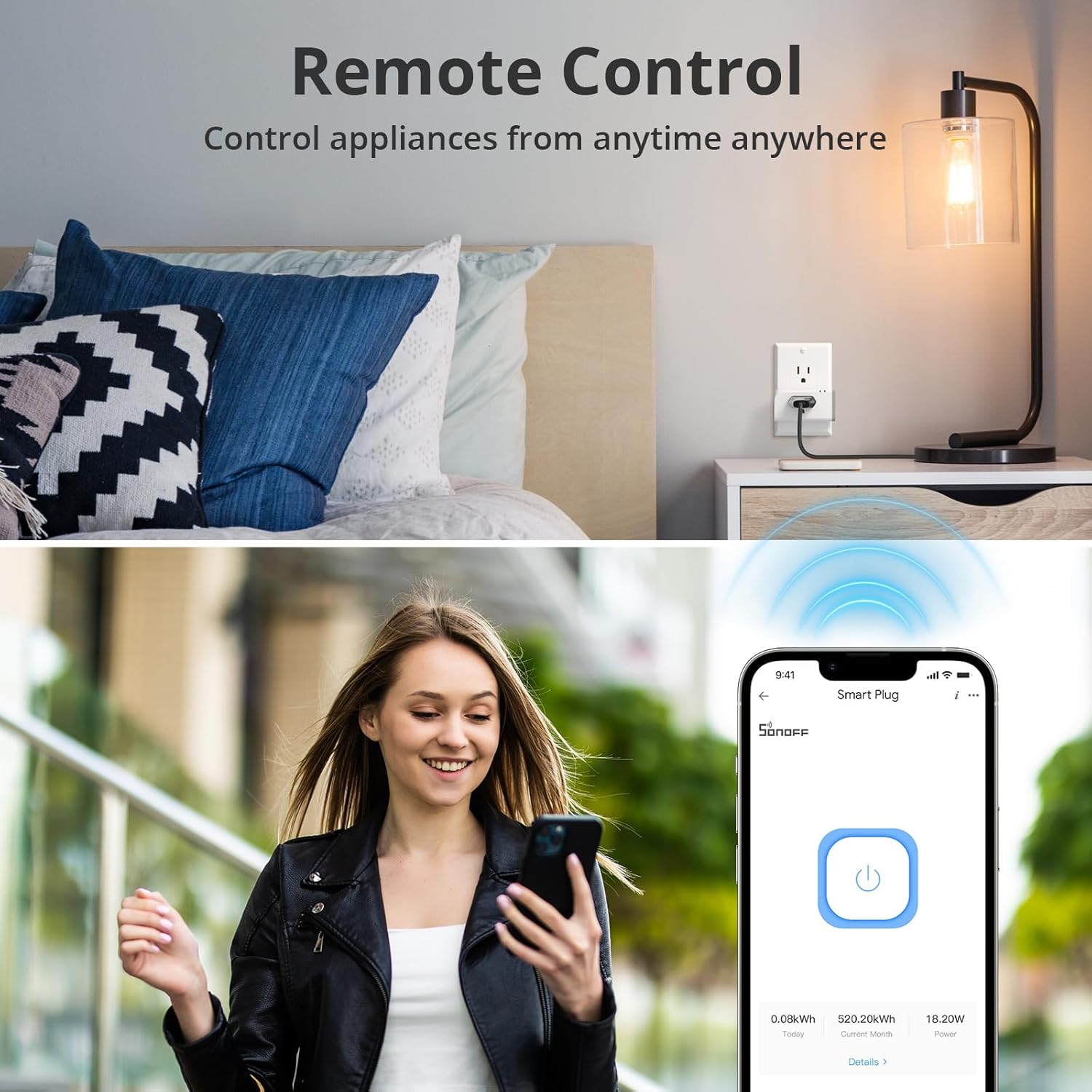
Image 5.1: Remote control functionality via the eWeLink app, showing a user controlling a smart plug from a distance.
5.2 Voice Control (Alexa & Google Home)
Integrate your SONOFF S31 with voice assistants for convenient control:
- For Alexa:
- Open the Amazon Alexa App.
- Go to "Skills & Games" and search for "eWeLink Smart Home".
- Enable the skill and link your eWeLink account.
- Discover devices. You can then say commands like, "Alexa, turn on the fan."
- For Google Home:
- Open the Google Home App.
- Tap "+" > "Set up device" > "Works with Google".
- Search for "eWeLink Smart Home" and link your account.
- You can then say commands like, "Hey Google, turn off the coffee maker."

Image 5.2: Voice control in action, demonstrating interaction with Alexa to control a fan connected to the smart plug.
Video 5.1: Demonstrates the SONOFF S31's compatibility with Alexa and Google Home for voice control, showcasing its energy monitoring and ETL certification.
5.3 Scheduling & Timers
Automate your appliances with schedules and timers:
- In the eWeLink App, select your S31 device.
- Tap on "Timer" or "Schedule" to set specific ON/OFF times, countdowns, or recurring schedules.
- This is ideal for lights, coffee makers, or other devices you want to operate automatically.

Image 5.3: Setting schedules and timers for appliances using the eWeLink app.
5.4 Energy Monitoring
Monitor your energy consumption directly from the eWeLink App:
- Select the S31 device in the app.
- View real-time power, current, and voltage.
- Access historical data (up to 100 days) for daily and monthly energy usage, helping you understand and manage electricity costs.

Image 5.4: The eWeLink app interface showing detailed power monitoring and consumption history.
Video 5.2: Highlights the SONOFF S31's power monitoring capabilities, allowing users to track energy consumption.
5.5 Group Control and Device Sharing
Manage multiple devices efficiently and share access with others:
- Group Control: Create groups of smart plugs in the eWeLink App to control them simultaneously. For example, turn off all living room lights with one tap.
- Device Sharing: Share control of individual devices or groups with other eWeLink users. This allows family members to manage smart home devices.

Image 5.5: Group control feature, enabling simultaneous management of multiple smart plugs across different areas.
6. Maintenance
To ensure the longevity and optimal performance of your SONOFF S31 Smart Plug:
- Keep the device clean and dry. Avoid exposure to moisture or extreme temperatures.
- Do not attempt to disassemble or repair the device yourself. This will void the warranty and may pose safety risks.
- Regularly check for firmware updates in the eWeLink App to ensure you have the latest features and security enhancements.
- Unplug the device from the wall outlet before cleaning. Use a soft, dry cloth for cleaning.
7. Troubleshooting
If you encounter issues with your SONOFF S31, refer to the following common solutions:
| Problem | Possible Solution |
|---|---|
| Device cannot connect to WiFi. |
|
| Device is offline in the app. |
|
| Voice control not working. |
|
| Energy monitoring data is inaccurate or not updating. |
|
8. Specifications
| Specification | Value |
|---|---|
| Model Number | S31 |
| Brand | SONOFF |
| Product Dimensions | 3 x 2 x 1.02 inches; 13.12 ounces |
| Current Rating | 15 Amps |
| Operating Voltage | 120 Volts |
| Switch Type | Touch |
| Connector Type | Plug In |
| Material | Copper |
| Wireless Connectivity | 2.4GHz WiFi Only (IEEE 802.11 b/g/n) |
| Certifications | ETL Certified |
9. Warranty and Support
For warranty information and technical support, please refer to the official SONOFF website or contact their customer service directly. Keep your purchase receipt as proof of purchase for warranty claims.
Manufacturer: SONOFF
Date First Available: February 20, 2021


