1. Product Overview
The ASUS ROG STRIX B560-A GAMING WIFI is an ATX motherboard designed to support 11th and 10th Generation Intel Core, Pentium Gold, and Celeron processors with an LGA 1200 socket. It features robust power delivery, optimized cooling, and advanced connectivity options for a high-performance computing experience.

Figure 1.1: ASUS ROG STRIX B560-A GAMING WIFI Motherboard and packaging.
Key features include PCIe 4.0 support, 8+2 power stages for stable power delivery, Two-Way AI Noise Cancelation for clear communication, integrated WiFi 6, and 2.5 Gb LAN for smooth networking. It also offers multiple M.2 slots and USB 3.2 Gen 2x2 USB Type-C for extensive connectivity.
2. Setup and Installation
Before beginning installation, ensure you have a clean, static-free workspace. Always handle components by their edges and consider using an anti-static wrist strap.
2.1. Component Installation
Follow these steps to install essential components onto your motherboard:
2.1.1. CPU Installation (LGA 1200 Socket)
- Carefully open the CPU socket lever and remove the protective cover.
- Align the triangular mark on the CPU with the mark on the socket.
- Gently place the CPU into the socket, ensuring it sits flush. Do not force it.
- Close the socket lever to secure the CPU.
2.1.2. RAM (DDR4 Memory) Installation
- Locate the four DIMM slots. For dual-channel configuration, refer to your motherboard manual for specific slot pairing.
- Open the clips on both ends of the DIMM slot.
- Align the notch on the DDR4 memory module with the key in the DIMM slot.
- Press down firmly on both ends of the memory module until the clips snap into place.

Figure 2.1: Location of DIMM slots and M.2 slots for memory and storage installation.
2.1.3. Storage (M.2 SSDs and SATA Drives) Installation
- The motherboard features two M.2 slots. The top M.2 slot supports PCIe 4.0 for 11th Gen Intel CPUs, while both support PCIe 3.0.
- For M.2 SSDs, use the M.2 Q-Latch mechanism for tool-less installation. Insert the SSD into the slot and secure it with the Q-Latch.
- Connect SATA data cables from your SATA drives (HDDs/SSDs) to the SATA 6Gb/s ports on the motherboard.
2.1.4. Graphics Card (PCIe) Installation
- Locate the PCIe 4.0 x16 SafeSlot for your primary graphics card.
- Open the retention clip at the end of the PCIe slot.
- Align your graphics card with the slot and press down firmly until it clicks into place and the retention clip closes.
- Secure the graphics card to your PC case with screws.
2.1.5. Power Supply Connections
- Connect the 24-pin ATX power connector from your power supply to the motherboard.
- Connect the 8-pin (or 4+4-pin) CPU power connector(s) to the ProCool power connectors on the motherboard.
- Connect power cables to your graphics card and storage devices as required.
2.2. Connecting Peripherals and I/O
The motherboard features a pre-mounted I/O shield for easy installation into your PC case. Connect your external devices to the appropriate ports:

Figure 2.2: Rear I/O panel with various connectivity options.
- Display Outputs: HDMI 2.0 and DisplayPort 1.4 for integrated graphics.
- USB Ports: Multiple USB 3.2 Gen 2x2 Type-C, USB 3.2 Gen 2, and USB 2.0 ports.
- Networking: Realtek 2.5 Gb Ethernet port and antenna connectors for Intel WiFi 6 AX201 and Bluetooth 5.1.
- Audio: 8-channel HD audio jacks.
- BIOS FlashBack Button: Allows for BIOS updates without a CPU or RAM installed.
3. Operating Your Motherboard
Once all components are installed and connected, you can power on your system. The ASUS ROG STRIX B560-A GAMING WIFI motherboard offers several features to enhance your computing experience.
3.1. BIOS and UEFI Interface
The UEFI BIOS provides an intuitive graphical interface for system configuration. You can access it by pressing the DEL key during system startup. Here you can:
- Configure boot order and storage settings.
- Monitor system temperatures and fan speeds.
- Adjust CPU and memory settings.
- Update the BIOS firmware.
3.2. Networking
The motherboard includes integrated Intel WiFi 6 (802.11ax) for high-speed wireless connectivity and a Realtek 2.5 Gb Ethernet port for wired connections. Ensure the WiFi antenna is properly connected for optimal wireless performance.
3.3. Audio Features
Experience immersive audio with the SupremeFX S1220A codec and Two-Way AI Noise Cancelation, which enhances microphone input and output for clearer communication during gaming or online meetings.

Figure 3.1: Motherboard features for enhanced gaming immersion, including AURA RGB and Supreme Gaming Audio.
4. Maintenance
Regular maintenance helps ensure the longevity and optimal performance of your motherboard and PC system.
4.1. Cleaning
- Periodically clean dust from inside your PC case using compressed air. Pay attention to fan blades, heatsinks, and ventilation areas.
- Ensure the motherboard's heatsinks (VRM and M.2) are free from dust buildup to maintain effective cooling.
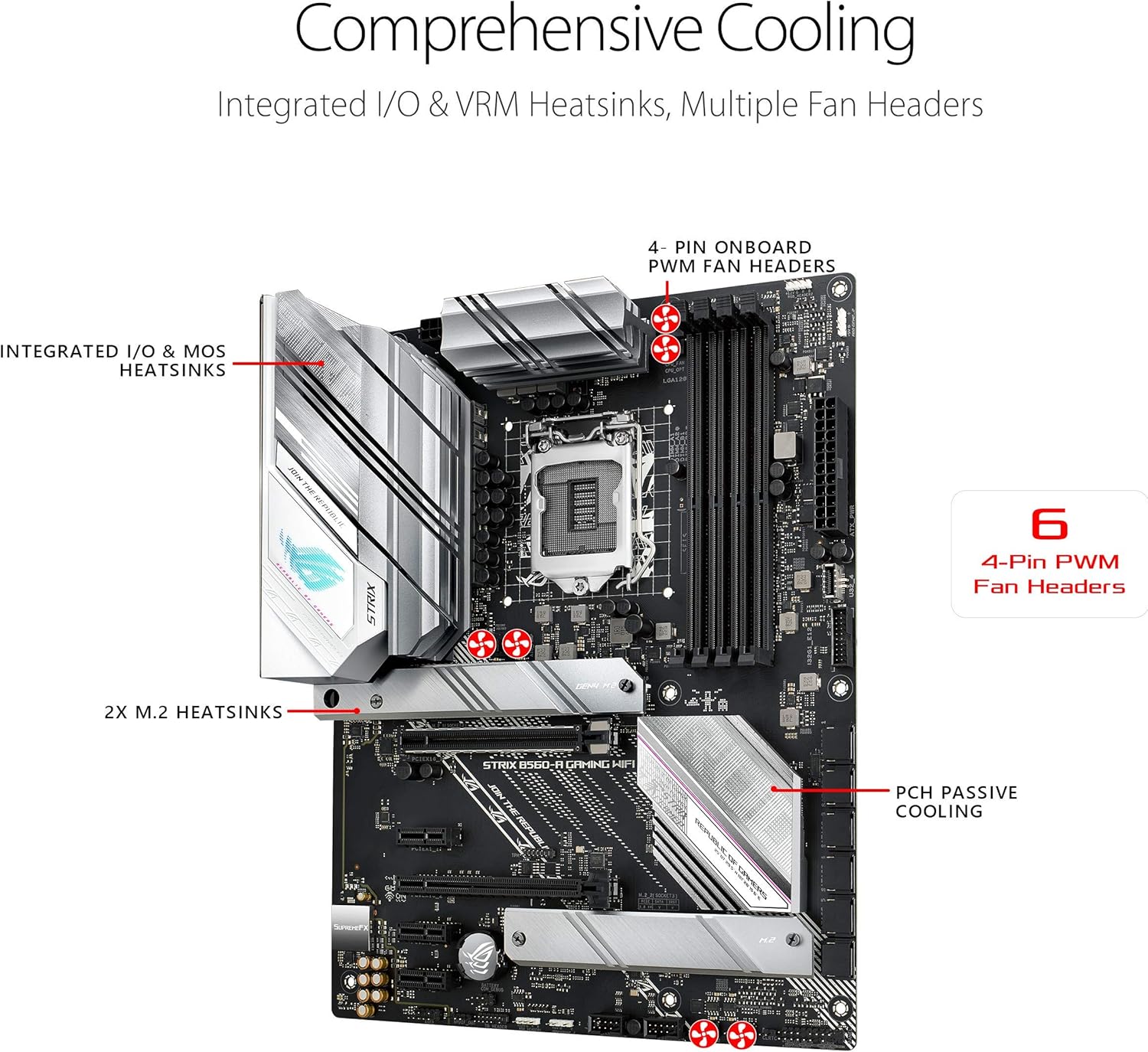
Figure 4.1: Integrated I/O & VRM Heatsinks and multiple fan headers for comprehensive cooling.
4.2. Software and Firmware Updates
- Regularly check the ASUS support website for the latest BIOS updates. BIOS updates can improve stability, compatibility, and performance.
- Keep your drivers (chipset, LAN, WiFi, audio, graphics) updated to ensure optimal system performance and compatibility with new software.
5. Troubleshooting
If you encounter issues with your motherboard, refer to these common troubleshooting tips.
5.1. Q-LED Indicators
The motherboard features Q-LED indicators that can help diagnose boot issues. These LEDs light up to indicate the status of key components during startup:
- CPU: Indicates CPU detection or initialization issues.
- DRAM: Indicates memory detection or initialization issues.
- VGA: Indicates graphics card detection or initialization issues.
- BOOT: Indicates issues with booting to a storage device.
If an LED remains lit, it points to a problem with the corresponding component.
5.2. Common Issues
- No Display: Ensure your monitor is connected to the graphics card (if dedicated) or the motherboard's display output (if using integrated graphics). Check power connections to the graphics card.
- System Not Powering On: Verify all power cables are securely connected to the motherboard and components. Check the power supply switch.
- Random Restarts/Crashes: This could indicate overheating. Check cooling solutions and ensure proper airflow. It could also be unstable RAM settings; try resetting BIOS to default.
For more detailed troubleshooting, consult the full product manual available on the ASUS support website.
6. Specifications
| Category | Specification |
|---|---|
| Brand | ASUS |
| Series | ROG STRIX B560-A GAMING WIFI |
| Model Number | ROG STRIX B560-A GAMING WIFI |
| CPU Socket | LGA 1200 |
| Compatible Processors | 11th Gen Intel Core, 10th Gen Intel Core, Pentium Gold, Celeron |
| Chipset Type | Intel B560 |
| RAM Memory Technology | DDR4 |
| Memory Speed | Up to 5000 MHz (OC) |
| Max RAM Supported | 128GB |
| PCIe Slots | 1x PCIe 4.0 x16, 1x PCIe 3.0 x16 (x4 mode) |
| M.2 Slots | 2 (1x PCIe 4.0 x4, 1x PCIe 3.0 x4) |
| SATA Ports | 6x SATA 6Gb/s |
| Ethernet | Realtek 2.5 Gb Ethernet |
| Wireless Type | Intel WiFi 6 AX201 (802.11ax), Bluetooth 5.1 |
| USB Ports (Rear I/O) | 1x USB 3.2 Gen 2x2 Type-C, 3x USB 3.2 Gen 2, 4x USB 2.0 |
| Display Outputs | HDMI 2.0, DisplayPort 1.4 |
| Audio | SupremeFX S1220A 8-Channel HD Audio, Two-Way AI Noise Cancelation |
| Form Factor | ATX |
| Dimensions (LxWxH) | 13.3 x 10.75 x 2.68 inches |
| Item Weight | 2.38 pounds |
7. Warranty and Support
ASUS provides a standard manufacturer's warranty for the ROG STRIX B560-A GAMING WIFI motherboard. Please refer to the warranty card included with your product or visit the official ASUS website for detailed warranty terms and conditions specific to your region.
For technical support, driver downloads, BIOS updates, and further assistance, please visit the official ASUS support website. You can typically find support resources by searching for your specific model number.
ASUS Support Website: https://www.asus.com/support/


