
1. Introduction and Overview
The Arris CM820A is a high-performance DOCSIS 3.0 cable modem designed to deliver ultra-high-speed data access for homes and businesses. Featuring an 8x4 channel bonding capability, it provides robust and reliable internet connectivity, supporting speeds greater than 300Mbps. This modem is also equipped to handle new IPv6 services, ensuring future compatibility and enhanced network performance. Its compact design and industry-leading ARRIS reliability make it an ideal choice for demanding internet users.
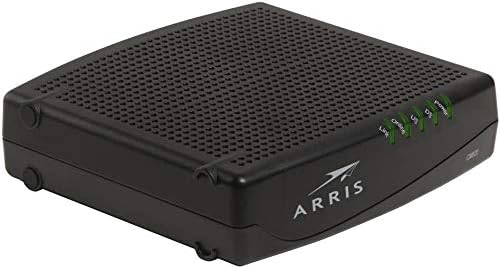
Figure 1: Front view of the Arris CM820A Cable Modem, showing the Power, DS (Downstream), US (Upstream), Online, and Link LED indicators.
2. Setup Guide
Follow these steps to properly set up your Arris CM820A cable modem:
- Unpack the Modem: Carefully remove the modem and all accessories from the packaging. Ensure you have the modem, power adapter, and an Ethernet cable.
- Connect Coaxial Cable: Connect one end of a coaxial cable (not included, typically provided by your ISP) to the Cable In port on the back of the CM820A and the other end to a cable wall outlet. Ensure the connection is finger-tight.
- Connect Ethernet Cable: Connect one end of the supplied Ethernet cable to the Ethernet port on the back of the CM820A. Connect the other end to the WAN (Internet) port of your Wi-Fi router or directly to the Ethernet port of your computer.
- Connect Power Adapter: Plug the power adapter into the Power port on the back of the CM820A, then plug the other end into an electrical outlet. The modem will begin its startup sequence.
- Observe LED Indicators: Allow several minutes for the modem to power on and connect to your internet service provider (ISP) network. The Power, DS, US, and Online LEDs on the front of the modem should eventually turn solid green, indicating a successful connection. The Link LED will flash when data is being transmitted.
- Activate with ISP: Contact your internet service provider to activate the modem. You may need to provide them with the modem's MAC address, which is usually found on a sticker on the bottom or back of the device.

Figure 2: Rear view of the Arris CM820A Cable Modem, highlighting the coaxial cable input and Ethernet port.
3. Operating Instructions
Once your Arris CM820A modem is successfully set up and activated, it will provide internet connectivity to your connected devices. Understanding the LED indicators can help you monitor its status:
- Power (Green): Indicates the modem is powered on.
- DS (Downstream) (Green/Blue):
- Solid Green: Downstream channel is connected.
- Solid Blue: Indicates a bonded downstream channel connection (DOCSIS 3.0 operation), providing higher speeds.
- Flashing: Searching for a downstream channel.
- US (Upstream) (Green/Blue):
- Solid Green: Upstream channel is connected.
- Solid Blue: Indicates a bonded upstream channel connection (DOCSIS 3.0 operation), providing higher speeds.
- Flashing: Searching for an upstream channel.
- Online (Green):
- Solid Green: Modem is online and connected to the internet.
- Flashing: Acquiring IP address or configuration.
- Link (Green):
- Solid Green: An Ethernet device is connected to the modem's Ethernet port.
- Flashing: Data is being transmitted or received over the Ethernet connection.
For optimal performance, ensure your modem is placed in a well-ventilated area, away from direct sunlight or heat sources.
4. Maintenance
The Arris CM820A cable modem is designed for reliable, low-maintenance operation. Follow these general guidelines to ensure its longevity and performance:
- Cleaning: Periodically wipe the exterior of the modem with a soft, dry cloth. Do not use liquid cleaners or abrasive materials.
- Ventilation: Ensure the modem's ventilation holes are not blocked. Proper airflow prevents overheating.
- Power Cycling: If you experience connectivity issues, a simple power cycle (unplugging the power adapter for 30 seconds and plugging it back in) can often resolve minor problems.
- Firmware Updates: Firmware updates for your modem are typically managed and pushed by your Internet Service Provider (ISP). Do not attempt to manually update the firmware unless instructed by your ISP.
5. Troubleshooting
If you encounter issues with your Arris CM820A cable modem, try the following troubleshooting steps:
- No Internet Connection:
- Check all cable connections (coaxial, Ethernet, power) to ensure they are secure.
- Power cycle the modem: Unplug the power adapter, wait 30 seconds, then plug it back in. Wait for the LEDs to stabilize.
- Verify that the Power, DS, US, and Online LEDs are solid green (or blue for DS/US). If any are flashing or off, there may be an issue with your ISP's signal.
- Bypass your router: Connect a computer directly to the modem's Ethernet port to rule out router issues.
- Slow Internet Speed:
- Ensure your computer or router is capable of handling the speeds provided by your ISP.
- Check for excessive network activity on your local network.
- Perform a speed test (e.g., via speedtest.net) to confirm the speed you are receiving.
- Power cycle the modem and any connected router.
- LEDs Not Lighting Up:
- Ensure the power adapter is securely connected to both the modem and a working electrical outlet.
- Try a different electrical outlet.
If these steps do not resolve the issue, please contact your Internet Service Provider (ISP) for further assistance. They can check your signal levels and modem registration status.
6. Specifications
Key technical specifications for the Arris CM820A Cable Modem:
| Feature | Specification |
|---|---|
| Modem Type | Cable Modem |
| DOCSIS Standard | DOCSIS 3.0 (8x4 Channel Bonding) |
| Connectivity Technology | Ethernet |
| Maximum Downstream Data Rate | Up to 343 Mbps (theoretical) |
| Maximum Upstream Data Rate | Up to 120 Mbps (theoretical) |
| IPv6 Support | Yes |
| Package Dimensions | 10.12 x 8.43 x 2.72 inches |
| Item Weight | 1.28 pounds |
| Manufacturer | Arris |
Note: Actual speeds may vary based on your Internet Service Provider's plan and network conditions.
7. Warranty and Support
This Arris CM820A modem is a renewed product. Warranty terms for renewed products can vary significantly. Please refer to the specific warranty information provided by the reseller or refurbisher from whom you purchased this device. Typically, renewed products come with a limited warranty from the seller.
For technical support related to your internet service or modem activation, always contact your Internet Service Provider (ISP) first. They are responsible for the network connection and modem provisioning.
For general product information or if your ISP directs you to the manufacturer, you may visit the official Arris support website. Please have your modem's model number (CM820A) and serial number ready when contacting support.
Disclaimer: This manual provides general guidance. Specific setup and troubleshooting steps may vary slightly depending on your Internet Service Provider.


