
1. Introduction
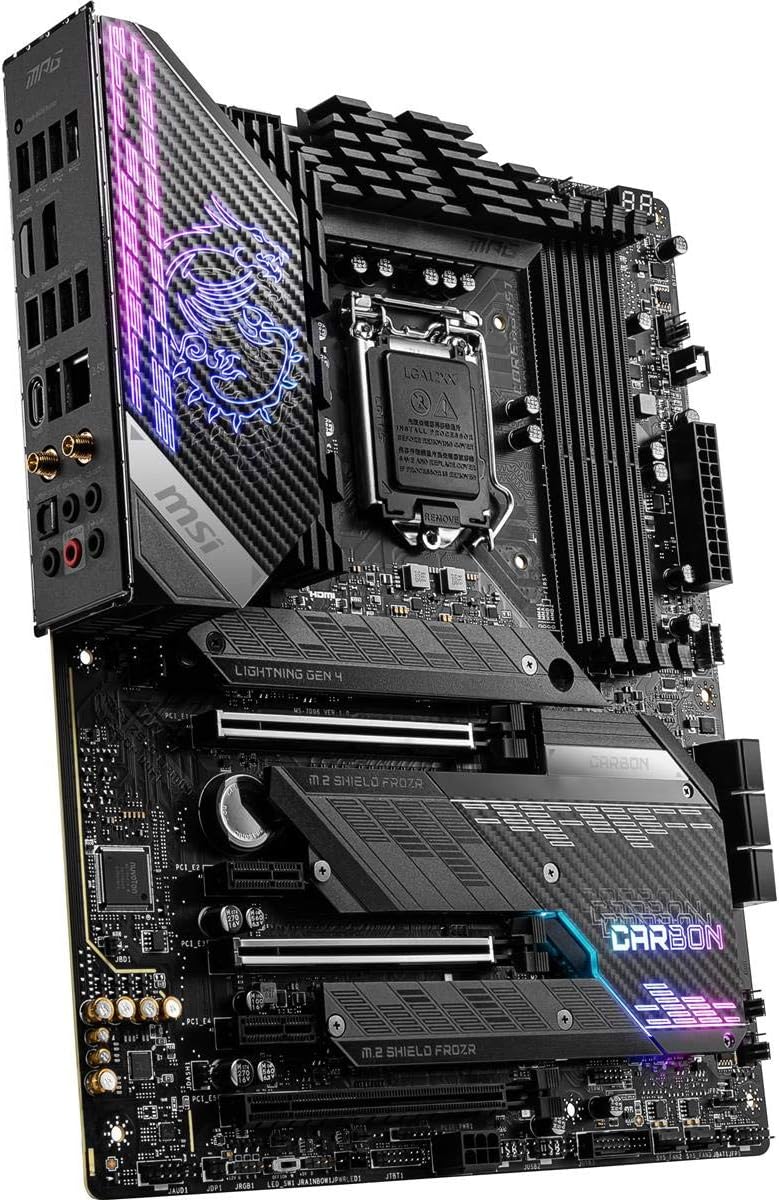
The MSI MPG Z590 Gaming Carbon WiFi motherboard is engineered to support 11th and 10th Generation Intel Core, Pentium, and Celeron processors for the LGA 1200 socket. This motherboard integrates advanced features for high-performance computing, including robust power delivery, efficient thermal management, and high-speed connectivity.
Key features include:
- Supports DDR4 Memory up to 5333(OC) MHz.
- Lightning Fast Game experience with PCIe 4.0, Lightning Gen 4 x4 M.2, and USB 3.2 Gen 2x2.
- Enhanced Power Design: 16+1+1 Duet Rail Power System with dual 8-pin CPU power connectors, Core Boost, and DDR4 Boost.
- Premium Thermal Solution: Enlarged heatsink with heat-pipe, MOSFET thermal pads rated for 7W/mk, additional choke thermal pads, and three M.2 Shield Frozr units for sustained performance.
- Integrated Wi-Fi 6E and 2.5G LAN for high-speed network connectivity.

An overhead view of the MSI MPG Z590 Gaming Carbon WiFi motherboard, highlighting the LGA 1200 socket, DDR4 memory slots, PCIe slots, and M.2 Shield Frozr heatsinks.
2. Setup and Installation
This section provides instructions for installing the primary components onto your motherboard.
2.1. CPU Installation
- Ensure the CPU socket lever is open.
- Align the triangular mark on your Intel LGA 1200 processor with the corresponding mark on the socket.
- Gently place the CPU into the socket. Do not force it.
- Close the socket lever to secure the CPU.

A close-up view of the LGA 1200 CPU socket on the motherboard, indicating proper CPU alignment and installation.
2.2. Memory (RAM) Installation
The motherboard supports DDR4 memory modules. Refer to the motherboard manual for specific dual-channel configurations.
- Open the clips on both ends of the DIMM slot.
- Align the notch on the DDR4 memory module with the key in the DIMM slot.
- Press down firmly on both ends of the memory module until the clips snap into place.

Illustration of the DDR4 memory slots, highlighting the DDR4 Boost technology and support for speeds up to 5333MHz.
2.3. Storage Device Installation (M.2 SSDs and SATA)
The motherboard features multiple M.2 slots with M.2 Shield Frozr heatsinks and SATA 6Gb/s ports.
- M.2 SSD: Remove the M.2 Shield Frozr heatsink, insert the M.2 SSD into the slot, and secure it with the provided screw. Reattach the heatsink. Note that installing M.2 devices may disable certain SATA ports; refer to the full manual for details.
- SATA Devices: Connect SATA data cables from your storage devices (HDDs, SSDs) to the SATA ports on the motherboard.

A visual representation of the M.2 slots, demonstrating the speed capabilities of Lightning Gen 4 compared to previous generations.
2.4. Power Connections
Connect the main 24-pin ATX power connector and the dual 8-pin CPU power connectors from your power supply unit (PSU) to the motherboard.

An illustration detailing the location of the dual 8-pin CPU power connectors and the robust power delivery system.
2.5. Peripheral and Expansion Card Installation
Install your graphics card into the primary PCIe 4.0 x16 slot. Connect front panel headers, USB headers, and the Wi-Fi antenna to the rear I/O panel.
A detailed view of the motherboard's rear input/output panel, featuring various USB ports, DisplayPort, HDMI, 2.5G LAN, Wi-Fi 6E antenna connectors, and audio jacks.

An overview of the PCIe slots, indicating support for PCIe 4.0 x16 for high-performance graphics cards.
3. Operating Instructions
3.1. First Boot and BIOS Access
Upon initial power-on, the system will perform a Power-On Self-Test (POST). To access the BIOS/UEFI setup, press the Delete key repeatedly during the POST process. The BIOS allows configuration of system settings, boot order, and hardware parameters.
3.2. Driver Installation
After installing your operating system, it is crucial to install the latest drivers for your motherboard components. These can be found on the official MSI website for the MPG Z590 Gaming Carbon WiFi model. Install chipset drivers, LAN drivers, Wi-Fi drivers, and audio drivers for optimal performance and stability.
4. Maintenance
Regular maintenance helps ensure the longevity and stable operation of your motherboard.
- Cleaning: Periodically clean dust from the motherboard and heatsinks using compressed air. Ensure the system is powered off and unplugged before cleaning.
- Thermal Management: The M.2 Shield Frozr heatsinks are designed to dissipate heat from M.2 SSDs. Ensure they are properly installed and free from obstructions to maintain optimal drive performance.
- BIOS Updates: Check the MSI website for the latest BIOS updates. Updating the BIOS can improve compatibility, stability, and performance. Follow MSI's instructions carefully when performing a BIOS update.

A graph illustrating the temperature reduction and sustained performance provided by the MSI M.2 Shield Frozr heatsink compared to an uncooled M.2 SSD.
5. Troubleshooting
If you encounter issues, consider the following common troubleshooting steps:
- No Display/POST: Verify all power cables (24-pin ATX, 8-pin CPU) are securely connected. Reseat RAM modules and the graphics card. Check for any diagnostic LEDs on the motherboard that may indicate a specific component failure.
- System Instability: Ensure all drivers are up to date. Check CPU and GPU temperatures. If overclocking, revert to default settings. Test memory modules individually.
- Peripheral Issues: Ensure devices are connected to the correct ports. Install necessary drivers for peripherals.
- Network Connectivity Problems: Verify LAN cable connection or Wi-Fi antenna installation. Ensure network drivers are installed. Check router/modem status.
For persistent issues, consult the comprehensive troubleshooting guide in the full user manual available on the MSI support website.
6. Specifications
| Feature | Specification |
|---|---|
| Brand | MSI |
| Model Name | MPG Gaming Carbon WIFI |
| Item Model Number | Z590CARBWIFI |
| CPU Socket | LGA 1200 |
| Compatible Processors | 11th/10th Gen Intel Core, Pentium, Celeron |
| Chipset Type | Intel Z590 |
| RAM Memory Technology | DDR4 |
| Memory Speed | Up to 5333 MHz (OC) |
| PCIe Slots | PCIe 4.0, PCIe 3.0 |
| M.2 Slots | Lightning Gen 4 x4 M.2 |
| USB Ports | USB 3.2 Gen 2x2, USB 3.2 Gen 2, USB 3.2 Gen 1, USB 2.0 |
| Networking | Wi-Fi 6E, 2.5G LAN |
| Video Outputs | DisplayPort, HDMI |
| Form Factor | ATX |
| Dimensions (LxWxH) | 12 x 9.6 x 2.5 inches |
| Item Weight | 4.18 pounds |
| Platform | Windows 10 |
7. Warranty and Support
MSI provides a limited warranty for this product. For specific warranty terms and conditions, please refer to the warranty card included with your product or visit the official MSI website. Product registration is recommended to activate your warranty.
For technical support, driver downloads, BIOS updates, and additional documentation, please visit the official MSI support website:

The motherboard displayed alongside its retail packaging and included accessories such as the Wi-Fi antenna, SATA cables, and M.2 screws.

A comprehensive layout of all accessories included with the motherboard, including the Wi-Fi antenna, user manual, quick installation guide, M.2 screws, screwdrivers, USB drive, SATA cables, and various RGB extension cables.


