
1. Product Overview
The Arteck MD167 Wireless Bluetooth Mouse is designed for versatile use across multiple devices, offering seamless connectivity and an ergonomic design for comfortable, extended use. It features a long-lasting rechargeable battery and quiet clicking for a distraction-free environment.

Figure 1.1: Arteck MD167 Wireless Bluetooth Mouse
Key Features:
- Multi-Device Connectivity: Connects to up to 3 devices simultaneously (2.4G USB Wireless + 2 Bluetooth).
- Wide Compatibility: Works with Computer, Desktop, PC, Laptop, Mac, iPad, Windows 10/8/7, iPad OS, and Android.
- Long Battery Life: Rechargeable lithium battery provides up to 4 months of use on a single charge (based on 2 hours/day non-stop use).
- Ergonomic Design: Shaped for comfort to reduce stress during prolonged use.
- Silent Clicking: Enables quiet operation suitable for various environments like offices, homes, cafes, and libraries.
- Adjustable DPI: Features 5 levels of DPI (800/1200/1600/2000/2400) for precise tracking.
2. Setup and Connectivity
The Arteck MD167 mouse offers flexible connectivity options to suit your needs.
2.1. Connecting to Multiple Devices
This mouse can connect to three different devices simultaneously, allowing you to switch between them with a single button press. The connection modes include one 2.4G USB Wireless connection and two Bluetooth connections.
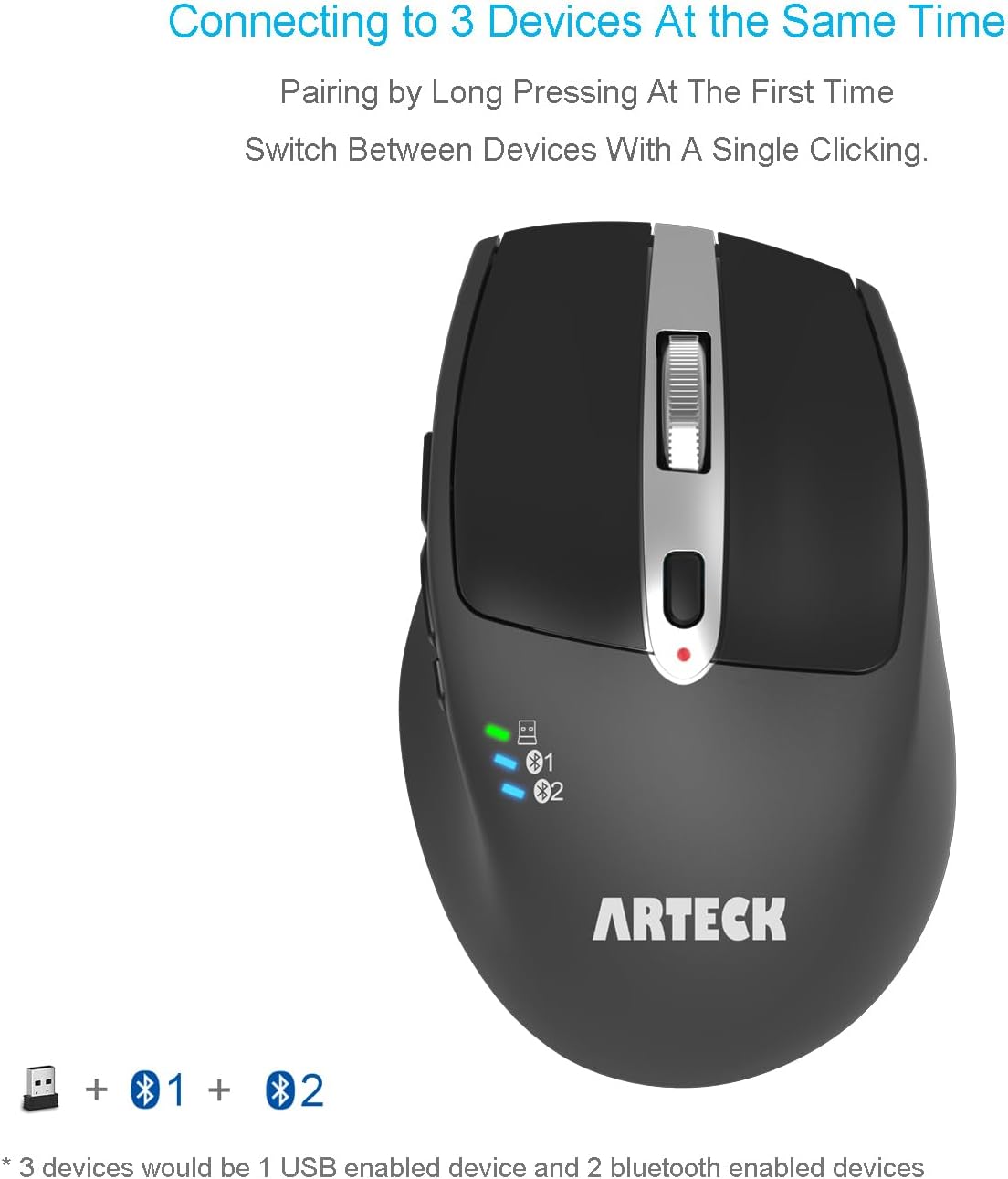
Figure 2.1: Multi-device connectivity overview
2.2. USB Wireless Connection
- Locate the Nano USB receiver stored in the back of the mouse.
- Plug the USB receiver into an available USB port on your computer or device.
- Turn the mouse 'ON' using the switch on the bottom.
- Press the 'Channel Switch Button' (located on the side of the mouse) until the indicator light for the USB connection (often green) illuminates. The mouse should now be connected.

Figure 2.2: Mouse compatibility with various devices
2.3. Bluetooth Connection (BT1 & BT2)
- Turn the mouse 'ON' using the switch on the bottom.
- Press the 'Channel Switch Button' to select either Bluetooth 1 (BT1) or Bluetooth 2 (BT2). The corresponding indicator light will flash rapidly, indicating pairing mode.
- On your device (PC, laptop, tablet), go to Bluetooth settings and search for new devices.
- Select 'Arteck MD167' from the list of available devices to pair.
- Once paired, the indicator light will stop flashing and remain solid.
For a visual guide on connecting the mouse to multiple devices, please refer to the official product video below:
Video 2.3: Official Arteck video demonstrating multi-device connectivity and features of the mouse.
3. Operating Instructions
The Arteck MD167 mouse is designed for intuitive and efficient operation.
3.1. DPI Adjustment
The mouse features a DPI switch button to adjust cursor sensitivity. Tap this button to cycle through 5 different DPI levels (800/1200/1600/2000/2400) to match your preference and task requirements.
3.2. Silent Clicking
The left and right click buttons are engineered for silent operation, minimizing noise in quiet environments.
3.3. Side Buttons
Two side buttons are available for convenient navigation, typically functioning as 'Forward' and 'Backward' in web browsers or file explorers.

Figure 3.1: Productive buttons and features
4. Power and Charging
The Arteck MD167 mouse is equipped with a long-life rechargeable battery.
4.1. Battery Life
The built-in lithium battery can last for up to 4 months on a single charge, based on an average of 2 hours of non-stop daily use. Actual battery life may vary depending on usage patterns.

Figure 4.1: Long battery life and charging port
4.2. Charging the Mouse
The mouse is charged via a USB-C port located at the front. Use the provided USB-C charging cable to connect the mouse to a USB power source (e.g., computer USB port, USB wall adapter).
- Plug the USB-C end of the cable into the mouse's charging port.
- Plug the USB-A end into a power source.
- The indicator light on the mouse will show charging status (e.g., red for charging, green for full).
5. Maintenance
To ensure optimal performance and longevity of your Arteck MD167 mouse, follow these maintenance tips:
- Regular Cleaning: Use a soft, dry cloth to wipe the mouse surface. Avoid harsh chemicals or abrasive materials.
- Battery Care: For best battery health, avoid completely draining the battery frequently. Charge the mouse when the low battery indicator appears.
- Storage: When not in use for extended periods, turn off the mouse using the 'ON/OFF' switch on the bottom to conserve battery. Store the USB receiver in its designated slot on the mouse's underside.
- Environmental Conditions: Avoid exposing the mouse to extreme temperatures, direct sunlight, or excessive moisture.
6. Troubleshooting
If you encounter issues with your Arteck MD167 mouse, please refer to the following common solutions:
| Problem | Solution |
|---|---|
| Mouse not connecting via USB. | Ensure the USB receiver is securely plugged into a working USB port. Check if the mouse is switched to the USB connection mode (green indicator light). Try a different USB port. |
| Mouse not connecting via Bluetooth. | Ensure the mouse is in Bluetooth pairing mode (flashing blue light for BT1/BT2). Make sure Bluetooth is enabled on your device. Remove previous pairings of the mouse from your device's Bluetooth settings and try pairing again. Ensure the mouse is within the 10-meter operating range. |
| Cursor movement is erratic or unresponsive. | Check the battery level and charge the mouse if needed. Ensure the optical sensor on the bottom is clean and free from obstructions. Try using the mouse on a different surface. Adjust the DPI setting. |
| Mouse frequently disconnects. | Ensure there are no strong interferences (e.g., other wireless devices) nearby. Keep the mouse within the recommended operating range. Fully charge the mouse. |
7. Specifications
| Feature | Detail |
|---|---|
| Model | MD167 |
| Connectivity Technology | Wireless (2.4G USB), Bluetooth (BT1, BT2) |
| Movement Detection Technology | Optical |
| DPI Levels | 800 / 1200 / 1600 / 2000 / 2400 |
| Battery Type | Rechargeable Lithium Battery |
| Charging Port | USB-C |
| Estimated Battery Life | Up to 4 months (based on 2 hours/day non-stop use) |
| Product Dimensions | 4.2 x 2.7 x 0.04 inches (10.7 x 6.9 x 0.1 cm) |
| Item Weight | 5.3 ounces (150.3 grams) |
| Country of Origin | China |
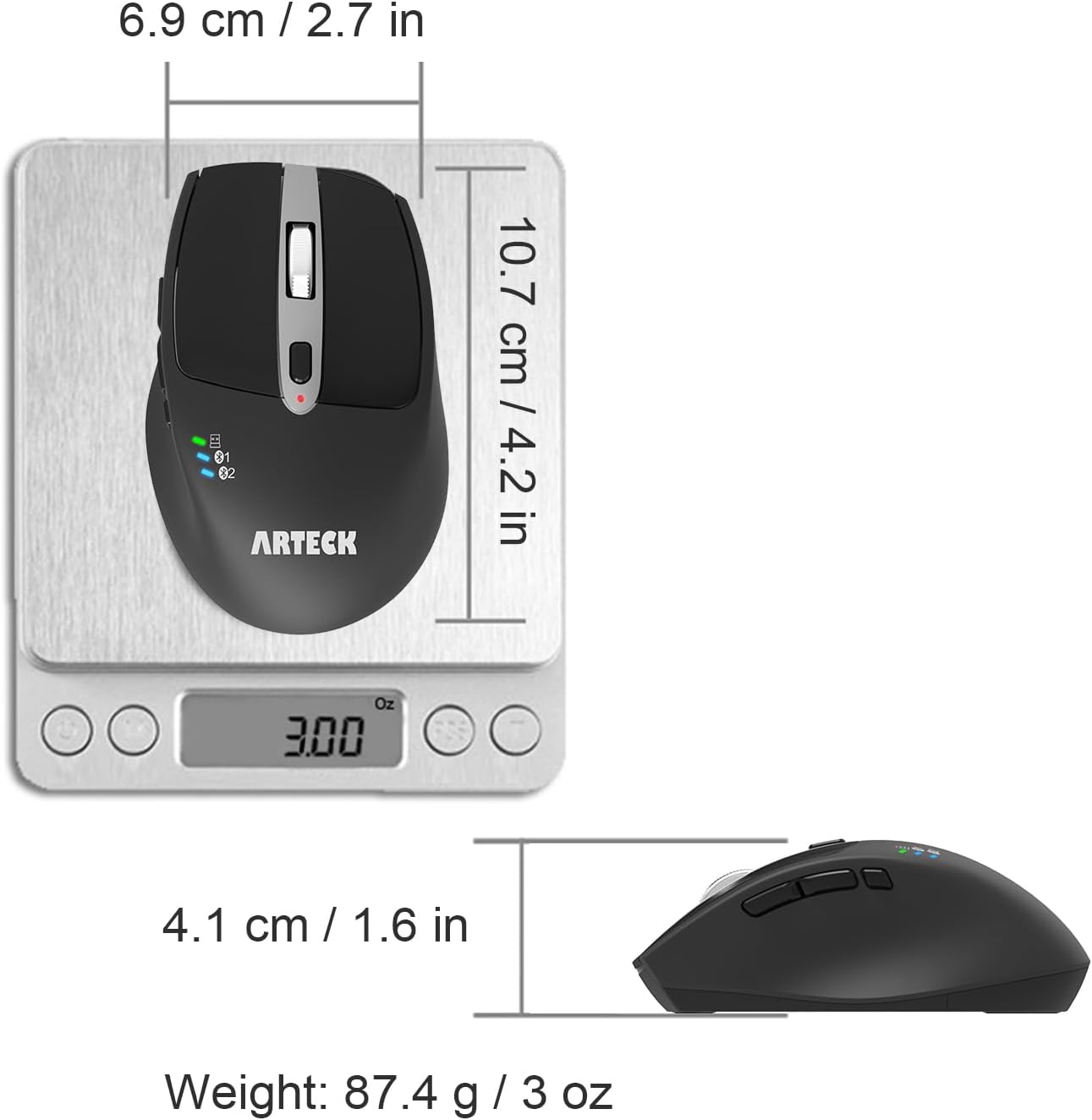
Figure 7.1: Mouse dimensions and weight
8. Warranty and Support
Arteck provides a 24-month warranty for the MD167 Wireless Bluetooth Mouse.
If you have any questions regarding the product, believe you received a defective product, or the product does not meet your expectations, please feel free to contact Arteck customer support.
To claim your 2-year warranty or for support, please send your order number to the following email address:
support@arteck.com
For additional information and community engagement, you can also visit the official Arteck website or follow their social media channels.
- Official Website: www.arteck.com
- Facebook: arteck.fans