
1. Product Overview
The HXSJ J900 Wired Gaming Mouse is designed for an ergonomic and comfortable grip, ensuring a quality gaming experience. It features 6 programmable buttons, 6 adjustable RGB lighting modes, and a maximum DPI of 6400, providing precision and customization for various tasks and games. This mouse supports USB plug and play, making installation straightforward across multiple operating systems.

Image: Top view of the HXSJ J900 Wired Gaming Mouse, highlighting its honeycomb shell design and the attached USB cable.
Key Features:
- Ergonomic Design: Provides a comfortable grip for extended use.
- 6 Programmable Buttons: Customize functions for enhanced productivity and gaming.
- Adjustable DPI: 6 levels of DPI adjustment, up to a maximum of 6400 DPI, for precise control.
- 6 RGB Lighting Modes: Personalize your setup with various lighting effects, with the option to turn lights off.
- Plug and Play: Simple USB connection, no complex installation required.
- Wide Compatibility: Supports Windows 2000 / XP / 7 / 8 / 10 / Vista 32-bit / iOS or the latest versions.
2. Setup Guide
Setting up your HXSJ J900 Gaming Mouse is quick and easy, thanks to its plug-and-play functionality.
- Unpack the Mouse: Carefully remove the mouse and any packaging materials from the box.
- Connect to Your Computer: Locate an available USB port on your computer (desktop or laptop). Insert the USB connector of the HXSJ J900 mouse firmly into the USB port.
- System Recognition: Your operating system (Windows, macOS, etc.) should automatically detect and install the necessary drivers for the mouse. This process usually takes a few seconds.
- Verify Functionality: Once installed, move the mouse to check cursor movement. The RGB lighting should illuminate, indicating it is powered on.

Image: The HXSJ J900 mouse in use next to a laptop, illustrating a common setup.
No additional software installation is typically required for basic functionality. For advanced customization of programmable buttons, you may need to download specific software from the manufacturer's website if available (not included in this package).
3. Operating Instructions
3.1 DPI Adjustment
The HXSJ J900 mouse features 6 levels of adjustable DPI (Dots Per Inch), allowing you to change cursor sensitivity on the fly. This is crucial for different tasks, such as precise aiming in games or fast navigation across multiple monitors.
- DPI Levels: The mouse supports DPI settings of 1000, 1600, 2400, 3200, 4800, and a maximum of 6400 DPI.
- Changing DPI: Use the dedicated DPI button (usually located behind the scroll wheel) to cycle through the different DPI settings. Each press will switch to the next level.
- Visual Indicator: The RGB lighting may change color or pattern to indicate the current DPI level (refer to specific product behavior for details).

Image: The HXSJ J900 mouse highlighting its 6-level adjustable DPI feature, with a maximum of 6400 DPI.
3.2 RGB Lighting Modes
Enhance your gaming setup with the vibrant RGB lighting of the HXSJ J900 mouse. It offers 6 distinct lighting modes to match your style or mood.
- Cycling Modes: There is typically a button or combination of buttons (often the DPI button or a dedicated light button) to cycle through the different RGB lighting effects.
- Turning Off Lights: If desired, you can turn off the RGB lighting completely. Refer to the specific button combination or dedicated switch for this function.

Image: Front and bottom views of the HXSJ J900 mouse, showcasing its 6 RGB lighting modes.
3.3 Programmable Buttons
The HXSJ J900 mouse is equipped with 6 buttons, which can be programmed for various functions, macros, or shortcuts to streamline your workflow or gaming actions.
- Button Layout: The mouse includes the standard left-click, right-click, scroll wheel (clickable), DPI button, and two side buttons.
- Programming: To program the buttons, you will typically need to use dedicated software provided by the manufacturer (if available). This software allows you to assign custom commands, keyboard shortcuts, or macros to each programmable button.
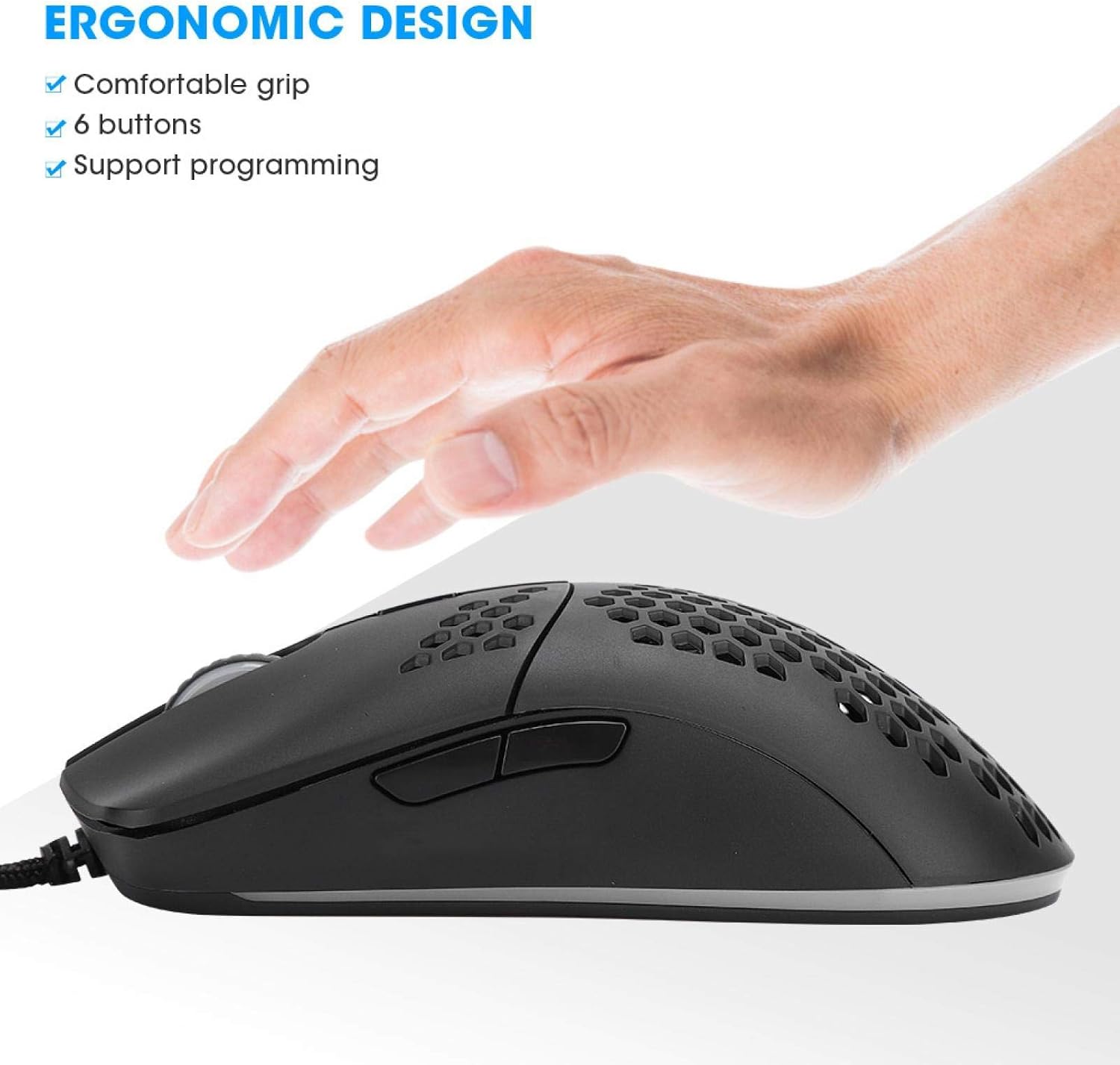
Image: A hand demonstrating the ergonomic grip of the HXSJ J900 mouse, emphasizing its 6 buttons and support for programming.
4. Technical Specifications
Detailed specifications for the HXSJ J900 Wired Gaming Mouse:
| Feature | Specification |
|---|---|
| Brand | Dilwe |
| Model Number | Dilwe65xkf01vgu866 |
| Connectivity Technology | USB Wired |
| DPI Levels | 1000 / 1600 / 2400 / 3200 / 4800 / 6400 |
| Number of Buttons | 6 |
| Switch Life | 20 million cycles |
| Lighting | 6 RGB Lighting Modes (can be turned off) |
| Sensor Technology | Optical |
| Cable Length | Approx. 1.5m / 4.92ft |
| Dimensions (L x W x H) | Approx. 137 x 60 x 38mm / 5.39 x 2.36 x 1.5in |
| Weight | 155.33 Grams |
| Hand Orientation | Ambidextrous |
| Compatible Operating Systems | Windows 2000 / XP / 7 / 8 / 10 / Vista 32-bit / iOS or latest version |
| Compatible Devices | Personal Computer |
| Special Features | LED Light, Ergonomic Design |

Image: Dimensional diagram of the HXSJ J900 mouse, including its length, width, height, and cable length.
5. Care and Maintenance
Proper care and maintenance will extend the lifespan of your HXSJ J900 Gaming Mouse.
- Cleaning: Regularly wipe the mouse surface with a soft, dry, lint-free cloth. For stubborn dirt, slightly dampen the cloth with water or a mild electronics cleaner. Avoid harsh chemicals or abrasive materials.
- Sensor Cleaning: Occasionally, use a cotton swab or compressed air to gently clean the optical sensor on the underside of the mouse to ensure accurate tracking.
- Cable Care: Avoid sharp bends or kinks in the USB cable. Do not pull the mouse by its cable.
- Storage: When not in use, store the mouse in a clean, dry environment away from extreme temperatures and direct sunlight.
- Avoid Liquids: Do not expose the mouse to liquids. If liquid spills occur, immediately disconnect the mouse and allow it to dry completely before reconnecting.
6. Troubleshooting
If you encounter issues with your HXSJ J900 Gaming Mouse, try the following troubleshooting steps:
- Mouse Not Responding:
- Ensure the USB cable is securely plugged into a working USB port on your computer.
- Try plugging the mouse into a different USB port.
- Restart your computer.
- Test the mouse on another computer to determine if the issue is with the mouse or your system.
- Cursor Movement is Erratic or Jumpy:
- Clean the optical sensor on the bottom of the mouse.
- Ensure you are using the mouse on a clean, non-reflective, and uniform surface (e.g., a mouse pad).
- Adjust the DPI setting to a lower level if the sensitivity is too high.
- RGB Lighting Not Working:
- Check if the lighting has been intentionally turned off (refer to section 3.2).
- Ensure the mouse is properly connected and receiving power.
- Try cycling through the RGB modes again.
- Buttons Not Functioning:
- Ensure no debris is lodged under the buttons.
- If using custom programming, verify the software settings.
- Test the mouse on another computer to rule out software conflicts.
If these steps do not resolve the issue, please contact the seller or manufacturer for further assistance.
7. Warranty and Support
Specific warranty details for the HXSJ J900 Wired Gaming Mouse are not provided in the product information. However, standard consumer rights and return policies typically apply.
- Return Policy: The product is subject to a 30-day refund/replacement return policy from the date of purchase. Please refer to your retailer's specific return terms and conditions.
- Technical Support: For any technical inquiries, operational issues not covered in this manual, or warranty claims, please contact the seller or the manufacturer, Dilwe, directly. You can often find contact information on the product packaging or the retailer's website.
- Online Resources: Check the official Dilwe brand store or product page on the retailer's website for any updated drivers, software, or additional support resources.