
1. Introduction
Welcome to the user manual for your new Q Link Wireless Serrano 3 Smartphone. This guide provides essential information on setting up, operating, maintaining, and troubleshooting your device. Please read this manual thoroughly to ensure optimal performance and longevity of your smartphone.

Figure 1: Front and back view of the Serrano 3 Smartphone.
2. What's in the Box
Upon unboxing your Serrano 3 Smartphone, please verify that all the following items are included:
- Serrano 3 Smartphone
- Screen Protector
- Charging Cable (USB)
- Power Adapter
- Quick Start Guide

Figure 2: Serrano 3 Smartphone and accessories within its packaging.
3. Setup
3.1. Charging the Device
Before first use, fully charge your Serrano 3 Smartphone. Connect the charging cable to the phone's charging port and the power adapter to a wall outlet. The battery indicator on the screen will show charging progress.
3.2. Inserting SIM Card and SD Card
To insert your SIM card (for cellular service) and an optional microSD card (for expanded storage):
- Locate the SIM/SD card tray on the side of the phone.
- Use the provided SIM ejector tool to open the tray.
- Place your SIM card(s) and microSD card into their respective slots, ensuring correct orientation.
- Gently push the tray back into the phone until it clicks into place.
3.3. Powering On/Off
- To Power On: Press and hold the Power button (usually on the right side) until the Q Link Wireless logo appears.
- To Power Off: Press and hold the Power button until the power options menu appears. Select "Power off" and confirm.
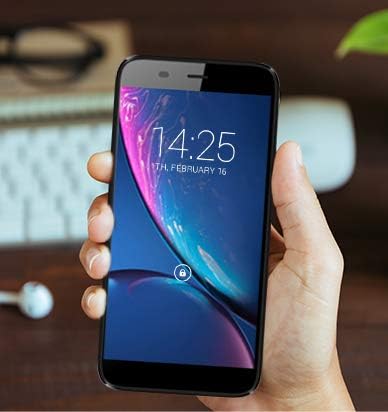
Figure 3: The Serrano 3 Smartphone being held, demonstrating its size and display.
4. Operating Your Device
4.1. Navigation
The Serrano 3 features a responsive touchscreen for all interactions. Use gestures such as tapping, swiping, pinching, and spreading to navigate menus, open applications, and control content.
4.2. Making Calls and Sending Messages
Access the Phone app to make calls by dialing numbers or selecting contacts. Use the Messages app to send and receive SMS/MMS messages. Ensure your SIM card is properly inserted and activated for cellular services.
4.3. Connecting to Wi-Fi
To connect to a Wi-Fi network:
- Go to Settings > Network & internet > Wi-Fi.
- Toggle Wi-Fi on.
- Select your desired network from the list and enter the password if prompted.
4.4. Camera Usage
The Serrano 3 is equipped with a 2MP front camera and a 5MP rear camera. Open the Camera app to capture photos and videos. Tap the screen to focus and press the shutter button to take a picture.
5. Maintenance
Proper care will extend the life of your Serrano 3 Smartphone:
- Cleaning: Use a soft, lint-free cloth to clean the screen and body. Avoid abrasive materials or harsh chemicals.
- Water Resistance: This device is not water-resistant. Avoid exposure to liquids.
- Temperature: Do not expose the device to extreme temperatures (hot or cold).
- Battery Care: Avoid fully discharging the battery frequently. Charge the device regularly.
- Software Updates: Keep your device's software updated to ensure optimal performance and security.
6. Troubleshooting
If you encounter issues with your Serrano 3 Smartphone, refer to the table below for common problems and their solutions.
| Problem | Possible Solution |
|---|---|
| Device does not power on. | Ensure the battery is charged. Connect to a charger and wait a few minutes before attempting to power on again. |
| Screen is unresponsive. | Restart the device by holding the Power button. If unresponsive, force restart by holding Power button for 10-15 seconds. |
| Cannot connect to Wi-Fi. | Check Wi-Fi settings, ensure Wi-Fi is enabled, and re-enter the password. Restart your Wi-Fi router. |
| Poor call quality or no signal. | Check SIM card insertion. Move to an area with better network coverage. Contact your service provider. |
| Device is stuck in a boot loop or shows "corrupt" message. | This indicates a potential software or hardware issue. Try a factory reset (consult online resources for your specific model's reset procedure, as it may vary). If the issue persists, contact customer support for further assistance. |
7. Specifications
Key technical specifications for the Q Link Wireless Serrano 3 Smartphone:
| Feature | Detail |
|---|---|
| Model Name | Q Link Wireless Connecting America Serrano 3 |
| Item Model Number | Serrano H6 |
| Operating System | Android Go |
| Screen Size | 5.5 Inches |
| Resolution | 566 x 319 |
| RAM | 2 GB |
| Memory Storage Capacity | 16 GB |
| Rear Camera | 5 MP |
| Front Camera | 2 MP |
| Battery Capacity | 2200 Milliampere Hour (mAh) |
| Charging Time | 2 Hours |
| Product Dimensions | 6 x 2.48 x 0.42 inches |
| Item Weight | 3.53 ounces (100 Grams) |
| Color | Black |
| Wireless Communication Technologies | Cellular (4G LTE) |
| Connectivity Technologies | Wi-Fi, GPS |
| Audio Jack | 3.5 mm |
8. Warranty and Support
Q Link Wireless provides support for its products. For specific warranty details, please refer to the documentation included with your purchase or visit the official Q Link Wireless website.
Return Policy: This product typically has a 30-day return policy for refund or replacement, subject to the retailer's terms and conditions.
For technical assistance or further inquiries, please contact Q Link Wireless customer support through their official channels.


