
Introduction
This manual provides detailed instructions for the installation, operation, and maintenance of your Kolink INSPIRE K9 Midi-Tower Gaming Case. Please read this manual thoroughly before beginning assembly or use to ensure proper functionality and safety. The Kolink INSPIRE K9 is designed for gaming enthusiasts, offering ample space for high-performance components, efficient cooling options, and customizable RGB lighting.
Product Features
- ATX Tower Compatibility: The interior accommodates motherboards from Mini-ITX to ATX formats, along with high-performance graphics cards up to 300 mm in length. CPU coolers can be installed with a maximum height of 155 mm.
- Cooling System: Features a pre-installed 120 mm fan at the rear with digitally addressable RGB lighting. Supports up to six 120 mm fans in total. Radiators up to 240 mm can be installed at the front, and up to 120 mm at the rear for water cooling setups.
- Storage Options: The case provides space for up to 2 x 3.5/2.5 inch drive bays and 2 x 2.5 inch drive bays.
- I/O Panel: Equipped with 1x USB 3.0 port, 2x USB 2.0 ports, and an RGB LED control button for easy access and customization.
- RGB Design with Tempered Glass: A side panel made of lightly tinted tempered glass complements the elegant design of the midi tower, allowing for a clear view of internal components and RGB lighting.
Specifications
| Brand | KOLINK |
| Model Name | Inspire K9 |
| Case Type | Midi-Tower |
| Motherboard Compatibility | Mini-ITX, ATX |
| Material | Tempered Glass |
| Color | Black |
| Cooling Method | Air, Water |
| Pre-installed Fans | 1 x 120mm (rear, RGB) |
| Max Fan Support | 6 x 120mm |
| Radiator Support | Front: up to 240mm, Rear: up to 120mm |
| Drive Bays | 2 x 3.5/2.5 inch, 2 x 2.5 inch |
| Expansion Slots | 7 |
| I/O Panel | 1x USB 3.0, 2x USB 2.0, RGB LED Control |
| Max GPU Length | 300 mm |
| Max CPU Cooler Height | 155 mm |
| Item Dimensions (D x W x H) | 48D x 44B x 23H cm |
| Item Weight | 4 Kilograms |
Setup and Installation
Follow these steps for proper assembly and installation of components within your Kolink INSPIRE K9 case.
1. Preparing the Case
- Unpack the case and place it on a stable, flat surface.
- Remove the tempered glass side panel by unscrewing the thumb screws, then carefully slide it off and set it aside on a soft, non-abrasive surface to prevent scratches.
- Remove the solid metal side panel by unscrewing the thumb screws at the rear and sliding it backward.
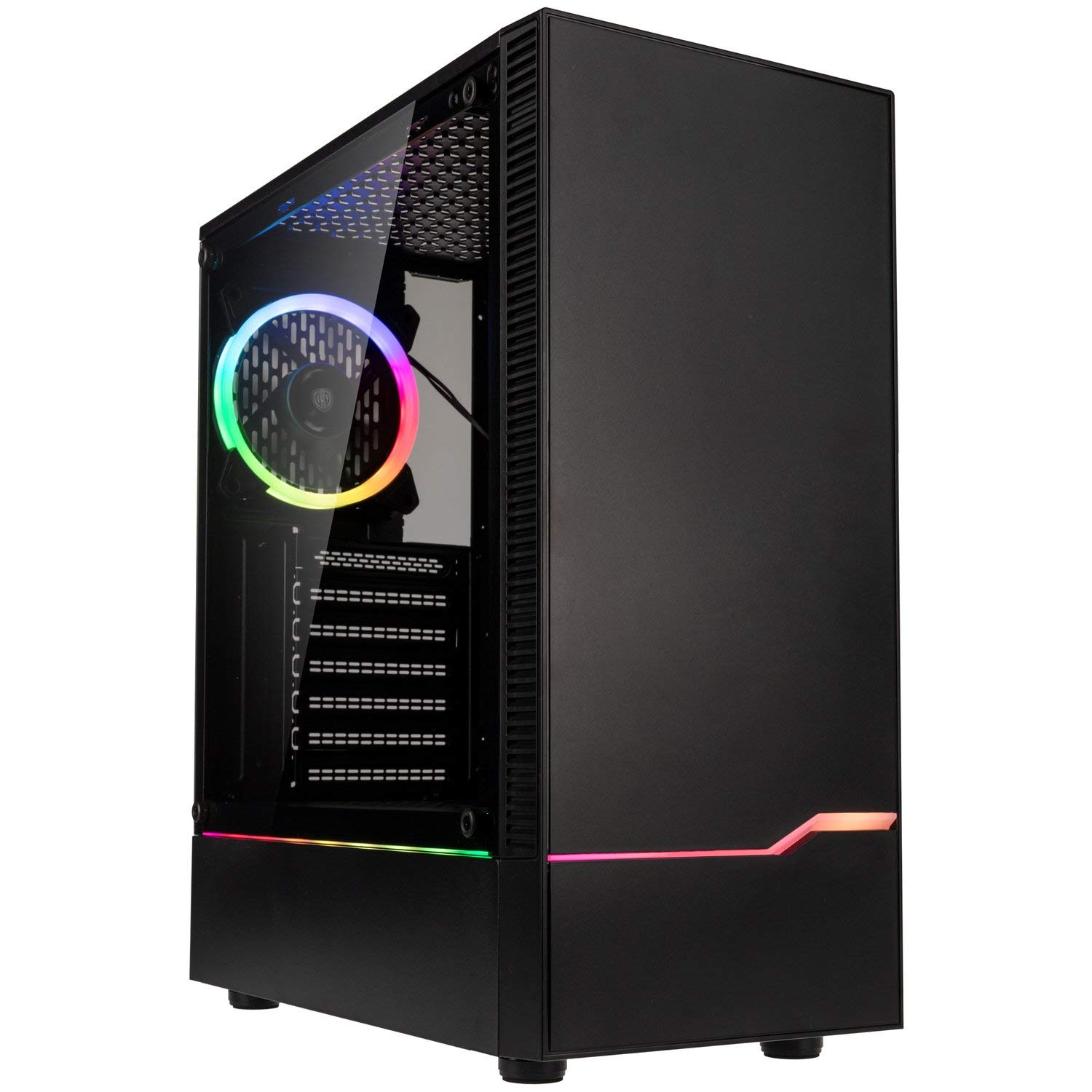
Image: Front-left view of the Kolink INSPIRE K9 case, showcasing the tempered glass side panel and front RGB strip.

Image: Right side panel of the Kolink INSPIRE K9 case, showing the solid metal panel.
2. Motherboard Installation
- Install the I/O shield that came with your motherboard into the designated slot at the rear of the case.
- Align your ATX or Mini-ITX motherboard with the standoffs inside the case. Ensure all standoffs match the screw holes on your motherboard.
- Secure the motherboard using the provided screws. Do not overtighten.
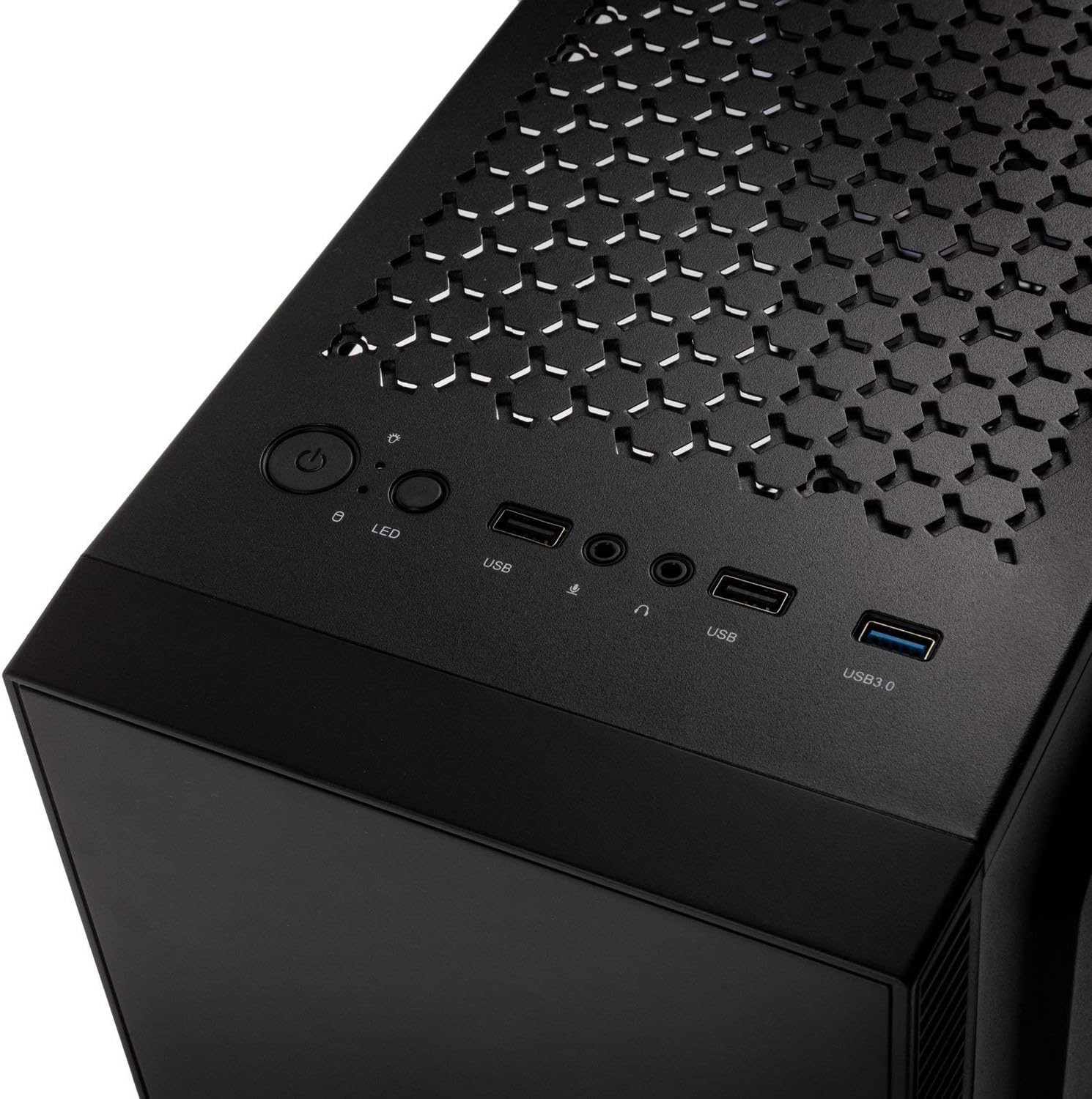
Image: Interior view of the Kolink INSPIRE K9 case, showing the motherboard tray and cable routing options.
3. CPU and CPU Cooler Installation
- Install your CPU onto the motherboard socket according to your motherboard's instructions.
- Apply thermal paste to the CPU. Refer to the video below for proper thermal paste application techniques.
- Install your CPU cooler (air or liquid) ensuring it fits within the 155 mm height limit. For liquid coolers, install radiators at the front (up to 240mm) or rear (up to 120mm) of the case.
Video: Guide on how to apply thermal paste correctly to a CPU. This is crucial for efficient CPU cooling.
4. Graphics Card (GPU) Installation
- Remove the necessary expansion slot covers at the rear of the case. The case has 7 expansion slots.
- Insert your graphics card into the primary PCIe slot on your motherboard. Ensure it clicks into place.
- Secure the graphics card with screws. The case supports GPUs up to 300 mm in length.
5. Storage Drive Installation
- Install 3.5-inch or 2.5-inch drives into the designated drive bays. The case supports 2 x 3.5/2.5 inch and 2 x 2.5 inch drives.
- Secure the drives with screws.
6. Power Supply Unit (PSU) Installation
- Install your PSU into the bottom mounting area of the case.
- Secure the PSU with screws from the rear of the case.
7. Cable Management
- Route all power and data cables through the cutouts in the motherboard tray to the rear of the case.
- Use cable ties (not included) to neatly bundle and secure cables behind the motherboard tray. This improves airflow and aesthetics.

Image: Rear view of the Kolink INSPIRE K9 case, showing the I/O shield cutout, expansion slots, and rear fan.

Image: Interior view of the Kolink INSPIRE K9 case from the right side, showing cable routing space and drive bays.
8. Connecting Front Panel I/O
- Connect the front panel cables (USB 3.0, USB 2.0, HD Audio, Power Switch, Reset Switch, Power LED, HDD LED, RGB LED Control) to the corresponding headers on your motherboard. Refer to your motherboard manual for header locations.

Image: Close-up of the top I/O panel of the Kolink INSPIRE K9 case, featuring USB ports, audio jacks, power button, and RGB LED control.
Operating Instructions
- Power On/Off: Press the power button on the top I/O panel to turn your system on or off.
- RGB Control: Use the dedicated RGB LED control button on the top I/O panel to cycle through various lighting modes and colors for the pre-installed RGB fan and front RGB strip.
- USB Ports: Utilize the USB 3.0 and USB 2.0 ports for connecting peripherals and external devices.
- Audio Jacks: Connect your headphones and microphone to the audio jacks on the top I/O panel.
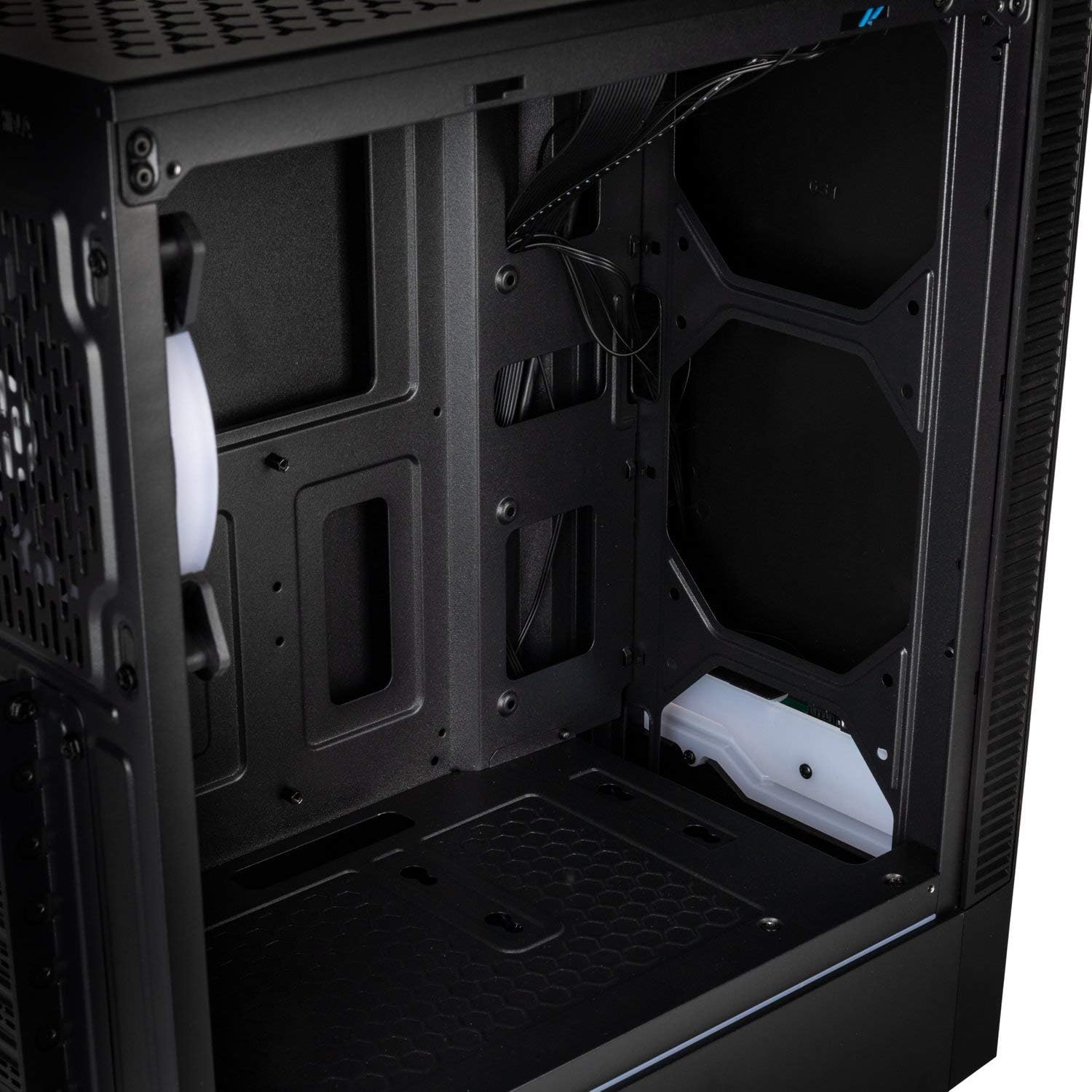
Image: Close-up view of the pre-installed 120mm RGB fan at the rear of the Kolink INSPIRE K9 case.
Maintenance
Regular maintenance helps ensure optimal performance and longevity of your PC components.
- Dust Cleaning: Periodically clean dust from the interior of the case, especially from fans and dust filters. Use compressed air or a soft brush.
- Exterior Cleaning: Wipe the exterior surfaces, including the tempered glass panel, with a soft, damp cloth. Avoid abrasive cleaners.
- Cable Management Check: Occasionally check cable routing to ensure no cables are obstructing airflow or fan operation.
Troubleshooting
If you encounter issues with your PC build, consider the following common troubleshooting steps related to the case:
- System Not Powering On:
- Ensure the power supply is properly connected to the wall outlet and the PSU switch is in the ON position.
- Verify that the front panel power switch cable is correctly connected to the motherboard header.
- Check all power connections from the PSU to the motherboard and components.
- Fans Not Spinning / RGB Not Working:
- Confirm that the fan power cables are securely connected to the motherboard or fan controller.
- Check that the RGB cables are properly connected to the motherboard's RGB header or the case's RGB controller.
- Press the RGB LED control button on the I/O panel to cycle through modes.
- USB Ports Not Functioning:
- Ensure the USB 3.0 and USB 2.0 front panel cables are correctly plugged into their respective headers on the motherboard.
- Overheating Issues:
- Verify that all case fans are spinning correctly and are oriented for optimal airflow (intake/exhaust).
- Clean any dust buildup from fans and filters.
- Ensure the CPU cooler is properly seated and thermal paste is correctly applied.
Warranty and Support
For warranty information and technical support, please refer to the official KOLINK website or contact your retailer. Keep your proof of purchase for warranty claims.
Manufacturer: KOLINK
Model Number: INSPIREK9
Global Trade Item Number (GTIN): 05999094004030


