
Introduction
Thank you for choosing the iOCHOW S3 Book & Document Camera. This manual provides essential information for setting up, operating, and maintaining your device. Please read these instructions carefully before use to ensure optimal performance and longevity of your scanner.
Important Compatibility Note: This device only supports Windows operating systems and is not compatible with Mac OS.
Product Overview
The iOCHOW S3 is a versatile 17-megapixel high-definition professional book and document scanner designed for various applications, including office, education, and personal use. Key features include:
- High-Resolution Camera: 17-megapixel sensor for ultra-high-definition image capture and real-time display up to A3 size.
- Integrated Lighting: 9 built-in LED lights provide ample illumination, ensuring clear scans even in low-light conditions.
- Advanced Software Features: Equipped with intelligent continuous shooting, leading OCR (Optical Character Recognition) with up to 95% accuracy, SDK & TWAIN support, automatic correction, image segmentation, and ID photo merging.
- Book Flattening Technology: Features an advanced algorithm for page flattening and finger removal, producing flat, clear scans from bound books.
- Multipurpose Functionality: Supports video recording and real-time projection, suitable for creating e-books, sharing meeting content, and modern teaching methods.
- Portable Design: Foldable and portable with a stable weighted base for ease of use and transport.
Setup Instructions
- Unpack the Device: Carefully remove the iOCHOW S3 scanner and all accessories from its packaging.
- Position the Scanner: Place the scanner on a stable, flat surface. Ensure there is enough space for documents up to A3 size to be placed under the camera lens.
- Connect to Computer: Connect the scanner to your Windows computer using the provided USB cable. The device is powered via USB.
- Software Installation:
Before installing new software, completely remove any previous versions of the iOCHOW scanning software from your computer. Download the latest software version from the official iOCHOW website. Follow the on-screen instructions to complete the installation.
For software download, please visit the official iOCHOW support page or refer to the link provided with your product documentation.
- Initial Calibration: After software installation, open the application. The software may guide you through an initial calibration process to ensure optimal image quality.
Operating Instructions
1. Placing Documents and Books
Place the document or open book flat on the scanning mat directly beneath the camera lens. Ensure the entire area to be scanned is within the camera's view. For books, the flattening curve technology will help correct page curvature.

Image: The iOCHOW S3 scanner positioned over an open book, demonstrating the page flattening technology. The software interface on the monitor shows the scanned book with corrected page curvature.
2. Adjusting LED Lighting
The iOCHOW S3 features 9 built-in LED lights to illuminate your documents. To adjust the brightness, use the touch switch located on the scanner's base. Tap the switch to cycle through three different brightness levels or to turn the lights off.

Image: A close-up of the iOCHOW S3 scanner showing the array of LED lights on the camera head and the touch-sensitive switch on the main body for light control.
3. Capturing Images (Scanning)
Open the iOCHOW scanning software on your computer. You will see a live preview of the document under the camera. Use the software interface to initiate a scan. The 17MP camera will capture a high-definition image.

Image: An illustration showing the iOCHOW S3 camera head with an exploded view of its internal lens components, highlighting the precision optics.
4. Continuous Shooting and Timer Function
For scanning multiple pages, activate the continuous shooting mode within the software. This mode allows the scanner to automatically capture images at set intervals after you turn a page, eliminating the need to press the capture button repeatedly.

Image: The iOCHOW S3 scanner set up on a desk, with a document placed underneath. The computer screen shows a countdown, indicating the automatic continuous shooting feature is active.
5. Software Features (OCR, Correction, Segmentation)
The iOCHOW software provides advanced processing capabilities:
- OCR (Optical Character Recognition): Convert scanned documents into editable text formats (e.g., PDF, TXT, Word, Excel) with high accuracy.
- Automatic Correction: The software can automatically correct skewed images and fill in broken edges of scanned pages.
- Image Segmentation: Automatically segment images for easier organization.
- ID Photo Merging: Automatically merge the front and back sides of scanned ID photos into a single image.
- Finger Removal: When scanning books, the software can detect and remove fingers used to hold pages open.
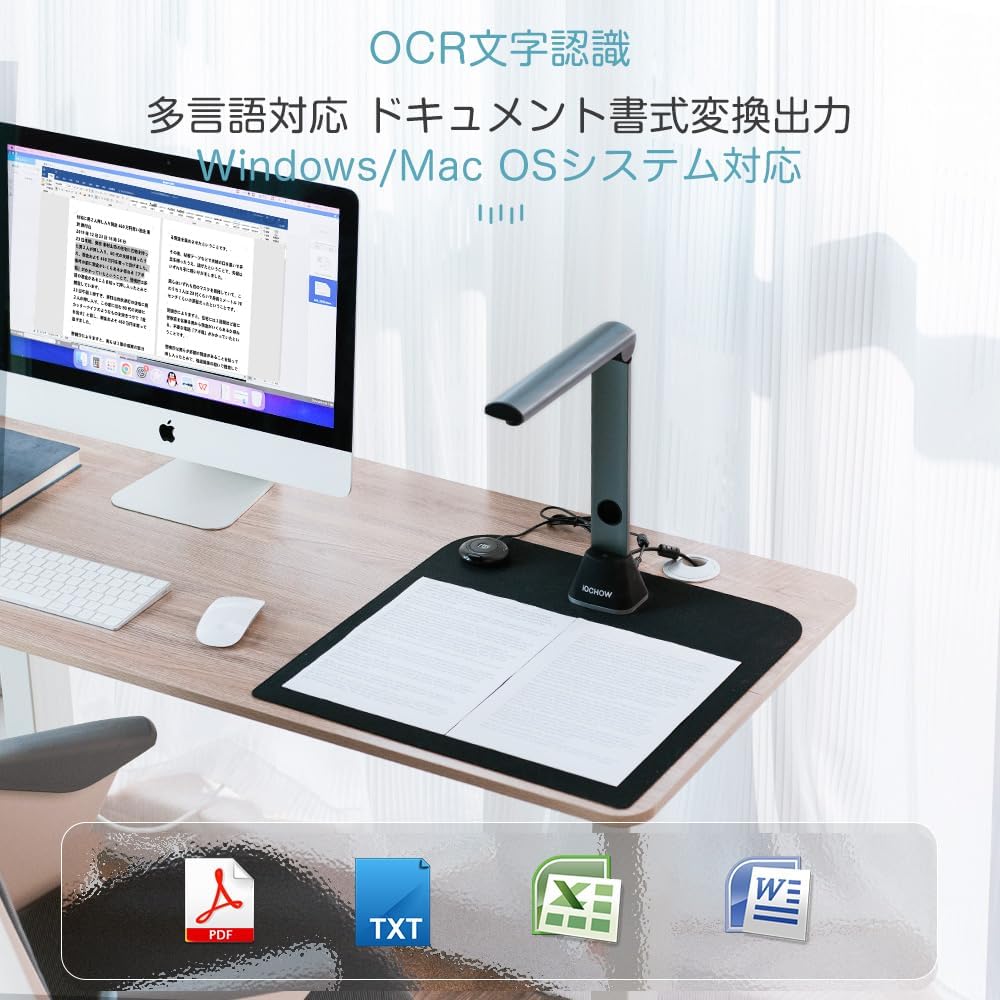
Image: The iOCHOW S3 scanner on a desk with a document. The computer screen displays the OCR functionality, showing text recognition and icons for various output formats like PDF, TXT, Excel, and Word.
6. Video Recording and Real-time Projection
Utilize the software to record video of documents or objects under the camera. This feature is useful for presentations, tutorials, or creating dynamic content. The real-time projection function allows you to display the camera's feed directly onto a larger screen or projector.

Image: The iOCHOW S3 scanner in use on a desk, with a person holding documents. The computer screen shows a live feed from the camera, illustrating its capability for real-time projection and video recording.
Maintenance
- Cleaning the Lens: Gently wipe the camera lens with a soft, lint-free cloth. For stubborn smudges, use a lens cleaning solution specifically designed for optical surfaces. Avoid abrasive materials.
- Cleaning the Device Body: Use a dry or slightly damp soft cloth to clean the exterior of the scanner. Do not use harsh chemicals or solvents.
- Software Updates: Regularly check the official iOCHOW website for software updates to ensure you have the latest features and performance enhancements.
- Storage: When not in use, fold the scanner for compact storage. Store it in a clean, dry environment away from direct sunlight and extreme temperatures.
Troubleshooting
| Problem | Possible Cause | Solution |
|---|---|---|
| Device not recognized by computer. | USB cable not properly connected; driver not installed; incompatible OS. |
|
| Poor image quality (blurry, dark). | Insufficient lighting; dirty lens; incorrect focus; document not flat. |
|
| Software crashes or freezes. | Outdated software; system resource issues; software conflict. |
|
| OCR accuracy is low. | Poor original document quality; incorrect language setting; blurry scan. |
|
Specifications
| Feature | Detail |
|---|---|
| Brand | iOCHOW |
| Model | S3 |
| Camera Resolution | 17 Megapixels |
| Maximum Scan Size | A3 |
| Lighting | 9 Built-in LED lights with 3 brightness levels |
| Operating System Compatibility | Windows OS Only (Not compatible with Mac OS) |
| Connectivity | USB |
| OCR Accuracy | Up to 95% |
| UPC | 727196119445 |
| ASIN | B08VNK3V7F |
Warranty and Support
iOCHOW products are designed for reliability and performance. For warranty information, technical support, or service inquiries, please refer to the warranty card included with your product or visit the official iOCHOW website. You can typically find contact information for customer support on their website.
When contacting support, please have your product model (S3) and purchase information ready.