
Introduction
This manual provides comprehensive instructions for the Zens Aluminium 4 in 1 Stand Wireless Charger, designed to efficiently charge up to four devices simultaneously. It features a sleek aluminum design and supports fast charging for compatible devices, ensuring your devices are always ready for use.
What's in the Box
- 4 in 1 Stand+Watch Wireless Charger
- Apple Watch USB-A stick
- 45W USB-C PD power adapter type A (US)
- Adapter plugs type F (EU) and type G (UK)
- Braided USB-C cable
- User manual
- Extended warranty registration card
Setup Instructions
- Connect the braided USB-C cable to the USB-C port on the back of the 4 in 1 Stand+Watch Wireless Charger.
- Attach the appropriate power adapter plug (Type A for US, Type F for EU, or Type G for UK) to the 45W USB-C PD power adapter.
- Plug the 45W USB-C PD power adapter into a wall outlet.
- Ensure the charger is placed on a stable, flat surface.

Image: Connecting the USB-C cable to the charger.
Operating Instructions
Charging a Smartphone
Place your Qi-compatible smartphone on the main wireless charging stand. The phone can be charged in portrait position. Ensure proper alignment for optimal charging.
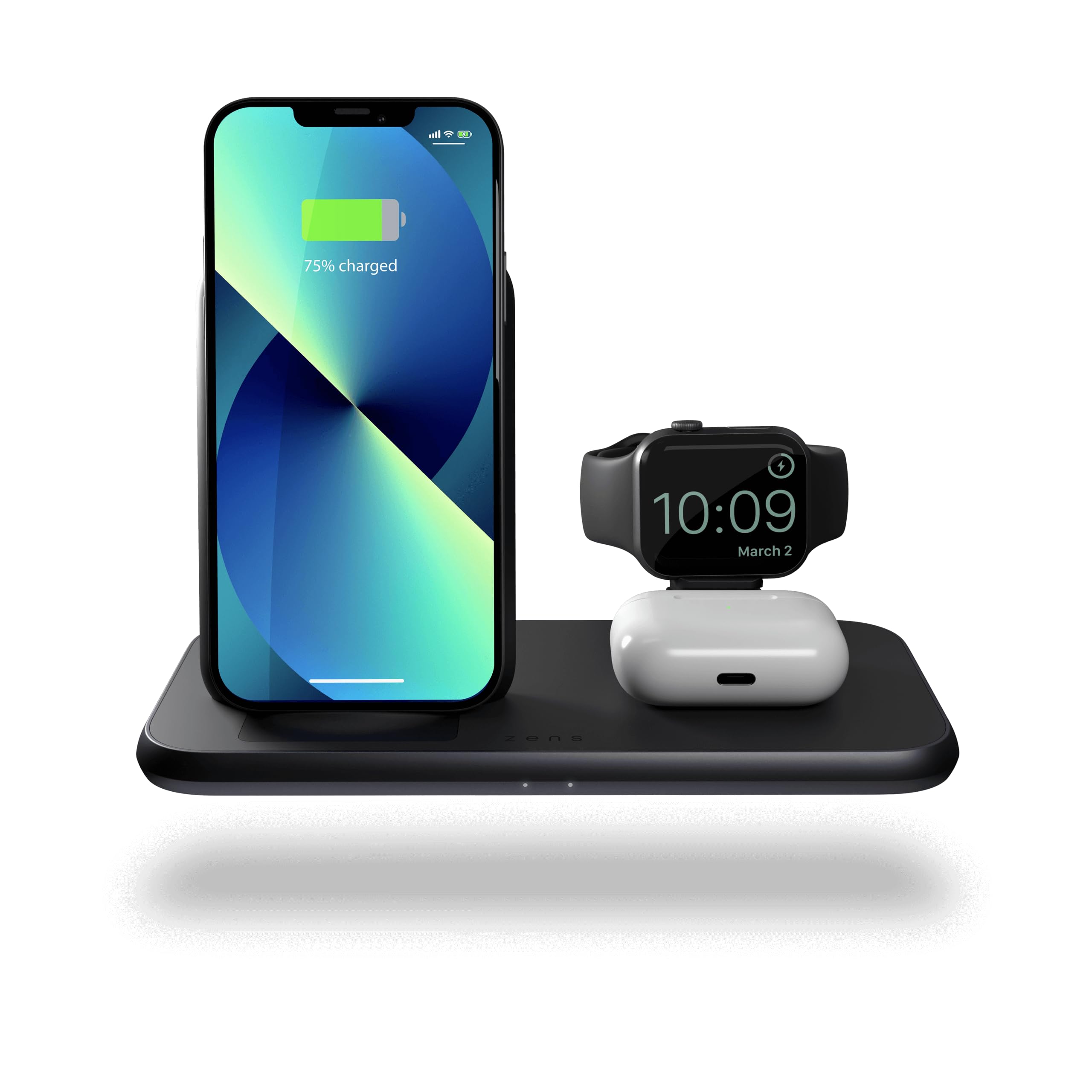
Image: Smartphone charging on the main stand.
Charging an Apple Watch
Place your Apple Watch on the dedicated Apple Watch charging module.
Charging AirPods/Wireless Headphones
Place your Qi-compatible AirPods or wireless headphones on the flat wireless charging pad located on the base.
Charging a Fourth Device
Connect a fourth device using the built-in USB port on the charger.

Image: Multiple devices charging on the Zens 4 in 1 stand.
Key Features
- Charges up to 4 devices simultaneously with 20W (2x10W) output
- Supports Apple and Samsung Fast Charge and Charges an iPhone, AirPods and an Apple Watch simultaneously
- Phone is charged in portrait position: never miss any calls or notifications with Built-in USB port to charge a fourth device
- Aluminium design
- MFi certified, Qi certified and Power adapter included
Product Specifications
| Product Dimensions | 7.28 x 4.06 x 5 inches |
| Item Weight | 1.94 pounds |
| ASIN | B08VN8ZFF8 |
| Item Model Number | ZEDC15B00 |
| Brand | ZENS |
| Connector Type | USB Type C |
| Compatible Devices | All Apple Watch series and sizes, All devices (phones, wireless headphones) that support wireless charging |
| Compatible Phone Models | All phones that support wireless charging |
| Special Feature | Fast Charging, Short Circuit Protection |
| Total USB Ports | 1 |
| Wattage | 10 watts |
| Number of Items | 1 |
| Output Current | 4 Amps |
Troubleshooting
Device Not Charging
- Ensure the power adapter is securely plugged into both the charger and the wall outlet.
- Verify that your device is Qi-compatible for wireless charging.
- Check for proper alignment of your device on the charging surface. Remove any thick cases that might interfere with wireless charging.
- Try using a different wall outlet or power adapter to rule out power source issues.
Slow Charging
- Ensure you are using the provided 45W USB-C PD power adapter. Using a lower wattage adapter may result in slower charging.
- Confirm your device supports fast wireless charging and is properly aligned.
- Avoid charging multiple high-power devices simultaneously if experiencing slow speeds on a primary device.
Overheating
- If your device or the charger feels excessively hot, remove the device immediately.
- Ensure adequate ventilation around the charger.
- Avoid placing the charger in direct sunlight or confined spaces.
- Remove any thick or non-compatible cases from your device.
Warranty and Support
The Zens Aluminium 4 in 1 Stand Wireless Charger is MFi certified and Qi certified, ensuring compatibility and safety.
For warranty claims or technical support, please refer to the extended warranty registration card included in your package or visit the official ZENS website for further assistance.


