
1. Introduction
This manual provides instructions for the installation, operation, and maintenance of the GALAWAY-US WiFi Range Extender Repeater, model 0202-31. This device is designed to extend the coverage of your existing wireless network, providing a stronger and more reliable signal in areas with weak or no coverage.
2. Product Features
- Extended Coverage: Equipped with four external antennas to boost existing WiFi signals and eliminate dead spots.
- Easy Setup: Configuration via web browser, compatible with various operating systems including Windows, Mac OS, iOS, and Android.
- Dual Band High Speed: Supports 300Mbps on 2.4GHz and 867Mbps on 5GHz, with automatic band switching for optimal performance.
- Universal Compatibility: Works with wireless network devices compliant with 802.11ac/a/b/g/n standards.
- Wide Application: Suitable for medium-sized apartments or houses, extending coverage to various rooms and floors.
- Efficient Heat Dissipation: Features an isolated side heat dissipation design to prevent dust accumulation and ensure stable, long-term operation.
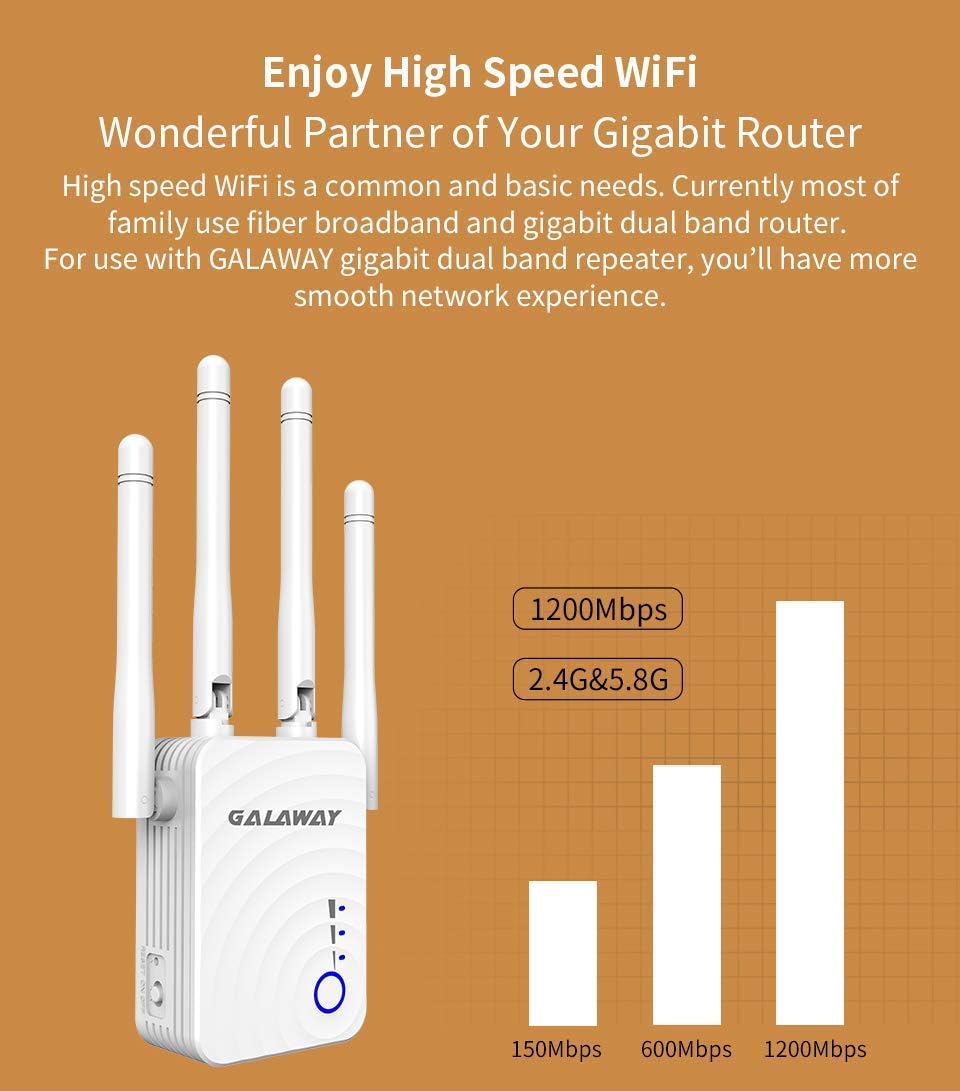
Image 2.1: The GALAWAY-US WiFi Range Extender, highlighting its four omnidirectional dual-frequency high-gain antennas for strong signal reception and transmission.
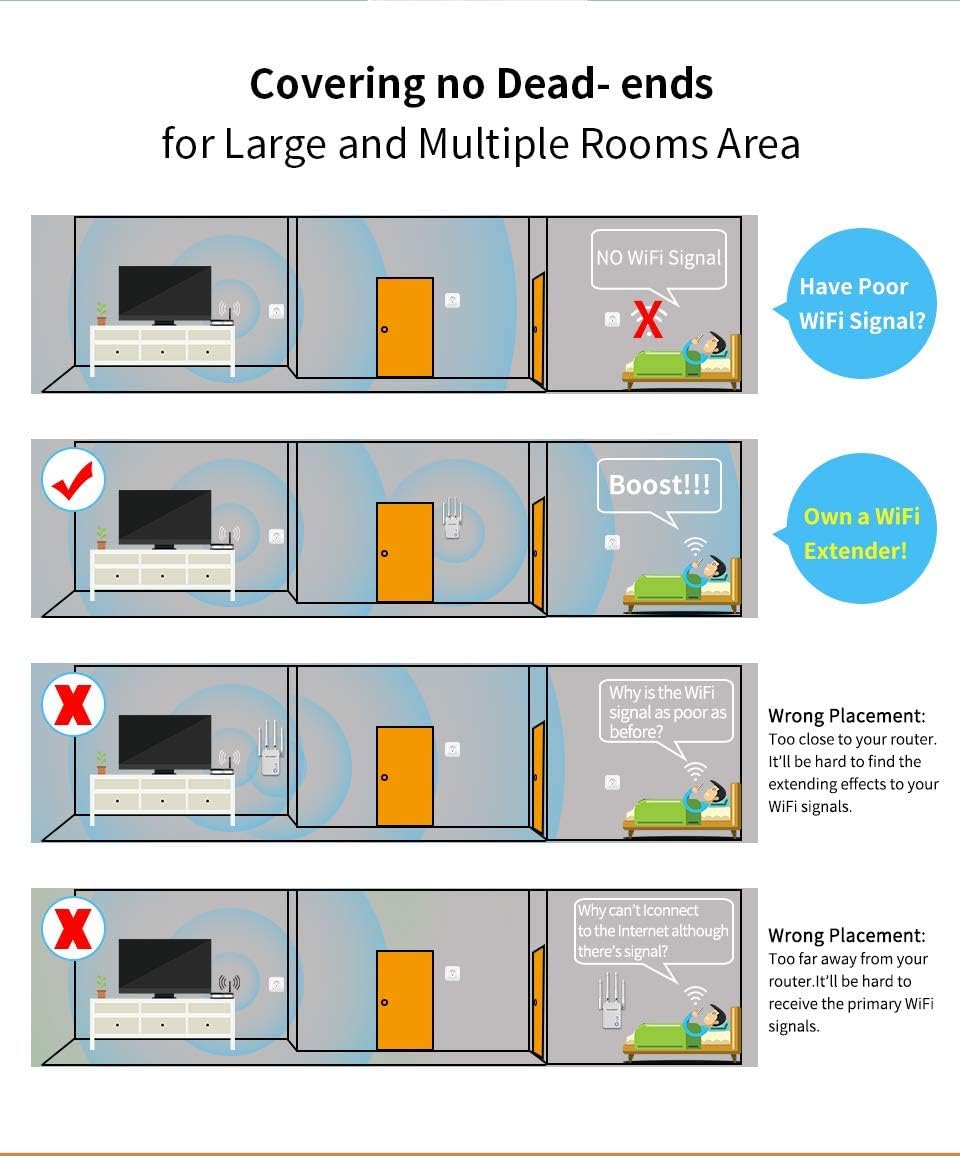
Image 2.2: The extender illustrating its high-speed WiFi capabilities, supporting up to 1200Mbps (2.4G & 5.8G).

Image 2.3: The extender's design featuring isolated side heat dissipation holes for stable performance.
3. Package Contents
Verify that all items are present in the package:
- 1x GALAWAY-US WiFi Range Extender Repeater (Model 0202-31)
- 1x Quick Installation Guide
- 1x RJ45 Cable
4. Product Overview and Components
Familiarize yourself with the components and indicators of your WiFi Range Extender.

Image 4.1: Detailed product analysis diagram indicating the location and function of various components including antennas, indicators, buttons, and ports.
- High Gain Antennas: Four external antennas for enhanced signal coverage.
- Signal Indicator: LEDs that show the strength of the WiFi signal.
- Reset Button: Press for 5 seconds to restore factory settings.
- Power Switch: To turn the device on or off.
- US/EU Plug: For connecting to a power outlet.
- Dissipating Heat Holes: Vents for heat management.
- Three Mode Switch Button: To select Repeater, AP, or Router mode.
- Power Light Switch + WPS Button: Combines power indicator and WPS function.
- WAN/LAN Ports: For wired network connections.
5. Setup Instructions
5.1 Initial Placement
For optimal performance, the extender should be placed between your main router and the area where you need improved WiFi coverage. Avoid placing it too close to the router or too far from it.

Image 5.1: Visual guide for optimal extender placement to cover dead zones. Proper placement boosts signal, while incorrect placement (too close or too far) can result in poor or no signal extension.
5.2 Connecting the Extender
- Plug the extender into a power outlet.
- Wait for the power indicator light to turn on.
- Connect your computer or mobile device to the extender's default WiFi network (SSID usually printed on the device or quick guide).
- Open a web browser and enter the default IP address or domain name (e.g., 192.168.1.1 or repeater.net) to access the setup wizard.
- Follow the on-screen instructions to select your desired mode (Repeater, AP, or Router) and configure network settings.
5.3 Finding an Ideal Location
After initial setup, relocate the extender to an optimal position. Use the Smart LED signal indicator on the device to guide placement:
- 3 lights bright: Strong signal, ideal placement.
- 2 lights bright: General signal, acceptable placement.
- 1 light bright: Weak signal, relocate closer to the router.
If the signal is very weak, the device might be too far or too close to the main router. Adjust the position until at least two or three WiFi signal indicators are lit.

Image 5.2: The intelligent signal indicator on the extender, helping users find the best placement for optimal signal strength.
6. Operating Instructions
6.1 Automatic Setting Memory
Once the extender is successfully configured, it retains its settings. You do not need to reconfigure it if you move it to a different power outlet within your home or office. Simply plug it in, and it will automatically connect to the configured network.
Image 6.1: The automatic setting memory feature, illustrated by the ability to move the extender to various locations after a single setup.
6.2 Mode Switching
Use the "Three Mode Switch Button" (refer to Image 4.1) to switch between Repeater, Access Point (AP), or Router modes as needed. Ensure the device is powered on when changing modes.
7. Maintenance
- Cleaning: Use a soft, dry cloth to clean the device. Do not use liquid cleaners or aerosols.
- Ventilation: Ensure the heat dissipation holes are not blocked to maintain optimal performance and prevent overheating.
- Firmware Updates: Periodically check the manufacturer's website for firmware updates to ensure the best performance and security.
- Storage: When not in use for extended periods, store the device in a cool, dry place away from direct sunlight.
8. Troubleshooting
- No Power: Ensure the extender is securely plugged into a working power outlet. Check the power switch.
- Cannot Connect to Extender's WiFi: Verify that the extender is powered on and broadcasting its default SSID. Try resetting the extender to factory defaults (press reset button for 5 seconds).
- No Internet Access After Setup:
- Check the signal indicator lights on the extender. If weak, relocate the extender closer to your main router.
- Ensure the extender is correctly configured to connect to your main router's WiFi network. Double-check the WiFi password entered during setup.
- Restart both your main router and the extender.
- Slow Speed:
- Relocate the extender to an optimal position (refer to Section 5.3).
- Ensure there are no physical obstructions (thick walls, metal objects) between the extender and your devices, or between the extender and the main router.
- Minimize interference from other electronic devices (e.g., microwaves, cordless phones).
- Settings Not Saved: Ensure you click "Save" or "Apply" after making changes in the web interface. If issues persist, try a factory reset and reconfigure.
9. Specifications
| Feature | Detail |
|---|---|
| Model Number | 0202-31 |
| Brand | GALAWAY-US |
| Chipset | MT7628AN + MT7612E |
| RAM | DDR2: 64MB |
| Flash | 8MB |
| Antenna | 4*2dBi External Omni-directional Antennas |
| Wireless Standard | IEEE802.11ac/a/b/g/n |
| Frequency Band Class | Dual-Band (2.4GHz & 5GHz) |
| Output Power (Max) | 100mW (20dBm) |
| Receiver Sensitivity (Max) | -96dBm |
| Power Input | 100~240V, 50/60HZ |
| Encryption | WPA-PSK/WPA2-PSK; WPA/WPA2 |
| Connector Type | RJ45 |
| Item Weight | 6.7 Ounces |
| Compatible Devices | Router |
10. Warranty and Support
10.1 Warranty Information
For detailed warranty information, please refer to the product packaging or the official GALAWAY-US website. Keep your purchase receipt for warranty claims.
10.2 Technical Support
If you encounter issues that cannot be resolved using the troubleshooting guide, please contact GALAWAY-US customer support. Contact details can typically be found on the product packaging, the quick installation guide, or the manufacturer's official website.