
Introduction
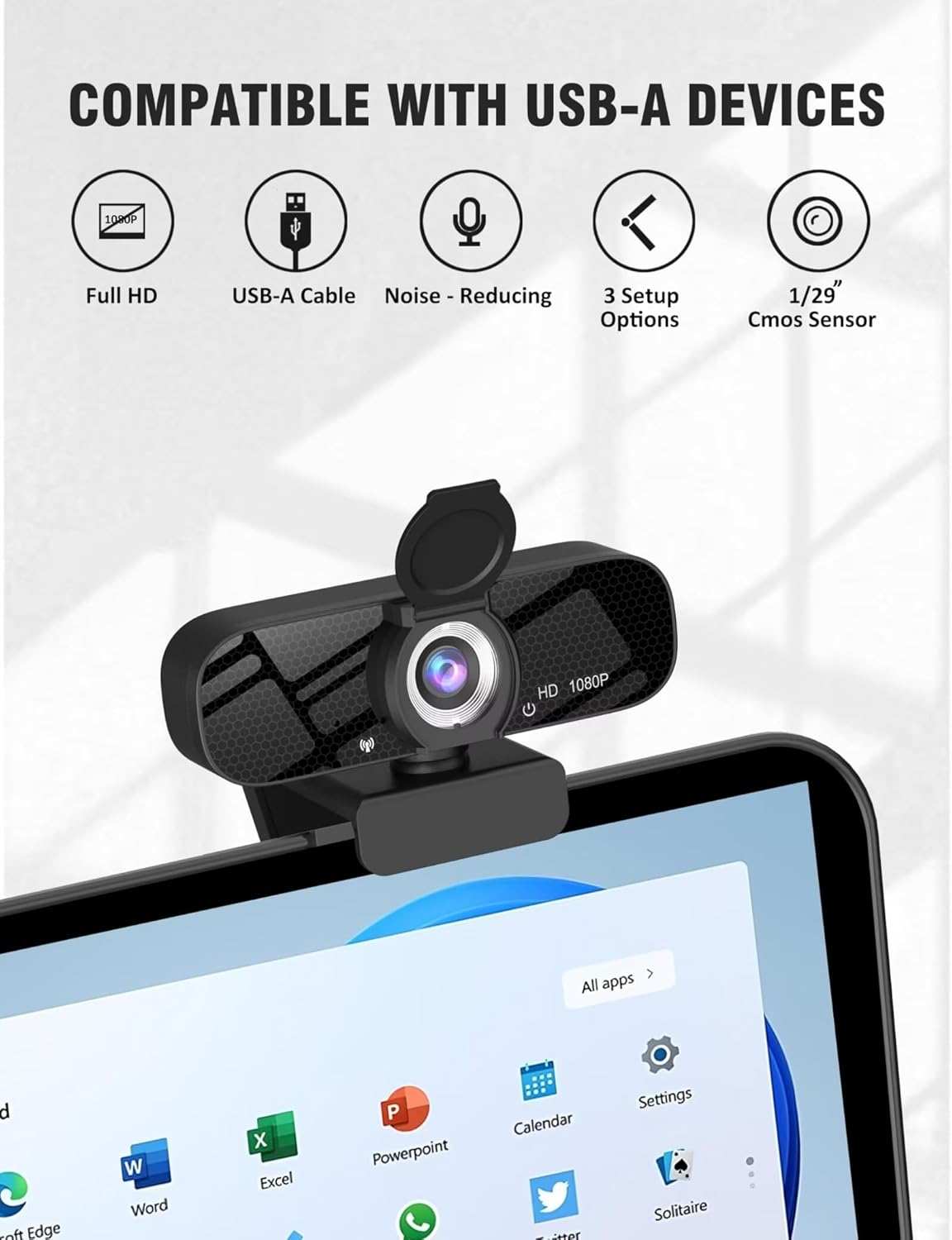
The Tewiky TW-05 Full HD 1080P Webcam is designed to provide crisp, fluid video at 30 frames per second (fps) for various applications including streaming, video calls, gaming, and online teaching. This webcam features a wide-angle lens, a built-in noise-cancelling microphone, automatic light correction, and a privacy cover for enhanced security. Its plug-and-play functionality ensures easy setup across multiple operating systems and devices.
Package Contents
Verify that all items are present in the package:
- Tewiky TW-05 Full HD 1080P Webcam
- Privacy Cover
- USB Cable (5ft)
- Tripod
- Technical Manual
Product Overview
The Tewiky TW-05 webcam integrates several features for a comprehensive video communication experience:
- Full HD 1080P Video: Delivers sharp 1920x1080 pixel video at 30fps.
- Built-in Noise-Cancelling Microphone: Minimizes background noise for clear audio.
- Automatic Light Correction: Adjusts brightness and color for optimal appearance in various lighting conditions.
- Wide-Angle Lens: Provides a broader field of view, suitable for group calls or presentations.
- Privacy Cover: A physical cover to protect the lens and ensure privacy when the webcam is not in use.
- Rotatable Tripod: Offers flexible placement options on a desk or other surfaces.
- Universal Clip: Allows secure attachment to monitors, laptops, or tablets.

Setup and Installation
The Tewiky TW-05 webcam is designed for plug-and-play functionality, requiring no additional drivers for most operating systems.
- Attach to Device:
- For monitors/laptops: Unfold the universal clip and place the webcam securely on top of your screen, ensuring the camera faces forward. Adjust the clip to fit the thickness of your screen.
- For tripod use: Screw the webcam onto the included detachable tripod. Place the tripod on a stable, flat surface.
- Connect to Computer: Insert the USB cable into an available USB port (USB 2.0 or USB 3.0/3.1 compatible) on your desktop PC, laptop, or other compatible device.
- Automatic Recognition: The operating system will automatically detect and install the necessary drivers. This process may take a few moments.
- Open Application: Launch your preferred video conferencing, streaming, or recording software (e.g., Zoom, Skype, OBS Studio). Select the Tewiky TW-05 webcam as your video and audio input device within the application's settings.


Operating Instructions
Once connected and recognized by your system, the webcam is ready for use. It features automatic adjustments for optimal performance.
- Privacy Cover: To use the camera, slide the privacy cover open. When not in use, slide it closed to protect the lens and your privacy.
- Automatic Adjustments: The camera has built-in intelligent automatic adjustment functions for image brightness, color restoration, low-light correction, flicker correction, and edge enhancement. These features operate automatically and generally do not require manual adjustment.
- Focus Adjustment: The webcam features automatic focusing. It adapts to different target distances to achieve a clear image.
- Microphone Usage: The built-in noise-cancelling microphone will automatically capture audio. Ensure it is selected as your audio input in your application settings.
- Positioning: Utilize the flexible clip and rotatable tripod to adjust the camera's angle and height for the best view during your calls or recordings. The 120° wide-angle view captures more of your surroundings.


Maintenance and Care
To ensure the longevity and optimal performance of your Tewiky TW-05 webcam, follow these maintenance guidelines:
- Cleaning: Do not use irritant cleaners or organic solvents for cleaning the webcam. Use a soft, dry cloth to gently wipe the lens and body.
- Environmental Conditions: Avoid pointing the camera lens directly at strong sunlight or bright lights. Keep the webcam away from oil, steam, water vapor, and wet steam to prevent damage.
- Storage: When not in use, close the privacy cover to protect the lens from dust and scratches.
- Power: The webcam uses low-voltage USB power with stable current, ensuring safety during extended use.
Troubleshooting
The Tewiky TW-05 webcam is designed for ease of use with automatic adjustments. If you encounter issues, consider the following:
- Not Detected: Ensure the USB cable is securely plugged into a functional USB port. Try a different USB port or restart your computer.
- No Video/Audio: Verify that the webcam is selected as the primary video and audio input device in your application's settings. Check that the privacy cover is open.
- Poor Image Quality: Ensure adequate lighting in your environment. The automatic light correction will adjust, but extreme low light can affect quality. Clean the lens if it appears smudged.
- Compatibility: The webcam supports Windows, Mac, Linux, and Android systems with UVC driver or later. Ensure your device meets the system requirements.
Technical Specifications
| Feature | Specification |
|---|---|
| Brand | Tewiky |
| Model Number | TW-05 |
| Video Capture Resolution | 1080p (1920x1080 at 30fps) |
| Photo Sensor Technology | CMOS |
| Effective Still Resolution | 2 MP |
| Lens Type | Wide Angle (120° Angle of View) |
| Focus Type | Auto Focus |
| Microphone | Built-in Noise-Reduction Microphone |
| Connectivity Technology | USB (USB 2.0/USB 3.0/USB 3.1) |
| Cable Length | 1.5m / 5ft |
| Operating System Support | Windows (XP/7/8/10/11), macOS, Linux, Android (UVC-enabled devices) |
| Built-In Media | Privacy Cover, Tripod, USB Cable |
| Automatic Adjustments | Brightness, Color, Low-Light Correction, Flicker Correction, Edge Enhancement, White Balance, Exposure |
Warranty and Support
The Tewiky TW-05 Webcam comes with a 12-month warranty for quality-related malfunctions. Lifelong paid technical support and repair services are available thereafter.
For any queries or support, please contact Tewiky Direct via email, chat, or hotline. Comprehensive guides and FAQs are also available for quick resolution.
Official Product Videos
Below are official product videos from the seller, demonstrating key features and usage of the Tewiky TW-05 Webcam.
Video 1: Tewiky 1080P HD Webcam Overview. This video provides a concise overview of the webcam's features and design.