1. Introduction
Thank you for choosing the Tecknet M005 Omni Mini Wireless Mouse. This manual provides detailed instructions for setting up, operating, maintaining, and troubleshooting your new wireless mouse. Please read this manual thoroughly before use to ensure optimal performance and longevity of your device.
The Tecknet M005 is a compact and portable wireless mouse designed for comfortable and efficient use with various computer systems. It features reliable 2.4GHz wireless connectivity and adjustable DPI settings for precise control.
2. Product Overview

Figure 2.1: Tecknet M005 Omni Mini Wireless Mouse with its USB receiver.
This image displays the black Tecknet M005 wireless mouse alongside its compact USB nano receiver. The mouse features a scroll wheel and a DPI adjustment button on its top surface, with a green indicator light.
Key Features:
- Wireless Connectivity: Utilizes 2.4GHz wireless technology for a stable connection up to 10 meters.
- Adjustable DPI: Three adjustable DPI levels (1000, 1500, 2000) for precise cursor control.
- Ergonomic Design: Comfortable and contoured shape with soft rubber grips for extended use.
- Compact and Portable: Small form factor, ideal for travel and mobile use.
- Long Battery Life: Designed for extended battery life with a single AA battery.
- Durable Switches: Lifelong clicks rated for 5.5 million operations.
- Bluewave Sensor: Tecknet Bluewave sensor for enhanced accuracy.
3. Package Contents
Please check the package contents upon unboxing. If any items are missing or damaged, please contact customer support.
- Tecknet M005 Omni Mini Wireless Mouse
- USB Nano Receiver
- User Manual (this document)
- Note: 1 AA battery is not included and must be purchased separately.
4. Setup
4.1 Battery Installation
- Turn the mouse upside down.
- Locate the battery compartment cover. Gently slide or lift the cover to open it.
- Insert one (1) AA battery into the compartment, ensuring the positive (+) and negative (-) terminals align correctly with the indicators inside the compartment.
- Replace the battery compartment cover until it clicks securely into place.
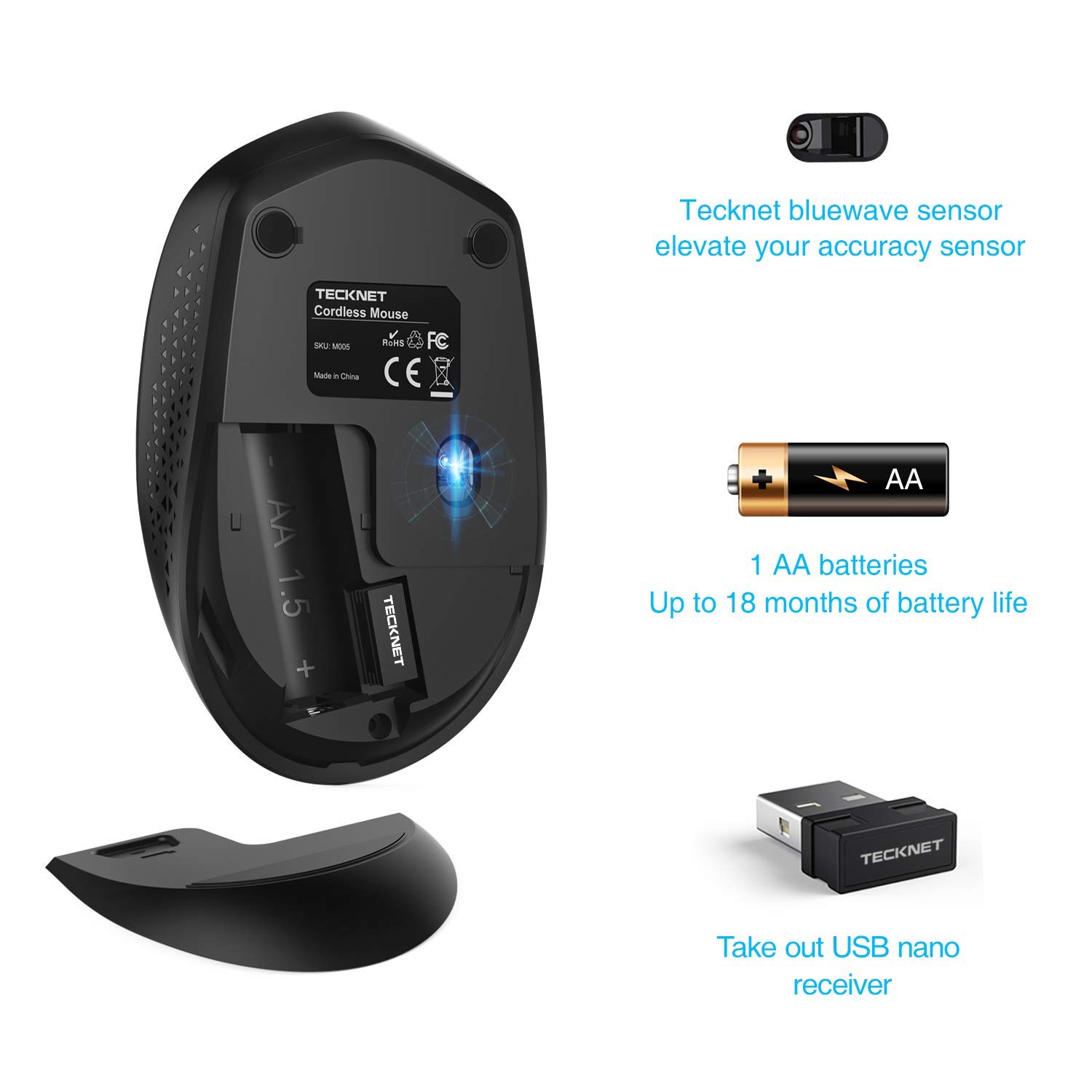
Figure 4.1: Underside view of the mouse, illustrating the battery compartment and the storage slot for the USB nano receiver.
This image shows the bottom of the Tecknet M005 mouse. The battery cover is open, revealing the slot for a single AA battery. The USB nano receiver is shown detached from its storage slot next to the battery compartment. The Bluewave sensor and product labels (SKU M005, certifications) are also visible.
4.2 Connecting the USB Nano Receiver
- Locate the USB nano receiver, which is typically stored in a slot next to the battery compartment on the underside of the mouse.
- Carefully remove the USB nano receiver from its storage slot.
- Plug the USB nano receiver into an available USB port on your computer (desktop, laptop, etc.).
- Your computer should automatically detect and install the necessary drivers. This process may take a few moments.
- Once the drivers are installed, the mouse is ready for use.

Figure 4.2: The Tecknet M005 mouse positioned next to a laptop, with the USB nano receiver plugged into the laptop's USB port.
This image demonstrates the wireless connection of the Tecknet M005 mouse to a laptop. The mouse is shown on a desk surface, and the small USB receiver is visible plugged into the side of the laptop. Icons indicate 2.4GHz wireless technology and a 10-meter range.
5. Operating the Mouse
5.1 Basic Functions
- Left Click: Primary button for selecting items, opening files, etc.
- Right Click: Secondary button for context menus and additional options.
- Scroll Wheel: Scroll up or down through documents and web pages. Pressing the scroll wheel typically acts as a middle click.

Figure 5.1: A hand demonstrating the use of the Tecknet M005 mouse, emphasizing the primary click areas and scroll wheel.
This image shows a user's hand positioned on the Tecknet M005 mouse, illustrating how the fingers naturally rest on the left and right click buttons and the scroll wheel. The image also highlights the mouse's durability with a "5 million times keystroke test" indicator.
5.2 Adjusting DPI (Sensitivity)
The Tecknet M005 mouse features a dedicated DPI button to adjust the cursor sensitivity (speed) on the fly. There are three preset DPI levels:
- 1000 DPI (Default)
- 1500 DPI
- 2000 DPI
To change the DPI setting, simply press the DPI button located behind the scroll wheel. Each press will cycle through the available DPI levels. The green indicator light on the mouse may briefly change or flash to indicate a DPI change.

Figure 5.2: Illustration of the DPI adjustment button and the three available DPI settings.
This image focuses on the top of the Tecknet M005 mouse, specifically highlighting the DPI button located just behind the scroll wheel. An overlay indicates "3 GRADE DPI" and "One button to change the moving speed of pointer," with a visual representation of the 1000, 1500, and 2000 DPI settings.
6. Maintenance
6.1 Cleaning the Mouse
- Disconnect the USB receiver from your computer.
- Use a soft, lint-free cloth slightly dampened with water or a mild cleaning solution to wipe the surface of the mouse.
- Avoid getting moisture into any openings.
- For the optical sensor, use a dry cotton swab to gently clean any dust or debris.
6.2 Battery Replacement
When the mouse's performance degrades or the indicator light signals low battery, it's time to replace the AA battery. Follow the steps outlined in Section 4.1 Battery Installation.
Note: Dispose of used batteries responsibly according to local regulations.
7. Troubleshooting
| Problem | Possible Cause | Solution |
|---|---|---|
| Mouse not responding | Low or dead battery | Replace the AA battery. |
| Mouse not responding | USB receiver not properly connected | Ensure the USB receiver is firmly plugged into a working USB port. Try a different USB port. |
| Mouse not responding | Out of range | Move the mouse closer to the USB receiver (within 10 meters). |
| Erratic cursor movement | Dirty optical sensor | Clean the optical sensor on the underside of the mouse. |
| Erratic cursor movement | Using on an unsuitable surface | Use the mouse on a clean, non-reflective, opaque surface or a mouse pad. |
| Lag or interference | Interference from other wireless devices | Move the mouse and receiver away from other 2.4GHz wireless devices (e.g., Wi-Fi routers, cordless phones). |
8. Specifications
| Feature | Detail |
|---|---|
| Model | M005 |
| Connectivity Technology | 2.4GHz Wireless |
| Wireless Range | Up to 10 meters (33 feet) |
| Movement Detection Technology | Optical (Tecknet Bluewave Sensor) |
| DPI Levels | 1000, 1500, 2000 (Adjustable) |
| Buttons | Left, Right, Scroll Wheel (Clickable), DPI Button |
| Click Lifespan | 5.5 million clicks |
| Battery Type | 1 x AA (not included) |
| Supported Operating Systems | Windows XP, Vista, 7, 8, 10 |
| Color | Black |
| Dimensions (Approx.) | 102mm (L) x 62mm (W) x 36mm (H) / 4.0in (L) x 2.44in (W) x 1.42in (H) |
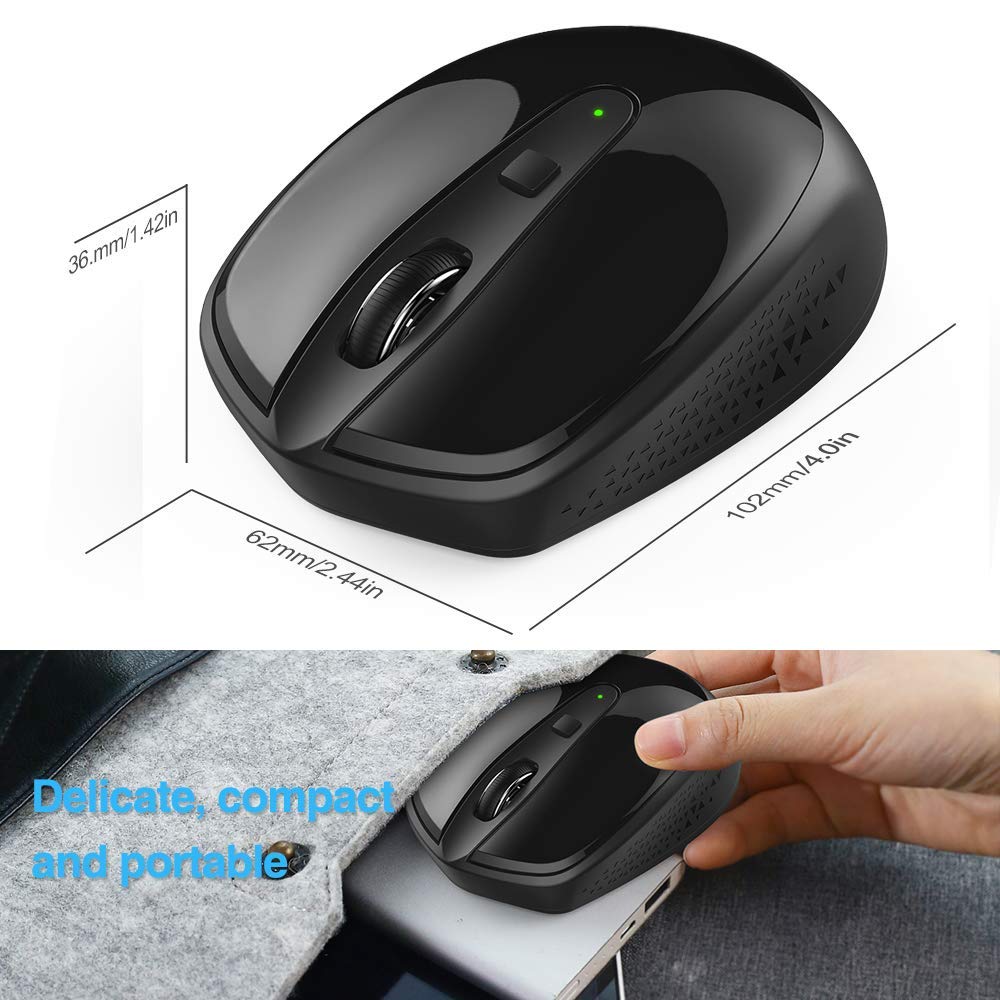
Figure 8.1: Approximate dimensions of the Tecknet M005 mouse.
This image provides a top-down and side view of the Tecknet M005 mouse with measurements indicated: 102mm (length), 62mm (width), and 36mm (height). The image also highlights the mouse's compact and portable nature.
9. Warranty and Support
9.1 Warranty Information
This Tecknet M005 Omni Mini Wireless Mouse, being a Certified Refurbished product, is tested to work and look like new with minimal to no signs of wear & tear. It comes with relevant accessories and is backed by a minimum six-month supplier-backed warranty.
Please retain your proof of purchase for warranty claims. The warranty covers defects in materials and workmanship under normal use. It does not cover damage caused by misuse, accidents, unauthorized modifications, or normal wear and tear.
9.2 Customer Support
For technical assistance, warranty claims, or any other inquiries, please contact the supplier or Amazon Renewed customer service. Refer to your purchase documentation for specific contact details.
For general information about Amazon Renewed products, you may visit the Amazon Renewed page.


