
1. Product Overview
The Dell DA310 7-in-1 USB-C Multiport Adapter is a compact and versatile solution designed to expand the connectivity options of your USB-C enabled laptop. It integrates multiple essential ports into a single device, facilitating video output, network access, and high-speed data transfers.

Image: Front view of the Dell DA310 adapter, highlighting the USB-A, USB-C, and RJ-45 Ethernet ports.
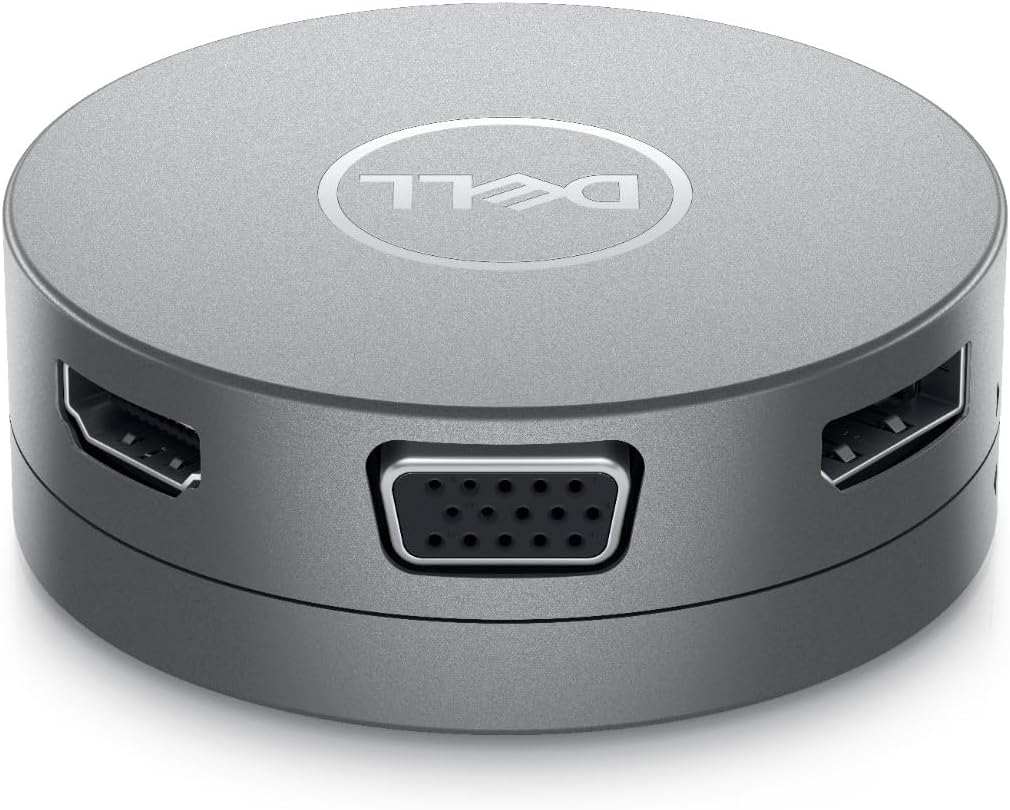
Image: Rear view of the Dell DA310 adapter, showcasing the HDMI, VGA, and DisplayPort video output ports.
Key Features:
- Extensive Port Selection: Includes 2 USB-A ports, 1 USB-C port, 1 HDMI port, 1 DisplayPort, 1 VGA port, and 1 RJ-45 Ethernet port.
- Multi-functional USB-C: Supports power pass-through (up to 90W), video output (up to 4K at 30Hz), and SuperSpeed USB 10Gbps data transfer.
- High-Resolution Video: Supports crisp 4K resolution at 60Hz for compatible displays.
- SuperSpeed Data Transfers: USB-A and USB-C downstream ports enable fast file transfers up to 10 Gbps.
- Compact and Portable Design: Small, lightweight, and features an integrated, retractable USB-C cable for easy storage and transport.
2. Setup Instructions
The Dell DA310 adapter is designed for plug-and-play functionality, requiring no external driver installations for most operating systems.
Connecting the Adapter:
- Extend the USB-C Cable: Gently rotate the top and bottom sections of the adapter to extend the integrated USB-C cable.
- Connect to Laptop: Plug the extended USB-C cable into an available USB-C port on your laptop.
- Connect Peripherals: Connect your desired devices (monitor, keyboard, mouse, Ethernet cable, USB drives, etc.) to the corresponding ports on the adapter.

Image: The Dell DA310 adapter with its integrated USB-C cable fully extended, ready for connection.
Video Guide: Dell USB-C Mobile Adapter DA310
Video: An official product video demonstrating the features and connectivity of the Dell DA310 USB-C Mobile Adapter, including its various ports and compact design.
3. Operating Instructions
Once connected, the Dell DA310 adapter allows for seamless integration of your peripherals and external displays.
Using Video Output Ports:
- Connect your monitor using an HDMI, DisplayPort, or VGA cable to the corresponding port on the adapter.
- Ensure your laptop's display settings are configured to extend or duplicate your desktop to the external monitor.
- For 4K resolution at 60Hz, ensure your laptop and monitor support DisplayPort 1.4 (HBR3) and HDR.
Using USB Ports:
- Plug USB-A devices (keyboard, mouse, flash drives) into the two USB-A ports.
- The USB-C downstream port can be used for data transfer (up to 10Gbps), video output, or power pass-through.
Network Connectivity:
- Connect an Ethernet cable to the RJ-45 port for wired network access.
Power Pass-Through:
- Connect your laptop's USB-C power adapter to the USB-C port on the DA310 to charge your laptop while using the adapter. The adapter supports up to 90W power pass-through.
4. Maintenance
Proper maintenance ensures the longevity and optimal performance of your Dell DA310 adapter.
- Cleaning: Use a soft, dry cloth to clean the adapter. Avoid liquid cleaners or solvents.
- Storage: When not in use, retract the USB-C cable by rotating the adapter sections. Store in a cool, dry place away from direct sunlight.
- Handling: Avoid dropping the adapter or subjecting it to strong impacts. Do not force cables into ports.
5. Troubleshooting
If you encounter issues with your Dell DA310 adapter, refer to the following common solutions:
- No Display on External Monitor:
- Ensure the video cable is securely connected to both the adapter and the monitor.
- Verify your laptop's display settings are correctly configured for the external monitor (e.g., Extend, Duplicate).
- Test with a different video cable or monitor if possible.
- Ensure your laptop's USB-C port supports DisplayPort Alternate Mode.
- No Network Connectivity:
- Check that the Ethernet cable is securely connected to the RJ-45 port on the adapter and your network router/switch.
- Verify network settings on your laptop.
- USB Devices Not Recognized:
- Ensure the USB device is properly inserted into the adapter's USB-A or USB-C port.
- Try connecting the device directly to your laptop to rule out device issues.
- Adapter Feels Warm:
- It is normal for the adapter to generate some heat during operation, especially when multiple ports are in use or when charging. Ensure adequate ventilation around the adapter.
- Intermittent Display Disconnection:
- Ensure all connections are firm. Sometimes, a loose connection can cause intermittent issues.
- If the display disconnects when the screen is idle, try disconnecting and reconnecting the adapter.
6. Specifications
| Feature | Detail |
|---|---|
| Brand | Dell |
| Model Number | DELL-DA310 |
| Connector Type | USB Type C |
| Number of Ports | 7 |
| Ports Included | 2x USB-A, 1x USB-C, 1x HDMI, 1x DisplayPort, 1x VGA, 1x RJ-45 |
| Max Video Resolution | 4K @ 60Hz (DisplayPort 1.4, HBR3 compatible displays) |
| USB Data Transfer Speed | Up to 10 Gbps (SuperSpeed USB) |
| Power Pass-Through | Up to 90W (via USB-C port) |
| Item Dimensions (L x W x H) | 2.75 x 2.75 x 1 inches |
| Item Weight | 0.18 Pounds |
| Color | Black |
| Built-In Cable | 1 x USB-C cable - integrated - 12 cm (4.7 Inch) |
7. Warranty and Support
Warranty Information:
The Dell DA310 7-in-1 USB-C Multiport Adapter comes with a limited warranty of 3 years from the date of purchase.
Customer Support:
For technical assistance, troubleshooting, or warranty claims, please visit the official Dell support website or contact Dell customer service directly. Keep your proof of purchase for warranty validation.


