
1. Introduction
This manual provides instructions for setting up, operating, and maintaining your D-Link DIR-X5460-US AX5400 WiFi 6 Router. Please read this manual thoroughly to ensure proper use and optimal performance of your device.
1.1 Product Overview
The D-Link DIR-X5460-US is an AX5400 WiFi 6 router designed to deliver high-speed, efficient wireless connectivity for your home network. Featuring dual-band operation, MU-MIMO technology, and voice control compatibility, it is suitable for gaming, 4K streaming, and connecting multiple devices simultaneously.

Front view of the D-Link DIR-X5460-US AX5400 WiFi 6 Router, showcasing its design with multiple antennas.
1.2 Key Features
- WiFi 6 (802.11ax) Technology: Provides faster speeds, greater capacity, and reduced network congestion compared to previous Wi-Fi standards.
- AX5400 Dual-Band: Delivers combined wireless speeds of up to 5400 Mbps across 2.4 GHz and 5 GHz bands.
- MU-MIMO Technology: Allows multiple devices to receive data simultaneously, improving network efficiency.
- Voice Control: Compatible with Amazon Alexa and Google Assistant for convenient network management.
- Gigabit Ethernet Ports: Includes 4 Gigabit LAN ports and 1 Gigabit WAN port for high-speed wired connections.
- Enhanced Parental Controls: Manage internet access and content for connected devices.
- OFDMA: Improves efficiency in high-density environments by allowing multiple users to transmit data simultaneously on a single channel.
- 160MHz Channel Capacity: Supports wider channels for increased data throughput and faster speeds.
2. Package Contents
Verify that your package contains the following items:
- D-Link DIR-X5460-US AX5400 WiFi 6 Router
- Power Adapter
- Ethernet Cable
- Quick Installation Guide (this manual)
If any items are missing or damaged, please contact your retailer or D-Link support.
3. Setup
3.1 Physical Connection
- Position the Router: Place your router in a central location in your home, away from obstructions and devices that may cause interference (e.g., cordless phones, microwaves).
- Connect to Modem: Connect one end of the provided Ethernet cable to the WAN port (usually colored blue) on the back of your DIR-X5460-US router. Connect the other end to your modem's Ethernet port.
- Connect Power: Plug the power adapter into the power port on the router and then into a wall outlet. The power LED indicator on the router should illuminate.
- Power On: Press the Power Button on the back of the router to turn it on. Wait for the router to fully boot up (this may take a few minutes).

Detailed view of the D-Link DIR-X5460-US router's rear panel, clearly labeling its components: High Gain Antennas, 4 Gigabit LAN Ports, 1 Gigabit WAN Port, USB 3.0 Port, USB 2.0 Port, Power Button, and WPS Button.
3.2 Initial Configuration
You can configure your router using the D-Link Wi-Fi app or a web browser.
Using the D-Link Wi-Fi App (Recommended)
- Download the App: Download the D-Link Wi-Fi app from the Apple App Store or Google Play Store. You can use the QR code provided on the router's label or in the image below.
- Launch the App: Open the D-Link Wi-Fi app and follow the on-screen instructions to set up your router. You will be guided through creating a new Wi-Fi network name (SSID) and password.

An image displaying the D-Link Wi-Fi app logo with links and QR codes for downloading the app from the Apple App Store and Google Play Store, facilitating easy setup and management. Download the app here: http://onelink.to/e5qgfy
Using a Web Browser
- Connect to Router: Connect your computer to the router using an Ethernet cable (to any LAN port) or wirelessly using the default Wi-Fi name and password found on the router's label.
- Access Web Interface: Open a web browser and type
http://dlinkrouter.local./or192.168.0.1into the address bar. - Follow Setup Wizard: Log in using the default credentials (usually admin for username and blank or on the router label for password) and follow the on-screen setup wizard to configure your internet connection and Wi-Fi settings.
4. Operating the Router
4.1 Connecting Devices
To connect devices to your Wi-Fi network:
- On your device (smartphone, tablet, laptop), go to Wi-Fi settings.
- Select your Wi-Fi network name (SSID) from the list.
- Enter your Wi-Fi password when prompted.
4.2 Understanding WiFi 6 Benefits
Your AX5400 router utilizes WiFi 6 (802.11ax) technology to enhance your network experience:

A bar chart illustrating the speed improvements of AX5400 (WiFi 6) over 11AC (WiFi 5) on both 2.4GHz and 5GHz bands, showing AX5400 is up to 90% faster on 2.4GHz and up to 176% faster on 5GHz.

An infographic detailing the advantages of WiFi 6 (AX Technology), including BSS Coloring, More WiFi Streams, Target Wake Time, Less Interference, Shorter Response Times, and Efficient Battery Life for Devices.

A visual explanation of OFDMA (Orthogonal Frequency-Division Multiple Access) technology, showing how it combines several small data packets into one for greater efficiency, allowing more devices to connect with less congestion.
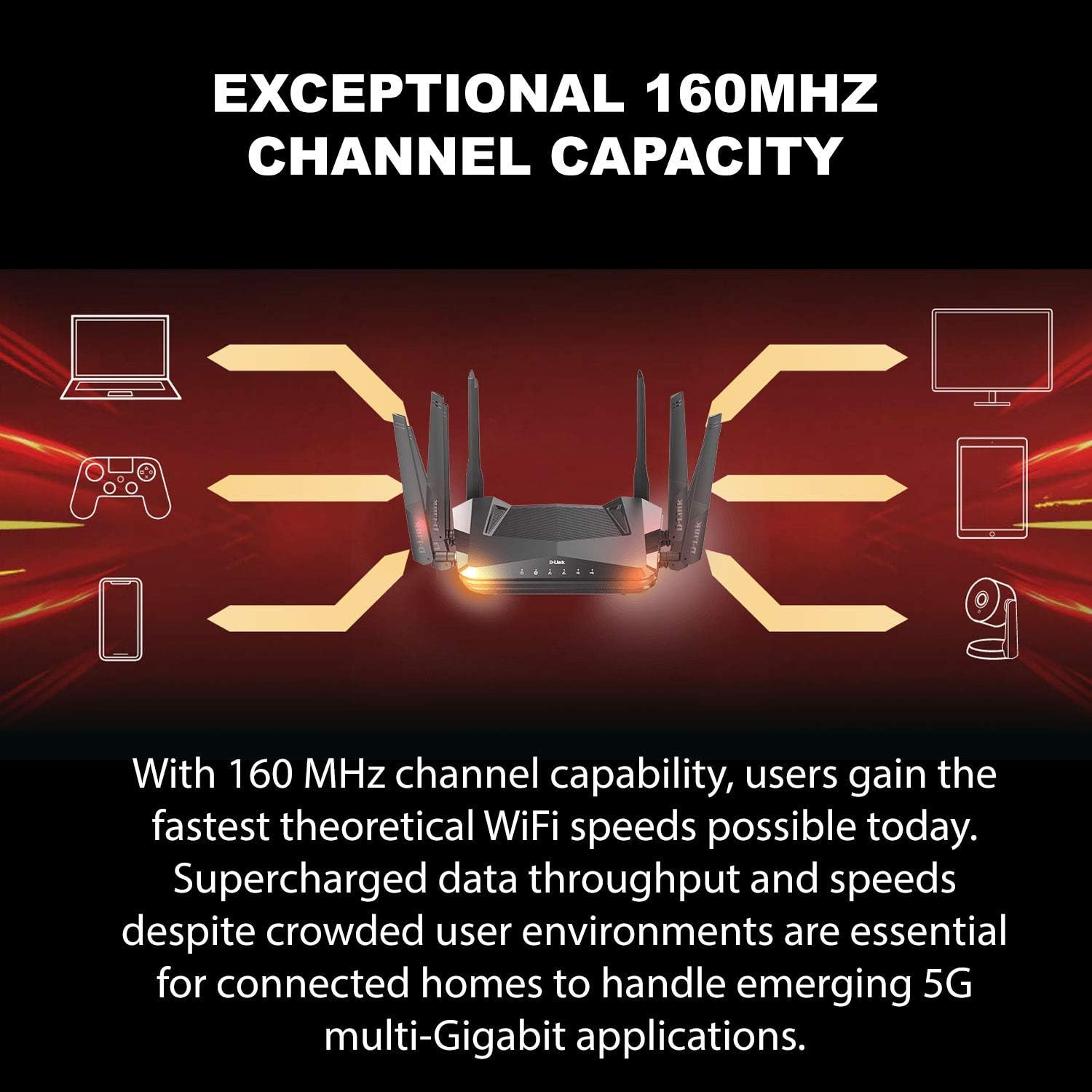
A visual representation of the 160 MHz channel capacity, highlighting how it enables faster theoretical WiFi speeds and supercharged data throughput for multiple connected devices in a home network.

An image depicting a modern home with WiFi signals emanating from a D-Link router, emphasizing robust and reliable WiFi experiences for activities like FPS gaming and 4K streaming, supported by built-in high-powered amplifiers.
4.3 Parental Controls
The D-Link Wi-Fi app allows you to implement parental controls to manage internet usage for family members:
- Create individual profiles for each user or device.
- Set internet access schedules.
- Block specific websites or categories of content.

A screenshot of the D-Link Wi-Fi app's parental control interface, showing options to create user profiles, set schedules, and limit internet access for individual devices.
4.4 Voice Control
Your router supports voice commands via Amazon Alexa and Google Assistant. To enable this feature, link your D-Link account within the respective voice assistant app and follow their instructions for device discovery and control.
5. Maintenance
To ensure optimal performance and longevity of your D-Link router:
- Keep Firmware Updated: Regularly check for and install firmware updates through the D-Link Wi-Fi app or web interface. Updates often include performance improvements and security patches.
- Clean Regularly: Gently wipe the router's exterior with a soft, dry cloth. Do not use liquid cleaners or aerosols.
- Ensure Ventilation: Do not block the ventilation openings on the router. Proper airflow prevents overheating.
- Restart Periodically: A periodic restart (unplugging the power for 10 seconds and plugging it back in) can help resolve minor network issues and refresh the router's performance.
6. Troubleshooting
6.1 No Internet Connection
- Check Cables: Ensure all Ethernet cables are securely connected to the router and modem.
- Restart Devices: Power cycle your modem, then your router, and then your computer/device. Wait a few minutes after each restart.
- Check Modem Status: Verify that your modem is working correctly and has an active internet connection.
- ISP Issue: Contact your Internet Service Provider (ISP) to confirm there are no service outages in your area.
6.2 Slow Wi-Fi Speeds
- Router Placement: Ensure the router is centrally located and free from obstructions.
- Interference: Move the router away from other electronic devices that may cause interference.
- Channel Optimization: Use the D-Link Wi-Fi app or web interface to check for optimal Wi-Fi channels.
- Device Compatibility: Ensure your devices support Wi-Fi 6 (802.11ax) to fully benefit from the router's capabilities.
6.3 Cannot Access Router Settings
- Verify IP Address/URL: Ensure you are using the correct address (
http://dlinkrouter.local./or192.168.0.1). - Clear Browser Cache: Clear your web browser's cache and cookies, or try a different browser.
- Reset Router: If you have forgotten your password or cannot access the interface, perform a factory reset by pressing and holding the reset button on the back of the router for 10 seconds. Warning: This will erase all your custom settings.
7. Specifications
| Feature | Detail |
|---|---|
| Model Name | DIR-X5460-US |
| Wireless Standard | 802.11ax (Wi-Fi 6) |
| Frequency Band Class | Dual-Band (2.4 GHz & 5 GHz) |
| Wireless Speed | AX5400 (Up to 600 Mbps on 2.4 GHz, Up to 4800 Mbps on 5 GHz) |
| Ethernet Ports | 1x Gigabit WAN, 4x Gigabit LAN |
| USB Ports | 1x USB 3.0, 1x USB 2.0 |
| Special Features | MU-MIMO, OFDMA, Voice Control (Alexa & Google Assistant), 160MHz Channel Support, WPA3 Security |
| Dimensions (L x W x H) | 8.25 x 10.38 x 2.57 inches |
| Item Weight | 3.1 pounds |
| Operating System Compatibility | Linux (internal), Compatible with various OS for client devices |
| Manufacturer | D-Link Systems, Inc. |
8. Warranty and Support
For warranty information, technical support, and product registration, please visit the official D-Link website or contact D-Link customer service.
- D-Link Website: www.dlink.com
- Support: Refer to the support section on the D-Link website for FAQs, firmware downloads, and contact options.


