
1. Introduction
This user manual provides detailed instructions for the setup, operation, maintenance, and troubleshooting of your ViewSonic TD2223 22-inch 10-Point Multi IR Touch Screen Monitor. Please read this manual thoroughly before using the product to ensure proper functionality and to maximize your user experience. Keep this manual for future reference.
2. Product Overview
The ViewSonic TD2223 is a versatile 22-inch touch display designed for various applications, including public kiosks, point-of-sale (POS) systems, and commercial environments. It features advanced 10-point infrared (IR) touch technology, allowing for intuitive interaction such as pinching, zooming, and swiping. The monitor delivers crisp Full HD (1920x1080p) resolution with a 1000:1 static contrast ratio, ensuring clear and vibrant visuals. Its durable 7H scratch-resistant screen is built to withstand heavy use in high-traffic settings.
Key Features:
- 10-Point IR Touch Technology: Provides a natural and responsive multi-touch experience.
- Full HD (1920x1080p) Resolution: Delivers sharp and detailed images.
- 7H Scratch-Resistant Surface: Ensures durability and protection against wear.
- Eye Care Technology: Includes Flicker-Free technology and a Blue Light Filter to reduce eye strain during extended viewing.
- Multi-OS Support: Compatible with various operating systems, including Windows, Android, Chrome OS, and Linux. macOS users can access touch and gesture controls via ViewSonic's vTouch driver.
- Flexible Connectivity: Equipped with HDMI, VGA, DVI, and a USB hub for connecting peripherals.
- VESA-Mount Compatible: Offers flexibility for mounting solutions.

Image: The TD2223 monitor showcasing its 10-point IR touch capabilities.

Image: The TD2223 monitor demonstrating compatibility with multiple operating systems.
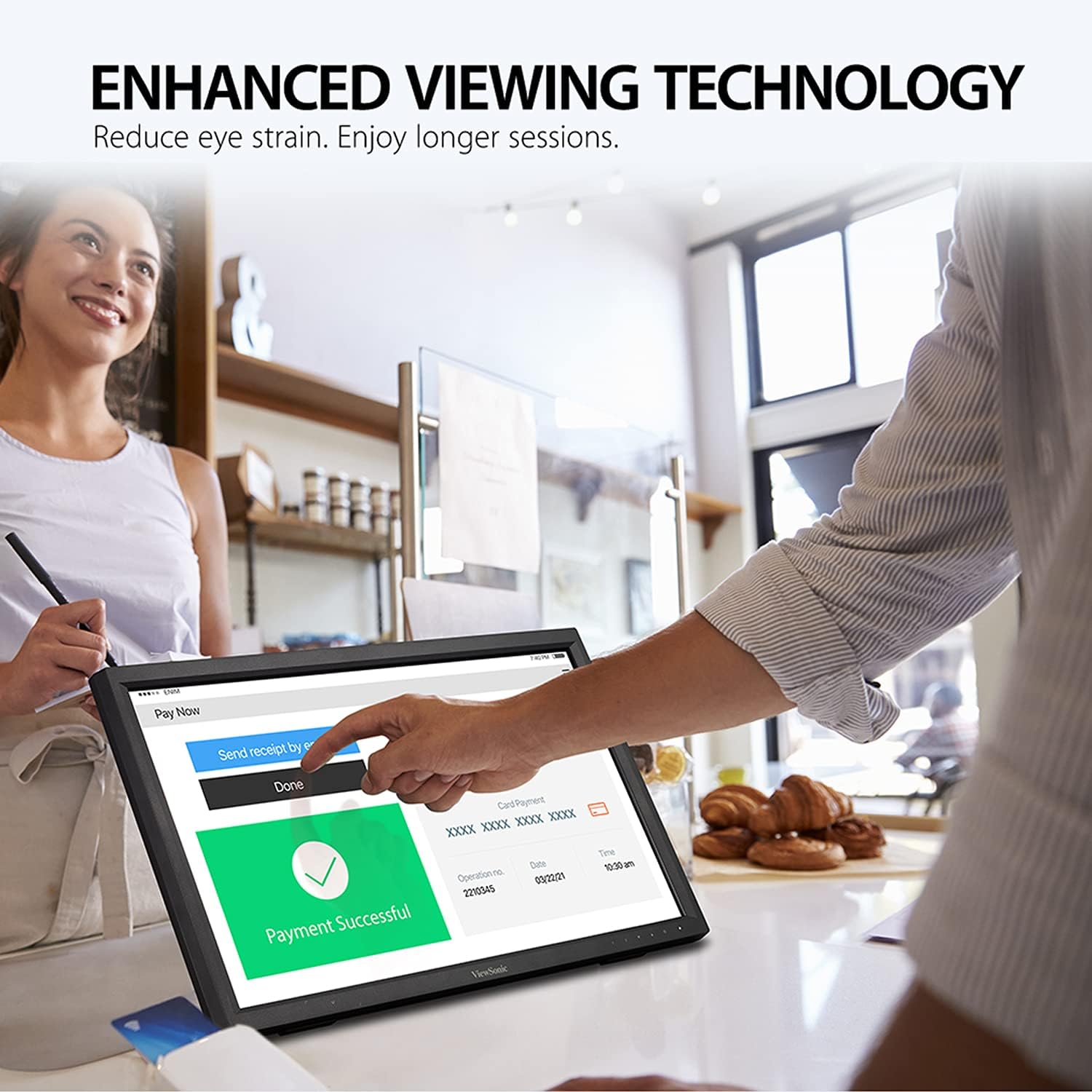
Image: Enhanced viewing technology for reduced eye strain during prolonged use.
3. What's in the Box
Please check the contents of your package to ensure all items are present:
- TD2223-2 Monitor x1
- 3-pin Plug (IEC C13 / CEE22) x1 (Power Cable, varies by region)
- HDMI Cable (v1.4; Male-Male) x1
- USB A/B Cable (v2.0; Male-Male) x1 (USB Type-B Uplink Cable)
- Quick Start Guide x1
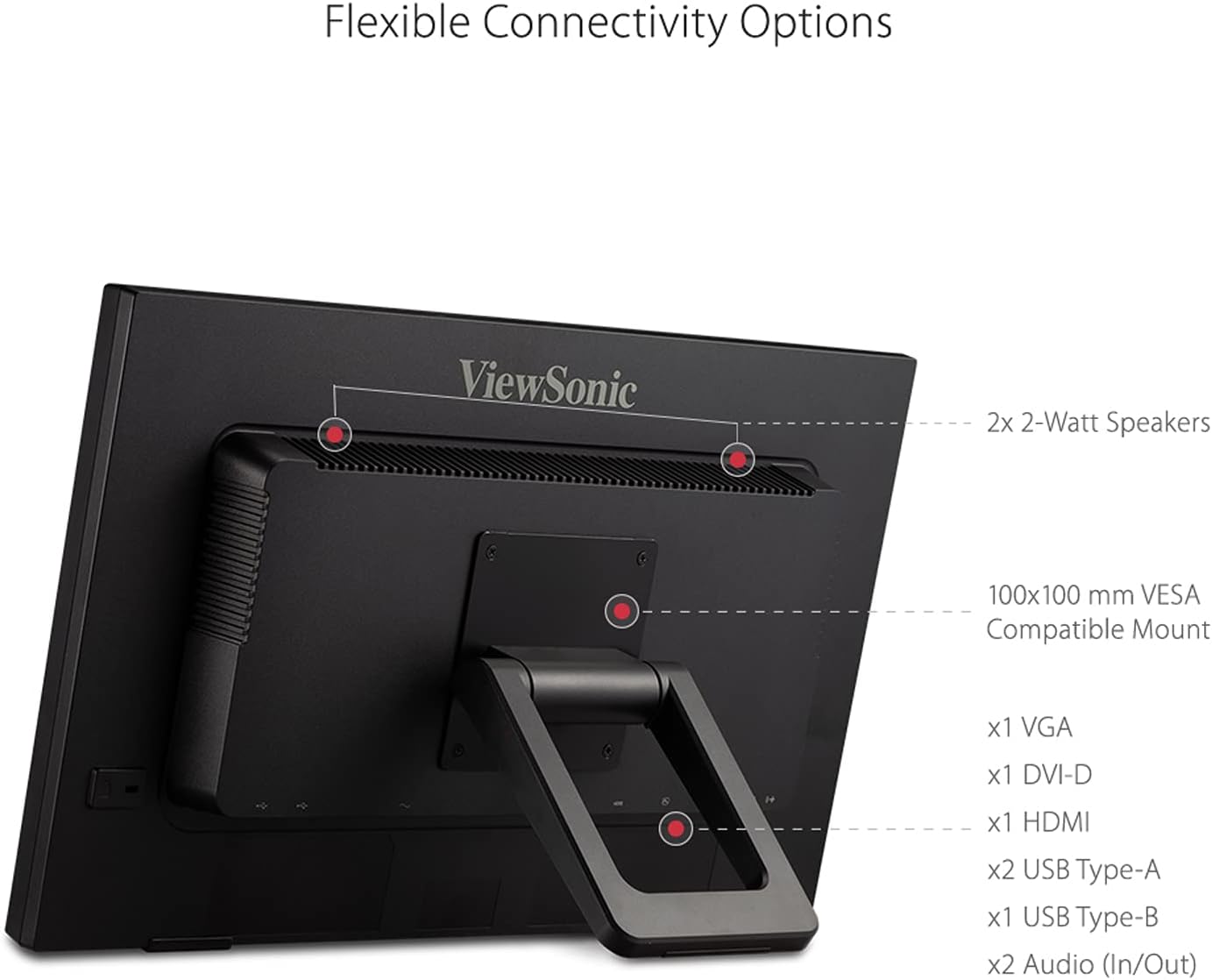
Image: All items included in the TD2223 product package.
4. Setup Instructions
Follow these steps to set up your ViewSonic TD2223 monitor:
- Unpack the Monitor: Carefully remove the monitor and all accessories from the packaging.
- Connect Video Cable: Connect one end of the HDMI, VGA, or DVI cable to the corresponding port on your computer and the other end to the monitor.
- Connect USB Cable for Touch Functionality: Connect the USB A/B cable (USB Type-B Uplink Cable) from your computer's USB port to the USB Type-B port on the monitor. This connection is essential for enabling the touch screen features.
- Connect Power Cable: Plug the power cable into the monitor's power input and then into a power outlet.
- Power On: Press the power button on the monitor to turn it on. Turn on your computer. The monitor should automatically detect the input signal.
- Install Drivers (if necessary): For optimal touch performance, especially with macOS, you may need to download and install the latest vTouch driver from the ViewSonic website.

Image: Detailed view of the flexible connectivity options on the rear of the monitor.
5. Operating Instructions
Your TD2223 monitor is designed for intuitive use. Here's how to get started:
Using Touch Functionality:
- The 10-point IR touch technology allows for precise and responsive interaction. Use gestures like tap, drag, pinch-to-zoom, and swipe as you would on a tablet.
- Ensure the USB A/B cable is connected to your computer for touch functionality to work.
- For macOS users, download and install the ViewSonic vTouch driver from the official ViewSonic website to enable full touch and gesture controls. This driver is not available for iPhone and iPad devices.
Adjusting Display Settings:
- Access the On-Screen Display (OSD) menu using the buttons located on the bottom right bezel of the monitor.
- ViewMode: Utilize ViewSonic's exclusive ViewMode feature to select optimized screen performance presets for different applications (e.g., 'Game', 'Movie', 'Web', 'Text', 'Mono', 'Mac').
- Eye Care Features: Navigate to the OSD menu to enable or adjust the Blue Light Filter and Flicker-Free settings to reduce eye strain.
Video: An official ViewSonic video demonstrating the features and functionality of the TD2223 22-inch Touch Display.
6. Maintenance
Proper maintenance ensures the longevity and optimal performance of your monitor.
Cleaning the Screen:
- Always turn off the monitor and unplug the power cord before cleaning.
- Use a soft, lint-free cloth lightly dampened with a non-abrasive, ammonia-free glass cleaner.
- Spray the cleaner onto the cloth, not directly onto the screen.
- Gently wipe the screen surface to remove dust, smudges, or fingerprints.
- Avoid using harsh chemicals, abrasive pads, or solvents, as these can damage the screen's surface.
General Care:
- Keep the monitor away from direct sunlight, excessive heat, or humidity.
- Ensure adequate ventilation around the monitor to prevent overheating.
- Avoid placing heavy objects on the monitor or its cables.
- The 7H scratch-resistant surface provides good protection, but avoid sharp objects that could still cause damage.
7. Troubleshooting
If you encounter issues with your monitor, refer to the following common troubleshooting steps:
No Power:
- Ensure the power cable is securely connected to both the monitor and a working power outlet.
- Check if the power outlet is functioning by plugging in another device.
- Verify the power button on the monitor is pressed.
No Signal on Screen:
- Confirm that the video cable (HDMI, VGA, or DVI) is securely connected to both the monitor and your computer.
- Ensure your computer is powered on and not in sleep mode.
- Try selecting the correct input source via the OSD menu on the monitor.
- Test with a different video cable or another computer if possible.
Touch Functionality Not Working:
- Verify that the USB A/B cable (USB Type-B Uplink Cable) is securely connected from your computer to the monitor. This cable is crucial for touch input.
- For macOS users, ensure the ViewSonic vTouch driver is correctly installed and updated.
- Restart your computer and the monitor.
- Check your operating system's device manager to see if the touch screen device is recognized and drivers are installed correctly.
If these steps do not resolve the issue, please contact ViewSonic customer support for further assistance.
8. Specifications
Below are the technical specifications for the ViewSonic TD2223 monitor:
| Feature | Specification |
|---|---|
| Screen Size | 22 Inches |
| Panel Type | TN (for fast response) |
| Resolution | Full HD (1920x1080) |
| Aspect Ratio | 16:9 |
| Static Contrast Ratio | 1000:1 |
| Touch Technology | 10-Point Infrared (IR) Touch |
| Screen Hardness | 7H |
| Connectivity | HDMI, VGA, DVI, USB Hub (2x USB Type-A, 1x USB Type-B), Audio In/Out |
| Speakers | 2x 2-Watt |
| VESA Mount | 100x100 mm |
| Product Dimensions (LxWxH) | 20.5 x 4 x 13.1 inches (52.1 x 10.1 x 33.4 cm) |
| Item Weight | 9.9 pounds (4.5 kg) |
| Color | Black |

Image: Visual representation of the monitor's dimensions and display quality.
9. Warranty and Support
ViewSonic is committed to providing high-quality products and excellent customer service.
Warranty Information:
Your ViewSonic TD2223 monitor comes with a 3-Year Limited Warranty. This warranty covers defects in materials and workmanship under normal use during the warranty period. Please refer to the warranty card included in your package or visit the official ViewSonic website for full terms and conditions.
Customer Support:
For technical assistance, product inquiries, or warranty claims, please contact our US-based customer support team. Contact information can be found on the ViewSonic website or in your Quick Start Guide.
Image: ViewSonic's commitment to warranty, support, and environmental responsibility.


