
1. Introduction
Welcome to the user manual for your Dahua VTO2111D-P-S2 PoE IP Villa Doorbell. This advanced device is designed to provide secure and convenient access control for your villa, featuring high-definition video intercom, remote door release capabilities, and seamless cloud connectivity. This manual will guide you through the installation, setup, operation, and maintenance of your new door station. Please read these instructions carefully before proceeding with installation and use to ensure optimal performance and safety.
2. Package Contents
Before beginning the installation, please verify that all items listed below are present in your package:
- Dahua VTO2111D-P-S2 IP Villa Doorbell Unit
- Mounting Bracket
- Screws and Wall Anchors
- Wiring Harness
- Quick Start Guide / Documentation

Figure 2.1: Contents of the Dahua VTO2111D-P-S2 package, including the doorbell unit, mounting plate, wiring, and instruction manual.
3. Product Overview
Familiarize yourself with the physical components and interfaces of your Dahua VTO2111D-P-S2 IP Villa Doorbell.
3.1 Front View

Figure 3.1: Front view of the Dahua VTO2111D-P-S2 IP Villa Doorbell, displaying the camera lens, call button, and RFID reader icon.
3.2 Rear View

Figure 3.2: Rear view of the Dahua VTO2111D-P-S2 IP Villa Doorbell, showing the various wiring terminals and product information labels.
4. Installation
Proper installation is crucial for the optimal performance of your doorbell. Follow these steps carefully.
4.1 Safety Precautions
- Always disconnect power to the installation area before beginning any wiring or mounting procedures.
- Ensure all wiring complies with local electrical codes.
- If you are unsure about any step, consult a qualified electrician.
4.2 Choosing a Mounting Location
Select a location that provides a clear, unobstructed view of the visitor's face and the surrounding area. The recommended mounting height is approximately 1.5 meters (5 feet) from the ground to the center of the camera lens.
4.3 Mounting the Doorbell Unit
- Prepare the Wall: Use the provided mounting template (if available) to mark the drill holes for the mounting bracket on the wall.
- Drill Holes: Drill holes at the marked positions. Insert the wall anchors into the drilled holes.
- Secure Bracket: Attach the mounting bracket to the wall using the screws.
- Wiring: Connect the necessary wires (Power, Ethernet, Door Lock) to the terminals on the rear of the doorbell unit. Ensure secure connections.
- Attach Doorbell: Carefully align the doorbell unit with the mounting bracket and secure it in place.

Figure 4.1: Rear view of the Dahua VTO2111D-P-S2 IP Villa Doorbell with an Ethernet cable connected, illustrating the wiring process.
Note: No official seller videos specifically for the Dahua VTO2111D-P-S2 model were found to be included in this manual. Please refer to the written instructions and diagrams for installation guidance.
5. Initial Setup and Configuration
After physical installation, proceed with the initial setup and network configuration.
5.1 Powering On
Connect the doorbell to a Power over Ethernet (PoE) switch or a 12V DC power adapter. The device will power on automatically.
5.2 Network Connection
Ensure the Ethernet cable is securely connected to the doorbell's network port and to your network switch/router. The device will obtain an IP address automatically via DHCP.
5.3 Mobile App Setup (DMSS App)
To manage your doorbell remotely, download and configure the DMSS mobile application.
- Download DMSS: Search for "DMSS" in your smartphone's app store (App Store for iOS, Google Play Store for Android) and install the application.
- Create Account: Open the DMSS app, register a new account, and log in.
- Add Device: Tap the "+" icon in the top right corner of the app to add a new device. Select "Scan QR Code" and scan the QR code located on the doorbell unit or its packaging.
- Configure Device: Follow the on-screen prompts to set up the device, including setting a device password, time zone, and device name.
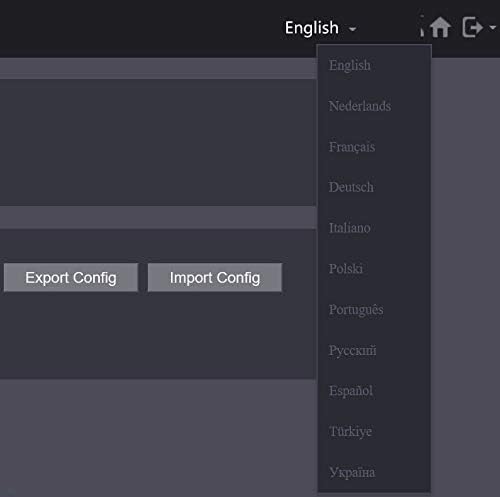
Figure 5.1: Example of a multi-language selection menu, indicating the device supports various languages for its interface.
6. Operating Instructions
Learn how to use the key features of your Dahua VTO2111D-P-S2 IP Villa Doorbell.
6.1 Making a Call
A visitor simply presses the call button on the doorbell unit. This will initiate a call to the indoor monitor(s) and/or the configured mobile app(s).
6.2 Answering a Call
When a call is received, you can answer it from your indoor monitor or via the DMSS mobile app. Once answered, two-way audio and live video will be established.
6.3 Two-Way Audio and Video Monitoring
During an active call, you can communicate with the visitor using the built-in microphone and speaker. You can also view the live video feed from the doorbell camera at any time through the DMSS app or indoor monitor.
6.4 Door Release
You can remotely unlock the connected door or gate using the dedicated button on the indoor monitor or through the DMSS mobile app during a call or live view.
6.5 RFID Access
For convenient entry, pre-programmed RFID cards can be used. Simply present the RFID card to the designated reader area on the doorbell unit to unlock the door.
7. Maintenance
Regular maintenance helps ensure the longevity and optimal performance of your doorbell.
7.1 Cleaning
Wipe the camera lens and the surface of the doorbell unit with a soft, dry cloth. Avoid using harsh chemicals or abrasive cleaners that could damage the finish or lens.
7.2 Firmware Updates
Periodically check for firmware updates through the DMSS app or the device's web interface. Keeping the firmware updated ensures you have the latest features, security patches, and performance improvements.
7.3 Regular Checks
Routinely verify the network connection, audio/video functionality, and door release mechanism to ensure everything is working correctly.
8. Troubleshooting
This section addresses common issues you might encounter with your doorbell.
8.1 No Power
- Check if the PoE switch is powered on and functioning correctly.
- If using a 12V DC adapter, ensure it is properly connected and providing power.
- Verify all power connections are secure.
8.2 No Video or Audio
- Ensure the Ethernet cable is securely connected and the network is active.
- Check the DMSS app or indoor monitor settings to ensure audio and video are enabled.
- Restart the doorbell unit and your network equipment.
8.3 Door Not Unlocking
- Verify the wiring between the doorbell unit and the door lock mechanism.
- Check the door release settings in the DMSS app or indoor monitor.
- Ensure the door lock itself is functioning correctly.
8.4 RFID Card Not Working
- Ensure the RFID card has been correctly programmed and added to the device.
- Place the RFID card firmly and correctly on the reader area of the doorbell unit.
9. Specifications
| Feature | Detail |
|---|---|
| Manufacturer | DAHUA |
| Brand | Dahua |
| Model Number | VTO2111D-P-S2 |
| Product Dimensions (L x W x H) | 50 x 50 x 28 cm |
| Item Weight | 330 grams |
| ASIN | B08VDM1Q3X |
| First Available | 29 January 2021 |
10. Warranty and Support
For detailed warranty information, technical support, and service inquiries, please refer to the official Dahua Technology website or contact your authorized Dahua distributor. Please retain your purchase receipt as proof of purchase for any warranty claims.
You can find additional resources and contact information on the official Dahua website: www.dahuasecurity.com