
Introduction
The Sharkoon Skiller SGK30 is a mechanical gaming keyboard designed for performance and durability. It features customizable RGB lighting, N-Key rollover, and a 1000Hz polling rate for responsive gameplay and typing. This manual provides essential information for setting up, operating, and maintaining your keyboard.

Image: Sharkoon Skiller SGK30 Mechanical Gaming Keyboard banner displaying the product name and type.
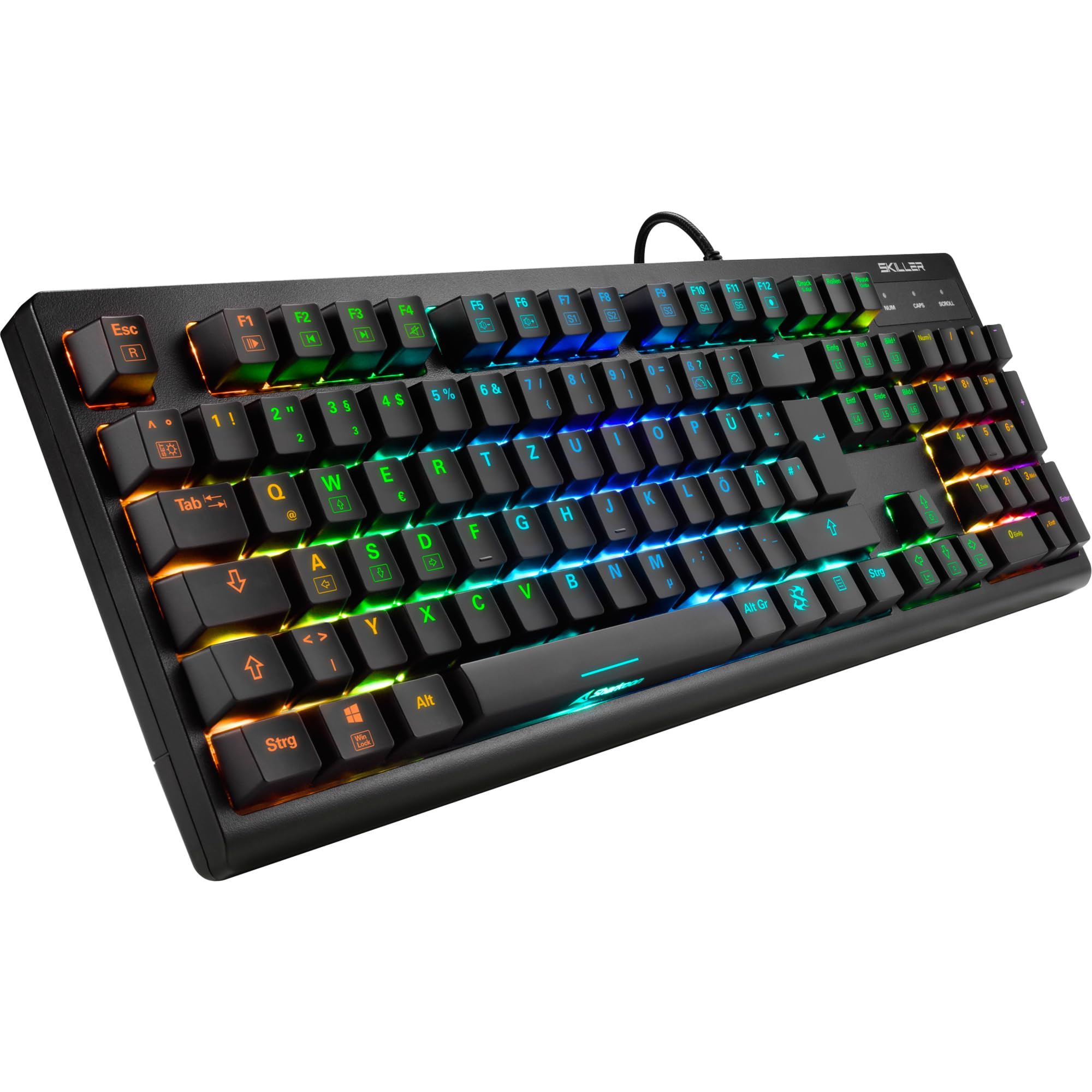
Image: A top-down view of the Sharkoon Skiller SGK30 mechanical gaming keyboard, showcasing its full layout and vibrant RGB backlighting.
Product Overview Video
Video: An official product overview of the Sharkoon Skiller SGK30 Mechanical Gaming Keyboard, demonstrating its features, RGB lighting effects, and mechanical switches.
Setup
Follow these steps to set up your Sharkoon Skiller SGK30 keyboard:
- Unpack the Keyboard: Carefully remove the keyboard and the included USB cable from its packaging.
- Connect to Computer: Plug the Micro USB end of the cable into the keyboard's port and the standard USB-A end into an available USB port on your computer.
- Driver Installation: The keyboard is plug-and-play. Your operating system (Windows 10 or later recommended) should automatically detect and install the necessary drivers.
- Software Installation (Optional): For advanced customization of RGB lighting and key assignments, download the official Sharkoon software from the manufacturer's website.

Image: The Sharkoon Skiller SGK30 keyboard positioned on a desk, ready for connection.
Operating Instructions
Basic Key Functions
The Sharkoon Skiller SGK30 features a standard layout with additional function keys accessible via the FN key.
- FN + F1-F12: Access multimedia controls (e.g., play/pause, volume up/down, mute).
- FN + Windows Key: Lock/unlock the Windows key to prevent accidental presses during gaming.
- N-Key Rollover: All keys are registered simultaneously, ensuring every keystroke is detected, even during rapid input.
RGB Lighting Control
The keyboard offers extensive RGB lighting customization. Use the following combinations to adjust lighting effects:
- FN + Insert/Home/Page Up/Delete/End/Page Down: Cycle through various pre-programmed lighting effects.
- FN + Arrow Keys (Up/Down): Adjust brightness levels of the lighting.
- FN + Arrow Keys (Left/Right): Adjust the speed of dynamic lighting effects.
- Custom Illumination: Use the dedicated software for advanced per-key lighting customization.

Image: A close-up view of the keyboard keys highlighting the adjustable RGB illumination capabilities.
Software Customization
For advanced settings, macro programming, and detailed RGB customization, download and install the Sharkoon Skiller SGK30 software from the official Sharkoon website. The software allows you to:
- Create and save custom lighting profiles.
- Program macros for specific keys.
- Remap key functions.

Image: A screenshot showing the graphical user interface of the Sharkoon Skiller SGK30 customization software, illustrating various options for lighting and key remapping.
Maintenance
Proper maintenance ensures the longevity and performance of your keyboard:
- Cleaning: Use a soft, dry cloth to wipe the surface of the keyboard. For deeper cleaning, use compressed air to remove dust and debris from between the keycaps.
- Keycap Removal: If necessary, keycaps can be carefully removed using a keycap puller (not included) for thorough cleaning of the switches. Reinstall keycaps by pressing them firmly onto the switch stems.
- Avoid Liquids: Do not expose the keyboard to liquids. In case of spills, immediately disconnect the keyboard and allow it to dry completely before reconnecting.
- Storage: Store the keyboard in a cool, dry place away from direct sunlight and extreme temperatures.

Image: A close-up view of the mechanical switches on the Sharkoon Skiller SGK30 keyboard, illustrating their design for durability and ease of maintenance. Note: This model is available with Red switches, while the image shows Blue switches.
Troubleshooting
If you encounter issues with your Sharkoon Skiller SGK30 keyboard, refer to the following common solutions:
| Problem | Possible Cause | Solution |
|---|---|---|
| Keyboard not responding | Loose USB connection, faulty USB port, driver issue. |
|
| RGB lighting not working or incorrect | Lighting settings incorrect, software conflict. |
|
| Keys not registering | Dust/debris under keycap, faulty switch. |
|
Specifications
| Feature | Detail |
|---|---|
| Brand | Sharkoon |
| Model Number | 4044951030026 |
| Keyboard Type | Mechanical Gaming Keyboard |
| Switch Type | Red Switch (Blue switches are also available for this model series) |
| Connectivity | Micro USB |
| Polling Rate | 1000Hz |
| N-Key Rollover | Supported |
| RGB Lighting | Customizable RGB |
| Operating System | Windows 10 (and compatible with other Windows versions) |
| Dimensions (LxWxH) | 44 x 14.4 x 3.5 cm |
| Weight | 867 g |
What's in the Box
The Sharkoon Skiller SGK30 package includes:
- Sharkoon Skiller SGK30 Mechanical Gaming Keyboard
- USB Cable
Warranty and Support
For warranty information and technical support, please refer to the official Sharkoon website or contact your local retailer. Keep your proof of purchase for warranty claims.
Note: Product specifications and features are subject to change without prior notice.


