
1. Introduction
This manual provides detailed instructions for the installation, operation, and maintenance of your AMPrime 7-Inch Double Din Car Stereo Radio. Please read this manual thoroughly before using the product to ensure proper function and to prevent damage.
2. Safety Information
- Professional Installation Recommended: Due to the complexity of car electrical systems, professional installation is highly recommended.
- Power Supply: Ensure the unit is connected to a 12V DC power supply with negative grounding.
- Wiring: Incorrect wiring can cause damage to the unit or the vehicle. Refer to the wiring diagram carefully.
- Driving Safety: Do not operate the unit in a way that distracts you from driving. Always prioritize road safety.
- Temperature: Avoid exposing the unit to extreme temperatures or direct sunlight for prolonged periods.
3. Product Overview
The AMPrime 7-Inch Double Din Car Stereo Radio is a versatile multimedia player designed for in-car entertainment and connectivity. It features a 7-inch touch screen, Bluetooth, FM radio, Mirror Link functionality, and support for a backup camera and steering wheel controls.

Figure 3.1: Front view of the AMPrime 7-inch Double Din Car Stereo Radio, displaying various application icons on its touch screen interface.
Key Features:
- 7-inch 1080P Full HD LCD Touch Screen
- Built-in Bluetooth for hands-free calls and music streaming
- FM Radio Receiver (87.5MHz~108MHz)
- Mirror Link support for Android and iOS devices
- Rear View Camera Input
- Steering Wheel Control compatibility
- USB2.0/TF Card/AUX-in ports
- RCA output/input
- Colorful backlight settings
4. Setup and Installation
4.1 Unpacking and Inspection
Carefully remove all components from the packaging. Verify that all items listed in the packing list are present and undamaged. Contact customer support immediately if any items are missing or damaged.
4.2 Unit Dimensions
Before installation, confirm that the unit dimensions are compatible with your vehicle's dashboard opening.

Figure 4.1: Physical dimensions of the car stereo unit, measuring 178mm (7 inches) in width, 100mm in height, and 63mm in depth.
4.3 Wiring Diagram
Refer to the following diagram for correct wiring connections. Incorrect wiring can lead to malfunction or damage.

Figure 4.2: Comprehensive wiring diagram illustrating connections for power, speakers, camera input, and other peripheral devices. Ensure all connections match the vehicle's wiring system.
Wiring Key:
- Power/Speaker Cable (A): Connects to vehicle's power supply and speakers.
- RCA Output/Input (B): For L-OUT, R-OUT, V-OUT1 & V-OUT2, CVBSIN, RADIO ANT, CAMERA-IN.
- Fuse: Integrated fuse for protection.
Standard Wire Color Codes:
- Red: ACC (Ignition Switch +12V)
- Black: GND (Ground Wire B-)
- Blue: ANT (Auto Antenna Power)
- Orange: ILL (Small light control)
- Yellow: B+ (Power Supply +12V)
- Brown: KEY (Steering wheel controls)
- Pink: REVERSE (Backup camera trigger)
- Speaker Wires: Green/Green-Black (Rear Left), White/White-Black (Front Left), Gray/Gray-Black (Front Right), Purple/Purple-Black (Rear Right)
5. Operating Instructions
5.1 Basic Functions
- Power On/Off: Press the power button (usually labeled O/M) to turn the unit on or off.
- Volume Control: Use the rotary knob or on-screen controls to adjust the volume.
- Mode Selection: Tap the desired icon on the touch screen (e.g., FM, Music, BT) to switch between modes.
5.2 Bluetooth Function
The unit features built-in Bluetooth for hands-free communication and audio streaming.
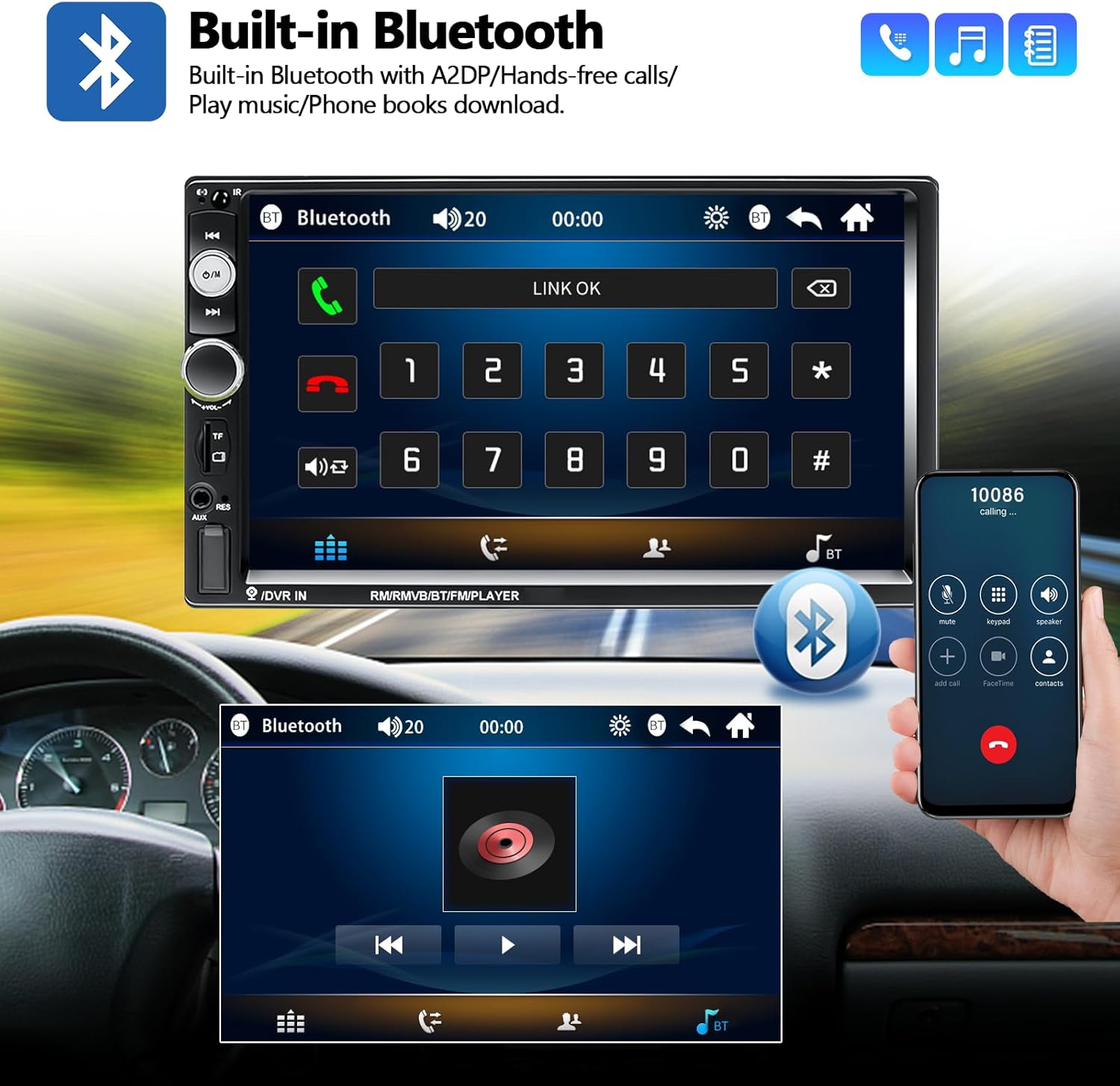
Figure 5.1: Bluetooth interface displaying options for making calls and controlling music playback from a paired device.
- Enable Bluetooth on your mobile device.
- On the car stereo, select the 'BT' or 'Bluetooth' icon.
- Search for available devices on your phone and select 'AMPrime' (or similar name).
- Confirm pairing on both devices. Once paired, you can make/receive calls and stream audio.
5.3 FM Radio
Access and tune into FM radio stations.

Figure 5.2: FM Radio interface with frequency display, station presets, and scan functions.
- Select the 'FM' icon on the main menu.
- Use the 'ST' (Seek Tune) or 'SCAN' buttons to find stations.
- Press and hold a preset number (e.g., FM1, FM2) to save the current station.
5.4 Mirror Link Function
Mirror Link allows you to display your smartphone's screen on the car stereo.

Figure 5.3: Mirror Link in action, showing a GPS navigation application from a connected smartphone mirrored onto the car stereo display.
- Connect your smartphone to the stereo via a USB cable.
- Select the 'Mirror Link' or 'CMLPLAY' icon on the stereo.
- Follow the on-screen prompts to establish the connection. For iOS, control is primarily from the phone. For Android, two-way control is supported.
5.5 Media Playback (USB/TF Card/AUX)
The unit supports various media inputs for audio and video playback.

Figure 5.4: Various media input options including memory card slot, AUX input, and USB ports for charging and flash drives.
- USB/TF Card: Insert a USB flash drive or TF card into the respective port. The unit will automatically detect and display media files.
- AUX Input: Connect an external audio device using a 3.5mm audio cable to the AUX-in port. Select 'AUX' mode on the stereo.
5.6 Rear View Camera
When a compatible rear view camera is connected, the display automatically switches to the camera view when the vehicle is put into reverse gear.

Figure 5.5: Backup camera display on the car stereo, showing the rear view of the vehicle with overlaid parking guide lines for assistance.
5.7 Steering Wheel Control (SWC)
If your vehicle supports steering wheel controls, you can configure them to operate the stereo functions.
- Access the 'Settings' menu on the stereo.
- Navigate to the 'Steering Wheel Control' or 'SWC' section.
- Follow the on-screen instructions to map your vehicle's steering wheel buttons to the stereo's functions.
5.8 Colorful Backlight Settings
Customize the unit's button backlight color to match your vehicle's interior or personal preference.
- Go to the 'Settings' menu.
- Find the 'Backlight' or 'Color Settings' option.
- Select your desired color from the available options.
6. Maintenance
- Cleaning the Screen: Use a soft, lint-free cloth to gently wipe the touch screen. Do not use abrasive cleaners or solvents.
- General Cleaning: Keep the unit free from dust and debris. Use a dry cloth for the exterior.
- Avoid Liquids: Do not allow liquids to enter the unit, as this can cause damage.
7. Troubleshooting
| Problem | Possible Cause | Solution |
|---|---|---|
| Unit does not power on. | No power supply; Blown fuse; Incorrect wiring. | Check power connections; Replace fuse; Verify wiring according to diagram. |
| No sound. | Volume too low; Mute activated; Incorrect speaker wiring. | Increase volume; Deactivate mute; Check speaker connections. |
| Bluetooth not connecting. | Bluetooth not enabled; Device not in pairing mode; Interference. | Ensure Bluetooth is on for both devices; Put device in pairing mode; Try pairing again. |
| Mirror Link not working. | Incorrect USB cable; Phone settings; App compatibility. | Use original USB cable; Check phone's USB debugging/Mirror Link settings; Ensure app compatibility. |
| Backup camera not displaying. | Camera not connected; Reverse trigger wire not connected; Faulty camera. | Check camera connections; Verify reverse trigger wire connection; Test camera functionality. |
8. Specifications
- Product Dimensions: 7.01 x 2.48 x 3.94 inches (178 x 63 x 100 mm)
- Item Weight: 1.61 pounds
- Brand: AMprime
- Connectivity Technology: Auxiliary, Bluetooth, RCA, USB
- Controller Type: Android, iOS (via Mirror Link)
- Special Features: Built-In Bluetooth, FM Radio, Mirror Link, Rear View Camera Support, Steering Wheel Control, Colorful Backlight Settings, Touchscreen
- Compatible Devices: Speaker, Smartphone
- Connector Type: 3.5mm Jack, RCA, USB
- Audio Encoding: Stereo
- Audio Output Mode: Stereo
- Video Encoding: AVI, MP4, FLV, PMP, RM, RMVB, MPG
9. Warranty Information
AMPrime products typically come with a standard manufacturer's warranty. Please refer to the warranty card included with your product or contact AMPrime customer support for specific details regarding warranty coverage, terms, and conditions. Keep your purchase receipt as proof of purchase for warranty claims.
10. Customer Support
For technical assistance, troubleshooting, or any questions regarding your AMPrime 7-Inch Double Din Car Stereo Radio, please contact our customer support team.
- Online Support: AmprimeTechSupport@yeah.net
- Manufacturer: AMprime

Figure 10.1: AMPrime customer support is available to assist with product inquiries and technical issues.