
Coolpad Coolpad Tasker Tablet 3667AT 10IN WiFi
Coolpad Tasker 10" HD Android 10 Tablet User Manual
Model: Coolpad Tasker Tablet 3667AT 10IN WiFi
Introduction
Welcome to the user manual for your new Coolpad Tasker 10" HD Android 10 Tablet. This guide provides essential information to help you set up, operate, maintain, and troubleshoot your device. Designed for both entertainment and productivity, your tablet features a vibrant 10-inch HD display, a powerful Qualcomm 64-bit processor, 3GB RAM, and 32GB of internal storage, expandable up to 128GB with a Micro SD card. It also includes a 6000mAh battery with Quick Charge 3.0 support and comes with a shock-absorbing protective case for enhanced durability.

Figure 1: Front and Rear View of the Coolpad Tasker Tablet. The tablet features a sleek design with a camera on the rear and a large display on the front.
What's in the Box
Upon unboxing your Coolpad Tasker Tablet, please ensure all the following items are present:
- Coolpad Tasker 10" HD Android 10 Tablet
- USB-C Cable
- Travel Charger
- Coolpad Tasker Shock Protection Case

Figure 2: Coolpad Tasker Tablet and its Shock Protection Case. The image displays the tablet alongside its durable protective case, highlighting the included accessory.
Setup Guide
1. Initial Charging
Before first use, it is recommended to fully charge your tablet. Connect the provided USB-C cable to the tablet's charging port and the travel charger, then plug it into a power outlet. The tablet supports Quick Charge 3.0 for faster charging.
2. Powering On/Off
- To Power On: Press and hold the Power button (usually located on the side or top edge) until the Coolpad logo appears.
- To Power Off: Press and hold the Power button until the power options menu appears, then select "Power off".
3. Initial Android Setup
Upon first power-on, you will be guided through the Android 10 setup process. Follow the on-screen prompts to select your language, connect to a Wi-Fi network, set up your Google account, and configure basic settings.
4. Inserting a Micro SD Card (Optional)
To expand your tablet's storage, you can insert a Micro SD card (up to 128GB). Locate the SIM/SD card tray on the side of the tablet. Use the provided tool (if any) or a paperclip to eject the tray, place the Micro SD card into the designated slot, and reinsert the tray firmly.

Figure 3: Micro SD Card Slot. The image shows the tablet with its Micro SD card slot open, ready for memory expansion.
Operating Your Tablet
Basic Navigation
Your Coolpad Tasker Tablet uses a capacitive touchscreen for navigation. Use gestures such as tapping, swiping, pinching, and spreading to interact with apps and content. The Android 10 operating system provides an intuitive user experience.

Figure 4: Android 10 Interface. This image illustrates the clean and secure interface of Android 10 on the Coolpad tablet.
Wi-Fi Connectivity
To connect to the internet, navigate to Settings > Network & Internet > Wi-Fi. Select your desired network from the list and enter the password if prompted. The tablet supports 802.11ac wireless standards for fast and reliable connections.

Figure 5: Wi-Fi Connectivity. The tablet is shown with a Wi-Fi signal icon, indicating active wireless internet connection.
Camera Usage
Your tablet is equipped with a 5MP HDR rear-facing camera and a 2MP front-facing camera. Open the Camera app to capture photos, selfies, or record videos. Tap the screen to focus and press the shutter button to take a picture.
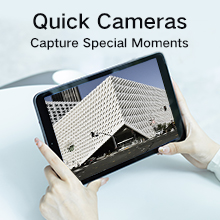
Figure 6: Capturing Moments with the Camera. The image shows the tablet's camera in use, ready to capture special moments.
Battery Management
The 6000mAh battery provides extended usage time. To optimize battery life, reduce screen brightness, close unused applications, and disable Wi-Fi or Bluetooth when not in use. Utilize the Quick Charge 3.0 feature for rapid recharging.

Figure 7: 6000mAh Battery Capacity. This image highlights the tablet's large battery, designed for extended productivity.
App Installation
Download and install applications from the Google Play Store. Ensure you have a stable internet connection and a Google account logged in to access the store.
Maintenance
Cleaning Your Tablet
Use a soft, lint-free cloth to clean the screen and body of your tablet. For stubborn smudges, slightly dampen the cloth with water or a screen-cleaning solution. Avoid using harsh chemicals or abrasive materials.
Software Updates
Periodically check for system updates to ensure your tablet has the latest features and security patches. Go to Settings > System > System update to check for and install available updates.
Battery Care
To prolong battery lifespan, avoid extreme temperatures and do not let the battery completely drain frequently. It is best to keep the battery charge between 20% and 80% for optimal long-term health.
Protective Case
The included shock protection case is designed to safeguard your tablet from accidental drops and impacts. It is recommended to keep the case on your tablet during daily use.
Troubleshooting
Tablet Not Powering On
- Ensure the tablet is sufficiently charged. Connect it to the charger and wait a few minutes before attempting to power on again.
- Try holding the Power button for an extended period (10-15 seconds) to force a restart.
Wi-Fi Connectivity Issues
- Restart your Wi-Fi router and the tablet.
- Forget the network in Wi-Fi settings and reconnect.
- Ensure you are within range of the Wi-Fi signal.
Apps Crashing or Freezing
- Close and reopen the app.
- Clear the app's cache and data in Settings > Apps & notifications > [App Name] > Storage & cache.
- Ensure the app is updated to its latest version from the Google Play Store.
Factory Reset
If you encounter persistent issues, a factory reset can resolve many software-related problems. Warning: This will erase all data on your tablet. Back up important data before proceeding. Go to Settings > System > Reset options > Erase all data (factory reset) and follow the prompts.
Specifications
Below are the key technical specifications for the Coolpad Tasker Tablet 3667AT 10IN WiFi:
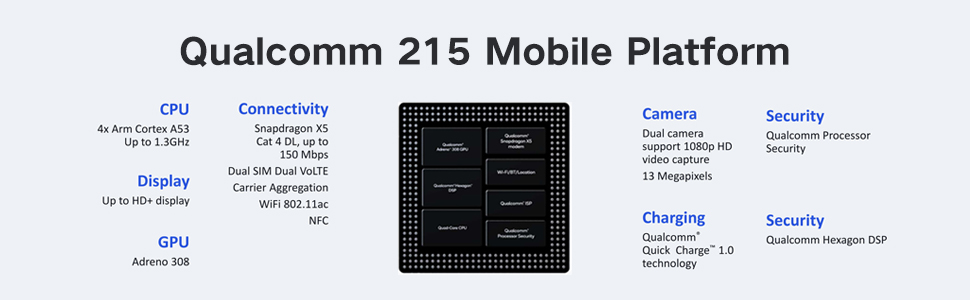
Figure 8: Qualcomm 215 Mobile Platform. This diagram details the capabilities of the Qualcomm 215 processor, including CPU, GPU, connectivity, camera, charging, and security features.
| Feature | Specification |
|---|---|
| Model Name | Coolpad Tasker Tablet 3667AT 10IN WiFi |
| Operating System | Android 10 |
| Display Size | 10 inches |
| Screen Resolution | 1280 x 800 Pixels (HD) |
| Processor | Qualcomm 64-bit Processor (QM215 Quad-Core) |
| RAM | 3 GB DDR3 SDRAM |
| Internal Storage | 32 GB eMMC |
| Expandable Storage | Micro SD up to 128 GB |
| Rear Camera | 5 MP HDR |
| Front Camera | 2 MP |
| Battery Capacity | 6000 mAh |
| Charging | Quick Charge 3.0 |
| Wireless Type | 802.11ac |
| Item Weight | 2.07 pounds (approx. 939 grams) |
| Product Dimensions | 10 x 6 x 0.35 inches (254 x 152 x 9.2 mm) |

Figure 9: Tablet Dimensions and Weight. This image illustrates the physical dimensions (254*152*9.2mm) and weight (526.8 Gram) of the tablet, noting it is 15% lighter than comparable devices.

Figure 10: 10" IPS TFT WXGA 1280*800 Display. The image showcases the tablet's high-definition display, emphasizing its vibrant and clear visual quality.
Warranty and Support
Your Coolpad Tasker Tablet comes with a standard manufacturer's warranty. For detailed warranty information, including terms and conditions, please refer to the warranty card included with your product or visit the official Coolpad website. For technical support, troubleshooting assistance beyond this manual, or service inquiries, please contact Coolpad customer support through their official channels.
You can find more information and support resources by visiting the Coolpad Store on Amazon.
Related documentsCoolpad Tasker Tablet 3667AT 10IN WiFi


Ask a question about this manual
Ask about setup, troubleshooting, compatibility, parts, safety, or missing instructions. Manuals+ will review the question and use this page’s manual context to help answer it.