
MARVUE M30
MARVUE M30 10.1 Inch Tablet User Manual
Model: M30
1. Introduction
Thank you for choosing the MARVUE M30 10.1 Inch Tablet. This manual provides essential information for setting up, operating, and maintaining your device. Please read it carefully to ensure optimal performance and longevity of your tablet.
2. Package Contents
Please check the box for the following items:
- 1 x MARVUE M30 10.1 Inch Android 10.1 Tablet
- 1 x Type-C Cable
- 1 x User Manual (this document)
- 1 x OTG Cable
- 1 x AC Charger
3. Product Overview
The MARVUE M30 tablet is designed for versatile use, offering a powerful Octa-Core processor and a vibrant IPS FHD display. Below are key components and features.
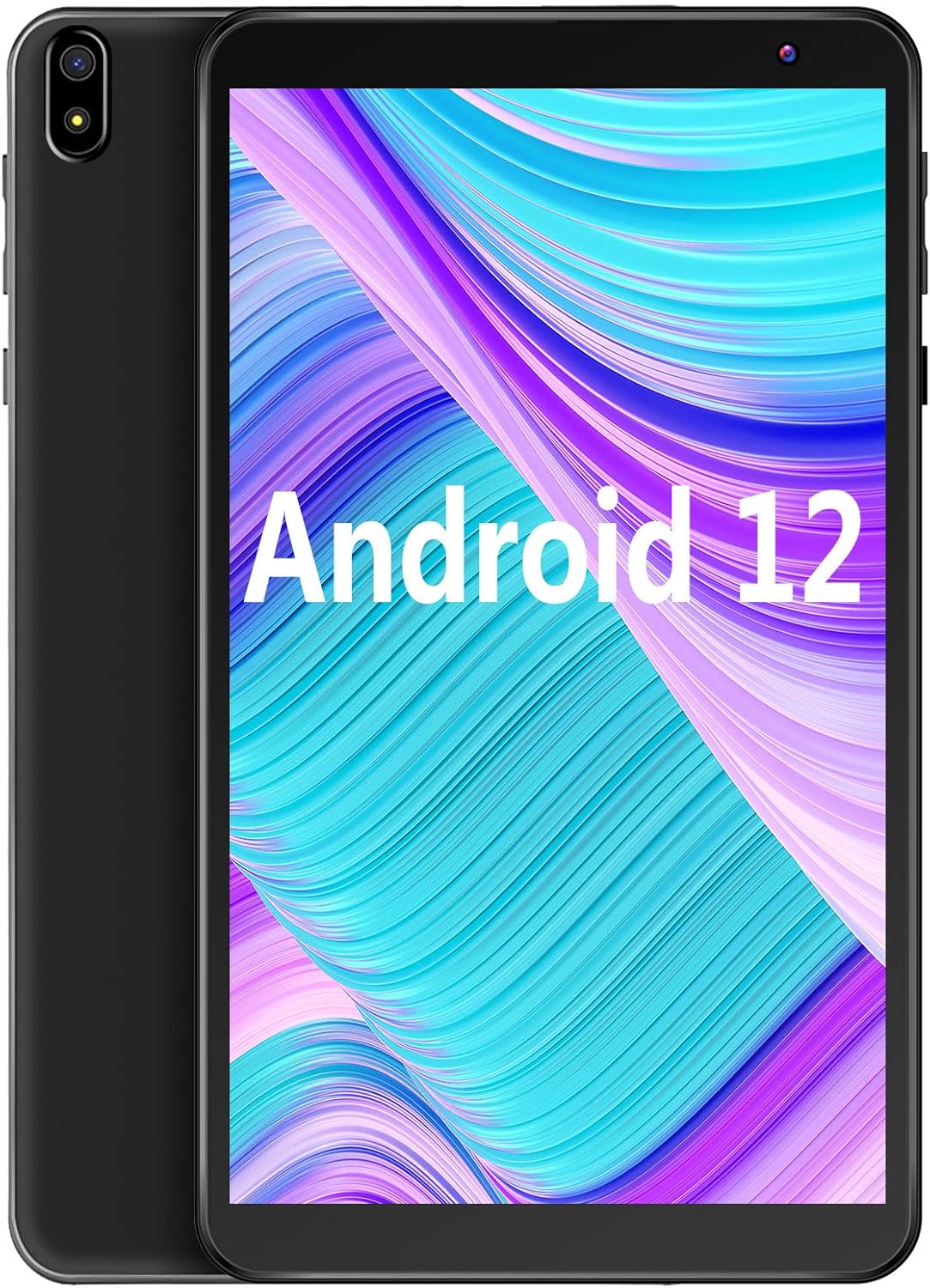
Figure 3.1: Front and back view of the MARVUE M30 Tablet.

Figure 3.2: Side view of the tablet, illustrating the placement of ports and buttons.
Key Features:
- Higher Performance: Equipped with a 1.6 GHz Octa-Core Processor and 3GB RAM for quick app launches and smooth operation.
- Ample Storage: 32GB internal storage, expandable up to 128GB via MicroSD card.
- Brilliant IPS FHD Display: A 10.1-inch display with 1280x800 resolution for vivid colors and clear visuals.
- Long-Lasting Entertainment: Features a 6000mAh built-in rechargeable battery, providing up to 8 hours of mixed use.
- Dual Cameras and Speakers: Includes a 5MP front camera and a 13MP rear camera, along with dual 8Ω/1W speakers for immersive audio.

Figure 3.3: Illustration of the tablet's dual camera system and speaker placement.
4. Setup
4.1 Charging the Tablet
Before first use, fully charge the tablet using the provided Type-C cable and AC charger. The charging port is located on the side of the device. A full charge typically takes several hours.
4.2 Powering On/Off
- To Power On: Press and hold the Power button (located on the side) until the screen lights up.
- To Power Off: Press and hold the Power button until a menu appears. Select 'Power off' from the options.
4.3 Initial Setup
Upon first power-on, the tablet will guide you through the initial setup process. This includes:
- Selecting your language.
- Connecting to a Wi-Fi network.
- Setting up your Google account (optional, but recommended for app downloads).
- Setting date and time.
5. Operating Instructions
5.1 Basic Navigation
The tablet uses a touch-sensitive screen for navigation:
- Tap: To select an item or open an application.
- Tap & Hold: To access contextual menus or move icons.
- Swipe: To scroll through pages or lists.
- Pinch-to-Zoom: To zoom in or out on images or web pages.
5.2 Wi-Fi Connection
- Go to Settings > Network & internet > Wi-Fi.
- Toggle Wi-Fi On.
- Select your desired network from the list.
- Enter the password if prompted, then tap Connect.
5.3 Managing Applications
- Installing Apps: Open the Google Play Store app, search for the desired app, and tap 'Install'.
- Uninstalling Apps: Go to Settings > Apps & notifications > See all apps. Select the app you wish to uninstall and tap 'Uninstall'.
5.4 Camera Usage
The tablet features a 5MP front camera and a 13MP rear camera.
- Open the Camera app.
- Tap the camera icon to switch between front and rear cameras.
- Tap the shutter button to take a photo or start/stop video recording.
5.5 Storage Management
To check storage usage or free up space:
- Go to Settings > Storage.
- You can view how much space is used by apps, photos, videos, etc.
- To expand storage, insert a MicroSD card (up to 128GB) into the dedicated slot.

Figure 5.1: The tablet supports digital wellbeing features to manage screen time and content access.
6. Maintenance
6.1 Cleaning
Use a soft, lint-free cloth to clean the screen and body of the tablet. Avoid using harsh chemicals or abrasive materials.
6.2 Software Updates
Periodically check for system updates to ensure your tablet has the latest features and security patches. Go to Settings > System > System update.
6.3 Battery Care
- Avoid exposing the tablet to extreme temperatures.
- Do not let the battery completely drain frequently.
- Use only the provided charger or a certified compatible charger.
7. Troubleshooting
| Problem | Possible Cause | Solution |
|---|---|---|
| Tablet does not turn on. | Low battery; system crash. | Charge the tablet for at least 30 minutes. Press and hold the Power button for 10-15 seconds to force restart. |
| Wi-Fi connection issues. | Incorrect password; router issue; out of range. | Re-enter Wi-Fi password. Restart your router. Move closer to the Wi-Fi router. |
| Slow performance. | Too many apps running; low storage. | Close unnecessary apps. Clear cache. Uninstall unused apps. Check storage and free up space. |
| Apps crashing. | App bug; insufficient RAM. | Update the app. Clear the app's cache and data (Settings > Apps). Restart the tablet. |
8. Specifications
| Feature | Specification |
|---|---|
| Operating System | Android 10.0 (as per product description, though specifications list Android 12) |
| Processor | SC9863A 1.6 GHz Octa-Core |
| Screen Size | 10.1 Inches |
| Screen Resolution | 1280 x 800 |
| RAM | 3 GB |
| Internal Storage (ROM) | 32 GB |
| Expandable Memory | MicroSD up to 128GB |
| Connectivity | Wi-Fi 802.11a/b/g/n (2.4GHz), Bluetooth 4.0, FM |
| Front Camera | 5.0MP |
| Rear Camera | 13.0MP |
| Interface Configuration | Type-C, MicroSD card port, 3.5mm standard headphone jack |
| Speakers | Dual 8Ω/1W speaker |
| Battery | 6000mAh |
| Power Adapter | Type-C 5V/2A |
| Item Weight | 10.6 ounces |
| Color | Black |
9. Warranty and Support
For warranty information and technical support, please refer to the warranty card included in your product packaging or visit the official MARVUE website. Keep your purchase receipt as proof of purchase for any warranty claims.
Ask a question about this manual
Ask about setup, troubleshooting, compatibility, parts, safety, or missing instructions. Manuals+ will review the question and use this page’s manual context to help answer it.