
MARVUE M10
MARVUE M10 Tablet User Manual
Model: PAD M10
1. Introduction
Thank you for choosing the MARVUE M10 Android Tablet. This manual provides essential information for setting up, operating, and maintaining your device. The M10 tablet is designed for a versatile user experience, featuring a vibrant 10.1-inch IPS HD display, efficient quad-core processor, and dual cameras, all powered by Android 10.0.

Figure 1: MARVUE M10 Tablet
2. What's in the Box
Upon opening your MARVUE M10 Tablet package, please ensure all the following items are present:
- 10.1 Inch Android 10.1 Tablet
- Type-C Cable
- User Manual (this document)
- OTG Cable
- AC Charger
3. Setup Guide
3.1 Initial Power On and Charging
Before first use, it is recommended to fully charge your tablet. Connect the provided AC charger to the tablet's USB Type-C port and plug it into a power outlet. The battery indicator on the screen will show charging status.

Figure 2: Battery Indicator
To power on the tablet, press and hold the power button located on the side until the MARVUE logo appears on the screen.
3.2 First-Time Setup Wizard
Upon first power-on, the tablet will guide you through a setup wizard. Follow the on-screen prompts to:
- Select your language.
- Connect to a Wi-Fi network.
- Sign in with your Google account or create a new one.
- Set up screen lock (PIN, pattern, or password).
- Review and accept terms and conditions.
3.3 Inserting SIM/MicroSD Card
The tablet supports expandable storage via a MicroSD card (up to 128GB). Locate the SIM/MicroSD card tray on the side of the tablet. Use the provided SIM pin to eject the tray. Carefully place the MicroSD card into the designated slot and reinsert the tray.
Video 1: Unboxing and initial setup of the MARVUE M10 Tablet, demonstrating power-on and basic interaction.
4. Operating Instructions
4.1 Navigating the Android Interface
The MARVUE M10 runs on Android 10.0, offering an intuitive user experience. Swipe up from the bottom of the screen to access the app drawer. Swipe down from the top to reveal the notification panel and quick settings.

Figure 3: Android Home Screen with Apps
4.2 Display Features
The 10.1-inch 800x1280 IPS HD display provides clear and vivid visuals. The IPS technology ensures wide viewing angles, making it suitable for sharing content. An 'eye care' mode is available in settings to optimize backlight for comfortable night reading.
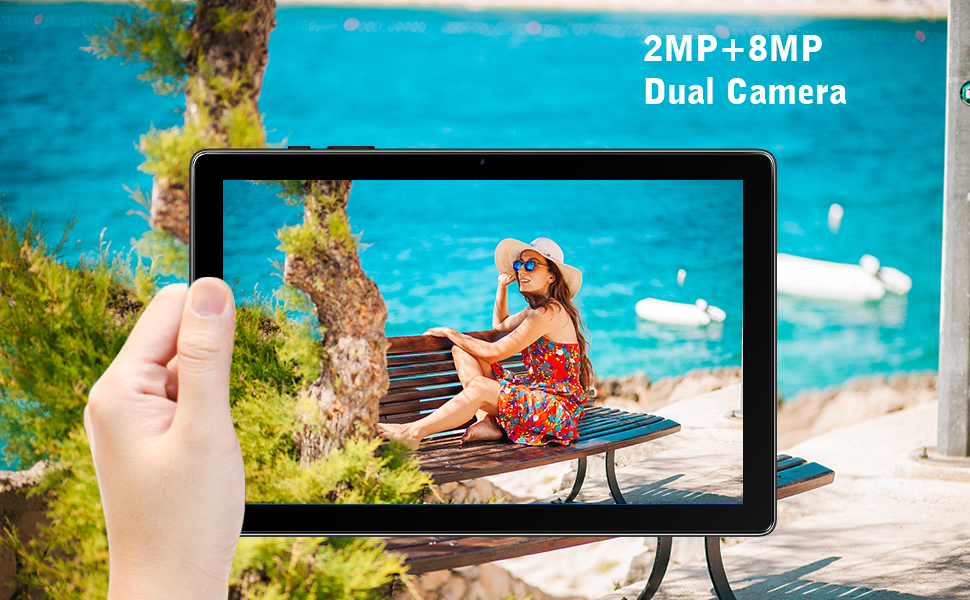
Figure 4: Amazing Widescreen Experience
4.3 Camera Functionality
The tablet is equipped with a 2MP front camera and an 8MP rear camera. Use the Camera app to capture photos and videos. The dual cameras are suitable for video calls, casual photography, and recording moments.

Figure 5: Capturing Moments with Dual Cameras
4.4 Audio and Multimedia
The MARVUE M10 features dual speakers for an enhanced audio experience, whether you are watching videos, listening to music, or playing games.
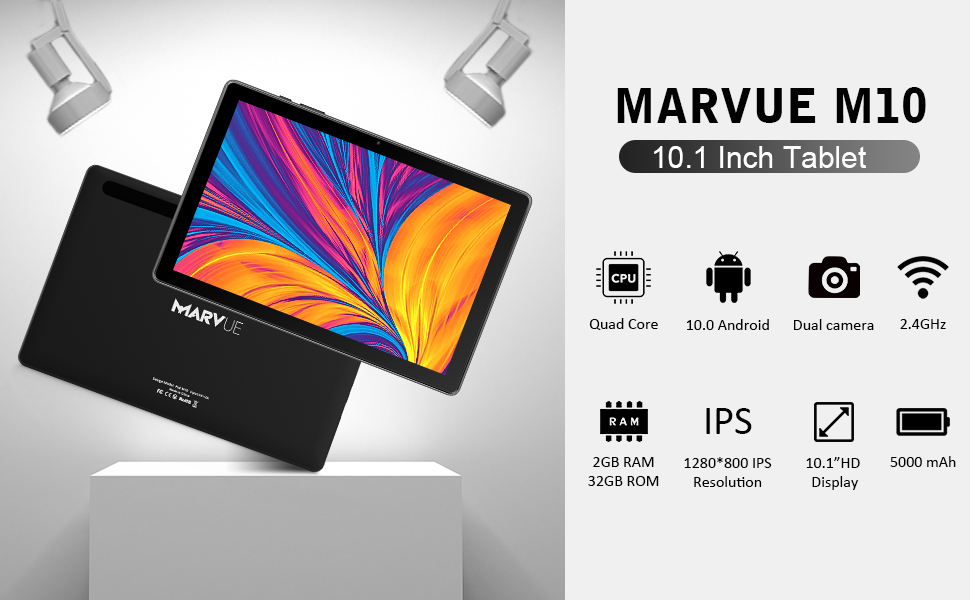
Figure 6: Dual Speaker System
5. Maintenance
5.1 Cleaning the Tablet
Use a soft, lint-free cloth to clean the screen and body of the tablet. Avoid using abrasive cleaners or solvents that may damage the surface.
5.2 Battery Care
To prolong battery life, avoid exposing the tablet to extreme temperatures. It is recommended to fully discharge and recharge the battery periodically. If the tablet will not be used for an extended period, charge it to about 50% before storing.
5.3 Software Updates
Regularly check for and install system updates to ensure optimal performance and security. Go to Settings > System > System update to check for available updates.
6. Troubleshooting
6.1 Tablet Not Turning On
- Ensure the tablet is sufficiently charged. Connect it to the charger for at least 30 minutes before attempting to power on.
- Press and hold the power button for 10-15 seconds to perform a forced restart.
6.2 Screen Unresponsive
- Restart the tablet.
- Ensure the screen is clean and free from moisture or debris.
6.3 Wi-Fi Connectivity Issues
- Toggle Wi-Fi off and on in Quick Settings.
- Restart your Wi-Fi router.
- Forget the network and reconnect.
6.4 Apps Crashing or Freezing
- Clear the cache and data of the problematic app (Settings > Apps & notifications > App info > [App Name] > Storage & cache).
- Uninstall and reinstall the app.
- Ensure sufficient storage space is available.
7. Specifications
| Feature | Specification |
|---|---|
| Brand | MARVUE |
| Model Name | M10 |
| Item Model Number | PAD M10 |
| Operating System | Android 10 |
| Standing Screen Display Size | 10.1 Inches |
| Screen Resolution | 1280 x 800 |
| Processor | 1.3 GHz Quad-Core (ARM) |
| RAM | 2 GB |
| Hard Drive / Flash Memory Size | 32 GB |
| Expandable Storage | Up to 128GB Micro-SD card |
| Rear Webcam Resolution | 5 MP |
| Front Webcam Resolution | 2 MP |
| Wireless Type | 802.11a/b/g/n (2.4GHz WiFi) |
| Battery | 5000mAh Lithium Ion (included) |
| Item Weight | 10.6 ounces |
| Color | Black |
8. Warranty and Support
MARVUE products are designed for reliability and performance. For specific warranty details and support inquiries, please refer to the warranty card included in your product packaging or visit the official MARVUE website. Keep your purchase receipt for warranty claims.

Figure 7: MARVUE Official Logo
Ask a question about this manual
Ask about setup, troubleshooting, compatibility, parts, safety, or missing instructions. Manuals+ will review the question and use this page’s manual context to help answer it.