
1. Introduction
This manual provides detailed instructions for the MicrocKing MK202-1 Wireless Microphone System. This system is designed for various audio applications, offering wireless freedom and stable signal transmission for events such as home karaoke, church services, weddings, conferences, and small stage performances. Please read this manual thoroughly before operating the device to ensure proper use and optimal performance.
2. Package Contents
Verify that all items listed below are included in your package:
- 2 x Wireless Microphones
- 1 x Receiver Box
- 1 x Power Adapter
- 1 x 6.35mm to 6.35mm Audio Cable
- 1 x User Manual

3. Product Overview
3.1 Wireless Microphone

- Indicator Light Display: Shows current channel and battery status.
- ON/MUTE/OFF Button: Press to power on/off or mute the microphone.
- Frequency & Volume Adjustment: Tap the SET button for frequency selection. Press the VOL button for remote volume control.
3.2 Receiver Box


- Power Button: Turns the receiver on or off.
- Volume Controls (VOL A, VOL B): Adjusts the output volume for each microphone channel.
- RF Indicator: Illuminates when a radio frequency signal is received from the microphone.
- AF Indicator: Illuminates when an audio signal is detected.
- Antennas (CH A, CH B): For receiving wireless signals from the microphones.
- Balanced Outputs (BALANCED A, BALANCED B): XLR outputs for professional audio connections.
- 1/4" Unbalanced Output (MIX OUT): Standard 6.35mm jack for mixed audio output.
- DC Adapter Jack: Connects to the provided power adapter (12-15V, 350mA).
4. Setup Instructions
Follow these steps to set up your MicrocKing Wireless Microphone System:
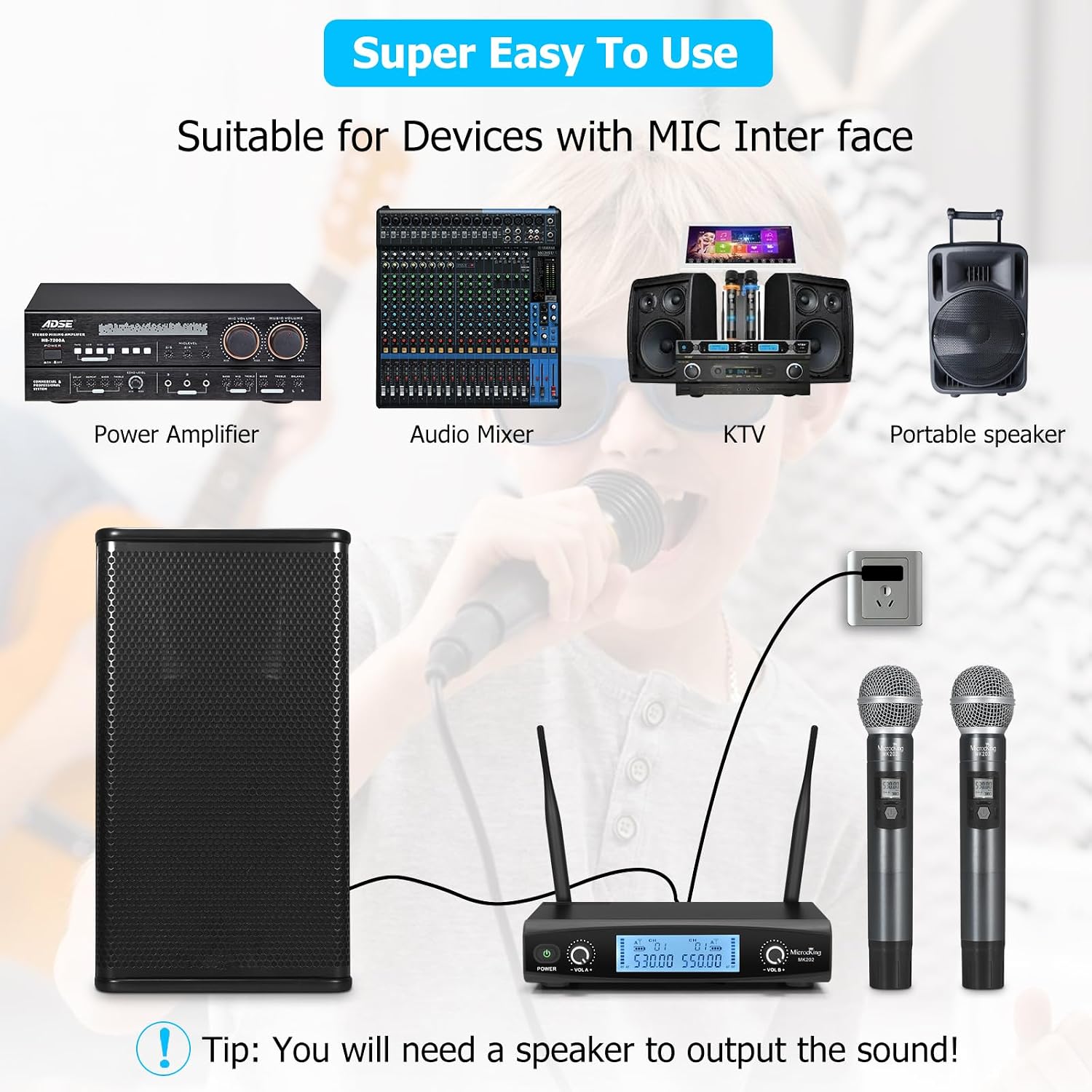
- Power the Receiver: Connect the provided power adapter to the DC Adapter Jack on the rear of the receiver box, then plug the adapter into a power outlet. Press the Power Button on the front panel to turn on the receiver.
- Install Microphone Batteries: Open the battery compartment of each wireless microphone and insert 1.5V AA batteries (not included). Ensure correct polarity.
- Connect to Audio System: Use the 6.35mm audio cable or XLR cables (not included) to connect the receiver's output (MIX OUT or BALANCED A/B) to the input of your audio system (e.g., amplifier, mixer, powered speaker).
- Power On Microphones: Press the ON/MUTE/OFF button on each microphone to turn them on. The receiver will automatically sync the frequency with the transmitters.
- Adjust Volume: Start with the volume controls on the receiver (VOL A, VOL B) at a low setting. Gradually increase the volume on your audio system and then on the receiver to achieve the desired sound level.
5. Operating Instructions
- Power On/Off: Press the power button on the receiver and the ON/MUTE/OFF button on each microphone to turn them on or off.
- Mute Function: Briefly press the ON/MUTE/OFF button on the microphone to mute the audio output. Press again to unmute.
- Volume Control: Adjust the individual microphone volumes using the VOL A and VOL B knobs on the receiver. You can also use the VOL button on the microphone for remote volume control.
- Frequency Selection: The system features 200 adjustable channels. If you experience interference, tap the SET button on the microphone to cycle through available frequencies until a clear channel is found. The receiver will automatically synchronize.
- Operating Range: The system offers an operating range of up to 320 feet (line of sight) for flexible movement during performances.
6. Compatibility
The MicrocKing MK202-1 Wireless Microphone System is compatible with a range of audio equipment:
- Karaoke machines
- Powered speakers
- Amplifiers
- Mixers
- Audio interfaces
Important Note: This system is not compatible with mobile phones, computers, tablets, Bluetooth speakers, or MacBooks.
7. Troubleshooting
If you encounter issues with your wireless microphone system, refer to the following common problems and solutions:
- No Sound Output:
- Ensure both the microphone and receiver have sufficient power (check batteries for microphones, power adapter for receiver).
- Verify that the receiver is correctly connected to your audio system's input.
- Check that the microphone is not muted and receiver volume levels are adequate.
- Interference or Poor Signal:
- Ensure the receiver antennas are fully extended and positioned for optimal reception.
- Try changing the microphone's frequency by tapping the SET button until a clear channel is found. The system offers 200 adjustable channels to avoid radio interference.
- Reduce the distance between the microphone and receiver.
- Avoid placing the receiver near other wireless devices or large metal objects that may cause interference.
- Microphone Not Connecting to Receiver:
- Ensure both devices are powered on.
- The receiver should automatically sync with the microphone. If not, try powering both devices off and on again.
8. Specifications
| Feature | Specification |
|---|---|
| Model Number | MK202-1 |
| Brand | MicrocKing |
| Operating Range | Up to 320 ft (line of sight) |
| Frequency Range | 510-590 MHz (UHF) |
| Adjustable Channels | 200 |
| Receiver Dimensions (L x W x H) | 23.62 x 20.83 x 4.83 cm (approx. 9.3 x 8.2 x 1.9 inches) |
| Item Weight | 1.81 kg (4 Pounds) |
| Microphone Power Source | 1.5V AA Batteries (not included) |
| Receiver Power Source | DC 12-15V, 350mA (via included power adapter) |
| Output Connectors | 2 x Balanced XLR, 1 x 1/4" Unbalanced (MIX OUT) |
| Special Feature | Wireless operation, Echo control, Volume control |
9. Safety Information
- Do not expose the device to rain or moisture.
- Avoid extreme temperatures or direct sunlight.
- Do not attempt to disassemble or modify the unit. Refer all servicing to qualified personnel.
- Use only the provided power adapter for the receiver.
- Dispose of batteries responsibly according to local regulations.
10. Warranty and Support
For any questions, technical assistance, or warranty inquiries regarding your MicrocKing Wireless Microphone System, please contact MicrocKing customer support. Refer to the contact information provided with your purchase or on the official MicrocKing website.
