1. Introduction
Thank you for choosing the Lazmin112 V8 Bluetooth Mini Sound Mixer Board. This device is designed to enhance your audio experience for live broadcasting, music recording, karaoke, and other multimedia applications. It features a range of sound effects, voice changing capabilities, and versatile connectivity options for both computers and mobile devices. Please read this manual carefully to ensure proper setup and operation.
2. Safety Information
- Do not expose the device to water or excessive moisture.
- Avoid extreme temperatures.
- Do not attempt to disassemble or repair the unit yourself. Refer all servicing to qualified personnel.
- Use only the provided charging cable and audio cables.
- Keep out of reach of children.
3. Package Contents
Please check the package for the following items:
- 1 x Lazmin112 V8 Sound Card
- 2 x Audio Cables
- 1 x Charging Cable
- 1 x User Manual (this document)
4. Product Overview
The Lazmin112 V8 Sound Mixer Board features an intuitive layout with various knobs and buttons for controlling audio input, output, and effects.

Figure 4.1: Front view of the Lazmin112 V8 Sound Mixer Board, displaying the microphone and echo volume knobs, along with treble, bass, record, backing track, and monitor controls. Below these are buttons for various sound effects and voice changers.

Figure 4.2: Close-up view of the metallic control knobs for MIC, ECHO, TREBLE, BASS, RECORD, BACKING TRACK, and MONITOR, indicating their minimum and maximum settings.
4.1 Controls and Indicators
- MIC (Min/Max) Knob: Adjusts microphone input volume.
- ECHO (Min/Max) Knob: Controls the echo effect level.
- TREBLE Knob: Adjusts the high-frequency audio level.
- BASS Knob: Adjusts the low-frequency audio level.
- RECORD Knob: Controls the recording volume.
- BACKING TRACK Knob: Adjusts the volume of the background music.
- MONITOR Knob: Controls the volume of the monitor output (headphones).
- POWER Button: Turns the device on/off.
- Sound Effect Buttons: Buttons for various effects such as Reverb Delay, Pitch, Elimination, Crack, MC, Voice Overktv, Cheer, Din, Gunshot, 9277, Yell, Kiss, Laughter, Applause, Dindin, Giggle, Slash, PUBG.
4.2 Ports and Connections
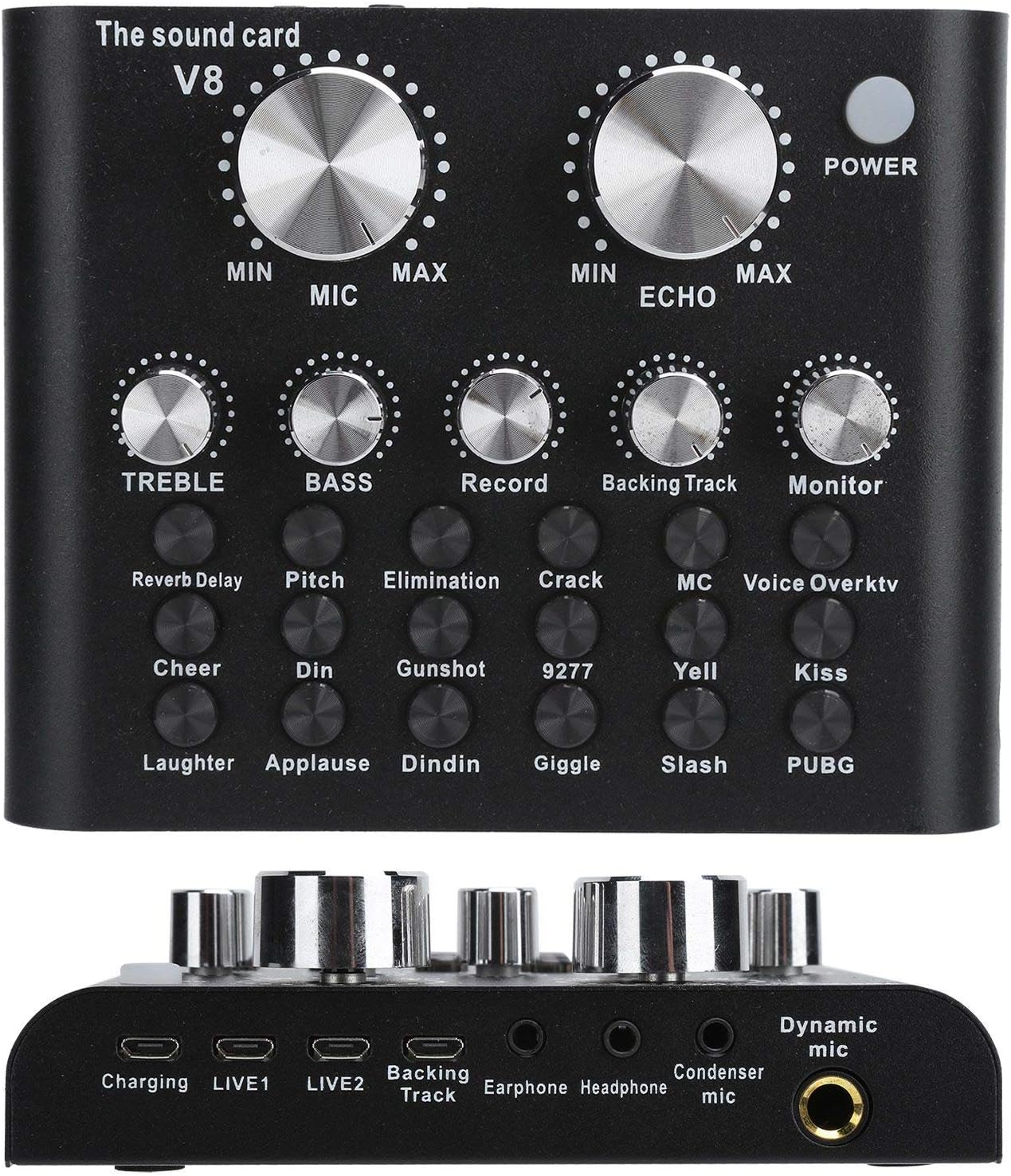
Figure 4.3: Bottom view of the Lazmin112 V8 Sound Mixer Board, illustrating the Charging port, LIVE1, LIVE2, Backing Track, Earphone, Headphone, Condenser mic, and Dynamic mic ports.
- Charging Port: USB port for charging the internal battery.
- LIVE1 / LIVE2 Ports: Output ports for connecting to mobile phones or other recording devices for live streaming.
- Backing Track Port: Input for connecting an external audio source for background music.
- Earphone Port: Output for earphones.
- Headphone Port: Output for headphones.
- Condenser Mic Port: Input for condenser microphones.
- Dynamic Mic Port: Input for dynamic microphones.
5. Setup
5.1 Charging the Device
- Connect the provided charging cable to the Charging Port on the sound card.
- Connect the other end of the charging cable to a USB power adapter (not included) or a computer's USB port.
- The indicator light will show charging status. Charge fully before first use.
5.2 Connecting Microphones
- For condenser microphones, connect to the Condenser Mic Port.
- For dynamic microphones, connect to the Dynamic Mic Port.
5.3 Connecting to Mobile Devices for Live Broadcast/Recording
- Use one of the provided audio cables to connect the LIVE1 or LIVE2 port on the sound card to the 3.5mm audio jack of your mobile phone.
- If your phone does not have a 3.5mm jack, you may need an appropriate adapter (e.g., USB-C to 3.5mm or Lightning to 3.5mm, not included).
5.4 Connecting to a Computer
The sound card can be connected to a computer via Bluetooth or a USB cable (for charging and data transfer, if supported by the computer's audio input).
- Bluetooth Connection: Turn on the sound card and enable Bluetooth on your computer. Search for the device (e.g., "V8 Sound Card") and pair.
- USB Connection: Connect the charging cable to the sound card's charging port and to a USB port on your computer. The computer should recognize it as an audio device.
5.5 Connecting Headphones/Earphones
Connect your headphones or earphones to the respective Headphone Port or Earphone Port for monitoring your audio.
5.6 Connecting Backing Track Source
Use an audio cable to connect an external audio source (e.g., another phone, MP3 player) to the Backing Track Port to play background music.
6. Operating Instructions
6.1 Powering On/Off
Press and hold the POWER button for a few seconds to turn the device on or off.
6.2 Adjusting Volumes
- Rotate the MIC knob to adjust your microphone input volume.
- Rotate the BACKING TRACK knob to adjust the volume of your background music.
- Rotate the MONITOR knob to adjust the volume you hear through your headphones/earphones.
- Rotate the RECORD knob to set the output recording volume.
6.3 Applying Sound Effects and Voice Changes
Press the dedicated buttons on the sound card to activate various sound effects and voice changing modes. Experiment with each button to find the desired effect:
- Reverb Delay, Pitch, Elimination, Crack, MC, Voice Overktv: These buttons modify your voice or add specific audio characteristics.
- Cheer, Din, Gunshot, 9277, Yell, Kiss, Laughter, Applause, Dindin, Giggle, Slash, PUBG: These buttons trigger specific sound effects.
6.4 Adjusting Tone
- Rotate the TREBLE knob to make your voice or music sound brighter or sharper.
- Rotate the BASS knob to make your voice or music sound deeper or fuller.
6.5 Using Bluetooth
Once paired with a mobile device or computer, you can stream audio wirelessly to the sound card for backing tracks or other audio input. Ensure the Bluetooth connection is stable for uninterrupted performance.
7. Maintenance
- Cleaning: Use a soft, dry cloth to clean the surface of the device. Do not use liquid cleaners or abrasive materials.
- Storage: Store the sound card in a cool, dry place away from direct sunlight and extreme temperatures.
- Battery Care: To prolong battery life, avoid fully discharging the battery frequently. Charge the device regularly, even if not in use for extended periods.
8. Troubleshooting
| Problem | Possible Cause | Solution |
|---|---|---|
| No sound output from headphones. | Headphones not connected properly; Monitor volume too low; Device not powered on. | Ensure headphones are fully plugged in. Increase MONITOR volume. Check if the device is powered on. |
| Microphone not working. | Microphone not connected; MIC volume too low; Incorrect microphone type for port. | Check microphone connection. Increase MIC volume. Ensure condenser mic is in the condenser port and dynamic mic in the dynamic port. |
| No sound from backing track. | Backing track source not connected; Backing track volume too low; Source device volume too low. | Verify audio cable connection to Backing Track Port. Increase BACKING TRACK volume. Check volume on the external audio source. |
| Bluetooth connection unstable or not pairing. | Device too far from sound card; Interference; Sound card not in pairing mode. | Move devices closer. Avoid sources of interference. Restart both devices and try pairing again. |
| Sound quality is poor or distorted. | Volume levels too high (clipping); Loose connections; Faulty cables. | Reduce input/output volumes to prevent clipping. Check all cable connections. Try different cables if available. |
9. Specifications
| Feature | Detail |
|---|---|
| Item Type | Sound Card |
| Brand | Lazmin112 |
| Model Number | Lazmin112wusgkzq0o96061 |
| Battery Type | Li-ion rechargeable battery |
| Battery Capacity | 1200mAh |
| Material | Metal |
| Color | Black |
| Connectivity Technology | Bluetooth |
| Number of Channels | 4 |
| Item Weight | 15.2 ounces (432 Grams) |
| Product Dimensions | 0.39 x 0.39 x 0.39 inches |
10. Warranty and Support
This product comes with a standard manufacturer's warranty. For specific warranty terms and conditions, please refer to the documentation provided at the time of purchase or contact Lazmin112 customer support. If you encounter any issues not covered in this manual, please reach out to our support team for assistance.
For further support, please visit the official Lazmin112 website or contact your retailer.


