
Logitech G G705
Logitech G705 Wireless Gaming Mouse User Manual
Model: G705 (910-006365) | Brand: Logitech G
1. Introduction
The Logitech G705 Wireless Gaming Mouse, part of the Aurora Collection, is engineered for a comfortable and precise gaming experience. Its compact, contoured design is suitable for various hand sizes and grip styles, offering lightweight maneuverability. This mouse integrates advanced wireless technology, customizable RGB lighting, and a gaming-grade sensor to enhance user interaction across multiple platforms.
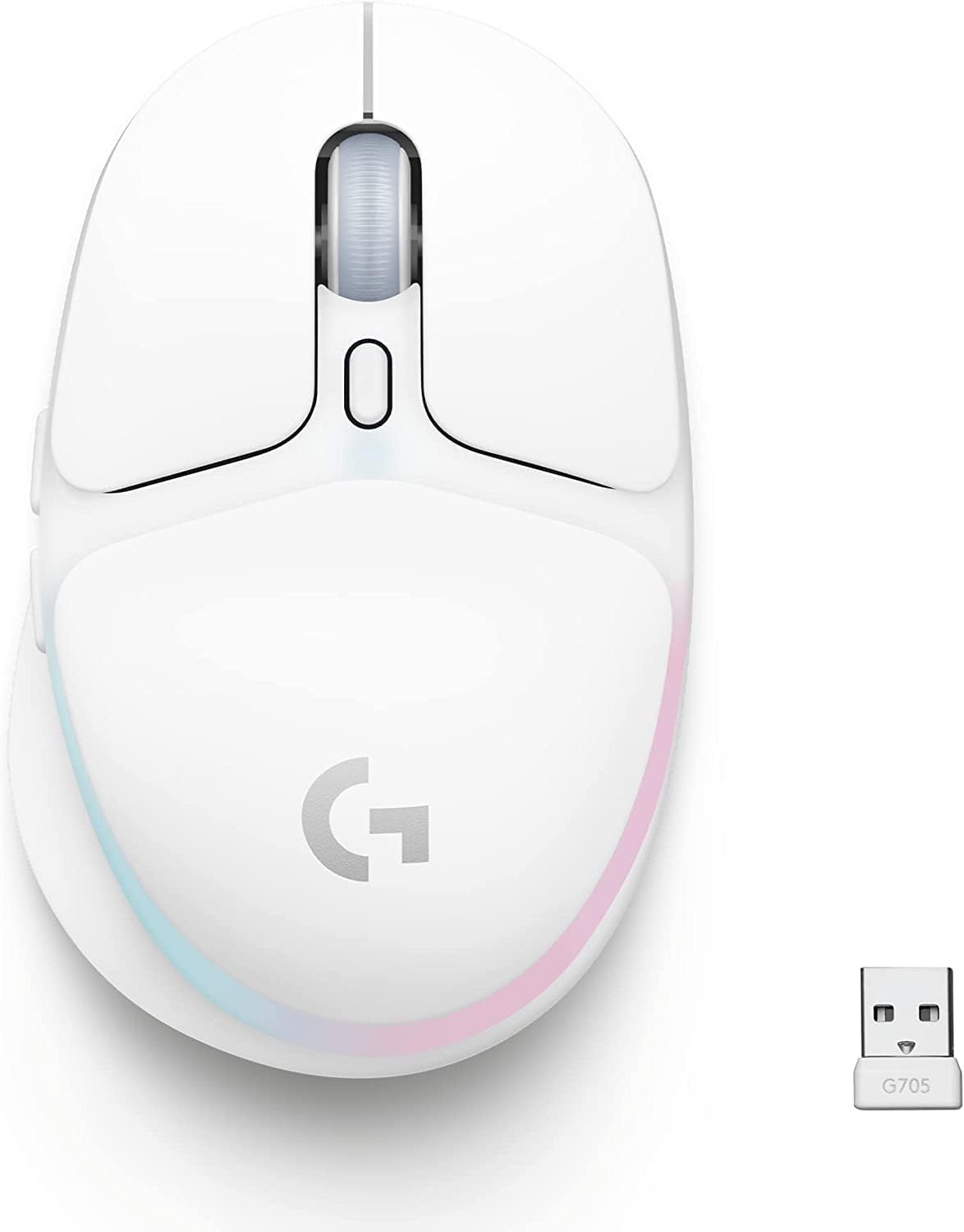
Figure 1.1: The Logitech G705 Wireless Gaming Mouse in White Mist, shown with its LIGHTSPEED USB receiver. This image highlights the mouse's compact form factor and the included wireless dongle for connectivity.
2. What's in the Box
Verify that all components are present in the packaging:
- Logitech G705 Wireless Gaming Mouse
- LIGHTSPEED USB Receiver
- USB-C Charging Cable
- User Documentation
3. Setup and Connectivity
3.1. LIGHTSPEED Wireless Connection
For optimal gaming performance, use the included LIGHTSPEED USB receiver. This technology provides ultra-fast, low-latency connectivity.
- Locate the LIGHTSPEED USB receiver. It may be stored inside the mouse.
- Plug the USB receiver into an available USB port on your PC or Mac.
- Turn on the Logitech G705 mouse using the power switch located on the underside.
- The mouse should automatically connect to the receiver.
Note: The G705 supports dual connectivity, allowing it to connect to the same LIGHTSPEED receiver as a compatible Logitech G keyboard, such as the G715, to free up a USB port.

Figure 3.1: Illustration of the G705 mouse highlighting its Lightspeed Wireless and Bluetooth connectivity options, emphasizing its versatility for different setups.
3.2. Bluetooth Connectivity
For general use or connecting to devices without a USB port, the G705 can connect via Bluetooth.
- Ensure the mouse is powered on.
- Press and hold the Bluetooth pairing button on the underside of the mouse until the LED indicator blinks rapidly.
- On your device (PC, Mac, laptop, tablet, or phone), navigate to Bluetooth settings and select "Logitech G705" from the list of available devices to pair.
3.3. Charging the Mouse
The G705 mouse features a rechargeable battery with up to 40 hours of gaming life with full lighting enabled.
- Connect the supplied USB-C charging cable to the port on the front of the mouse.
- Plug the other end of the cable into a USB power source (e.g., computer USB port, USB wall adapter).
- The LED indicator on the mouse will show charging status.
4. Operating the Mouse
4.1. Programmable Buttons
The Logitech G705 features six programmable buttons, allowing for personalized control and macros.

Figure 4.1: The G705 mouse from a top-down angle, highlighting the placement of its six programmable buttons for user customization.
To customize button assignments, refer to Section 4.3 on Logitech G HUB Software.
4.2. LIGHTSYNC RGB Lighting
Experience dynamic lighting with LIGHTSYNC RGB, offering 16.8 million programmable colors and four responsive Play Moods.

Figure 4.2: A hand resting on the G705 mouse, showcasing the vibrant LIGHTSYNC RGB lighting along the base, illustrating its "Gamer Glow" feature.
Lighting effects can be customized and synchronized with other Logitech G LIGHTSYNC devices using the Logitech G HUB software.
4.3. Logitech G HUB Software
Unlock the full potential of your G705 mouse by installing the free Logitech G HUB software. This software allows you to:
- Customize button assignments and create macros.
- Adjust DPI sensitivity settings.
- Personalize LIGHTSYNC RGB lighting effects and colors.
- Create and save custom profiles for different games and applications.
- Monitor battery status.
Download Logitech G HUB from the official Logitech G website: www.logitechg.com/ghub
5. Maintenance and Care
To ensure the longevity and optimal performance of your Logitech G705 mouse, follow these maintenance guidelines:
- Cleaning: Regularly wipe the mouse surface with a soft, lint-free cloth. For stubborn dirt, slightly dampen the cloth with water or a mild, non-abrasive cleaner. Avoid harsh chemicals or abrasive materials.
- Sensor Care: Keep the optical sensor on the underside of the mouse clean and free from dust or debris to ensure accurate tracking.
- Storage: When not in use for extended periods, turn off the mouse to conserve battery life. Store it in a clean, dry environment.
- Cable Management: Handle the USB-C charging cable carefully to prevent kinks or damage.
6. Troubleshooting
If you encounter issues with your Logitech G705 mouse, try the following solutions:
| Problem | Possible Solution |
|---|---|
| Mouse not responding (LIGHTSPEED) |
|
| Mouse not responding (Bluetooth) |
|
| Inconsistent tracking or cursor movement |
|
| RGB lighting not working |
|
7. Specifications
| Feature | Detail |
|---|---|
| Model Number | 910-006365 |
| Connectivity | LIGHTSPEED Wireless, Bluetooth |
| Movement Detection Technology | Optical |
| Programmable Buttons | 6 |
| RGB Lighting | LIGHTSYNC RGB (16.8M colors) |
| Battery Life (Gaming with full lighting) | Up to 40 hours |
| Charging Port | USB-C |
| Weight | 85 grams (approx. 3 ounces) |
| Dimensions (LxWxH) | 4.17 x 2.68 x 1.55 inches |
| Compatible Operating Systems | Windows, macOS, Chrome OS, Android, iOS, iPadOS |
8. Warranty and Support
Logitech G products are designed for durability and performance. For detailed warranty information, technical support, and frequently asked questions, please visit the official Logitech G support website:
support.logi.com/hc/en-us/categories/360000028038-Gaming
Here you can find drivers, firmware updates, and contact customer service for further assistance.
Related documentsG705


Ask a question about this manual
Ask about setup, troubleshooting, compatibility, parts, safety, or missing instructions. Manuals+ will review the question and use this page’s manual context to help answer it.