
1. Introduction
This manual provides essential information for setting up, operating, and maintaining your HP EliteDisplay E27 G4 27-inch IPS LED monitor. Please read these instructions carefully before using your monitor to ensure optimal performance and safety.
The HP EliteDisplay E27 G4 is a 27-inch Full HD (1920 x 1080) IPS LED-backlit monitor designed for productivity and comfortable viewing. It features a blue light filter (HP Eye Ease), multiple connectivity options including HDMI, VGA, and DisplayPort, and an adjustable stand for ergonomic comfort.

Image 1.1: Front view of the HP EliteDisplay E27 G4 monitor.
2. What's in the Box
Verify that all components are present in the package:
- HP EliteDisplay E27 G4 FHD Monitor
- DisplayPort 1.2 cable
- HDMI cable
- USB Type-B to A cable
- Quick Setup Poster (QSP)
- Documentation kit (Doc-kit)
- AC power cord
- Warranty card
- Product notice
3. Setup
3.1. Assembling the Monitor Stand
Follow these steps to attach the stand to your monitor:
- Place the monitor face down on a soft, clean surface to prevent scratches.
- Align the stand neck with the mounting slot on the back of the monitor.
- Gently push the stand into the slot until it clicks into place.
- Attach the base to the stand neck and secure it with the captive screw.
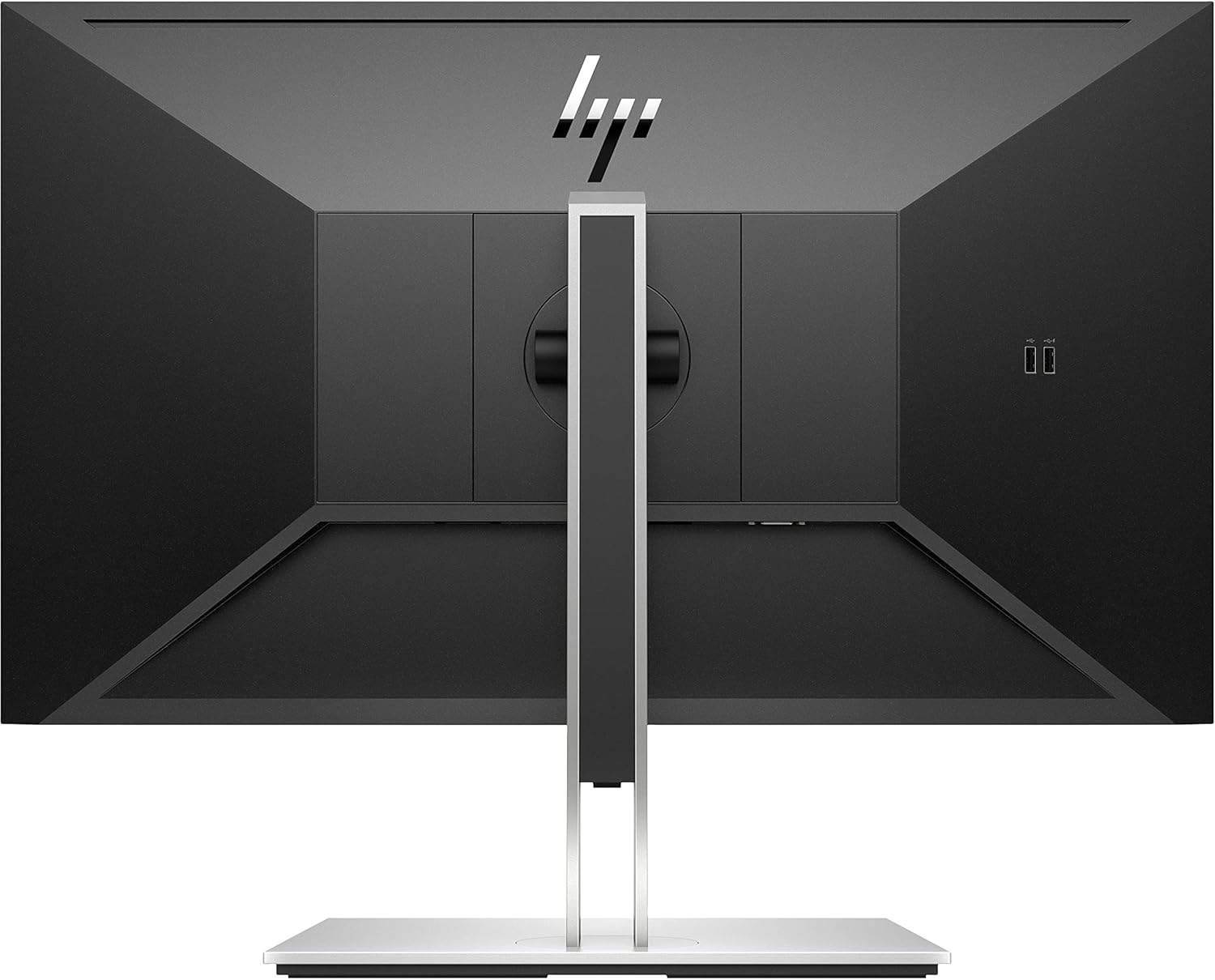
Image 3.1: Rear view of the monitor with stand and port locations.
3.2. Connecting the Monitor
Connect the monitor to your computer and power source:
- Power Connection: Connect the AC power cord to the monitor's power input and then to a grounded electrical outlet.
- Video Connection: Choose one of the following video cables to connect your monitor to your computer's video output port:
- DisplayPort: Use the provided DisplayPort cable for optimal digital video and audio.
- HDMI: Use the provided HDMI cable for digital video and audio.
- VGA: Use a VGA cable for analog video connection (sold separately if not included).
- USB Connection (Optional): Connect the USB Type-B to A cable from the monitor's upstream USB port to an available USB port on your computer to enable the monitor's integrated USB hub.
Ensure all connections are secure before powering on the monitor and computer.
4. Operating the Monitor
4.1. Power On/Off
Press the power button located on the bottom right bezel of the monitor to turn it on or off. The power LED will indicate the monitor's status.
4.2. Adjusting the Monitor
The HP EliteDisplay E27 G4 offers several ergonomic adjustments:
- Height Adjustment: Gently push or pull the monitor panel up or down to achieve your desired viewing height.
- Tilt Adjustment: Tilt the monitor panel forward or backward to find the most comfortable viewing angle. The monitor supports a tilt range of -5 to +20 degrees.
- Swivel Adjustment: Rotate the monitor panel left or right on its base.
- Pivot Adjustment: Rotate the monitor 90 degrees to switch between landscape and portrait orientation.

Image 4.1: Monitor tilt adjustment range.
4.3. On-Screen Display (OSD) Menu
The OSD menu allows you to adjust various display settings. Use the buttons on the bottom right bezel to navigate the menu.
- Press any OSD button to activate the OSD menu.
- Use the navigation buttons to scroll through menu options.
- Press the Select button to enter a submenu or confirm a selection.
- Use the Back/Exit button to return to the previous menu or exit the OSD.
Common OSD settings include Brightness, Contrast, Color Control, Input Selection, Image Control, and Management options.

Image 4.2: User interacting with the monitor, highlighting OSD controls.
5. Maintenance
5.1. Cleaning the Monitor
To clean your monitor, follow these guidelines:
- Always unplug the monitor from the power outlet before cleaning.
- Use a soft, lint-free cloth lightly dampened with water or a non-abrasive screen cleaner.
- Do not spray cleaner directly onto the screen.
- Avoid using benzene, thinner, ammonia-based cleaners, or abrasive cleaning agents, as these can damage the screen or casing.
6. Troubleshooting
If you encounter issues with your monitor, refer to the following common problems and solutions:
| Problem | Possible Cause | Solution |
|---|---|---|
| No image on screen | Monitor not powered on; video cable disconnected; incorrect input selected. | Ensure power cord is connected and monitor is on. Check video cable connections. Select correct input source via OSD menu. |
| Image is blurry or distorted | Incorrect resolution; faulty video cable; graphics driver issue. | Set display resolution to 1920 x 1080. Replace video cable. Update graphics drivers on your computer. |
| No sound (if using HDMI/DP) | Audio output not selected; volume too low. | Ensure monitor is selected as audio output device in computer settings. Adjust volume on computer and monitor. |
| USB ports not working | USB upstream cable not connected. | Connect the USB Type-B to A cable from the monitor to your computer. |
For more detailed troubleshooting, refer to the full documentation kit or HP's official support website.
7. Specifications
Below are the key technical specifications for the HP EliteDisplay E27 G4 monitor:
| Feature | Specification |
|---|---|
| Model Number | E27 G4 |
| Screen Size | 27 Inches |
| Display Type | IPS LED Backlit |
| Resolution | Full HD (1920 x 1080) |
| Aspect Ratio | 16:9 |
| Refresh Rate | 60 Hz |
| Response Time | 5 Milliseconds GtG (with overdrive) |
| Contrast Ratio | 1000:1 static, 5,000,000:1 dynamic |
| Brightness | 250 cd/m² |
| Viewing Angle | 178° horizontal, 178° vertical |
| Connectivity | 1x DisplayPort 1.2, 1x HDMI 1.4, 1x VGA, 4x USB 3.2 Gen 1 (downstream), 1x USB 3.2 Gen 1 (upstream) |
| Special Features | HP Eye Ease (Always-on blue light filter), Height Adjustment, Swivel Adjustment, Tilt Adjustment, Pivot, USB Hub |
| Dimensions (W x D x H) | 24.1" x 1.9" x 14.3" (without stand) |
| Weight | 11 Pounds (without stand) |
| Power Consumption | 100 Volts |

Image 7.1: Monitor dimensions.
8. Warranty and Support
8.1. Warranty Information
Your HP EliteDisplay E27 G4 monitor comes with a 1-Year Manufacturer Warranty. Please refer to the warranty card included in your product package for detailed terms and conditions.
8.2. Technical Support
For technical assistance, driver downloads, or further product information, please visit the official HP support website or contact HP customer service. Keep your monitor's serial number and proof of purchase readily available when seeking support.


