Introduction
Thank you for choosing the Lenovo XT91 TWS Earbuds. These true wireless stereo earbuds offer a high-quality audio experience with Bluetooth 5.0 connectivity, touch controls, and a portable charging case with a digital display. This manual provides detailed instructions for setup, operation, maintenance, and troubleshooting to ensure optimal performance and longevity of your device.
What's in the Box
- Lenovo XT91 TWS Earbuds (Left and Right)
- Charging Case
- USB Charging Cable
- User Manual
- Eartips (various sizes)
Product Overview
The Lenovo XT91 earbuds are designed for comfort and performance, featuring an in-ear design and a compact charging case. The case includes a digital display to show battery levels.

Image: The Lenovo XT91 TWS Earbuds resting in their charging case, which features a clear digital display indicating the current battery percentage.
Key features include Bluetooth 5.0 for stable connections, touch controls for easy management of audio and calls, and a sweatproof design suitable for sports.
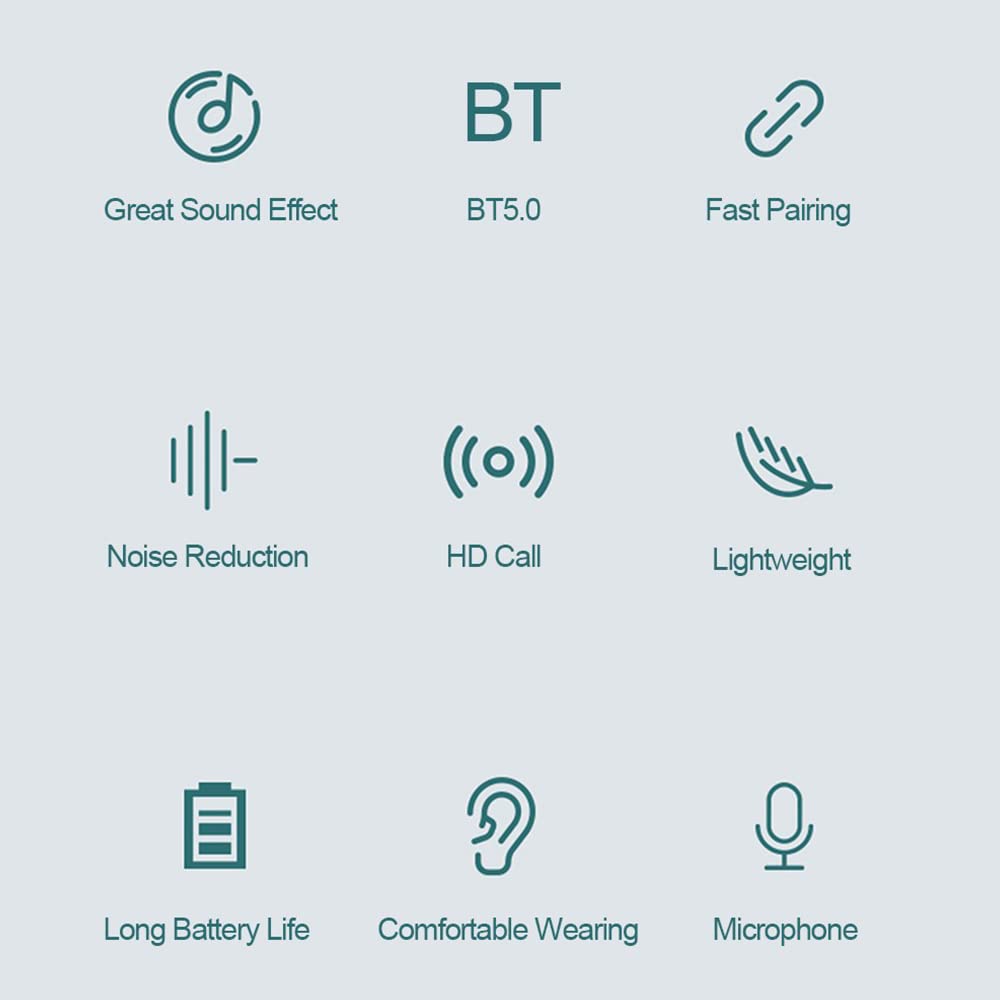
Image: A visual representation of the earbuds' core features, including Bluetooth 5.0, noise reduction, HD call quality, long battery life, and a built-in microphone.
Setup
1. Charging the Earbuds and Case
Before first use, fully charge the earbuds and the charging case.
- Connect the USB charging cable to the charging port on the case and to a USB power adapter (not included).
- The digital display on the charging case will show the battery percentage during charging.
- Place the earbuds into the charging case. They will automatically begin charging. The indicator lights on the earbuds will show their charging status.
- Once fully charged, the digital display will show 100%, and the earbud indicators will turn off or change color.

Image: The charging case with earbuds, displaying battery percentage and estimated usage times for calls, music, and standby.
2. Pairing with Your Device
The earbuds will automatically enter pairing mode when removed from the charging case.
- Open the charging case and remove both earbuds. They will automatically power on and attempt to pair with each other.
- On your smartphone or Bluetooth-enabled device, go to the Bluetooth settings.
- Search for available devices and select "Lenovo XT91" from the list.
- Once connected, you will hear a confirmation tone, and the earbuds will be ready for use.
- If pairing fails, place the earbuds back into the case, close the lid, and repeat the steps.
Operating Instructions
Touch Controls
The Lenovo XT91 earbuds feature intuitive touch controls on each earbud.
| Function | Action |
|---|---|
| Play/Pause Music | Single tap on either earbud |
| Next Track | Double tap on the right earbud |
| Previous Track | Double tap on the left earbud |
| Answer/End Call | Single tap on either earbud |
| Reject Call | Long press (2 seconds) on either earbud |
| Activate Voice Assistant | Triple tap on either earbud |
| Power On | Remove from charging case or long press (3 seconds) |
| Power Off | Place into charging case or long press (5 seconds) |
Maintenance
Proper maintenance ensures the longevity and performance of your earbuds.
- Cleaning: Regularly clean the earbuds and charging case with a soft, dry, lint-free cloth. Do not use harsh chemicals or abrasive materials.
- Eartips: Remove and clean the silicone eartips periodically with water and mild soap, then dry thoroughly before reattaching.
- Storage: When not in use, store the earbuds in their charging case to protect them from dust and damage.
- Battery Care: Avoid fully discharging the battery frequently. Charge the case and earbuds regularly, even if not in constant use, to maintain battery health.
- Water Resistance: The earbuds are sweatproof, but not fully waterproof. Avoid submerging them in water or exposing them to heavy rain.
Troubleshooting
If you encounter issues with your Lenovo XT91 earbuds, refer to the following common solutions:
- Earbuds not pairing with each other: Place both earbuds back into the charging case, close the lid, then open it again and remove them. They should automatically re-sync.
- Earbuds not connecting to device: Ensure Bluetooth is enabled on your device. Forget "Lenovo XT91" from your device's Bluetooth list and attempt to pair again. Make sure the earbuds are charged.
- No sound from one earbud: Try placing both earbuds back in the case, then taking them out again. If the issue persists, reset the earbuds (refer to manufacturer's specific reset instructions if available, otherwise try a long press on both earbuds while in the case).
- Charging issues: Ensure the charging cable is securely connected to both the case and the power source. Try a different USB cable or power adapter. Clean the charging contacts on the earbuds and inside the case.
- Low volume or poor sound quality: Adjust the volume on your connected device. Ensure the eartips are properly sealed in your ear. Clean any debris from the earbud speakers.
Specifications
| Feature | Detail |
|---|---|
| Model Name | XT91 |
| Connectivity Technology | Wireless (Bluetooth) |
| Bluetooth Version | 5.0 |
| Control Method | Touch |
| Ear Placement | In Ear |
| Form Factor | In Ear |
| Microphone Format | Built-In |
| Special Features | Sweatproof, Digital Display Charging Case |
| Material | Plastic |
| Included Components | Protective Case |
Warranty and Support
The Lenovo XT91 TWS Earbuds come with a 6-month warranty from the date of purchase. This warranty covers manufacturing defects under normal use. Please retain your proof of purchase for warranty claims.
For technical support, warranty claims, or further assistance, please visit the official Lenovo support website or contact their customer service. You can often find detailed FAQs and support resources online.
Online Support: www.lenovo.com/support


