
Docooler P2
PAPERANG P2 Wireless Bluetooth Portable Thermal Printer
Model: P2
Introduction
The PAPERANG P2 is a compact and lightweight portable thermal printer designed for various printing needs, including photos, receipts, memos, and sticky notes. It features advanced inkless thermal printing technology and offers versatile connectivity options.

Image: The PAPERANG P2 printer, highlighting its capabilities for photo printing, OCR text recognition, and its inkless, portable design.
Key features include:
- High Resolution: 300 dpi for smooth and clear prints.
- Wireless Connectivity: Supports Bluetooth connection with Android and iOS smartphones.
- Wired Connectivity: USB connection compatible with Windows and Mac.
- Inkless Technology: Utilizes thermal printing, eliminating the need for ink cartridges.
- Long Battery Life: Built-in 1000 mAh lithium battery, capable of printing up to 6 rolls of paper on a single charge.
- Versatile Use: Ideal for printing photos, receipts, notes, labels, and stickers.
Setup
1. Charging the Printer
Before first use, ensure the printer is fully charged. Connect the printer to a power source using the provided USB cable. The charging indicator light will show the charging status.
2. Loading Thermal Paper
The PAPERANG P2 uses 57mm wide thermal paper. To load paper:
- Gently slide the cover of the printer to open it.
- Insert a new roll of 57mm thermal paper, ensuring the printing side faces the print head.
- Pull a small amount of paper out of the slot.
- Close the cover firmly until it clicks into place.

Image: Instructions for opening the printer cover to load thermal paper, demonstrating the "Slide to Open" mechanism.
3. Connecting to Your Device
The PAPERANG P2 supports both Bluetooth and USB connections.
Bluetooth Connection (for Android/iOS)
- Download the official PAPERANG app from your device's app store (Google Play Store for Android, Apple App Store for iOS).
- Turn on the printer by pressing the power button.
- Enable Bluetooth on your smartphone.
- Open the PAPERANG app and follow the in-app instructions to search for and connect to your printer. The printer will typically appear as "PAPERANG P2" or a similar name.
USB Connection (for Windows/Mac)
- Connect the printer to your computer using a USB cable.
- Install the necessary drivers for the PAPERANG P2 printer on your Windows or Mac operating system. Drivers can usually be found on the official Docooler or PAPERANG website.
- Once drivers are installed, the printer should be recognized by your computer and ready for use.

Image: Visual representation of the two connection modes: Bluetooth for mobile devices and USB for computers, illustrating compatibility with Android, iOS, Windows, and Mac.
Operating Instructions
Basic Printing
Once connected, you can use the PAPERANG app (for mobile) or your computer's print function (for PC) to print various content.
- From Mobile App: The PAPERANG app offers features for printing photos, notes, to-do lists, web pages, and more. Select the desired content within the app and tap the print icon.
- From Computer: For documents or images on your computer, use the standard print command (e.g., File > Print) and select the PAPERANG P2 as your printer.
Specific Use Cases
Photo Printing
The printer is capable of printing black and white photos with 300 dpi resolution. Use the app's photo printing feature to select images from your gallery.
Memo and Note Printing
Create quick notes, to-do lists, or shopping lists directly within the app and print them instantly. This is useful for daily planning and organization.
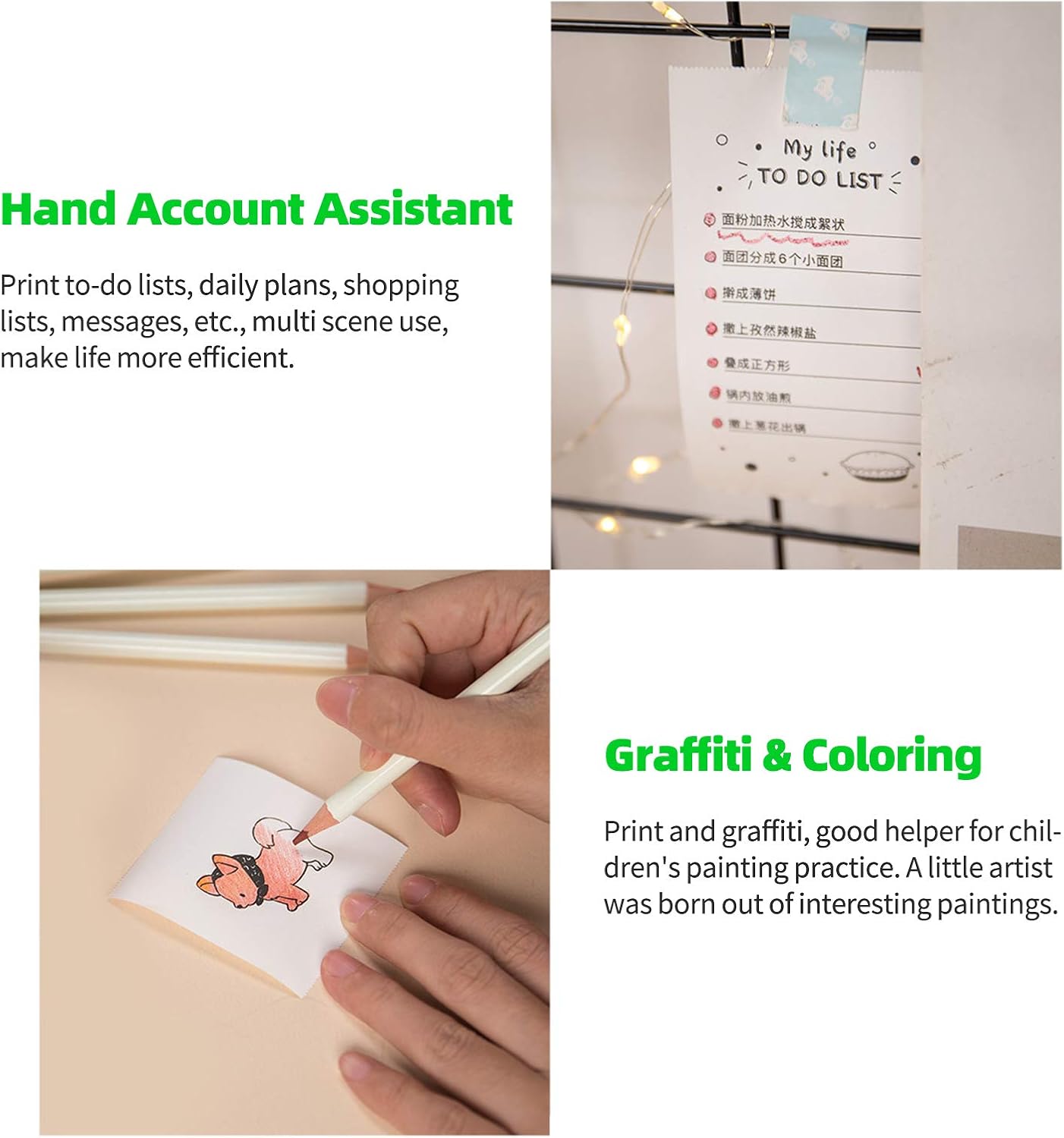
Image: Examples of using the printer as a "Hand Account Assistant" for printing to-do lists and for "Graffiti & Coloring" activities, demonstrating its versatility for various personal and creative tasks.
Label Printing
Print custom labels for storage, organization, or personal items. The app provides templates for various label types.

Image: Further examples of the printer's utility, including its use as a "Hand Account Assistant" for recording memories and for "Label Printing" to organize household items and clothing.
OCR Text Recognition
The app includes an OCR (Optical Character Recognition) feature that can convert images containing text into editable text. This allows you to print recognized text or use it in other applications.
Vocabulary and Calligraphy Practice
Utilize the printer for educational purposes, such as printing vocabulary lists for translation practice or calligraphy exercises.

Image: Demonstrates the printer's application in learning, specifically for "Vocabulary Printing" to aid memorization and "Calligraphy Exercises" for practicing writing.
Maintenance
Cleaning the Print Head
To ensure optimal print quality, periodically clean the print head. Use a soft, lint-free cloth lightly dampened with isopropyl alcohol. Gently wipe the print head surface. Ensure the printer is turned off and cool before cleaning.
Battery Care
To prolong battery life:
- Avoid fully discharging the battery frequently.
- Store the printer in a cool, dry place when not in use for extended periods.
- Charge the printer regularly, even if not in frequent use, to maintain battery health.
Paper Storage
Store thermal paper in a cool, dry place away from direct sunlight and excessive heat to prevent premature fading or damage to the paper's thermal coating.
Troubleshooting
| Problem | Possible Cause | Solution |
|---|---|---|
| Printer not turning on | Low battery; Power button not pressed correctly | Charge the printer; Press and hold the power button for a few seconds. |
| Cannot connect via Bluetooth | Bluetooth off; Printer not in pairing mode; App issue | Ensure Bluetooth is enabled on your device; Restart printer and app; Re-pair the device in the app. |
| Poor print quality / Faded prints | Low battery; Dirty print head; Incorrect paper type; Old thermal paper | Charge the printer; Clean the print head; Ensure you are using thermal paper; Use fresh thermal paper. |
| Paper jam | Improper paper loading; Foreign object inside | Open the cover and re-load the paper correctly; Carefully remove any obstructions. |
| Printer not recognized by computer (USB) | Missing or incorrect drivers; Loose USB connection | Install or update printer drivers from the manufacturer's website; Check USB cable and port. |

Image: A visual comparison demonstrating the print quality achieved by the PAPERANG P2's imported print head versus other printers, highlighting its stable performance and smooth printing at 300 dpi resolution.
Specifications
- Model: P2
- Brand: Docooler
- Printing Technology: Thermal
- Resolution: 300 dpi
- Paper Width: 57 mm
- Connectivity: Bluetooth, USB
- Compatible Devices: Smartphone (Android, iOS), Computer (Windows, Mac)
- Battery: Built-in 1000 mAh Lithium Battery
- Weight: 160 Grams
- Special Features: Portable, Inkless Printing, OCR Text Recognition
Warranty and Support
For warranty information and technical support, please refer to the official Docooler website or contact their customer service. Details regarding specific warranty periods and support channels may vary by region.
Please retain your proof of purchase for any warranty claims.
Ask a question about this manual
Ask about setup, troubleshooting, compatibility, parts, safety, or missing instructions. Manuals+ will review the question and use this page’s manual context to help answer it.