
Ctronics CTIPC-285C-Z4B
Ctronics 5X Optical Zoom WiFi Outdoor Security Camera User Manual
Model: CTIPC-285C-Z4B
1. Introduction
Thank you for choosing the Ctronics 5X Optical Zoom WiFi Outdoor Security Camera. This manual provides detailed instructions for the installation, operation, and maintenance of your camera. Please read this manual thoroughly before use to ensure proper functionality and safety. This camera is designed for outdoor surveillance, offering advanced features such as 5X optical zoom, human detection, auto-tracking, color night vision, and two-way audio.

Figure 1.1: Ctronics 5X Optical Zoom WiFi Outdoor Security Camera. This image shows the main unit of the camera with its dual antennas and lens array.
2. Safety Information
Please observe the following safety precautions to prevent damage to the product or injury to yourself and others:
- Ensure the power supply is stable and matches the camera's voltage requirements (12 Volts).
- Do not expose the camera to extreme temperatures or humidity beyond its operating range.
- Avoid direct exposure of the lens to strong light sources, which may damage the sensor.
- Do not attempt to disassemble or modify the camera. Refer all servicing to qualified personnel.
- Keep the camera and its accessories out of reach of children.
- Ensure proper mounting to prevent the camera from falling.
3. Package Contents
Please check the package contents upon opening. If any items are missing or damaged, contact your retailer or Ctronics support.
- Ctronics 5X Optical Zoom WiFi Outdoor Security Camera
- Power Adapter
- Mounting Screws and Wall Plugs
- Waterproof Kit for Network Cable (if applicable)
- Quick Start Guide
4. Setup
4.1 Physical Installation
- Choose a Location: Select a suitable outdoor location with a clear view of the area you wish to monitor. Ensure the location has access to a power outlet.
- Mounting: Use the provided mounting template (if included) to mark drill holes on the wall or ceiling. Drill the holes, insert wall plugs, and secure the camera bracket using the screws.
- Power Connection: Connect the power adapter to the camera's power input and plug it into a power outlet.
4.2 Network Connection
The camera supports 2.4GHz Wi-Fi networks.
- Download the App: Download the "Ctronics" app from your smartphone's app store (iOS/Android). For PC users, download the HiP2P software for MAC/Windows.
- Initial Setup: Follow the in-app instructions to add your camera. This typically involves scanning a QR code on the camera or manually entering its ID.
- Wi-Fi Configuration: Connect the camera to your 2.4GHz Wi-Fi network through the app.

Figure 4.1: Broad Compatibility. This image illustrates the camera's compatibility with various devices and operating systems, including iOS, Android, Windows, and Mac OS, through the Ctronics Pro app and HiP2P Client software.
4.3 Micro SD Card Installation (Optional)
The camera supports a micro SD card up to 64GB for local storage of recordings.
- Locate the SD card slot on the camera (refer to the camera diagram in the quick start guide).
- Carefully insert the micro SD card into the slot until it clicks into place.
- Format the SD card via the camera's settings in the Ctronics app for optimal performance.
5. Operating the Camera
5.1 Pan, Tilt, and Zoom (PTZ)
The camera features motorized pan (355° horizontally) and tilt (90° vertically) functions, along with 5X optical zoom.
- Control: Use the Ctronics app to remotely control the camera's pan and tilt movements by swiping on the live view screen.
- Optical Zoom: Pinch-to-zoom on the live view to activate the 5X optical zoom. The camera will auto-focus for clear detailed images.
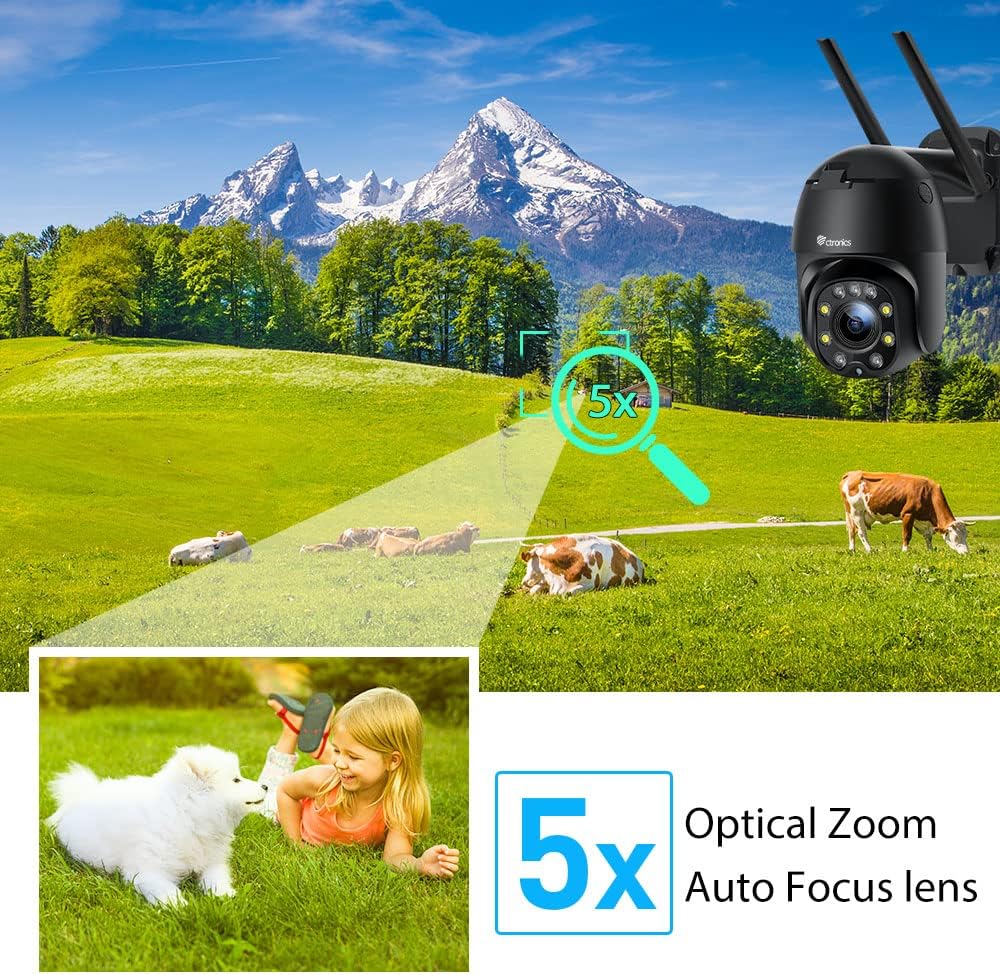
Figure 5.1: 5X Optical Zoom. This image demonstrates the camera's 5X optical zoom capability, allowing for detailed viewing of distant objects with auto-focus functionality.
5.2 Human Detection and Auto-Tracking
The camera utilizes AI algorithms to distinguish human movement from other triggers, reducing false alarms by up to 95%.
- Detection: When a human is detected, the camera will automatically track their movement within its field of view.
- Alerts: You will receive instant notifications via the app, FTP, or email.
- Recording: Detected events are recorded to the installed SD card.

Figure 5.2: Human Detection. This image illustrates how the camera's human detection feature accurately identifies people while ignoring non-human movements like pets, significantly reducing false alarms.

Figure 5.3: Auto Tracking. This image demonstrates the camera's auto-tracking capability, showing how it follows a detected subject's movement within its 355° horizontal and 90° vertical range.
5.3 HD 1080P & Night Vision
The camera provides 1920x1080P resolution for clear images and offers two night vision modes.
- Color Night Vision: With 4 spotlights and 5 infrared lights, the camera can display vivid color images in total darkness up to 25 meters.
- Infrared Night Vision: Standard black and white infrared vision is also available.

Figure 5.4: Color Night Vision. This image illustrates the camera's ability to provide full-color video surveillance even in low-light or nighttime conditions.
5.4 Two-Way Audio
Communicate with visitors or deter intruders using the built-in microphone and speaker.
- Real-time Conversation: Use the Ctronics app to engage in real-time conversations.
- Noise Reduction: The camera features ambient noise reduction technology for clearer sound quality.

Figure 5.5: Two-Way Audio. This image depicts the camera's two-way audio functionality, allowing users to communicate with individuals near the camera via their smartphone.
5.5 Remote Access
View live footage and recordings from anywhere at any time using the Ctronics app or HiP2P software.
- Ensure your camera is connected to the internet.
- Log in to your Ctronics app or HiP2P software account to access your camera feed.
6. Maintenance
Regular maintenance ensures the longevity and optimal performance of your camera.
- Cleaning: Gently wipe the camera lens and body with a soft, damp cloth. Do not use harsh chemicals or abrasive cleaners.
- Firmware Updates: Check the Ctronics app periodically for available firmware updates. Keeping the firmware updated ensures you have the latest features and security enhancements.
- Power Cycle: If the camera experiences minor issues, try power cycling it by unplugging and replugging the power adapter.
7. Troubleshooting
This section addresses common issues you might encounter.
| Problem | Possible Cause | Solution |
|---|---|---|
| Camera offline | No power; Wi-Fi disconnected; Router issue | Check power connection; Reconnect Wi-Fi in app; Restart router |
| Poor image quality | Dirty lens; Network bandwidth; Low light | Clean lens; Check internet speed; Ensure sufficient lighting or use night vision |
| False alarms | Sensitivity too high; Non-human movement | Adjust detection sensitivity in app; Ensure human detection is enabled |
| SD card not recording | SD card full/corrupted; Not formatted; Incorrect settings | Format SD card in app; Check recording settings; Replace SD card if faulty |
8. Specifications
Detailed technical specifications for the Ctronics CTIPC-285C-Z4B camera:
| Feature | Specification |
|---|---|
| Model Number | CTIPC-285C-Z4B |
| Dimensions (L x W x H) | 11 x 17 x 30 cm |
| Weight | 940 grams |
| Material | Acrylonitrile Butadiene Styrene (ABS) |
| Power Type | Electric Cable |
| Voltage | 12 Volts |
| Power Consumption | 6 Watts |
| Resolution | 1920x1080P |
| Optical Zoom | 5X |
| Pan Range | 355° |
| Tilt Range | 90° |
| Night Vision Distance | Approx. 25 meters |
| Waterproof Rating | IP66 |
| Memory Card Type | Micro SD |
| Max Memory Capacity | 64 GB |
| Compatible Devices | Smartphone (iOS/Android), PC (MAC/Windows) |
9. Warranty and Support
Ctronics products come with a standard warranty. For specific warranty terms and conditions, please refer to the warranty card included with your product or visit the official Ctronics website. If you encounter any issues not covered in this manual or require further assistance, please contact Ctronics customer support:
- Website: www.ctronics.com
- Email: Refer to your product packaging or website for support email.
- Phone: Refer to your product packaging or website for support phone number.
Please have your model number (CTIPC-285C-Z4B) and purchase information ready when contacting support.
Related documentsCTIPC-285C-Z4B


Ask a question about this manual
Ask about setup, troubleshooting, compatibility, parts, safety, or missing instructions. Manuals+ will review the question and use this page’s manual context to help answer it.