
DODODUCK BY426BT
DODODUCK BY426BT Thermal Label Printer User Manual
Model: BY426BT | Brand: DODODUCK
Introduction
The DODODUCK BY426BT is a high-speed thermal label printer designed for efficient and ink-free label printing. This manual provides comprehensive instructions for setting up, operating, and maintaining your printer, ensuring optimal performance for your home or business needs.
What's in the Box
Upon unboxing your DODODUCK BY426BT Thermal Label Printer, please verify that all the following components are included:
- DODODUCK BY426BT Thermal Label Printer Unit
- Power Supply Adapter
- USB Cable
- USB-A to USB-C Adapter
- Quick Start Guide / User Manual
- Sample Stack of Thermal Labels
- External Label Holder
- USB Drive with Drivers for various Operating Systems

Image: All components included in the DODODUCK BY426BT Thermal Label Printer package.
Setup Guide
1. Physical Setup
- Place the printer on a stable, flat surface.
- Connect the power supply adapter to the printer's AC Adapter Connector and plug it into a power outlet.
- Connect the USB cable from the printer's USB Port to your computer. If using a device with a USB-C port, use the provided USB-A to USB-C adapter.
- Assemble the external label holder. Place your stack of thermal labels onto the holder, ensuring the labels feed smoothly into the printer's rear input slot.
- Open the printer lid by pushing the release switch on the side. Insert the labels into the printer, ensuring they are aligned with the guides. Close the lid.
- Turn on the printer using the Power Switch located at the back.

Image: The DODODUCK BY426BT printer actively printing a label, demonstrating its primary function.
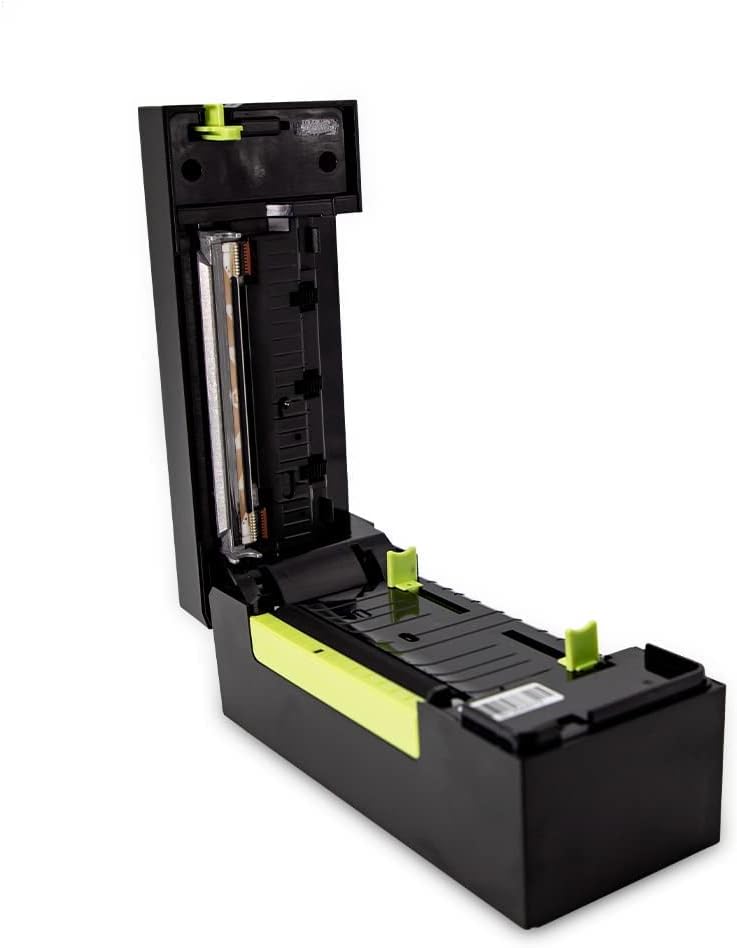
Image: Rear view of the printer highlighting connectivity ports and power controls.
2. Driver Installation & Connectivity
The printer supports multiple operating systems and connectivity methods:
- Windows/Linux: Insert the provided USB drive into your computer and install the appropriate drivers.
- Android/iOS: Download the dedicated printing application from your device's app store.
- Bluetooth Connectivity: The printer is Bluetooth enabled for wireless printing with Windows, Linux, Android, and iOS devices. Please note that Bluetooth connectivity is not available for MacOS.
- USB Connection: For all compatible systems, a direct USB connection is available.
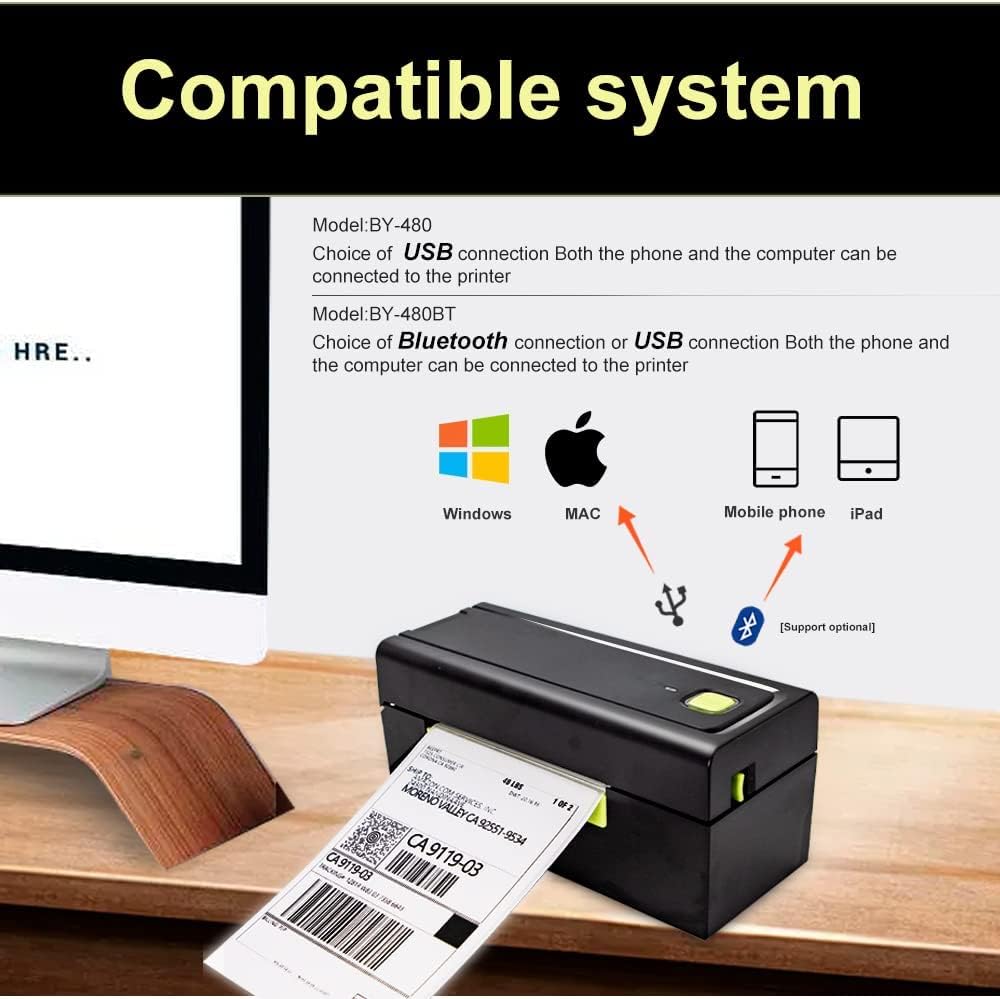
Image: Visual representation of the printer's broad system compatibility.
Operating Instructions
1. Loading Labels
Ensure your thermal labels are properly loaded into the external label holder and fed into the printer's rear input slot. The printer automatically identifies label borders and types (20mm~110mm).
2. Printing a Label
- Prepare your label design using your preferred software (e.g., shipping platform, design software).
- Select the DODODUCK BY426BT printer from your device's print options.
- Confirm print settings, such as label size (recommended 4x6 inches).
- Initiate the print command. The printer will begin printing at a high speed of 150mm per second.

Image: The printer's high-speed operation, emphasizing its efficiency.

Image: The printer in a typical business setting, highlighting its versatility for different label types.
Maintenance
Regular maintenance ensures the longevity and optimal performance of your DODODUCK BY426BT printer.
- Cleaning the Print Head: Use a lint-free cloth lightly dampened with isopropyl alcohol to gently wipe the print head. Ensure the printer is off and unplugged before cleaning. Allow it to dry completely before use.
- Cleaning Rollers: Periodically inspect the rollers for dust or label residue. Clean them with a soft, dry cloth.
- Label Storage: Store thermal labels in a cool, dry place away from direct sunlight to prevent premature discoloration.
Troubleshooting
If you encounter issues with your printer, refer to the following common solutions:
| Problem | Possible Cause | Solution |
|---|---|---|
| Printer not responding | Power off, loose cable, driver issue. | Ensure power is on and cables are securely connected. Reinstall drivers if necessary. |
| Poor print quality | Dirty print head, incorrect label type, low print density setting. | Clean the print head. Ensure you are using thermal direct labels. Adjust print density in software settings. |
| Labels not feeding correctly | Labels not loaded properly, label jam, incorrect label size. | Reload labels, ensuring they are aligned. Clear any jams. Verify label size is within 20mm-110mm. |
| Bluetooth connection issues | Device compatibility, pairing error, interference. | Ensure your device supports Bluetooth printing (MacOS Bluetooth is not supported). Re-pair the device. Reduce interference. |
For more detailed troubleshooting, please consult the full user manual provided on the USB drive or contact customer support.
Specifications
| Feature | Detail |
|---|---|
| Brand | DODODUCK |
| Model Name | BY426BT |
| Printing Technology | Thermal |
| Connectivity Technology | Bluetooth, USB |
| Compatible Devices | Laptops, Android, iOS devices (Bluetooth for Windows, Linux, Android, iOS; not MacOS) |
| Maximum Media Size | 4x6 inches (101.6 x 152.4 mm) |
| Print Media | Labels (20mm~110mm width) |
| Maximum Black and White Print Resolution | 203 DPI |
| Printer Output | Monochrome |
| Item Weight | 4.24 pounds |
| Included Components | Label Holder, USB Drive with Drivers |
Warranty and Support
DODODUCK is committed to customer satisfaction. Your BY426BT Thermal Label Printer comes with the following:
- 12-Month Free Replacement Warranty: If your printer stops working properly within 12 months of purchase, a brand new replacement will be provided.
- 30-Day Satisfaction Guarantee: If you are not satisfied with your purchase within the first 30 days, you may return it for a full refund, adhering to standard Amazon return policies.
For any inquiries, technical assistance, or warranty claims, please contact DODODUCK customer support through the contact information provided in your product packaging or on the official DODODUCK website.
Ask a question about this manual
Ask about setup, troubleshooting, compatibility, parts, safety, or missing instructions. Manuals+ will review the question and use this page’s manual context to help answer it.