
M4 M4
M4 Smart Bracelet User Manual
Model: M4
Introduction
Thank you for choosing the M4 Smart Bracelet. This device is designed to help you monitor your fitness and health, providing features such as heart rate, blood pressure, and blood oxygen monitoring, along with activity tracking and message reminders. Please read this manual carefully to ensure proper use and maintenance of your device.

Figure 1: Front view of the M4 Smart Bracelet, displaying time and step count.
Setup
1. Charging the Device
Before first use, ensure the smart bracelet is fully charged. Connect the charging cable to the designated charging points on the device and a USB power source. A full charge typically takes about 2 hours.
2. App Installation and Pairing
The M4 Smart Bracelet requires a companion application for full functionality.
- Download the appropriate application from your smartphone's app store. The application name is usually provided in the quick start guide included with your device.
- Ensure Bluetooth is enabled on your smartphone.
- Open the application and follow the on-screen instructions to search for and pair with your M4 Smart Bracelet. The device name will typically appear as "M4" or similar.
- Once paired, synchronize the device with the app to set the correct time and transfer data.
System Requirements: Android 4.3 or iOS 8.0 or higher mobile phones supporting Bluetooth 4.0.
Operating Instructions
Basic Navigation
The M4 Smart Bracelet features a single touch screen for control. Tap the touch area to cycle through different display modes and functions.

Figure 2: Examples of the simple and stylish UI interaction on the M4 Smart Bracelet.
Key Features and Functions
- Time Display: Shows current time, date, and day of the week.
- Activity Tracking: Monitors steps (3D sensor), calorie consumption, and exercise distance.
- Heart Rate Monitoring: Provides dynamic heart rate readings.

Figure 3: The M4 Smart Bracelet displaying heart rate and blood pressure readings.

Figure 4: Illustration of 24-hour automatic heart rate monitoring and APP data record.
- Blood Pressure & Blood Oxygen Monitoring: Supports monitoring of blood pressure and blood oxygen levels.
- Sleep Detection: Monitors sleep patterns.
- Message Reminders: Receives call, SMS, QQ, WeChat, Skype, Facebook, and WhatsApp reminders.
- Multi-Sport Modes: Includes modes for Running, Riding, Climbing, Walking, etc.
- Remote Camera Function: Shake the bracelet to take photos remotely when connected to your phone.
- Stopwatch: Basic stopwatch functionality.
- Retrieve Your Phone: Function to help locate your paired smartphone.
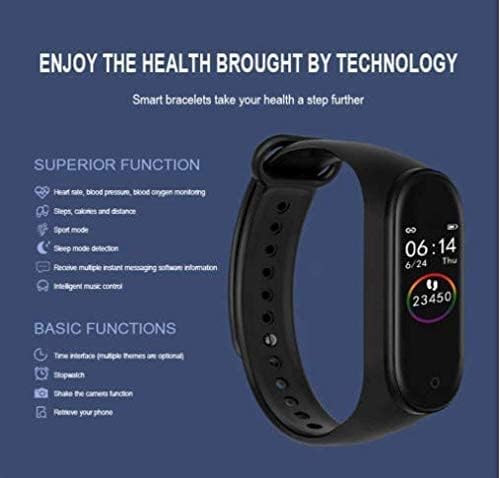
Figure 5: Overview of the M4 Smart Bracelet's superior and basic functions.
Maintenance
- Cleaning: Wipe the device regularly with a soft, dry cloth. If necessary, use a slightly damp cloth and dry thoroughly. Do not use harsh chemicals or abrasive cleaners.
- Water Resistance: The M4 Smart Bracelet is IP67 life waterproof. This means it can withstand hand washing and rain. It is not recommended for swimming or showering, as prolonged exposure to water or hot water may damage the device.
- Storage: Store the device in a cool, dry place when not in use. Avoid extreme temperatures.
- Battery Care: To prolong battery life, avoid fully discharging the battery frequently. Charge the device when the battery level is low.
- Sensor Care: Keep the optical heart rate sensor on the back of the device clean and free from debris to ensure accurate readings.

Figure 6: Back view of the M4 Smart Bracelet, showing the optical sensors for health monitoring.
Troubleshooting
- Device not turning on:
Ensure the device is fully charged. Connect it to the charger for at least 30 minutes.
- Device not pairing with phone:
- Ensure Bluetooth is enabled on your phone.
- Make sure the device is within Bluetooth range (typically 10 meters).
- Restart both the smart bracelet (if possible) and your phone.
- Check if the app is updated to the latest version.
- If previously paired, try unpairing and re-pairing the device from your phone's Bluetooth settings.
- Inaccurate health readings:
- Ensure the bracelet is worn snugly on your wrist, not too loose or too tight.
- Clean the optical sensors on the back of the device.
- Remain still during measurements for best accuracy.
- Notifications not appearing:
- Ensure the bracelet is paired and connected to the app.
- Check notification settings within the companion app to ensure they are enabled for desired applications.
- Verify phone's notification permissions for the app.
- Short battery life:
- Reduce the frequency of continuous heart rate monitoring if enabled.
- Decrease screen brightness if adjustable.
- Ensure the device is fully charged each time.
Specifications
| Feature | Detail |
|---|---|
| Display | 0.96 inch IPS color screen |
| Resolution | 80x160 |
| CPU | HS6620D |
| Memory | RAM 128kb + ROM 1M |
| Connectivity | Bluetooth 4.0 |
| Battery Type | 90mAh Lithium Polymer Battery |
| Charging Time | Approximately 2 hours |
| Working Time | Approximately 3-5 days |
| Standby Time | Approximately 7 days |
| Water Resistance | IP67 Life Waterproof |
| Control Mode | Single touch screen |
| Strap Material | TPU |
| Total Length | 235mm x 20mm x 2.2mm |
| Main Unit Size | 4.1cm x 1.2cm x 1.9cm (Length x Height x Width) |
| Product Net Weight | 21.8g |
| Body Material | Environmentally friendly plastic |
| Sensor | G-sensor/3 axis |
| Supported Languages | Simplified Chinese, English, German, Russian, French, Portuguese, Spanish, Italian, Hindi, Arabic |
| System Requirements | Android 4.3 or iOS 8.0 or higher, Bluetooth 4.0 |

Figure 7: Detailed specifications and dimensions of the M4 Smart Bracelet.
Warranty and Support
For warranty information and customer support, please refer to the documentation provided with your purchase or contact the retailer where you purchased the M4 Smart Bracelet.
You may also check the official website of the brand "M4" for further support resources.
For extended warranty options, please refer to the "Protection Plans" section on the product's retail page, such as the Amazon product page.
Related documentsM4


Ask a question about this manual
Ask about setup, troubleshooting, compatibility, parts, safety, or missing instructions. Manuals+ will review the question and use this page’s manual context to help answer it.