
1. Product Overview
The TODAAIR JS-P165 is a 1080P HD wireless indoor smart security camera designed for home surveillance. It features night vision, accurate motion detection, 135° viewing angle, and two-way audio communication. This camera connects via 2.4GHz Wi-Fi and supports local TF card storage as well as cloud storage options.

Image 1.1: TODAAIR JS-P165 Camera Features. This image illustrates the camera's key functionalities including 1080P HD resolution, 16.5ft/5m infrared night vision, cloud storage, motion detection, two-way audio, and support for up to 128GB TF cards. It also highlights the 135° wide-angle lens and the manual rotation capabilities of 180° vertically and 360° horizontally.
2. Package Contents
Please check the package for the following items:
- TODAAIR JS-P165 Smart Security Camera
- USB Power Cable
- Power Adapter
- Mounting Accessories (screws, wall anchors)
- User Manual
3. Physical Components
Familiarize yourself with the camera's physical features and ports.
Video 3.1: TODAAIR Camera Physical Features. This video demonstrates the manual 360° horizontal rotation and 180° vertical adjustment of the camera. It also highlights the location of the USB power port, the reset button, and the SD card socket on the device.
- Camera Lens: Captures 1080P HD video.
- Infrared LEDs: Provides clear night vision up to 16.5ft (5m).
- Microphone: For two-way audio communication and sound detection.
- Speaker: For two-way audio communication and alerts.
- USB Port: Connects the camera to the power adapter using the provided USB cable.
- Reset Button: Used to reset the camera to factory settings. Typically located near the USB port.
- SD Card Socket: Supports up to 128GB TF (Micro SD) card for local video storage.
4. Setup Guide
4.1 Powering On
- Connect the USB power cable to the camera's USB port.
- Plug the other end of the USB cable into the power adapter.
- Plug the power adapter into a wall outlet. The camera will power on and indicate its status with an LED light.
4.2 App Download and Account Registration
- Download the 'Smart Life' or 'Tuya Smart' app from the Apple App Store or Google Play Store.
- Open the app and register for a new account or log in if you already have one.
4.3 Adding the Camera to the App
- Ensure your mobile device is connected to a 2.4GHz Wi-Fi network. (5GHz Wi-Fi is not supported).
- Open the app, tap '+' or 'Add Device'.
- Select 'Security & Video Surveillance' > 'Smart Camera (Wi-Fi)'.
- Follow the on-screen instructions to reset the camera (if necessary) and confirm the indicator light is blinking rapidly.
- Enter your 2.4GHz Wi-Fi network password.
- The app will generate a QR code. Hold your phone with the QR code approximately 6-8 inches (15-20 cm) in front of the camera lens until you hear a prompt.
- Once connected, the camera's LED indicator will turn solid blue, and the camera will appear in your app's device list.
4.4 Mounting the Camera
The camera can be placed on a flat surface or mounted to a wall or ceiling.

Image 4.1: Camera Dimensions and Mounting Options. This image displays the camera's dimensions (4.53 inches / 115mm height, 3.15 inches / 80mm width) and highlights the screw slots on the base for quick wall mounting.
- Tabletop Placement: Simply place the camera on any flat, stable surface.
- Wall/Ceiling Mounting: Use the provided mounting accessories. Mark the desired position, drill holes, insert wall anchors, and secure the camera base with screws. Adjust the camera's angle manually as needed.
5. Operating Instructions
5.1 Live View and Playback
Once connected, tap on the camera in the app to access the live video feed. You can view real-time footage and access recorded videos from the timeline if an SD card is inserted or cloud storage is active.
5.2 Two-Way Audio
The camera features a built-in microphone and speaker for two-way communication.
Image 5.1: Two-Way Audio Functionality. This image shows a scenario where a user can communicate through the camera using the two-way audio feature, allowing interaction with family members or pets remotely.
- In the live view interface, tap the microphone icon to speak through the camera.
- Tap the speaker icon to listen to audio from the camera's environment.
5.3 Motion Detection and Alerts
The camera can detect motion and send real-time alerts to your phone.

Image 5.2: Motion Detection Alerts. This image demonstrates how the camera detects movement, such as a dog walking, and sends an immediate notification to the user's smartphone via the app.
- Navigate to the camera settings in the app.
- Enable 'Motion Detection' and adjust sensitivity levels as desired.
- You will receive push notifications on your phone when motion is detected.
5.4 Night Vision
The camera automatically switches to infrared night vision in low-light conditions.
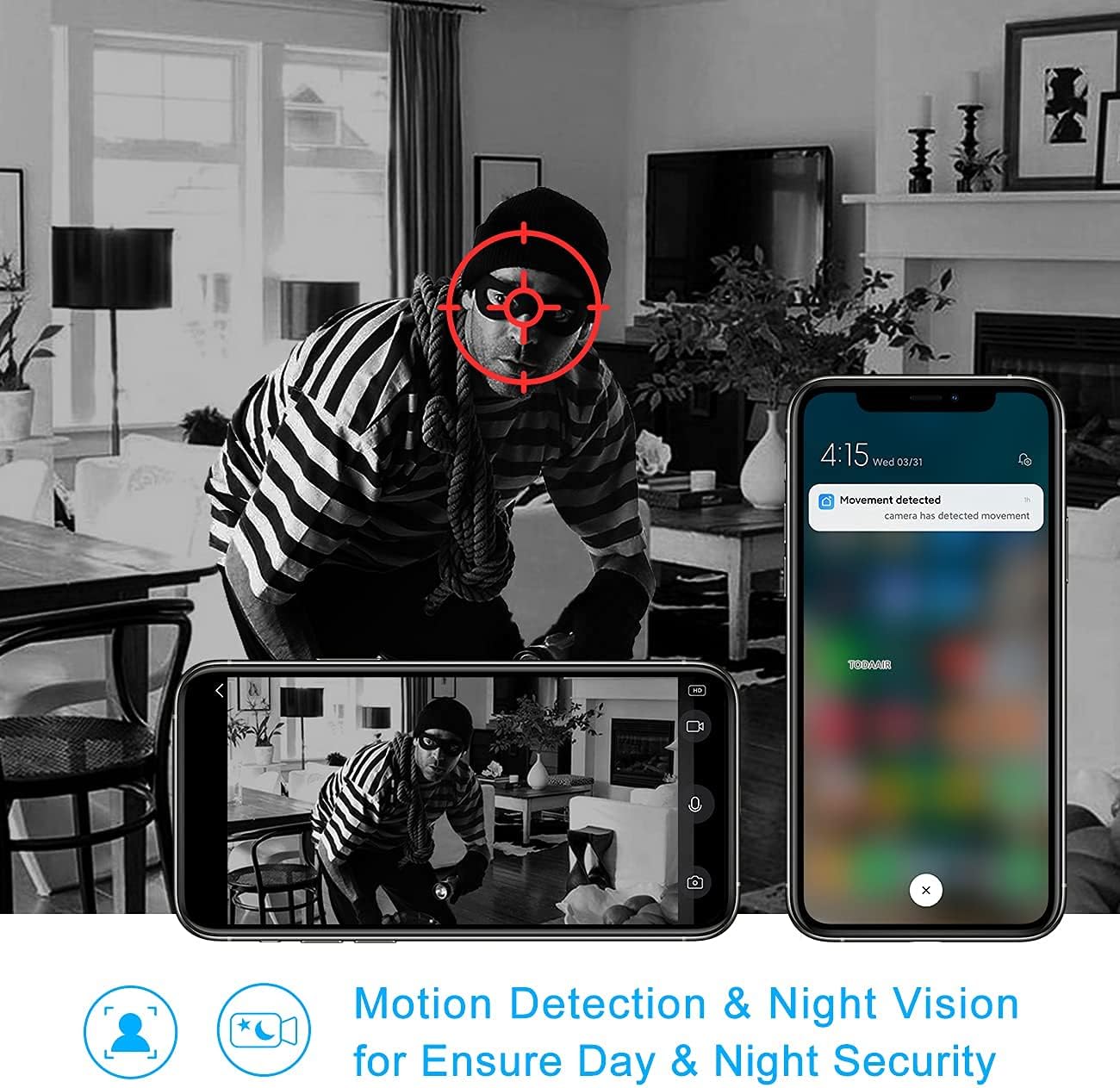
Image 5.3: Night Vision and Motion Detection. This image illustrates the camera's ability to provide clear black-and-white footage in low-light conditions using infrared night vision, alongside its motion detection capabilities for enhanced security.
5.5 Recording and Storage
The camera supports both local storage via a TF card and optional cloud storage.

Image 5.4: Cloud and Local Storage Options. This diagram highlights the availability of USA server cloud storage (with data centers in Oregon and Virginia) and local storage via a maximum 128GB TF card, ensuring data privacy and flexible recording options.
- TF Card Storage: Insert a formatted TF card (up to 128GB) into the SD card socket. The camera will automatically begin recording based on your settings (e.g., continuous, motion-triggered).
- Cloud Storage: Subscribe to the cloud storage service through the app for secure, off-site video backup.
6. Maintenance
6.1 Cleaning the Lens
To ensure clear image quality, regularly clean the camera lens with a soft, dry cloth. Avoid using harsh chemicals or abrasive materials.
6.2 Firmware Updates
Periodically check the app for available firmware updates. Keeping your camera's firmware up-to-date ensures optimal performance and security features. Follow the in-app instructions for any updates.
7. Troubleshooting
- Camera offline:
- Check if the camera is powered on and the power adapter is working.
- Ensure your Wi-Fi network is stable and the camera is within range.
- Restart the camera by unplugging and re-plugging it.
- If the issue persists, try resetting the camera and re-pairing it with the app.
- Cannot connect to Wi-Fi:
- Confirm your Wi-Fi network is 2.4GHz. The camera does not support 5GHz networks.
- Ensure the Wi-Fi password entered in the app is correct.
- Move the camera closer to your Wi-Fi router.
- Reset the camera and try the pairing process again.
- Motion detection alerts not received:
- Check the motion detection settings in the app to ensure it's enabled and sensitivity is appropriate.
- Verify that app notifications are enabled in your phone's settings.
- Ensure the camera has a stable internet connection.
- SD card not recording:
- Ensure the TF card is inserted correctly and is not full.
- Format the TF card through the camera settings in the app.
- Check if recording settings (e.g., continuous recording, motion-triggered recording) are enabled in the app.
8. Specifications
| Model Number | JS-P165 |
| Video Capture Resolution | 1080p, 720p |
| Connectivity Technology | Wireless (Wi-Fi 2.4GHz) |
| Viewing Angle | 135° |
| Night Vision Range | 16.5ft / 5m (IR LEDs) |
| Storage Options | TF Card (up to 128GB), Cloud Storage |
| Audio | Two-Way Audio (Built-in Microphone & Speaker) |
| Motion Detection | Yes |
| Compatible Devices | Smartphone, Tablet |
| Controller Type | Amazon Alexa (Voice Control) |
| Mounting Type | Wall Mount, Tabletop |
| Product Dimensions | 6 x 4 x 4 inches (15.24 x 10.16 x 10.16 cm) |
| Item Weight | 11.2 ounces (317.5 grams) |
| Indoor/Outdoor Usage | Indoor |
9. Warranty and Support
9.1 Warranty Information
This product comes with a standard manufacturer's warranty. Please refer to the product packaging or contact TODAAIR customer service for specific warranty terms and conditions.
9.2 Customer Support
If you encounter any issues or have questions regarding your TODAAIR JS-P165 camera, please contact our customer support team. We are committed to providing professional after-sale service within 24 hours.
Contact Information:
- Email: support@todaair.com (Example email, please replace with actual if available)
- Website: TODAAIR Official Store on Amazon