
1. Introduction
The DarkWalker FO221 Gaming Keypad is a compact, one-handed keyboard designed for an enhanced gaming experience. It features 36 membrane keys, a programmable 8-way directional joystick, and customizable RGB LED backlighting. This manual provides detailed instructions for setting up, operating, maintaining, and troubleshooting your FO221 Gaming Keypad.
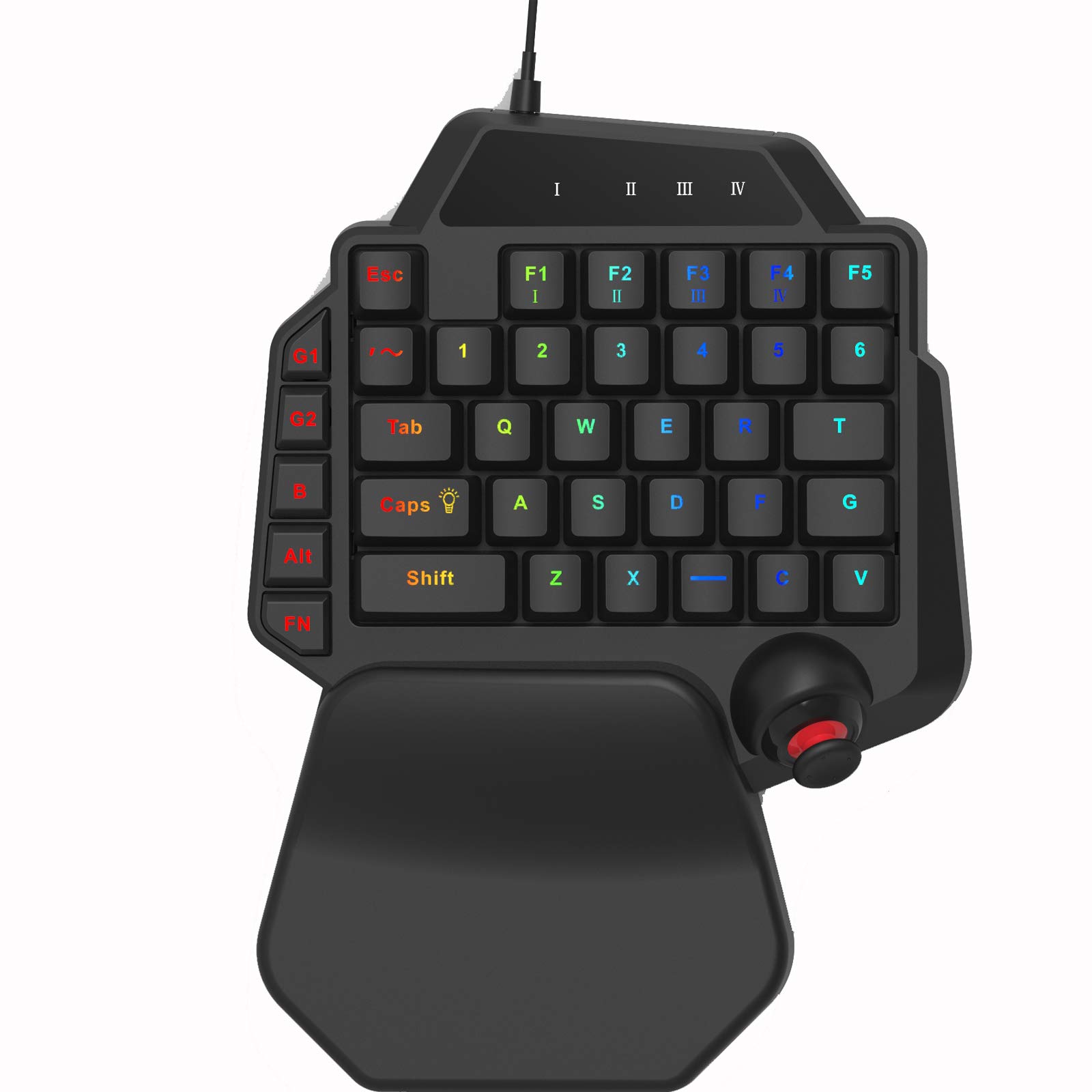
Figure 1: DarkWalker FO221 Gaming Keypad
2. Package Contents
Please check the package for the following items:
- 1 x DarkWalker FO221 Wired Gaming Keypad
- 1 x USB Cable (integrated)
- 1 x User Manual
3. Key Features
- Ergonomic Design: Features an integrated wrist rest for comfortable use during extended gaming sessions.
- Programmable Joystick: An 8-way directional joystick provides precise movement controls, suitable for console-oriented players.
- RGB LED Backlighting: Customizable RGB backlighting enhances the gaming atmosphere and aids key identification in low-light conditions.
- Compact and Portable: 36-key one-handed design for easy portability and single-hand control.
- Membrane Key Switches: Provides a quiet and responsive typing experience.
4. Setup Guide
4.1 System Requirements
- Operating System: Windows 10 or later
- Available USB Port
4.2 Connecting the Keypad
- Locate an available USB port on your computer.
- Plug the USB cable of the DarkWalker FO221 Gaming Keypad into the USB port.
- The operating system (e.g., Windows 10) will automatically detect and install the necessary drivers. No additional software installation is typically required for basic functionality.
- The keypad is ready for use once recognized by your system.
5. Operating Instructions
5.1 Basic Keypad Use
The FO221 features 36 membrane keys, including numerical, alphabetical, and functional keys, designed for one-handed operation. Familiarize yourself with the key layout for optimal gaming performance.
5.2 RGB LED Backlight Control
The keypad features customizable RGB backlighting. To control the backlight:
- To activate or deactivate the backlight, or to cycle through different lighting modes and colors, press the FN key simultaneously with the CAPS key.
5.3 Programmable Joystick
The 8-way directional joystick provides enhanced movement control. Note that the joystick operates digitally, meaning each direction registers as a key press rather than an analog input.
The joystick is programmable. Refer to the macro programming section for details on customizing its functions.
5.4 Macro Programming (G1/G2 Keys)
The G1 and G2 keys allow you to record and play back custom macro sequences. Follow these steps to program a macro:
- Press and hold the FN key along with either the G1 or G2 key for approximately 3 seconds. The backlight may flash to indicate recording mode.
- Input the desired sequence of keys you wish to record as a macro.
- Once you have finished entering the key sequence, press the FN key along with the same G1 or G2 key again to save the macro.
- To execute the recorded macro, simply press the programmed G1 or G2 key.
Note: Specific software for advanced macro management is not provided with this device. All programming is done directly on the keypad.
6. Maintenance and Care
To ensure the longevity and optimal performance of your DarkWalker FO221 Gaming Keypad, follow these maintenance guidelines:
- Cleaning: Use a soft, dry cloth to wipe the surface of the keypad. For stubborn dirt, a slightly damp cloth with mild soap can be used, ensuring no liquid enters the device.
- Avoid Liquids: Do not expose the keypad to excessive moisture or immerse it in water.
- Storage: Store the keypad in a cool, dry place away from direct sunlight and extreme temperatures.
- Handling: Avoid dropping the keypad or subjecting it to strong impacts.
7. Troubleshooting
If you encounter issues with your DarkWalker FO221 Gaming Keypad, please refer to the following common solutions:
- Keypad Not Responding:
- Ensure the USB cable is securely plugged into both the keypad and your computer's USB port.
- Try plugging the keypad into a different USB port on your computer.
- Restart your computer.
- Backlight Not Working:
- Press FN + CAPS to cycle through backlight modes or activate it.
- Keypad Wobbles on Surface:
- Check the rubber feet on the bottom of the keypad. Ensure they are all present and evenly seated. If necessary, place the keypad on a flat, stable surface.
- Macro Programming Issues:
- Ensure you are following the macro programming steps precisely (press and hold FN + G1/G2 for 3 seconds to start, then press again to save).
8. Product Specifications
| Feature | Detail |
|---|---|
| Brand | DarkWalker |
| Model Number | FO221 |
| Connectivity Technology | USB (Wired) |
| Keyboard Description | Membrane |
| Number of Keys | 36 |
| Joystick | 8-way directional, Programmable |
| Backlighting | RGB LED |
| Compatible Devices | PC |
| Operating System | Windows 10 |
| Material | Plastic |
| Product Dimensions | 18.5 x 25 x 3.5 cm |
| Item Weight | 662 g |
| Manufacturer | FREE ONE Limited |
9. Warranty and Support
9.1 Warranty Information
Specific warranty details are typically provided with your purchase documentation or on the manufacturer's official website. Please retain your proof of purchase for warranty claims.
9.2 Customer Support
For further assistance, technical support, or inquiries regarding your DarkWalker FO221 Gaming Keypad, please contact the manufacturer, FREE ONE Limited, through their official support channels. Refer to the product packaging or their website for contact information.