
POLY 2200-87140-025
Plantronics Poly Studio P5 Webcam with Voyager 4220 UC Headset Kit User Manual
Model: 2200-87140-025
Introduction
This manual provides comprehensive instructions for the setup, operation, and maintenance of your Plantronics Poly Studio P5 Webcam and Voyager 4220 UC Headset Kit. Please read this manual thoroughly before using the product to ensure optimal performance and longevity.
The kit includes a high-definition webcam designed for professional video conferencing and a stereo Bluetooth wireless headset for clear audio communication.
Package Contents
- Poly Studio P5 Webcam
- Poly Voyager 4220 UC Wireless Headset
- USB-A Adapter (for headset)
- USB Cable (for webcam)
- Quick Start Guide
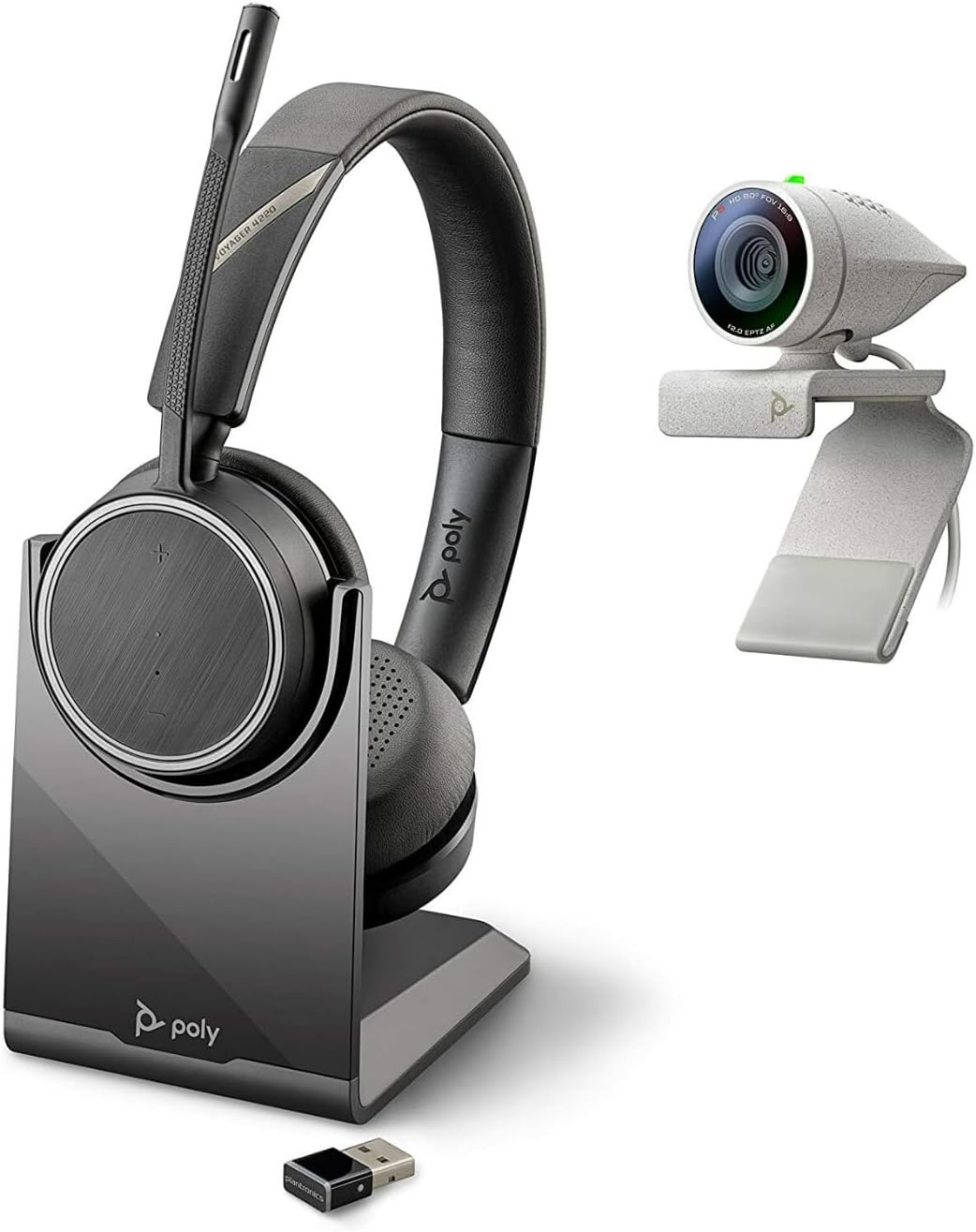
Image: Poly Studio P5 Webcam and Voyager 4220 UC Headset Kit, showing the webcam, headset, charging stand, and USB adapter.
Setup Instructions
1. Poly Studio P5 Webcam Setup
- Mounting the Webcam:
Place the webcam on top of your monitor or laptop screen. Adjust the clip to secure it firmly. The webcam can also be mounted on a tripod using the integrated tripod-ready design.

Image: Poly Studio P5 Webcam positioned on top of a laptop screen, showing its compact design and mounting clip.
- Connecting to your Computer:
Connect the integrated USB cable from the webcam to an available USB port on your PC or Mac. The device is plug-and-play; drivers will install automatically.
- Privacy Shutter:
The webcam features an integrated privacy shutter. Slide the shutter to cover the lens when not in use to enhance security and privacy.

Image: Front view of the Poly Studio P5 Webcam, highlighting the lens and the integrated privacy shutter mechanism.
2. Voyager 4220 UC Headset Setup
- Charging the Headset:
Before first use, fully charge the headset. Connect the charging cable to the headset and a USB power source. A full charge provides approximately 12 hours of talk time or 15 hours of listening time.
- Connecting the USB-A Adapter:
Insert the USB-A adapter into an available USB port on your PC or Mac. The adapter will automatically pair with the Voyager 4220 UC headset.
- Wearing the Headset:
Adjust the headband for a comfortable fit. Position the microphone boom approximately two finger-widths from the corner of your mouth for optimal voice pickup.
Operating Instructions
1. Using the Poly Studio P5 Webcam
- Video Conferencing: The webcam is compatible with Zoom, Microsoft Teams, and other video conferencing services. Select "Poly Studio P5" as your camera and microphone input within your chosen application's settings.
- Automatic Low-Light Compensation: The webcam automatically adjusts to maintain proper light exposure, ensuring clear visibility even in darker environments.
- Digital Zoom: The camera supports up to 4x digital zoom. This feature can typically be controlled through your video conferencing software or the Poly Lens Desktop app.

Image: A person wearing the Voyager 4220 UC Headset and using the Poly Studio P5 Webcam with a laptop, demonstrating a typical video conferencing setup.
2. Using the Voyager 4220 UC Headset
- Power On/Off: Slide the power switch to turn the headset on or off.
- Volume Control: Use the volume up (+) and volume down (-) buttons on the earcup to adjust audio levels.
- Mute/Unmute: Press the mute button on the microphone boom or earcup to mute or unmute your microphone.
- Call Control: Press the call button to answer or end calls in supported applications.
- Noise-Cancelling Microphones: The headset features dual noise-cancelling microphones to reduce background noise for clear voice transmission.
3. Poly Lens Desktop App
The Poly Lens Desktop app allows you to customize settings, receive firmware updates, and access practical tips for your devices. Download the app from the official Poly website.
- Adjust webcam settings (e.g., brightness, contrast, zoom).
- Configure headset audio preferences.
- Receive health and wellness reminders.
Maintenance
- Cleaning:
Wipe the webcam lens and headset surfaces with a soft, dry, lint-free cloth. Do not use liquid cleaners or abrasive materials.
- Storage:
Store the devices in a cool, dry place away from direct sunlight and extreme temperatures when not in use.
- Firmware Updates:
Regularly check for firmware updates via the Poly Lens Desktop app to ensure optimal performance and access to new features.
Troubleshooting
| Problem | Possible Cause | Solution |
|---|---|---|
| Webcam not detected | Loose USB connection, incorrect software settings, driver issue. |
|
| No audio from headset | Headset not powered on, not paired, volume too low, incorrect audio output selected. |
|
| Microphone not working | Microphone muted, incorrect audio input selected, boom not positioned correctly. |
|
| Poor video quality | Low light conditions, dirty lens, internet bandwidth issues. |
|
Specifications
Poly Studio P5 Webcam
- Max Screen Resolution: FHD (1080p)
- Video Capture Resolution: 1080p
- Photo Sensor Technology: CMOS
- Rear Webcam Resolution: 5 MP
- Maximum Focal Length: 4
- Maximum Aperture: f/2.0
- Connectivity Technology: USB
- Hardware Platform: PC, Mac
- Special Features: Integrated privacy shutter, automatic low-light compensation, tripod-ready design.
- Product Dimensions: 14.1 x 8.3 x 4.5 inches (Kit dimensions)
- Item Weight: 2.09 pounds (Kit weight)
Poly Voyager 4220 UC Headset
- Wireless Type: Bluetooth
- Talk Time: Up to 12 hours
- Listening Time: Up to 15 hours
- Microphones: Dual noise-cancelling
- Connectivity: USB-A adapter
- Supported Audio Format: AAC, MP3
- Batteries: 1 Lithium Polymer battery (included)
Warranty Information
For detailed warranty information, please refer to the warranty card included with your product or visit the official Poly website. Standard warranty terms typically cover manufacturing defects for a specified period from the date of purchase.
Support and Contact
For technical support, product registration, or to download the latest software and drivers, please visit the official Poly support website:
Website: www.poly.com/support
You can also find FAQs and community forums on the support page.
Related documents2200-87140-025


Ask a question about this manual
Ask about setup, troubleshooting, compatibility, parts, safety, or missing instructions. Manuals+ will review the question and use this page’s manual context to help answer it.