
1. Setup
1.1 Unboxing and Initial Inspection
Carefully remove the Dell Latitude 5520 laptop and its accessories from the packaging. Verify that all components are present: the laptop unit and the 65W Type-C power adapter. Inspect the laptop for any visible damage before proceeding.
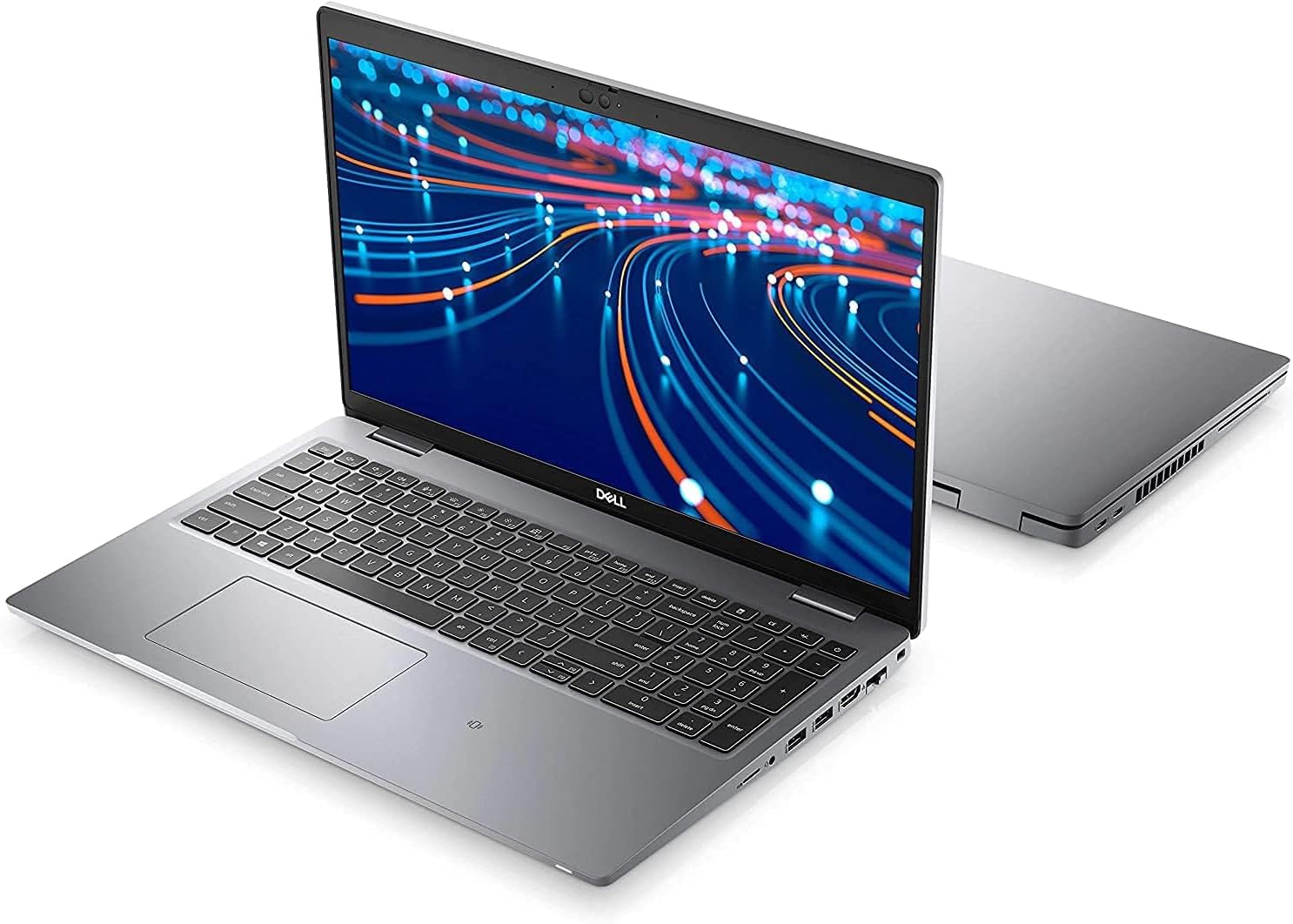
Image: Angled view of the Dell Latitude 5520 laptop, open and ready for use.
1.2 Connecting Power
Connect the 65W Type-C power adapter to a power outlet and then to the USB-C port on your laptop. It is recommended to fully charge the battery before the first use to ensure optimal battery calibration.
1.3 Initial Boot and Windows Setup
Press the power button, typically located on the top-right of the keyboard deck, to turn on the laptop. Follow the on-screen instructions to complete the initial setup of Windows 10 Pro. This process includes setting up your user account, network connection, and basic preferences.
2. Operating Your Dell Latitude 5520
2.1 Power On/Off and Sleep
- Power On: Press the power button.
- Shut Down: Click the Start button, then Power > Shut down.
- Sleep: Click the Start button, then Power > Sleep, or close the laptop lid.
2.2 Keyboard and Touchpad
The Dell Latitude 5520 features a Backlit English US Keyboard with a 10-key numeric keypad for efficient data entry. The integrated touchpad supports multi-touch gestures for navigation. Refer to Windows settings for customizing touchpad sensitivity and gestures.

Image: Top-down view of the Dell Latitude 5520 keyboard and touchpad.
2.3 Connecting Peripherals
Your laptop is equipped with various ports for connecting external devices:
- USB Ports: Multiple USB ports are available for connecting USB devices such as mice, keyboards, and external storage.
- Thunderbolt 4: A high-speed port for data transfer, video output, and power delivery.
- HDMI: Connect to external displays or projectors.
- Ethernet: For wired network connections.
- Wireless Connectivity: Utilize Intel Wi-Fi 6 AX201 for high-speed wireless internet and Bluetooth 5.1 for connecting wireless accessories.

Image: Side view of the Dell Latitude 5520 displaying available ports.
2.4 Display Features
The 15.6-inch Full HD (1920x1080) IPS display offers clear visuals with 250 nits brightness and an anti-glare coating to reduce reflections, enhancing viewing comfort.
3. Maintenance
3.1 Cleaning the Laptop
- Screen: Use a soft, lint-free cloth lightly dampened with water or a screen cleaner. Avoid harsh chemicals.
- Keyboard and Chassis: Use a soft cloth. For stubborn dirt, a slightly damp cloth with mild soap can be used, ensuring no liquid enters openings.
- Vents: Periodically clean dust from the ventilation grilles using compressed air to maintain optimal cooling.
3.2 Battery Care
The 4-cell, 63Whr ExpressChargeTM capable battery is designed for extended use. To prolong battery life:
- Avoid extreme temperatures.
- Do not leave the laptop constantly plugged in at 100% charge for prolonged periods.
- Perform full discharge-recharge cycles occasionally.
3.3 Software Updates
Regularly update your Windows 10 Pro operating system and Dell drivers. Updates provide security enhancements, bug fixes, and performance improvements. You can check for updates via Windows Update settings and Dell's official support website.
4. Troubleshooting
4.1 Power Issues
- Laptop not turning on: Ensure the power adapter is securely connected and the outlet is functional. Try a different power outlet.
- Battery not charging: Verify the power adapter is working. Check the charging indicator light on the laptop.
4.2 Display Problems
- No display: Connect an external monitor to check if the issue is with the laptop's internal screen. Restart the laptop.
- Flickering screen: Update graphics drivers. Adjust display refresh rate in Windows settings.
4.3 Connectivity Issues
- Wi-Fi not connecting: Ensure Wi-Fi is enabled. Restart your router and laptop. Check network settings in Windows.
- Bluetooth devices not pairing: Ensure Bluetooth is enabled and the device is in pairing mode. Remove and re-add the device in Windows settings.
- USB devices not recognized: Try a different USB port. Update USB drivers.
5. Technical Specifications
| Feature | Specification |
|---|---|
| Model Name | Latitude 5520 |
| Processor | 11th Generation Intel Core i5-1145G7 vPro (Quad-core, 2.6 GHz) |
| RAM Memory | 16GB DDR4 Non-ECC (1x16GB) |
| Storage | 256GB M.2 PCIe NVMe Class 35 Solid State Drive (SSD) |
| Display | 15.6-inch FHD (1920x1080) IPS, 250nits, Anti-Glare |
| Graphics | Intel Iris Xe Graphics (Integrated) |
| Operating System | Windows 10 Pro 64bit |
| Wireless Connectivity | Intel Wi-Fi 6 AX201 2x2 .11ax 160MHz + Bluetooth 5.1 |
| Ports | Thunderbolt 4, USB, HDMI, Ethernet |
| Battery | 4 Cell 63Whr ExpressChargeTM Capable |
| Weight | 5 Pounds |
| Keyboard | Backlit English US Keyboard with 10 Key Numpad |
| Webcam | HD+IR Camera |
| UPC | 884116384243 |
6. Warranty Information
The Dell Latitude 5520 comes with a 1 Year Hardware Service with Onsite/In-Home Service After Remote Diagnosis (Disti SNS). This also includes a 1 Year Manufacturer Limited Warranty. For detailed terms and conditions, please refer to the warranty documentation included with your product or visit the official Dell support website.
7. Support
For further assistance, technical support, driver downloads, or to access comprehensive troubleshooting guides, please visit the official Dell Support Website. You can also find contact information for customer service and warranty claims there.
Visit the Dell Support Website for further assistance.


