
1. Introduction
Thank you for purchasing the WiMiUS K5 WiFi Bluetooth Projector. This manual provides detailed instructions for setting up, operating, and maintaining your projector to ensure optimal performance and longevity. Please read this manual thoroughly before using the product and keep it for future reference.
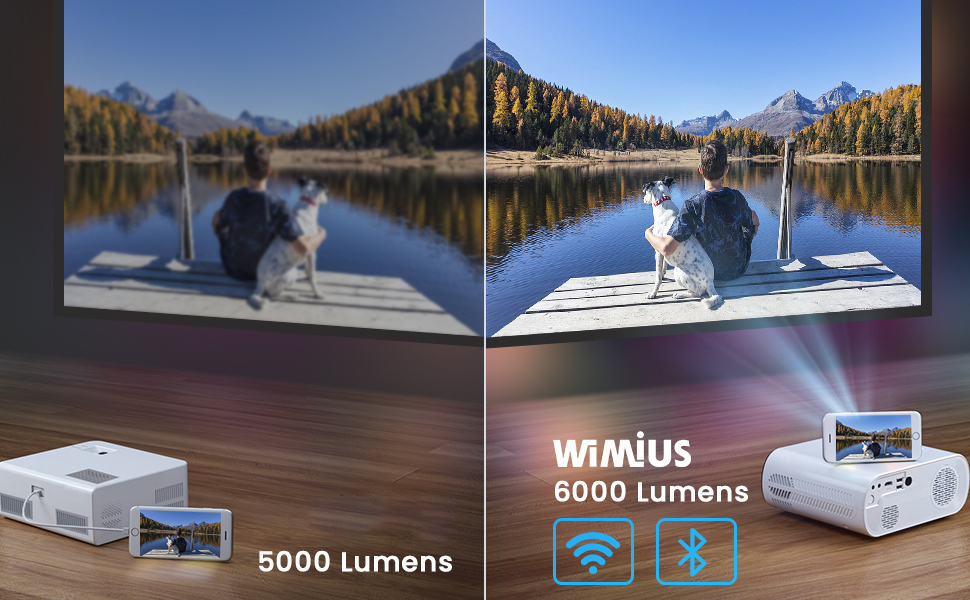
The WiMiUS K5 is a portable Full HD 1080P projector featuring 6000 lumens brightness, wireless WiFi connectivity for iOS and Android devices, and Bluetooth compatibility for external audio. It is designed for home cinema, gaming, and outdoor entertainment, offering a flexible screen size from 50 to 200 inches.
2. Safety Information
To prevent fire or electric shock, do not expose this appliance to rain or moisture. Do not open the casing. Refer servicing to qualified personnel only.
- Do not block ventilation openings.
- Use only attachments/accessories specified by the manufacturer.
- Unplug the projector during lightning storms or when unused for long periods.
- Avoid direct eye exposure to the projector lens when the lamp is on.
- Ensure proper ventilation to prevent overheating.
- Do not place the projector on unstable surfaces.
3. Package Contents
Upon opening the package, please verify that all items listed below are present and in good condition:
- WiMiUS K5 Projector
- Projector Bag
- Remote Control
- Power Cable
- HDMI Cable
- AV Cable
- User Manual

4. Product Overview
Familiarize yourself with the various components and ports of your WiMiUS K5 projector.
4.1 Front and Top View
The front features the projection lens and infrared receiver. The top panel includes control buttons and focus/keystone adjustment rings.
4.2 Rear and Side View (Ports)
The rear and sides house various input/output ports for connecting external devices.
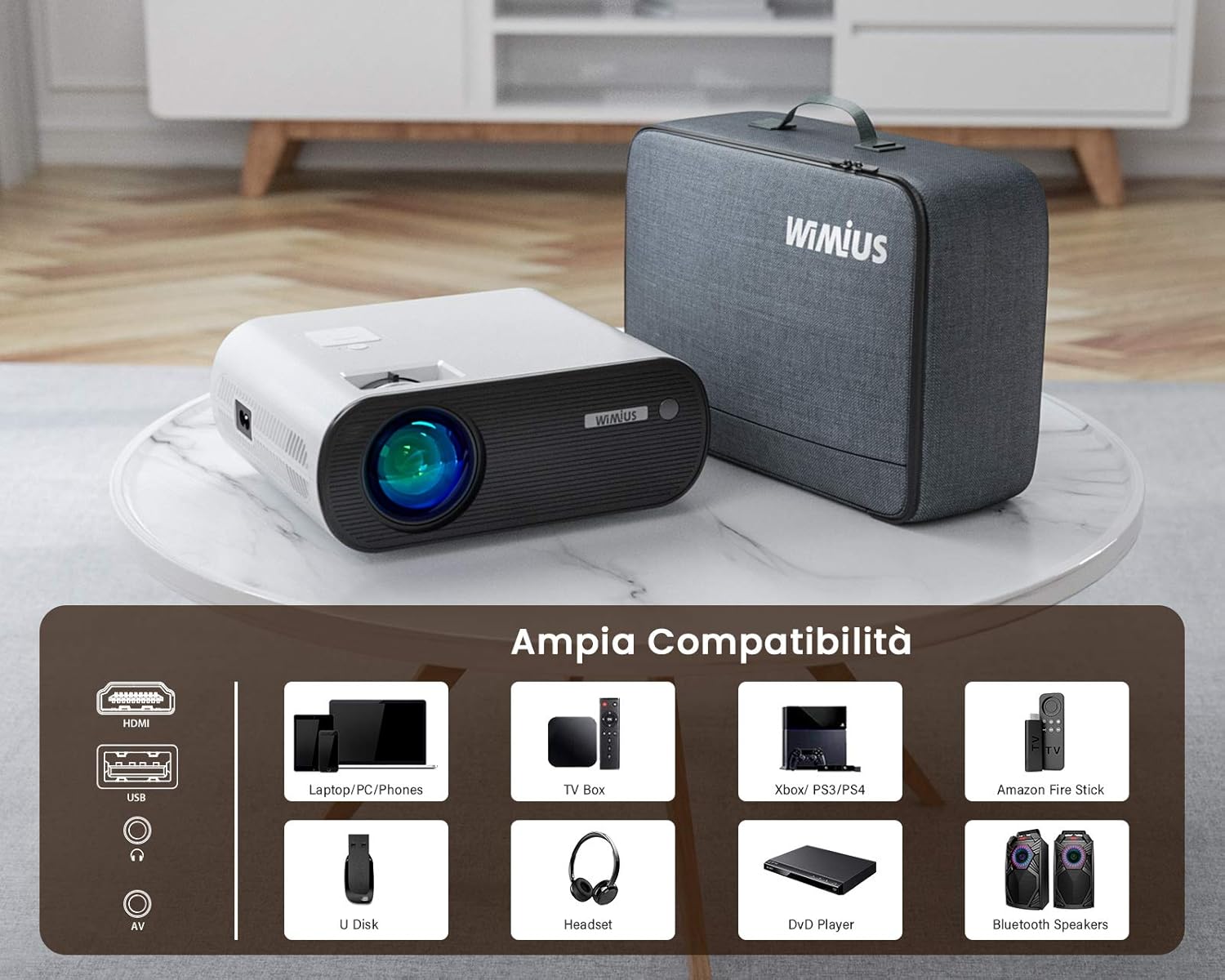
- HDMI Ports: For connecting laptops, gaming consoles (PS4, Xbox), TV boxes, and DVD players.
- USB Ports: For connecting USB drives (U Disk) to play media files.
- AV Port: For connecting older devices using an AV cable.
- Audio Out (3.5mm Jack): For connecting external headphones or speakers.
- Power Input: For connecting the power cable.
5. Setup
5.1 Placement
Choose a flat, stable surface for the projector. The recommended projection distance is approximately 2.5 meters for an optimal viewing experience. The projector supports a flexible screen size from 50 to 200 inches, allowing for various room sizes and viewing preferences.

5.2 Power Connection
Connect the power cable to the projector's power input port and then plug the other end into a power outlet.
5.3 Focus and Keystone Adjustment
Adjust the focus ring on the projector lens until the image is clear. Use the keystone correction ring to adjust the image shape if it appears trapezoidal. Note that the keystone correction may not perfectly verticalize the image in all scenarios, and some slight blurring at the edges might occur.
5.4 Multiple Installation Options
The WiMiUS K5 projector supports various installation methods, including front projection, rear projection, and ceiling mounting. Ensure the projector is securely mounted if choosing a ceiling installation.

6. Operating Instructions
6.1 Power On/Off
Press the power button on the projector or the remote control to turn the unit on or off.
6.2 Input Source Selection
Use the "Source" button on the remote control or the projector's control panel to select the desired input source (HDMI1, HDMI2, USB, AV, Screen Mirroring).
6.3 Connecting Devices
- HDMI: Connect your laptop, PC, gaming console (PS4, Xbox), TV Box, or DVD player via an HDMI cable.
- USB: Insert a USB flash drive into the USB port to play videos, photos, or music directly.
- AV: Use the provided AV cable to connect older devices like VCRs or some set-top boxes.
6.4 Wireless Connectivity (WiFi)
The projector supports wireless screen mirroring for iOS and Android devices.
- Select "Screen Mirroring" as the input source.
- Follow the on-screen instructions for connecting your iOS (AirPlay) or Android (Miracast) device to the projector's WiFi network.

6.5 Bluetooth Connection (Bluetooth 5.0)
Connect external Bluetooth speakers or headphones for enhanced audio experience.
- Go to the projector's Bluetooth settings.
- Enable Bluetooth and search for available devices.
- Select your Bluetooth speaker or headphones from the list to pair.

6.6 Zoom Function
The projector features a zoom function to adjust the image size without moving the projector. Access this feature through the projector's menu settings.
6.7 Audio Settings
The projector has integrated stereo speakers. For certain streaming devices like Amazon Fire Stick, if you experience no audio, ensure that the audio output setting on the connected device is set to Stereo and not Dolby Surround. The projector's internal audio system is optimized for stereo playback.
6.8 Usage Scenarios
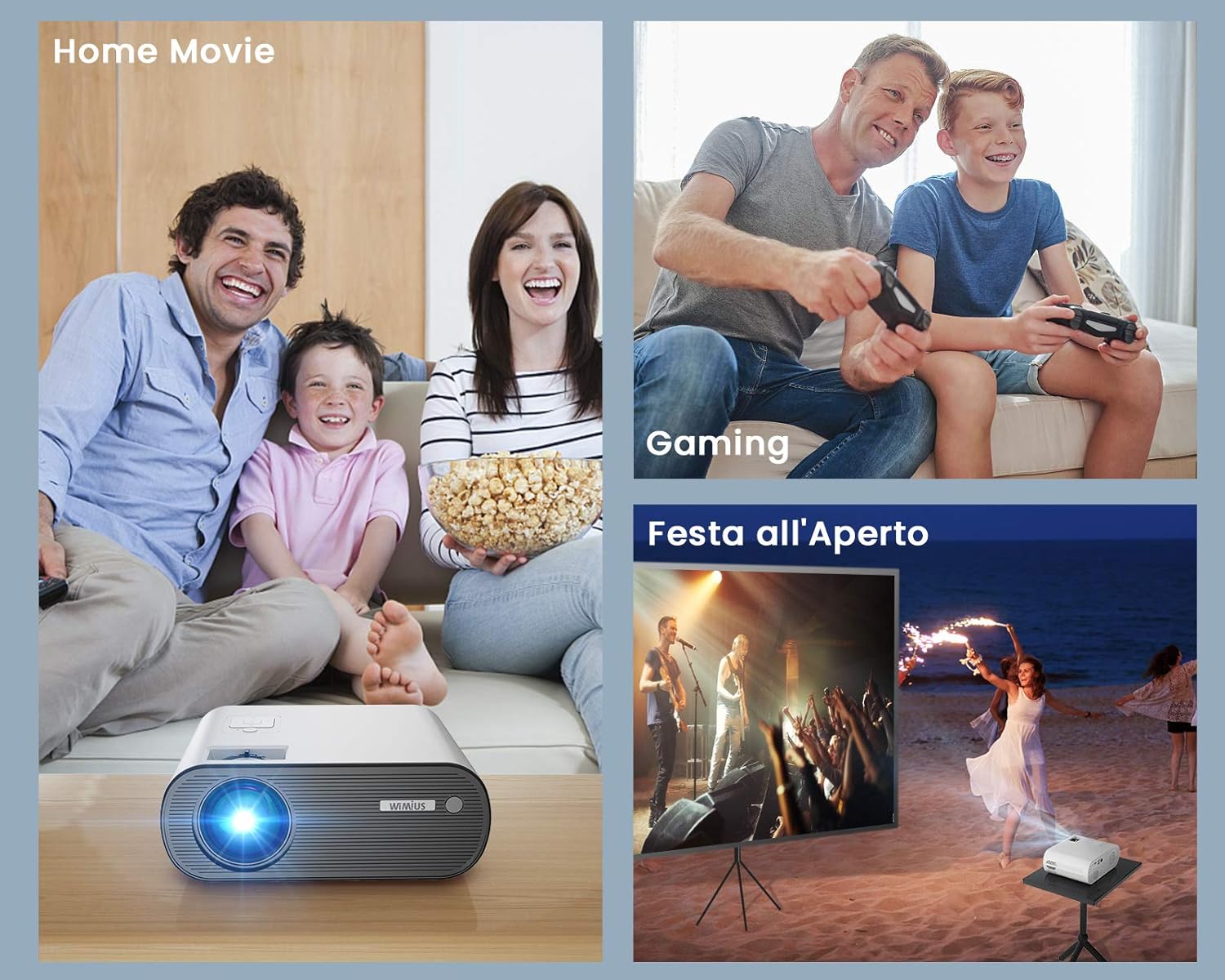
The WiMiUS K5 is versatile for various entertainment needs:
- Home Movie: Enjoy movies and TV shows on a large screen.
- Gaming: Connect your gaming console for an immersive gaming experience.
- Outdoor Party: Its portability and brightness make it suitable for outdoor movie nights or events.

7. Maintenance
7.1 Cleaning the Lens
Use a soft, lint-free cloth specifically designed for optical lenses to gently wipe the projector lens. Do not use abrasive cleaners or excessive force, as this can scratch the lens.
7.2 Cleaning the Exterior
Wipe the projector's exterior with a soft, dry cloth. For stubborn marks, a slightly damp cloth can be used, followed by a dry one. Ensure no liquid enters the ventilation openings.
7.3 Dust Prevention
To minimize dust accumulation inside the projector, operate it in a clean environment. While the projector has cooling fans, internal dust can sometimes accumulate over time, potentially causing spots on the projected image. Regular cleaning of the exterior and proper storage can help mitigate this.
7.4 Storage
When not in use, store the projector in its included carrying bag in a cool, dry, and dust-free environment to protect it from damage and prolong its lifespan.
8. Troubleshooting
| Problem | Possible Cause | Solution |
|---|---|---|
| No image projected | Power not connected; Incorrect input source; Lens cap on. | Check power connection; Select correct input source (HDMI, USB, AV); Remove lens cap. |
| No sound | Volume too low; Muted; Audio format incompatibility (e.g., Dolby); Loose audio cable. | Increase volume; Unmute; For Fire Stick/Netflix, set audio output to Stereo on the source device; Reconnect audio cables. |
| Blurry image | Out of focus; Incorrect projection distance; Keystone not adjusted. | Adjust focus ring; Ensure projector is within recommended distance; Adjust keystone correction. |
| Remote control not working | Batteries dead/incorrectly inserted; Obstruction between remote and projector; Remote not pointed at IR receiver. | Replace batteries; Remove obstructions; Point remote directly at the projector's IR receiver. |
| Dust spots on image | Internal dust accumulation. | This can be a common issue over time. For persistent spots, professional cleaning may be required. Ensure proper ventilation and storage to minimize dust. |
9. Specifications
| Feature | Detail |
|---|---|
| Brand | WiMiUS |
| Model | K5 |
| Brightness | 6000 Lumens |
| Native Resolution | 1920 x 1080 (Full HD) |
| Max Display Resolution | 1920 x 1080 |
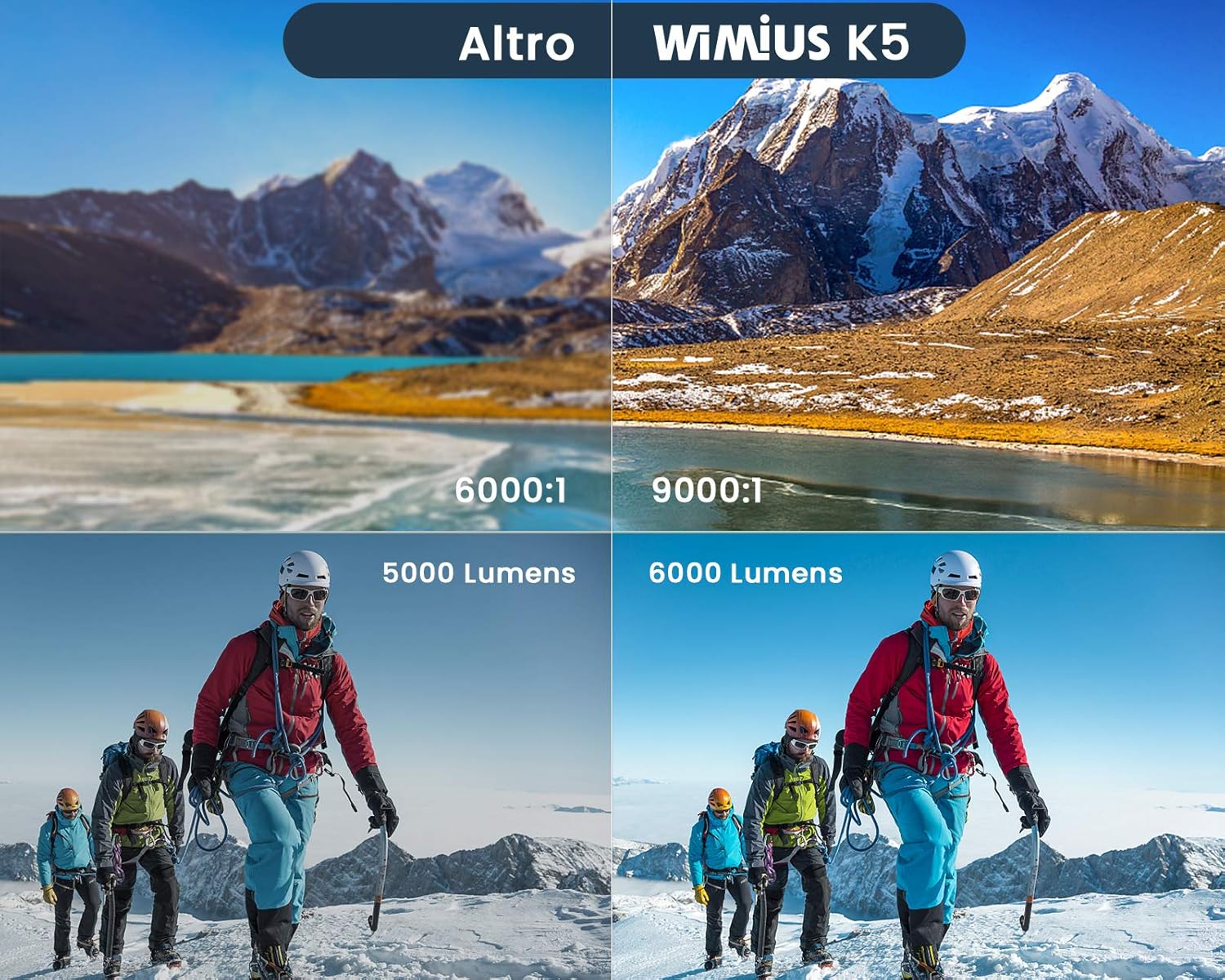
| Contrast Ratio | 9000:1 (Assumed High Value from image) |
| Connectivity Technology | Bluetooth 5.0, HDMI, USB, WiFi |
| Compatible Devices | Computers, Laptops, Gaming Consoles (PS4, Xbox), Media Players, Smartphones, Tablets, TV Boxes, DVD Players, USB Disks, Bluetooth Speakers/Headsets |
| Projection Size | 50 - 200 inches |
| Recommended Projection Distance | Approx. 2.5 meters |
| Dimensions | 21.2 x 17.2 x 8 cm |
| Weight | 1.91 Kilograms |
| Included Components | Projector Bag |
| Installation Type | Tabletop, Ceiling Mount |
10. Warranty & Support
WiMiUS products are designed and manufactured to the highest quality standards. For information regarding warranty coverage and terms, please refer to the documentation included with your purchase or visit the official WiMiUS website.
If you encounter any issues or have questions about your WiMiUS K5 projector that are not covered in this manual, please contact WiMiUS customer support. Details for contacting support are typically found on the product packaging, warranty card, or the official brand website.
For the latest updates, FAQs, and support resources, please visit the WiMiUS Official Store on Amazon.


