
1. Introduction
The iBaby M8 2K Smart Baby Monitor provides advanced monitoring capabilities for your child's nursery. Featuring 2K video resolution, pan, tilt, and zoom functions, two-way audio, and various alerts, it helps you stay connected and informed. This manual provides essential information for setting up, operating, and maintaining your iBaby M8 monitor.
2. Safety Information
- Keep the monitor and its power adapter out of reach of children.
- Do not place the monitor or cables within 3 feet of the crib or playpen to prevent strangulation hazards.
- Use only the provided power adapter. Using unauthorized adapters may damage the device and void the warranty.
- Ensure proper ventilation around the monitor. Do not cover it with clothes or other materials.
- Avoid exposing the monitor to extreme temperatures, direct sunlight, or moisture.
- This product is not a medical device and should not be used as a substitute for adult supervision.
3. Package Contents
Verify that all items are present in your iBaby M8 package:
- iBaby M8 2K Smart Baby Monitor Camera
- Wall Mount Kit
- Power Adapter
- Quick Start Guide (User Manual)

Image: The iBaby M8 monitor, power adapter, wall mount, and quick start guide included in the package.
Video: An unboxing video demonstrating the contents of the iBaby M8 Smart Baby Monitor package.
4. Product Overview
The iBaby M8 monitor is designed with a spherical body and an adjustable camera lens. It features:
- 2K HD Video: Provides clear and detailed live streaming.
- Pan & Tilt: Remotely adjust the camera's viewing angle (355° pan, 110° tilt).
- Digital Zoom: Zoom in on your baby for a closer look.
- Two-Way Talk: Communicate with your baby or caregiver through the monitor.
- Moonlight Projector: Projects soothing images onto the ceiling.
- Sound Machine: Access over 1000 lullabies and white noise sounds.
- Environmental Sensors: Monitors room temperature and humidity.
- Smart Alerts: Notifies you of crying, motion, and environmental changes.
- Dual-Band Wi-Fi: Supports both 2.4GHz and 5GHz Wi-Fi networks for flexible connectivity.
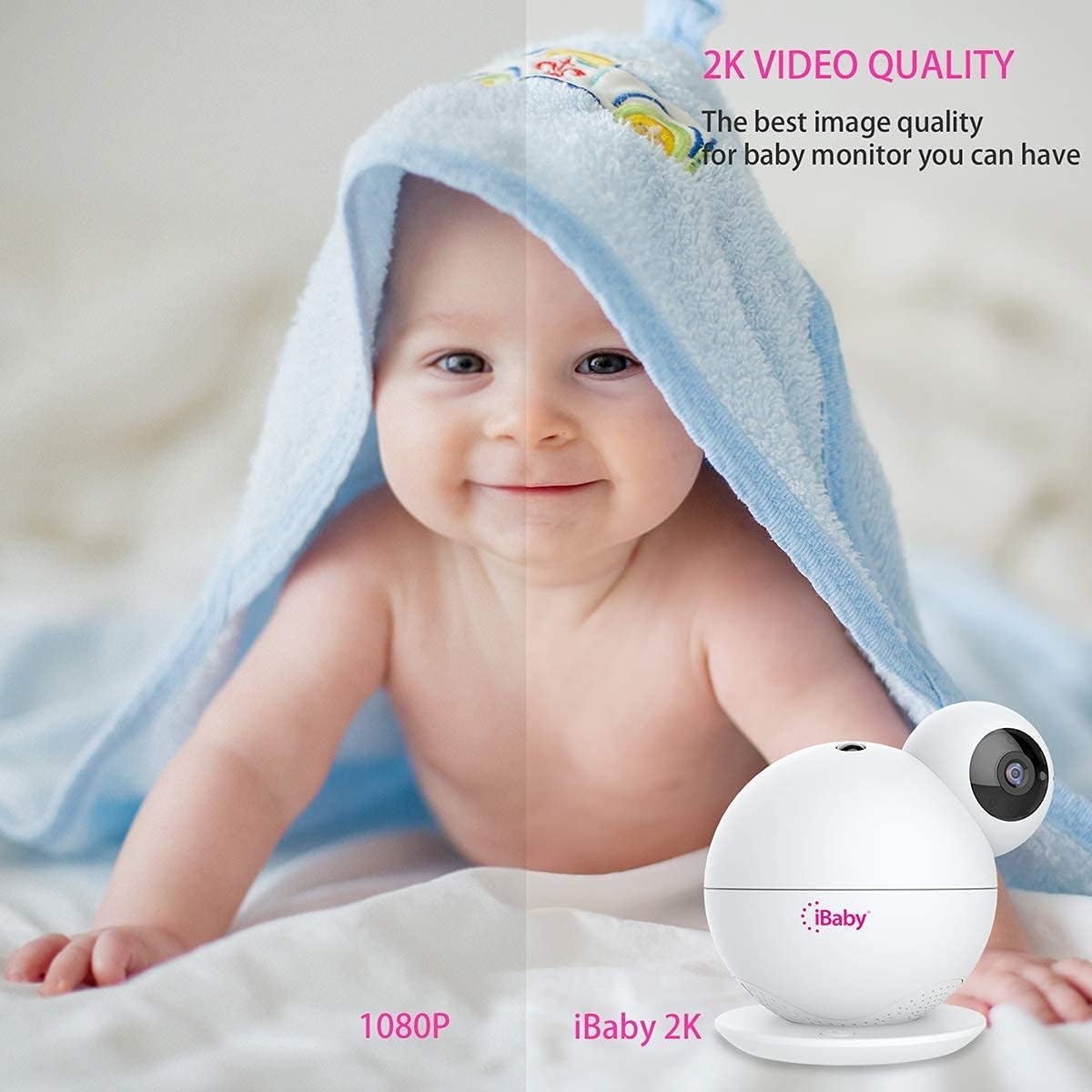
Image: A visual comparison highlighting the superior 2K video quality of the iBaby M8 monitor compared to 1080P.
5. Setup Guide
5.1 Initial Setup
- Power On: Connect the provided power adapter to the iBaby M8 monitor and plug it into a power outlet. The monitor will take approximately one minute to power on.
- Download the App: Download the 'iBaby Care' app from the Apple App Store or Google Play Store on your smartphone.
- Connect to Wi-Fi: Ensure your mobile device is connected to a 2.4GHz or 5GHz Wi-Fi network.
- Open App & Select Monitor: Open the iBaby Care app, select 'iBaby M8' from the installation list, and follow the on-screen prompts.
- Enter Wi-Fi Password: When prompted, enter your Wi-Fi network password.
- Scan QR Code: The app will generate a QR code. Hold your smartphone screen in front of the iBaby M8 camera lens (approximately 6-8 inches away) until you hear a confirmation sound indicating the QR code has been scanned successfully.
- Pairing: The monitor will then connect to your Wi-Fi network. This process may take a few moments. Once connected, you can begin using your iBaby M8 monitor.
Video: A step-by-step guide on how to install and set up the iBaby M8 monitor using the iBaby Care app.
5.2 Mounting Options
The iBaby M8 comes with a wall mount kit for flexible placement. You can place the monitor on a flat surface or mount it to a wall for an optimal view of the nursery.

Image: The iBaby M8 monitor shown with its included wall mount kit, illustrating various mounting possibilities.
6. Operating Instructions
6.1 Live View and Camera Control
- Open the iBaby Care app on your smartphone to access the live video feed.
- Use the on-screen controls to pan (move horizontally), tilt (move vertically), and digitally zoom the camera to get the desired view.
6.2 Two-Way Talk
- Tap the microphone icon in the app to speak through the monitor to your baby or a caregiver in the room.
- The monitor's built-in speaker will transmit your voice.

Image: A baby in a crib with a speech bubble, illustrating the two-way audio communication feature of the iBaby M8 monitor.
6.3 Moonlight Projector & Sound Machine
- Activate the moonlight projector feature via the app to display soothing images on the nursery ceiling.
- Access the sound machine feature in the app to play lullabies, white noise, or other calming sounds.

Image: A sleeping baby in a crib with the iBaby M8 monitor nearby, indicating the sound machine feature playing lullabies.
6.4 Alerts and Notifications
- The iBaby M8 can send alerts for crying, motion detection, and changes in room temperature or humidity.
- Configure alert settings within the iBaby Care app to receive notifications on your smartphone, even when the screen is off.

Image: A crying baby in a crib with the iBaby M8 monitor and a smartphone displaying a crying alert notification.
7. Maintenance
- Cleaning: Use a soft, dry cloth to clean the monitor's surface. Do not use liquid or aerosol cleaners.
- Lens Care: Gently wipe the camera lens with a microfiber cloth to ensure clear image quality.
- Storage: If storing the monitor for an extended period, ensure it is clean, dry, and stored in a safe place away from extreme temperatures.
8. Troubleshooting
8.1 Common Issues & Solutions
| Issue | Possible Solution |
|---|---|
| Monitor not connecting to Wi-Fi | Ensure your Wi-Fi network is 2.4GHz or 5GHz. Check your Wi-Fi password. Restart your router and the monitor. Make sure the monitor is within range of your Wi-Fi router. |
| Poor video quality | Check your internet connection speed. Ensure the camera lens is clean. Adjust the camera's position for better lighting. |
| No audio from monitor | Check the volume settings in the app. Ensure your phone's volume is up. Restart the app and the monitor. |
| Alerts not working | Verify alert settings in the iBaby Care app. Ensure app notifications are enabled on your smartphone. Check the monitor's sensitivity settings. |
If you encounter persistent issues, please refer to the support section for further assistance.
9. Specifications
| Feature | Detail |
|---|---|
| Model | M8 |
| Video Resolution | 2K (2 times higher HD than 1080P) |
| Pan Angle | 355° |
| Tilt Angle | 110° |
| Connectivity | 2.4GHz & 5GHz Wi-Fi |
| Two-Way Talk | Yes |
| Moonlight Projector | Yes |
| Sound Machine | 1000+ lullabies and white noise |
| Alerts | Crying, Motion, Temperature, Humidity |
| Material | Plastic |
| Color | White |
| Battery | Built-in, non-replaceable |
| Smart Home Compatibility | Yes |
10. Warranty and Support
iBaby is committed to providing quality products and excellent customer service. If you have any questions or encounter issues with your iBaby M8 monitor, our support team is ready to assist you.
- Warranty: Please refer to the product packaging or the official iBaby website for detailed warranty information.
- Returns: iBaby supports a no-questions-asked return within 30 days if the product fails to satisfy you.
- Contact Support: For technical assistance or customer service, visit the official iBaby website: www.ibabylabs.com.


