
BENEXMART B08TGLBX8C
User Manual
BENEXMART Tuya WiFi GU10 LED Smart Bulb (6 Pack)
Model: B08TGLBX8C
Introduction
Thank you for choosing the BENEXMART Tuya WiFi GU10 LED Smart Bulbs. This manual provides comprehensive instructions for the installation, setup, operation, and maintenance of your new smart lighting system. These bulbs offer RGBCW color changing, dimming capabilities, and can be controlled via the Smart Life/Tuya Smart App, Amazon Alexa, and Google Assistant, enhancing your home's ambiance and convenience.

Image: A set of six BENEXMART GU10 smart LED bulbs, each emitting a different color of light (red, orange, yellow, cyan, blue, purple), showcasing their color-changing capabilities.
Product Features
- Smart Life Integration: Compatible with Amazon Alexa and Google Assistant for convenient voice control.
- Remote Control via App: Control your smart LED bulbs from anywhere using the Smart Life/Tuya Smart App. Individual or group control options are available. Requires a 2.4GHz Wi-Fi Network.
- Scheduling and Timers: Set schedules for automatic on/off times, allowing for personalized lighting routines.
- DIY Colorful Life: Offers RGBCW (Red, Green, Blue, Cool White, Warm White) color changing with a temperature range of 2700K-6000K. Includes 7 pre-set scenes for various moods and occasions.
- Voice Control: Seamlessly integrate with Amazon Alexa (Echo/Dot/Tap) and Google Home (Google Assistant) to control light functions with simple voice commands.
Specifications
| Attribute | Value |
|---|---|
| Brand | BENEXMART |
| Light Type | LED |
| Special Feature | Dimmable, Color Changing |
| Wattage | 5 watts |
| Bulb Base | GU10 |
| Light Color | Warm White, RGB |
| Voltage | 265 Volts |
| Unit Count | 6.0 Count |
| Color Temperature | 2700K-6000K |
| Brightness | 480 Lumen |
| Connectivity Technology | Wi-Fi (2.4GHz ONLY) |
| Control Method | App, Voice (Alexa, Google Assistant) |
| Product Dimensions | 1.57 x 1.97 x 1.97 inches |
| Item Weight | 1.1 pounds (for 6 pack) |

Image: A single BENEXMART GU10 smart LED bulb with measurements indicating its height (4.9cm) and diameter (5.8cm).
Setup
- Physical Installation:
Ensure the power is off before installing the bulb. Screw the GU10 smart LED bulb into a standard GU10 compatible light fixture. Ensure it is securely fitted.
- Download the App:
Search for "Smart Life" or "Tuya Smart" in your mobile app store (App Store for iOS or Google Play Store for Android) and download the application. Register for a new account or log in if you already have one.

Image: A smartphone displaying the Smart Life app interface, showing a color wheel for RGB+W control of the smart bulb, with brightness and plain sliders. Text indicates compatibility with iOS and Android.
- Pairing the Bulb with the App:
Important: Ensure your Wi-Fi network is 2.4GHz. These bulbs do not support 5GHz Wi-Fi.
- Turn on the light bulb.
- Open the Smart Life/Tuya Smart App. Tap "+" in the top right corner to add a device.
- Select "Lighting" -> "Light Source (Wi-Fi)".
- Follow the on-screen instructions to put the bulb into pairing mode. This usually involves turning the bulb ON-OFF-ON-OFF-ON (with 2-second intervals) until it starts blinking rapidly.
- Confirm the bulb is blinking rapidly in the app. Enter your 2.4GHz Wi-Fi network password.
- The app will connect to the bulb. Once connected, you can rename the bulb for easier control.
- Connecting to Voice Assistants (Alexa/Google Home):
- Open the Amazon Alexa or Google Home app.
- Go to "Skills & Games" (Alexa) or "Works with Google" (Google Home).
- Search for "Smart Life" skill/service and enable it.
- Link your Smart Life account with your Alexa/Google Home account using your Smart Life credentials.
- Discover devices. Alexa/Google Home will find your newly added smart bulbs.

Image: A BENEXMART smart bulb placed between a Google Home speaker on the left and an Amazon Echo Plus speaker on the right, illustrating its compatibility with both voice assistant platforms.
Operating Instructions
Using the Smart Life/Tuya Smart App:
- On/Off: Tap the power icon next to the bulb's name to turn it on or off.
- Color and Brightness Adjustment: Tap on the bulb's name to enter its control interface.
- White Mode: Adjust brightness and color temperature (warm white to cool white).
- Color Mode: Select from a wide spectrum of RGB colors using the color wheel. Adjust saturation and brightness.
- Scene Selection: Choose from pre-set scenes (e.g., Night, Reading, Party, Leisure, Soft, Rainbow, Shine, Gorgeous) to instantly change the ambiance.
- Scheduling and Timer: Set specific times for the bulb to turn on or off, or activate a countdown timer.
- Group Control: Create groups of multiple bulbs in the app to control them simultaneously with a single command.

Image: Three smartphone screens illustrating the Smart Life app's functionalities: one showing timer settings, another displaying various scene options, and the third demonstrating white light brightness adjustment.
Using Voice Control (Alexa/Google Assistant):
Once linked, you can use voice commands to control your bulbs. Examples:
- "Alexa, turn on the living room light."
- "Hey Google, dim the bedroom light to 50%."
- "Alexa, set the kitchen light to blue."
- "Hey Google, change the dining room light to warm white."
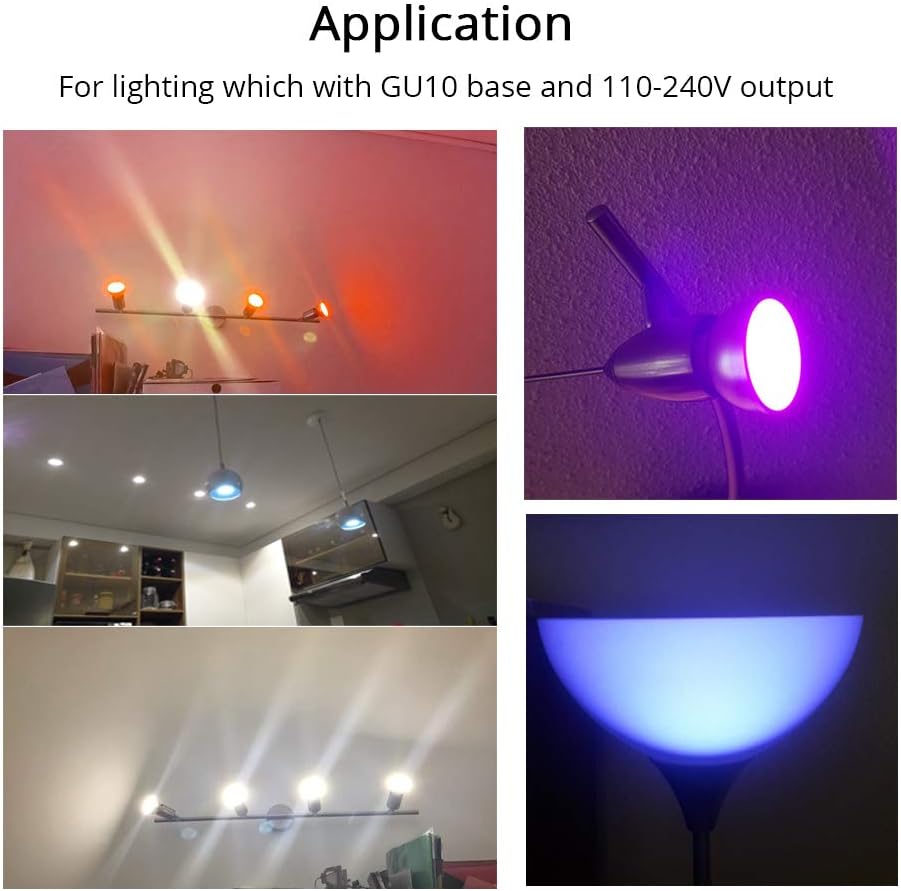
Image: A collage of four images showing the BENEXMART smart bulbs in different applications: two top images show bulbs in track lighting and a single fixture emitting colored light, while the bottom two images show bulbs in track lighting and a floor lamp emitting white and blue light respectively.
Maintenance
- Cleaning: Ensure the bulb is off and cool before cleaning. Wipe with a soft, dry cloth. Do not use liquid cleaners or abrasive materials.
- Firmware Updates: Periodically check the Smart Life/Tuya Smart App for firmware updates to ensure optimal performance and access to new features.
- Environmental Conditions: Avoid exposing the bulbs to extreme temperatures or high humidity, as this can affect their lifespan and performance.

Image: A detailed close-up shot of a single BENEXMART GU10 smart LED bulb, highlighting its silver body and white base with electrical contacts.
Troubleshooting
- Bulb not connecting to Wi-Fi:
-
- Ensure your Wi-Fi network is 2.4GHz. These bulbs do not support 5GHz networks.
- Check if the bulb is blinking rapidly (pairing mode). If not, perform the ON-OFF-ON-OFF-ON cycle.
- Make sure your Wi-Fi password is entered correctly in the app.
- Move the bulb closer to your Wi-Fi router during the pairing process.
- Restart your router and try again.
- Voice control not working:
-
- Ensure the Smart Life skill/service is enabled and linked correctly in your Alexa/Google Home app.
- Try rediscovering devices in your Alexa/Google Home app.
- Check your internet connection.
- Ensure the bulb is online in the Smart Life app.
- Bulb is unresponsive or offline:
-
- Check the power supply to the bulb.
- Verify your Wi-Fi network is active and stable.
- If the bulb was recently turned off via a physical switch, it might lose connection. Try turning it on and off a few times to re-establish connection.
- If issues persist, try resetting the bulb (ON-OFF-ON-OFF-ON cycle) and re-pairing it with the app.
Ask a question about this manual
Ask about setup, troubleshooting, compatibility, parts, safety, or missing instructions. Manuals+ will review the question and use this page’s manual context to help answer it.