
TP-Link Archer GX90
TP-Link AX6600 WiFi 6 Gaming Router (Archer GX90) Instruction Manual
Model: Archer GX90 | Brand: TP-Link
1. Product Overview
The TP-Link AX6600 WiFi 6 Gaming Router (Archer GX90) is a tri-band gigabit wireless internet router designed for high-speed connectivity and expansive coverage in large homes. It features a dedicated Game Band, Game Accelerator, and robust security features to optimize your network experience.
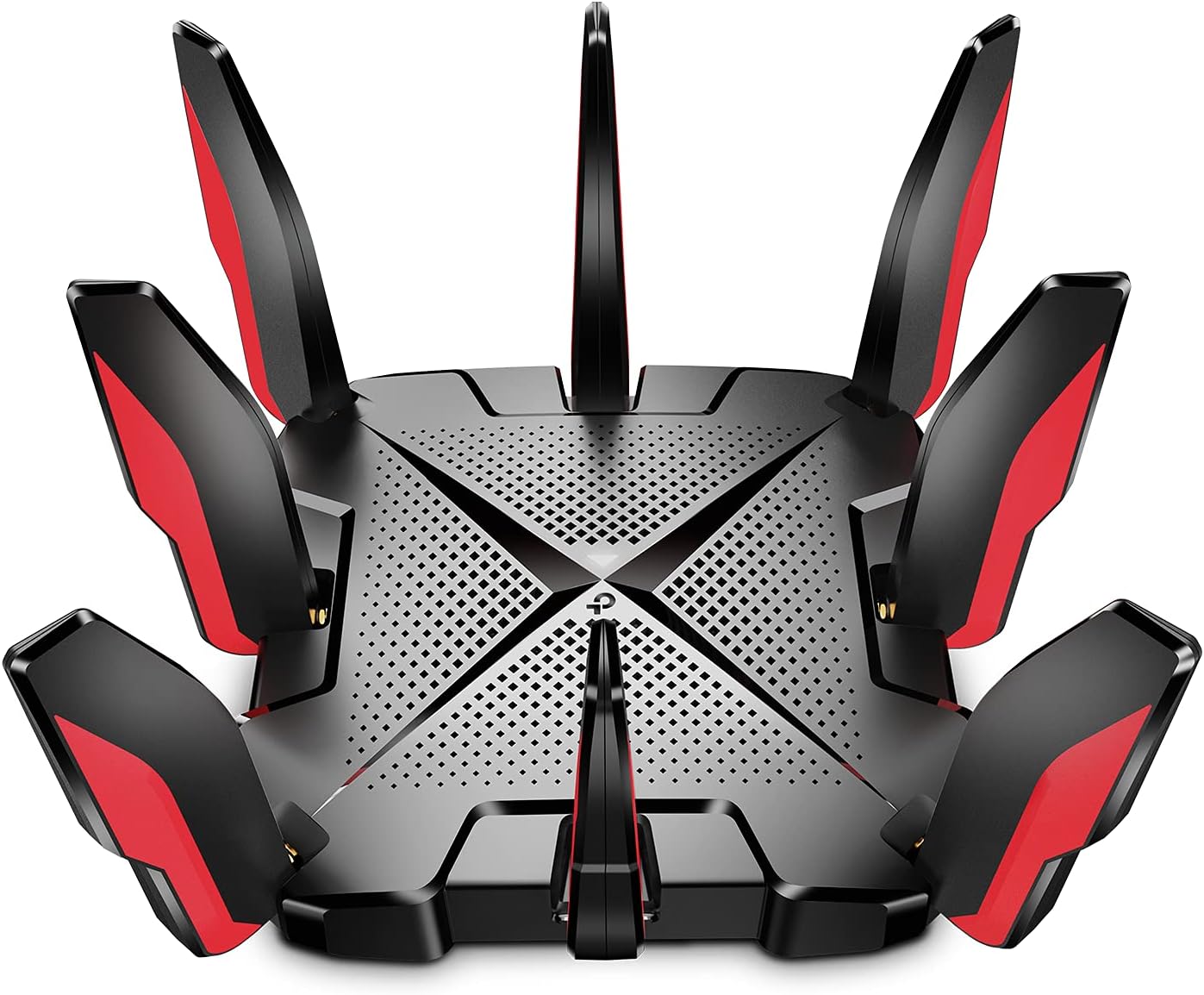
Figure 1: TP-Link AX6600 WiFi 6 Gaming Router (Archer GX90) with all antennas deployed.
2. Setup
2.1. What's in the Box
- Wi-Fi Router Archer GX90
- Power Adapter
- RJ45 Ethernet Cable
- Quick Installation Guide
2.2. Physical Setup
Before powering on the router, ensure all antennas are securely attached. The Archer GX90 features eight detachable high-performance antennas that plug into designated ports around the device. Once attached, position the antennas for optimal signal coverage.

Figure 2: Rear ports of the Archer GX90, including LAN, WAN, USB, and power connections.
Connect the provided RJ45 Ethernet cable from your modem's LAN port to the 2.5 Gbps WAN/LAN port (blue) on the router. Connect the power adapter to the router's power input and plug it into an electrical outlet. Press the On/Off button to power on the router.

Figure 3: Detailed view of USB 2.0, USB 3.0, 3x Gigabit LAN, 1x 1 Gbps WAN/LAN, and 1x 2.5 Gbps WAN/LAN ports.
2.3. Software Setup
Access the router's administration panel via a web browser by entering the default gateway IP address (usually 192.168.0.1 or tplinkwifi.net). Follow the on-screen instructions to set up your network name (SSID) and password for the 2.4 GHz and 5 GHz bands. The router supports tri-band operation, including a dedicated 5 GHz Game Band.

Figure 4: Bandwidth allocation for 5 GHz Game Band (4804 Mbps), 5 GHz Band (1201 Mbps), and 2.4 GHz Band (574 Mbps).
3. Operating the Router
3.1. Network Map Overview
The Network Map in the admin panel provides a visual representation of your network status, including internet connection, connected mesh devices, and client count. It displays active SSIDs (2.4 GHz, 5 GHz, and 5 GHz Game Band).
3.2. Game Center Features
The Game Center allows you to monitor network traffic, performance (CPU and memory usage), and connected USB devices. Key gaming features include:
- Game Accelerator: Reduces game latency and boosts game speed. This feature can be toggled on/off in the Game Center settings.
- Device Priority: Assign priority to specific devices (e.g., gaming consoles) to ensure they receive optimal internet bandwidth. You can set priority for a specific duration (e.g., 1, 2, or 4 hours) or always.
3.3. Parental Controls
The router offers robust parental control features to manage internet content and time limits for family members. You can create profiles and apply filter levels (Child, Pre-Teen, Teen, Adult) to block specific content categories (e.g., adult content, gambling, social networks) or block websites by keywords/URLs.
3.4. Quality of Service (QoS)
QoS allows you to prioritize internet traffic for specific applications or devices to guarantee a faster connection. You can select predefined modes like Standard, Gaming, Streaming, Surfing, Chatting, or create a Custom profile to adjust priority levels for different traffic types (e.g., high priority for gaming, normal for streaming).
3.5. VPN Client and Server
The Archer GX90 supports both VPN Client and VPN Server functionalities:
- VPN Client: Allows you to set up profiles for clients that will use the VPN function. You can add up to 6 VPN servers and enable specific devices to route their traffic through the VPN. Only one VPN can be active at a time.
- VPN Server: Enables secure, remote access to your home network from anywhere in the world. It supports OpenVPN, PPTP, and L2TP/IPSec protocols. You can generate certificates and export configuration files for easy setup on client devices.
3.6. Smart Life Assistant (Alexa Integration)
The TP-Link Router Skill for Amazon Alexa allows you to control network devices using voice commands. You can prioritize gaming, turn off router LEDs, or ask Alexa to read out the guest network password without interrupting your activities.
3.7. OneMesh
The OneMesh feature enables Smart Connect to work with OneMesh supported range extenders (e.g., RE505X) for better seamless roaming throughout your home. Note that OneMesh currently only broadcasts your main SSID and not the guest network.
4. Maintenance
4.1. Antivirus and Security
The router includes built-in antivirus protection (powered by Trend Micro) to keep your home network safe. Features include Malicious Content Filter, Intrusion Prevention System, and Infected Device Quarantine. Regularly check the security status in the HomeCare section of the admin panel and repair any vulnerabilities.
Video 1: TP-Link HomeCare - Get Protected. This video highlights the security features of TP-Link HomeCare, emphasizing protection against cyber threats for all connected devices in your home network.
4.2. Firmware Updates
Ensure your router's firmware is always up-to-date to benefit from the latest security patches, performance improvements, and new features. Firmware updates can typically be managed through the router's administration interface under the System or Advanced settings.
5. Troubleshooting
5.1. General Connectivity Issues
If you experience internet connectivity problems, check the Network Map in the admin panel to verify your internet status. Ensure all cables are securely connected. You may also try restarting your modem and router.
5.2. Performance Degradation
For slow speeds or performance issues, check the Game Center for network traffic and CPU/memory usage. High usage might indicate too many active devices or bandwidth-intensive tasks. Utilize QoS settings to prioritize critical traffic. If you are in an area with high wireless interference, consider using the OneMesh feature with compatible range extenders.

Figure 5: The router is equipped with a 1.5 GHz Quad-Core CPU for powerful processing and stable network performance.
6. Specifications
| Feature | Detail |
|---|---|
| Product Dimensions | 8.35 x 8.35 x 2.04 inches |
| Item Weight | 2.43 pounds |
| Item Model Number | Archer GX90 |
| Brand | TP-Link |
| Model Name | Archer GX90 |
| Special Feature | Beamforming, QoS, WPS, Parental Control |
| Frequency Band Class | Tri-Band |
| Wireless Communication Standard | 802.11n, 802.11ax, 802.11b, 802.11g, 802.11ac |
| Compatible Devices | router |
| Frequency | 5 GHz |
| Recommended Uses For Product | Home, Gaming |
| Included Components | Wi-Fi Router Archer GX90, Power Adapter, RJ45 Ethernet Cable, Quick Installation Guide |
| Connectivity Technology | Wi-Fi, USB, Ethernet |
7. Warranty and Support
7.1. Protection Plans
Protection plans are available for purchase to extend coverage beyond the standard warranty. Options include 3-Year and 4-Year Protection Plans, as well as a Complete Protect monthly plan.
7.2. User Manual and Support
For detailed information and further assistance, please refer to the official User Manual available in PDF format: User Manual (PDF). You can also visit the TP-Link website for additional support resources.
Related documentsArcher GX90


Ask a question about this manual
Ask about setup, troubleshooting, compatibility, parts, safety, or missing instructions. Manuals+ will review the question and use this page’s manual context to help answer it.