
EASYTONE 729920950270
EASYTONE 2.4G Wireless Voice Air Mouse Remote Control User Manual
Model: 729920950270
Introduction
Thank you for choosing the EASYTONE 2.4G Wireless Voice Air Mouse Remote Control. This device combines a 2.4G wireless air mouse, voice control, and infrared learning functions into one compact unit. It is designed to enhance your experience with Smart TVs, Android TV Boxes, PCs, Laptops, and Projectors, offering intuitive control with its 6-axis gyroscope.
Key Features
- 4-in-1 Functionality: Air Mouse, Voice Control, Infrared (IR) Learning Remote, and Somatosensory Game Support.
- Intuitive Control: Integrated 6-axis gyroscope for precise air mouse cursor movement and somatosensory gaming.
- 2.4G Wireless Connectivity: Stable and high-sensitivity wireless control up to 10 meters via a USB receiver.
- Voice Search: Built-in microphone for voice input, allowing easy search and navigation in compatible applications.
- IR Learning: Ability to learn and store infrared codes from other remote controls, such as your TV's power button.
- Wide Compatibility: Supports Android TV, Projectors, Laptops, Android TV Boxes, PCs, Windows, Linux, and Mac OS.
- Ergonomic Design: 17 keys for essential functions, designed for comfortable use.

Image: Overview of the remote control's main features, including 2.4G wireless, voice search, and IR learning capabilities.
Package Contents
- 1 x 2.4G Voice Air Remote Control (batteries not included)
- 1 x USB Receiver
- 1 x User Manual
Setup Instructions
- Insert Batteries: Open the battery compartment on the back of the remote control. Insert 2 AAA batteries (not included), ensuring correct polarity.
- Connect USB Receiver: Plug the USB receiver into an available USB port on your device (Smart TV, Android TV Box, PC, etc.).
- Automatic Driver Installation: Wait for 20 to 60 seconds for your device to automatically install the necessary driver for the USB receiver. No software installation is required.
- Pairing Confirmation: Once the driver is installed, move the remote control. A cursor should appear and move on your screen, indicating successful pairing and readiness for use.

Image: Illustration of inserting the USB receiver and the remote's dimensions.
Operating Instructions
Air Mouse Function
The remote control features a 6-axis gyroscope. Simply wave the remote in the air to control the cursor on your screen. This allows for intuitive navigation and interaction with your device.

Image: Demonstrating the 2.4G wireless air mouse functionality with a 10-meter range.
Voice Control Function
The built-in microphone enables voice search. Press and hold the dedicated voice button (often marked with a microphone icon) on the remote to activate voice input. Speak your commands or search queries. This function works with integrated search fields or applications that support voice input.
Infrared (IR) Learning Function
The remote can learn infrared codes from other remotes, allowing you to consolidate control. For example, you can program the power button to control your TV.
- Enter IR Learning Mode: Press and hold the Power button on the EASYTONE Air Mouse. The LED indicator will begin to flash slowly, indicating it has entered IR learning mode.
- Align Remotes: Point the infrared emitter of your original remote control directly at the infrared receiver of the EASYTONE Air Mouse (usually at the top).
- Transmit Code: Press the button on your original remote (e.g., the Power button) that you wish to teach to the Air Mouse. The Air Mouse LED will light up steadily, then flash slowly, confirming successful code reception.
- Exit Learning Mode: The learned data is automatically saved, and the product will exit learning mode.
- Clear Learned Code: To clear a learned IR code, press and hold the OK button and the DEL button simultaneously.
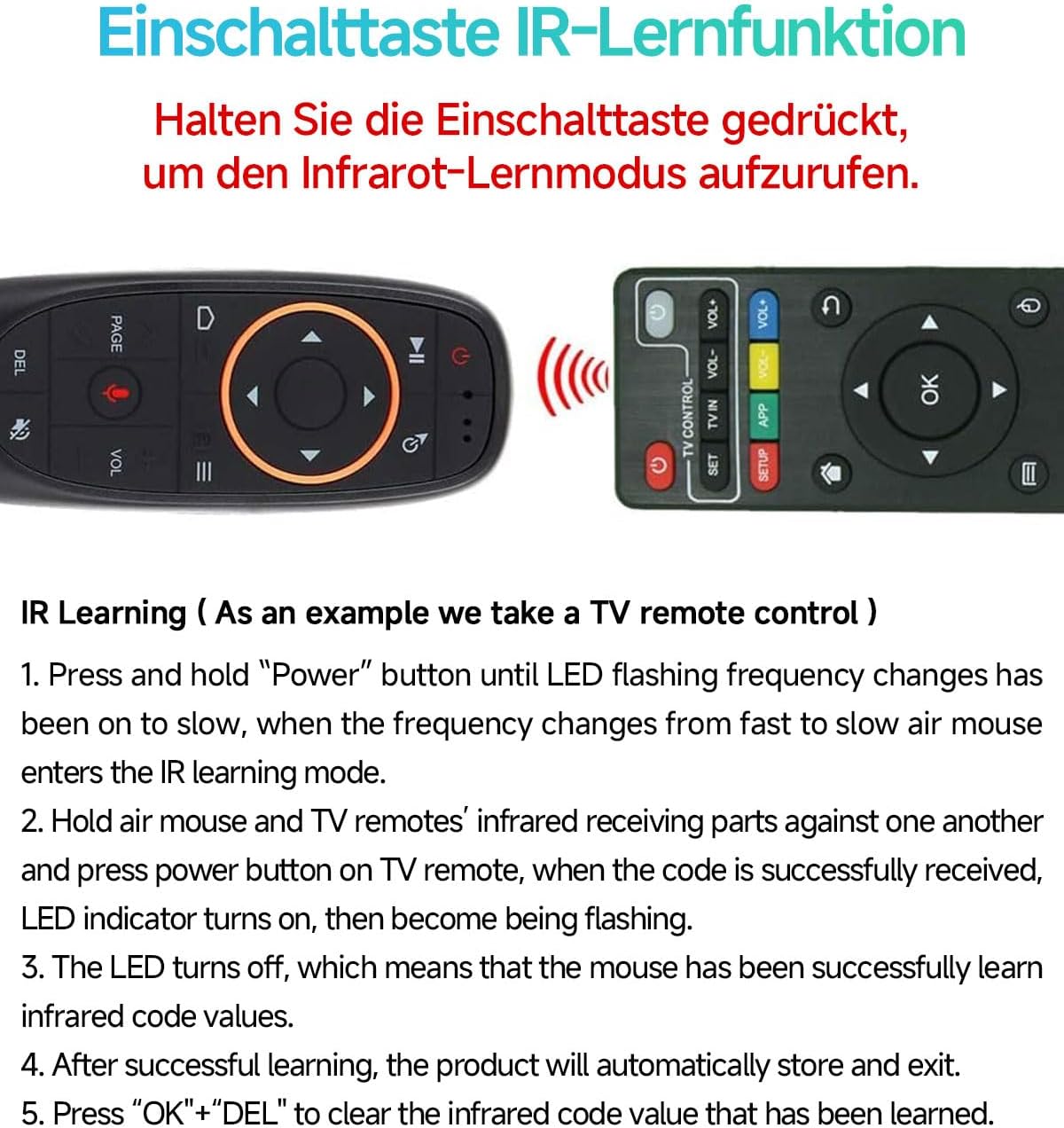
Image: Step-by-step guide for the IR learning function, using a TV remote as an example.
Button Layout
The remote features 17 keys for various functions. Refer to the diagram below for a detailed overview of each button's purpose.

Image: Functional diagram of the remote control buttons, indicating their respective actions.
Maintenance
- Battery Replacement: When the low battery indicator flashes slowly, replace the 2 AAA batteries. Ensure correct polarity.
- Power Saving: The remote automatically enters sleep mode when idle to conserve battery life. It boasts a working current under 15mA and microamp standby consumption.
- Cleaning: Use a soft, dry cloth to clean the remote control. Avoid using liquids or abrasive cleaners.
- Storage: Store the remote in a cool, dry place away from direct sunlight and extreme temperatures.

Image: Information on intelligent power saving and low battery indication.
Troubleshooting
- Remote not responding:
- Ensure batteries are correctly inserted and not depleted. Replace if necessary.
- Check if the USB receiver is securely plugged into your device.
- Try plugging the USB receiver into a different USB port.
- Re-pair the remote by unplugging and re-plugging the USB receiver.
- Cursor movement is erratic or inaccurate:
- Ensure there are no obstructions between the remote and the USB receiver.
- Calibrate the gyroscope by placing the remote on a flat surface for a few seconds.
- Voice control not working:
- Ensure you are pressing and holding the voice button while speaking.
- Verify that the application or system you are using supports voice input.
- Check your device's settings for microphone permissions.
- IR learning failed:
- Ensure the original remote's battery is not low.
- Make sure the IR emitters of both remotes are closely aligned and pointing at each other.
- Repeat the IR learning steps carefully.
Specifications
| Transmission Method | 2.4G RF Wireless |
| Sensors | 6-Axis Gyroscope |
| Number of Keys | 17 |
| Operating Range | Up to 10 meters |
| Battery Type | 2 x AAA batteries (not included) |
| Material | ABS Plastic and Silicone |
| Dimensions | 143 x 45 x 29 mm |
| Weight | 50 g |
Compatibility
The EASYTONE 2.4G Wireless Voice Air Mouse Remote Control is compatible with a wide range of devices and operating systems:
- Devices: Smart TV, Android TV Box, Mini PC, HTPC, Projector, Personal Computer (PC), Laptop.
- Operating Systems: Linux, Android, Windows, Mac OS.

Image: Visual representation of the remote's compatibility with multiple systems and devices.
Warranty and Support
For any questions or issues regarding your EASYTONE 2.4G Wireless Voice Air Mouse Remote Control, please refer to the contact information provided with your purchase or visit the official EASYTONE support website. Please note that specific warranty details may vary by region and retailer.
Ask a question about this manual
Ask about setup, troubleshooting, compatibility, parts, safety, or missing instructions. Manuals+ will review the question and use this page’s manual context to help answer it.