
1. Introduction
This manual provides detailed instructions for the Waveshare 3.5-inch DPI IPS Capacitive Touch Screen LCD. This display is designed for use with various Raspberry Pi models, offering a clear visual interface and responsive touch control for your projects.
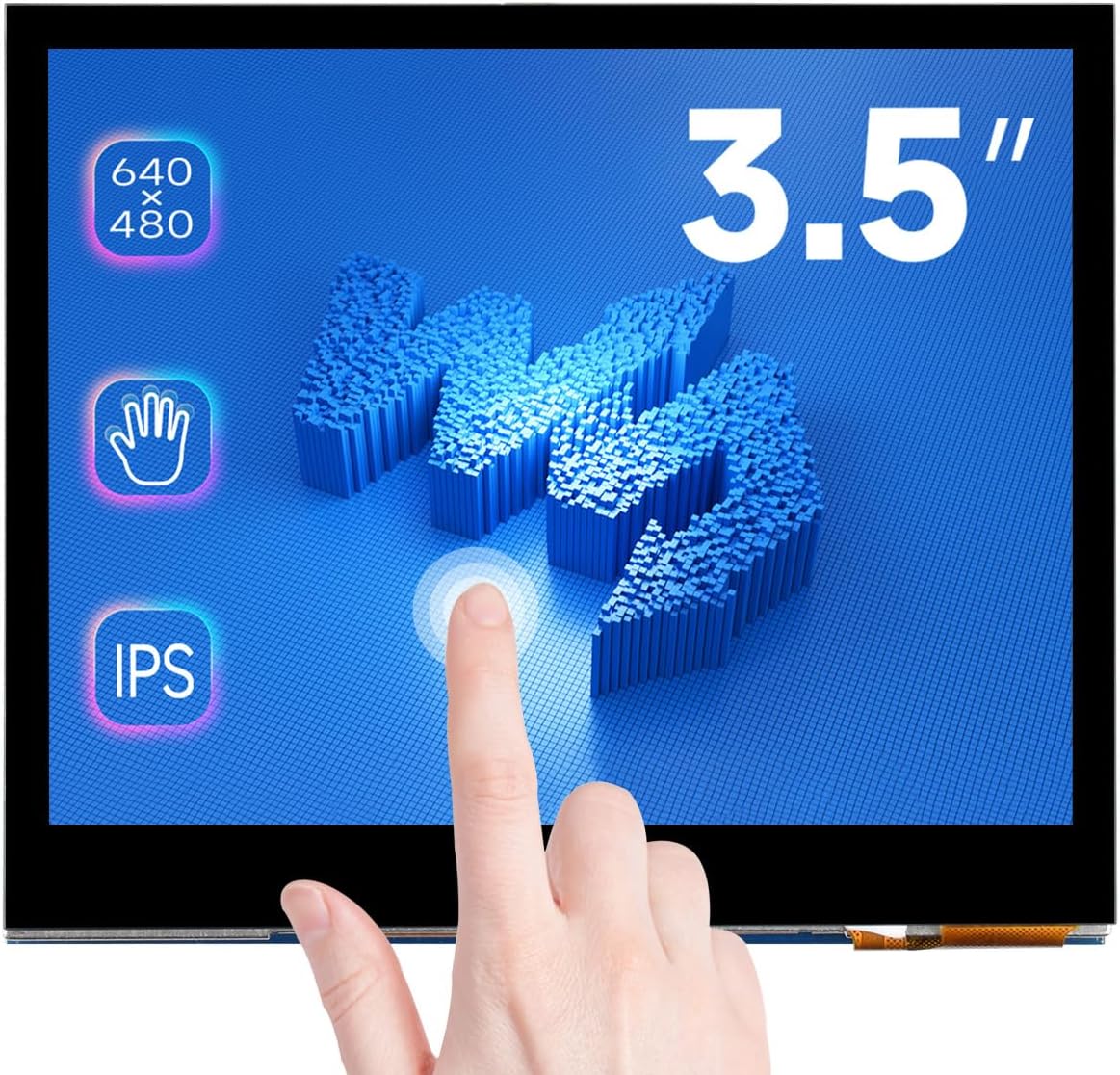
Image 1.1: Waveshare 3.5-inch Capacitive Touch Screen LCD, showcasing its 640x480 resolution, 3.5-inch size, IPS panel, and capacitive touch capabilities.
Key Features:
- 3.5-inch IPS Display with 640x480 hardware resolution.
- Designed for Raspberry Pi, utilizing the 40-pin GPIO interface.
- DPI666 interface for LCD driving, supporting a refresh rate up to 60Hz.
- 5-point capacitive touch control via Raspberry Pi's I2C interface.
- Toughened glass panel with hardness up to 6H for enhanced durability.
- Supports Raspbian and Kali systems.
2. Package Contents
Verify that all items listed below are included in your package. If any items are missing or damaged, please contact customer support.

Image 2.1: The package includes the 3.5-inch DPI LCD module, mounting screws, and brass standoffs.
- Waveshare 3.5-inch DPI LCD (Capacitive Touch Screen)
- Mounting Screws (4x)
- Brass Standoffs (4x)
3. Specifications
| Feature | Detail |
|---|---|
| Screen Size | 3.5 Inches |
| Resolution | 640 x 480 (VGA) |
| Display Panel Type | IPS |
| Aspect Ratio | 4:3 |
| Touch Type | Capacitive, 5-point |
| Touch Panel Material | Toughened Glass (6H hardness) |
| Display Interface | DPI666 (262K Colors) |
| Touch Interface | I2C |
| Refresh Rate | Up to 60Hz |
| Compatibility | Raspberry Pi 5/4B/3B/Zero/Zero W/Zero 2W/Pico/Pico W/Pico WH |
| Supported OS | Raspbian, Kali |
| Item Weight | 0.352 ounces |
| Package Dimensions | 4.37 x 3.27 x 1.1 inches |

Image 3.1: Visual overview of the 3.5-inch DPI Touch Display's key features including size, resolution, display port, panel type, viewing angle, touch type, touch points, touch port, touch panel, and power consumption.

Image 3.2: Detailed diagram showing the physical dimensions of the 3.5-inch DPI LCD module and the layout of its components, including the 40-pin GPIO header.
4. Setup and Installation
Follow these steps to properly connect your Waveshare 3.5-inch DPI LCD to your Raspberry Pi.
4.1 Physical Connection
- Align the 40-pin GPIO header of the LCD with the corresponding pins on your Raspberry Pi.
- Gently press the LCD onto the Raspberry Pi's GPIO header, ensuring a secure connection.
- Use the provided brass standoffs and screws to firmly attach the LCD to the Raspberry Pi board.
- Connect the necessary power and data cables (e.g., USB for power, HDMI for display if applicable, though this model uses DPI).

Image 4.1: Examples demonstrating how to connect the 3.5-inch DPI LCD with various Raspberry Pi models, including Raspberry Pi 4, Raspberry Pi 3B+, and Raspberry Pi Zero W.
Video 4.1: An official Waveshare video demonstrating the physical installation process of the 3.5-inch RPi LCD, including connecting it to a Raspberry Pi board and securing it with mounting hardware.
4.2 Software Configuration
For proper display and touch functionality, specific software configurations are required on your Raspberry Pi. Refer to the official Waveshare online user manual for the most up-to-date drivers and configuration steps for your specific Raspberry Pi model and operating system (e.g., Raspbian, Kali).
- Typically involves modifying the
/boot/config.txtfile to enable DPI display and I2C for touch. - Installation of touch drivers may be necessary depending on the operating system version.

Image 4.2: Overview of device and system compatibility, highlighting support for various Raspberry Pi models and operating systems like Raspbian and Kali. It also notes support for future backward-compatible versions.
5. Operating Instructions
Once installed and configured, the Waveshare 3.5-inch DPI LCD functions as your primary display and input device for the Raspberry Pi.
5.1 Display Functionality
The IPS panel provides a wide 170° viewing angle, ensuring clear visuals from various perspectives. The 60Hz refresh rate offers a smooth user experience for graphical interfaces and video playback.
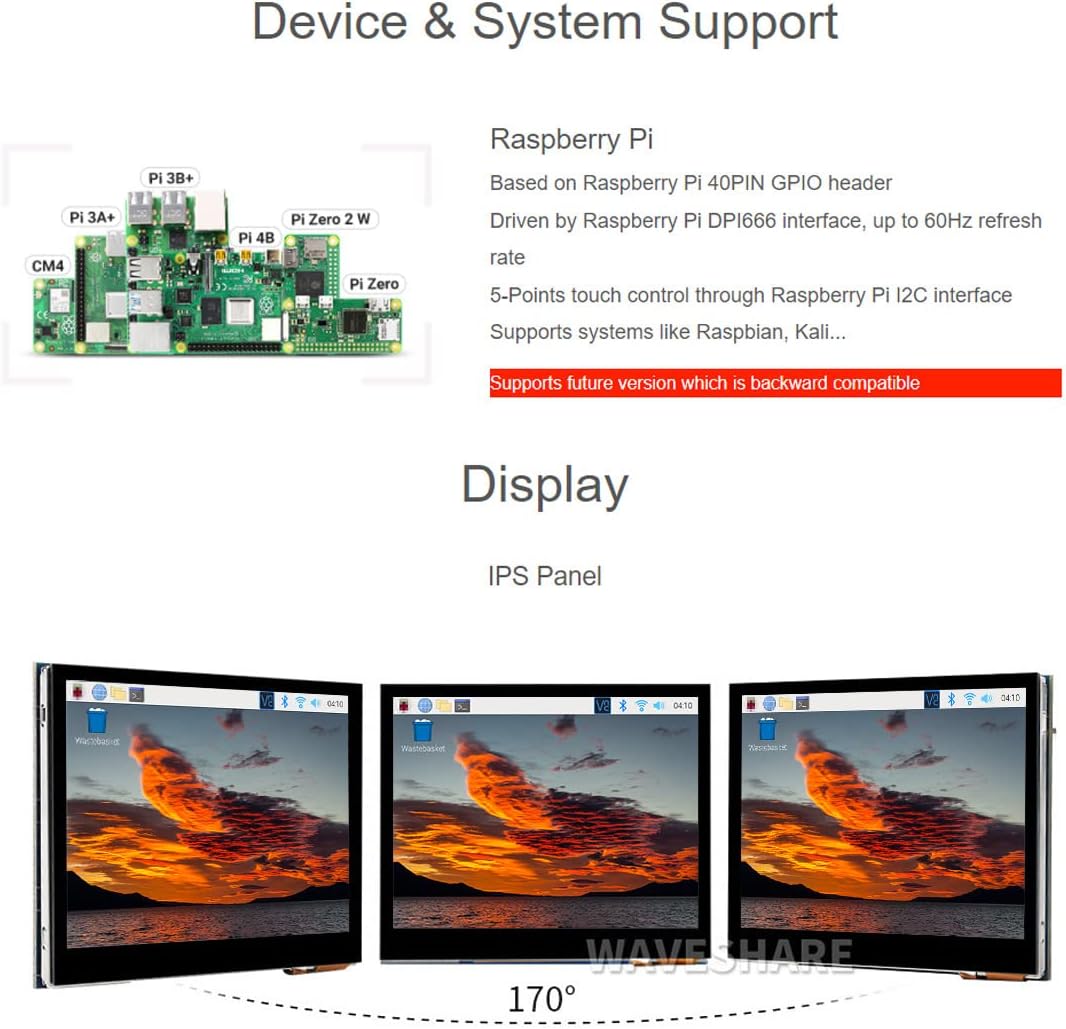
Image 5.1: Demonstrates the wide 170-degree viewing angle of the IPS display, showing consistent image quality from different side perspectives.
5.2 Touch Control
The 5-point capacitive touch screen allows for intuitive interaction with your Raspberry Pi. You can use single-finger taps, swipes, and multi-finger gestures (like pinch-to-zoom, depending on OS support) to navigate the interface.

Image 5.2: A hand interacting with the 3.5-inch DPI LCD, demonstrating capacitive touch control for navigating menus and applications on the Raspberry Pi desktop environment.
6. Maintenance
Proper care and maintenance will ensure the longevity and optimal performance of your Waveshare 3.5-inch DPI LCD.
- Cleaning: Use a soft, lint-free cloth slightly dampened with water or a screen-safe cleaner to wipe the display surface. Avoid harsh chemicals or abrasive materials.
- Handling: Always handle the display by its edges. Avoid applying excessive pressure to the screen surface.
- Environment: Operate and store the display in a dry environment, away from extreme temperatures, direct sunlight, and high humidity.
- Connections: Periodically check all connections to ensure they are secure and free from dust or debris.
7. Troubleshooting
If you encounter issues with your display, refer to the following common troubleshooting steps:
- Display Not Showing Image:
- Ensure the display is correctly seated on the Raspberry Pi's GPIO pins.
- Verify that the Raspberry Pi is powered on.
- Check your
/boot/config.txtsettings for correct DPI configuration. Refer to the Waveshare wiki for specific settings.
- Touch Not Responding:
- Confirm that the I2C interface is enabled in your Raspberry Pi's configuration.
- Ensure touch drivers are correctly installed for your operating system.
- Calibrate the touch screen if necessary (instructions typically found in the Waveshare wiki).
- Screen Flickering or Distorted Image:
- Check power supply to the Raspberry Pi; insufficient power can cause display issues.
- Re-seat the display to ensure all pins are making proper contact.
- Verify that the display configuration in
/boot/config.txtmatches the recommended settings.
For more detailed troubleshooting and specific software guides, please visit the official Waveshare online user manual or support forums.
8. Support and Warranty
For technical support, detailed documentation, and software resources, please refer to the official Waveshare website or their dedicated product wiki. The online user manual provides comprehensive guides for setup and advanced configurations.
Information regarding product warranty is typically provided at the point of purchase or on the official Waveshare website. Please retain your proof of purchase for warranty claims.
- Online User Manual: Waveshare Wiki (Please search for "3.5inch DPI LCD" or your specific model)
- Manufacturer Website: Waveshare Official Site


