
1. Introduction
Thank you for choosing the TUINYO TP19 Wireless Bluetooth Headset. This manual provides detailed instructions on how to set up, operate, maintain, and troubleshoot your new headphones. Please read this manual carefully before use to ensure optimal performance and longevity of your device.
Key Features:
- Impressive Sound Quality: High-fidelity stereo sound with 40mm neodymium drivers and well-sealed ear cushions for superior audio experience.
- Built for Comfort: Soft memory protein earmuffs simulate human skin texture for lasting comfort. Adjustable stainless steel slider and padded headband ensure a perfect fit.
- Ergonomic Design: Crafted from comfortable materials for extended wear, suitable for travel, sports, or daily use.
- Voice Control: Connects to voice-assisted devices like Siri for quick information access.
- Long Playtime: Up to 35 hours of music playback on a single charge.
- Foldable Design: Easy to store and carry.
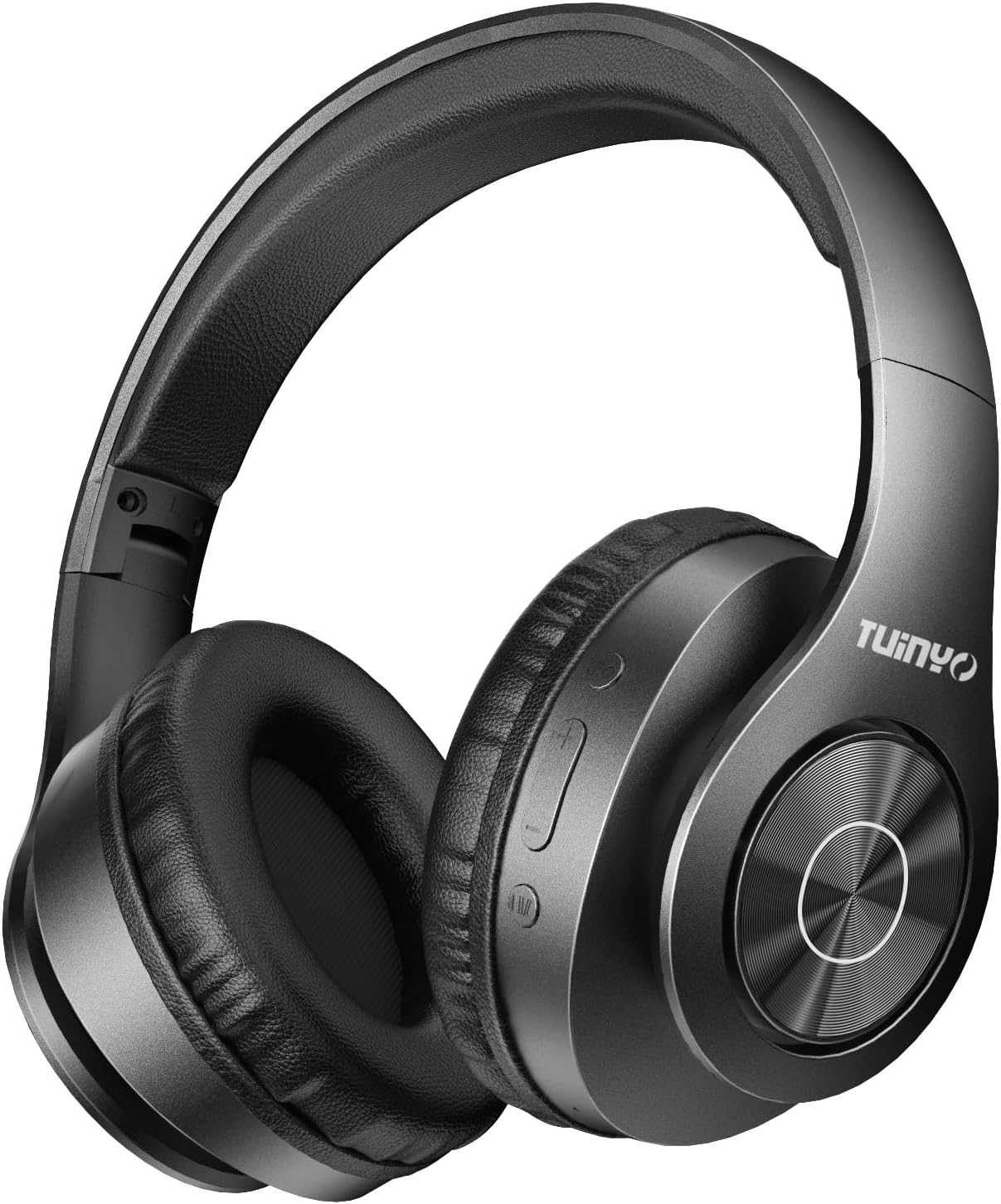
Figure 1.1: The TUINYO TP19 Wireless Bluetooth Headset in black, showcasing its sleek design and comfortable earcups.
2. Package Contents
Before you begin, please check the package contents to ensure all items are present:
- TUINYO TP19 Wireless Bluetooth Headset
- Protective Carrying Case
- 3.5mm Audio Cable
- USB Charging Cable
- User Manual
- Carabiner (for case attachment)

Figure 2.1: All items included in the TUINYO TP19 headset package, neatly arranged with the protective case, cables, and user manual.
3. Setup
3.1 Charging the Headset
Before first use, fully charge the headset. Connect the USB charging cable to the charging port on the headset and the other end to a USB power source (e.g., computer USB port, wall adapter). The LED indicator will show charging status and turn off or change color when fully charged. A full charge typically takes 2-3 hours.
3.2 Bluetooth Pairing
The TUINYO TP19 headset features one-step auto pairing for convenience.
- Ensure the headset is turned off.
- Press and hold the Power button on the headset until the LED indicator flashes blue and red alternately, indicating it is in pairing mode.
- On your device (smartphone, tablet, computer), enable Bluetooth and search for available devices.
- Select "TUINYO TP19" from the list of found devices.
- Once connected, the LED indicator will turn solid blue or flash blue slowly. You will hear a confirmation tone.
The headset will automatically reconnect to the last paired device when turned on, if the device's Bluetooth is enabled and within range.
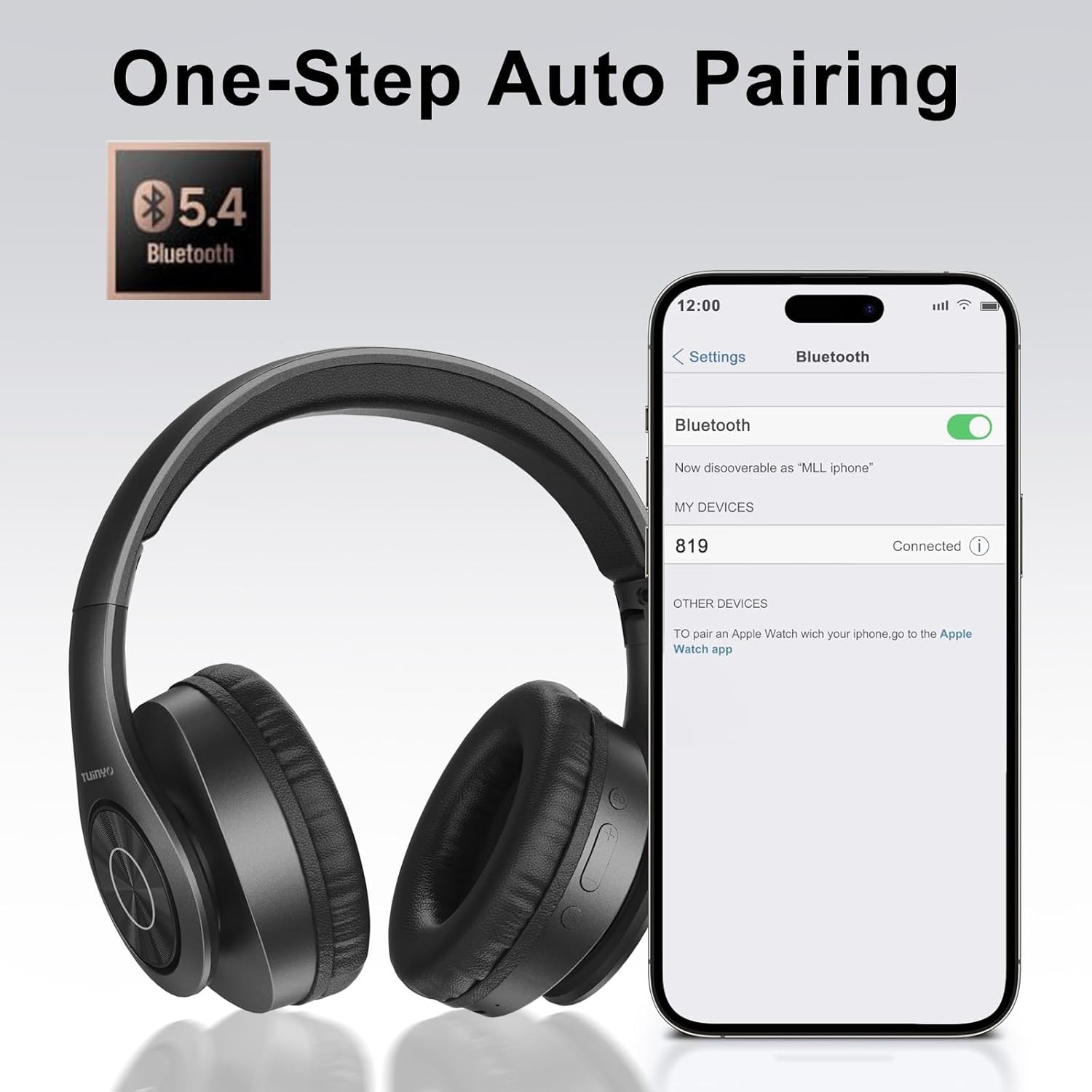
Figure 3.1: Visual representation of the one-step auto pairing process, showing the headset and a smartphone's Bluetooth settings.
4. Operating Instructions
4.1 Power On/Off
- Power On: Press and hold the Power button for 3 seconds.
- Power Off: Press and hold the Power button for 3 seconds.
4.2 Music Playback
- Play/Pause: Press the Multi-function button (often the Power button or a dedicated play/pause button).
- Next Track: Press and hold the Volume Up (+) button.
- Previous Track: Press and hold the Volume Down (-) button.
- Volume Up: Short press the Volume Up (+) button.
- Volume Down: Short press the Volume Down (-) button.
4.3 Call Management
- Answer/End Call: Short press the Multi-function button.
- Reject Call: Press and hold the Multi-function button for 2 seconds.
- Redial Last Number: Double-press the Multi-function button.
4.4 Voice Assistant
- Activate Voice Assistant (Siri, Google Assistant, etc.): Triple-press the Multi-function button.
4.5 Wired Mode (3.5mm Audio Cable)
You can use the headset in wired mode even if the battery is depleted. Simply plug the included 3.5mm audio cable into the headset's audio jack and the other end into your audio source. In wired mode, Bluetooth functions and built-in microphone may be disabled, depending on the headset's design.
5. Maintenance and Care
Proper care will extend the life of your TUINYO TP19 headset.
- Cleaning: Use a soft, dry cloth to clean the headset. Do not use abrasive cleaners, alcohol, or chemical solvents.
- Storage: When not in use, store the headset in its protective carrying case in a cool, dry place, away from direct sunlight and extreme temperatures.
- Battery Care: To preserve battery life, charge the headset at least once every three months if not used regularly. Avoid fully discharging the battery frequently.
- Water Resistance: The TUINYO TP19 headset is NOT waterproof. Avoid exposure to water, rain, sweat, or high humidity to prevent damage.
6. Troubleshooting
If you encounter issues with your headset, please refer to the following common problems and solutions:
| Problem | Possible Cause | Solution |
|---|---|---|
| Headset does not power on. | Low battery. | Charge the headset fully. |
| Cannot pair with device. | Headset not in pairing mode; Bluetooth disabled on device; too far from device. | Ensure headset is in pairing mode (flashing blue/red). Enable Bluetooth on your device. Move headset closer to device (within 10 meters). Clear previous Bluetooth connections on your device. |
| No sound or low volume. | Volume too low; headset not connected; incorrect audio output selected. | Increase volume on both headset and connected device. Reconnect the headset. Check audio output settings on your device. |
| Sound distortion. | Interference; low battery. | Move away from other wireless devices. Charge the headset. |
| Microphone not working. | Microphone muted; incorrect input device selected. | Ensure microphone is not muted. Check input device settings on your computer/phone. |
Factory Reset (if applicable)
If the above solutions do not resolve the issue, a factory reset may be necessary. Consult the specific instructions for your model, as this often involves holding a combination of buttons for several seconds while the device is powered on or off. (Specific reset instructions are not provided in the product data, please refer to the official TUINYO support if needed).
7. Technical Specifications
| Feature | Specification |
|---|---|
| Brand | TUINYO |
| Model Name | TP19 |
| Color | BLACK |
| Connectivity Technology | Wireless (Bluetooth) |
| Wireless Communication Technology | Bluetooth |
| Form Factor | Over-Ear (Circum-Aural) |
| Ear Placement | Over-Ear |
| Headphone Jack | 3.5 mm Jack |
| Impedance | 32 ohms |
| Frequency Range | 20 Hz - 20,000 Hz |
| Noise Isolation | None (Passive) |
| Control Type | Voice Control, Remote Control |
| Special Features | Foldable |
| Battery Composition | Lithium-polymer |
| Rechargeable Battery | Yes |
| Item Weight | 250 Grams |
| Material | Plastic, Memory Protein, Metal |
| Water Resistance Level | Not Waterproof |
| Compatible Devices | Phone, Tablet, Computer, Laptop, Television, Car Audio System, Smart Speaker |
| Recommended Product Uses | Mobile and flexible use, such as traveling, commuting, or outdoor activities |
8. Warranty Information
The TUINYO TP19 Wireless Bluetooth Headset comes with a 1-year manufacturer's warranty. This warranty covers defects in materials and workmanship under normal use. It does not cover damage caused by misuse, accidents, unauthorized modifications, or normal wear and tear.
Please retain your proof of purchase for warranty claims.
9. Customer Support
For further assistance, technical support, or warranty inquiries, please contact TUINYO customer service through the retailer's platform where you purchased the product or visit the official TUINYO website for contact information.
Online Resources:
- For product updates and FAQs, please check the official TUINYO website.
- For Amazon-specific support, visit the product page on Amazon.com.be or contact Amazon customer service.

