
Introduction
This manual provides comprehensive instructions for the use and maintenance of your AFTERSHOKZ OpenComm Wireless Bone Conduction Headset. Designed for professional communication, the OpenComm headset utilizes bone conduction technology to deliver audio while keeping your ears open to your surroundings. Please read this manual thoroughly to ensure proper operation and to maximize your experience with the device.
Product Overview and Features
The AFTERSHOKZ OpenComm headset is engineered for clear communication and comfort in various professional settings. Key features include:
- Open-Ear Comfort: Patented bone conduction technology delivers audio through the cheekbone, allowing you to remain aware of your surroundings.
- Situational Awareness: The open-ear design ensures you stay connected to your environment and team.
- Noise-Cancelling Boom Microphone: An adjustable DSP noise-cancelling boom microphone effectively reduces background noise for clear calls.
- Extended Talk Time: Up to 16 hours of talk time and 8 hours of listening time on a single charge.
- Bluetooth 5.0 with NFC Pairing: Provides stable wireless connectivity and quick pairing with NFC-enabled devices.
- IP55 Water-Resistant: Designed to withstand splashes and sweat, suitable for various environments.
- Quick & Easy Charging: Efficient charging mechanism for minimal downtime.
- Lightweight Design: Weighing only 30g, the headset offers comfortable extended wear.
- Secure Titanium Fit: A durable and flexible titanium frame ensures a secure and comfortable fit.
- Multifunction Button: Easy controls for playback, calls, and voice assistant activation.
Visual Overview
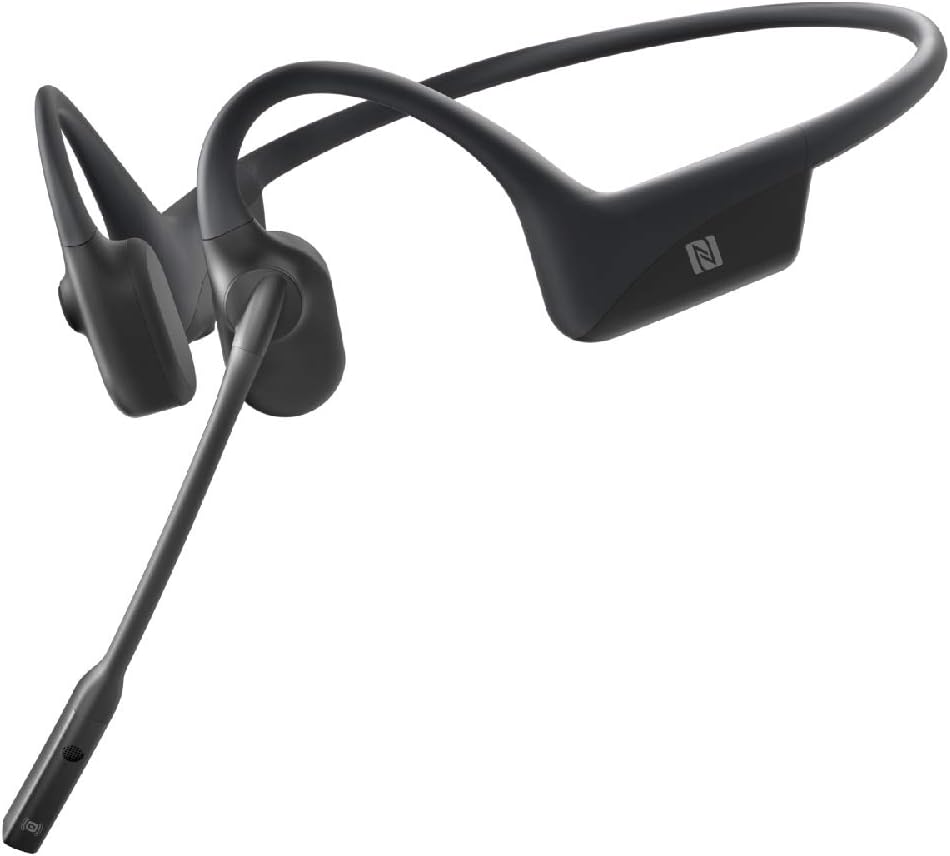


Setup
1. Charging the Headset
Before initial use, fully charge your OpenComm headset. Connect the magnetic charging cable to the charging port on the headset and plug the USB end into a compatible power source (e.g., computer USB port, USB wall adapter). The LED indicator will show charging status. A full charge provides up to 16 hours of talk time.
2. Powering On/Off
- To Power On: Press and hold the Power/Volume+ button until the LED indicator flashes blue and Audrey says "Welcome to Shokz."
- To Power Off: Press and hold the Power/Volume+ button until the LED indicator flashes red and Audrey says "Power off."
3. Bluetooth Pairing
The OpenComm headset supports Bluetooth 5.0 for wireless connectivity.
- Start with the headset powered off.
- Press and hold the Power/Volume+ button for 5-7 seconds until the LED indicator flashes red and blue alternately, and Audrey says "Pairing."
- On your device (smartphone, computer, etc.), enable Bluetooth and select "OpenComm by Shokz" from the list of available devices.
- Audrey will say "Connected" when pairing is successful.
NFC Pairing: For NFC-enabled devices, simply tap the NFC area of your device against the NFC tag on the headset (usually located on the left transducer) to initiate pairing.
4. Wearing the Headset
Position the headset so the transducers rest on your cheekbones, just in front of your ears. The band should wrap around the back of your head. Adjust the boom microphone so it is close to your mouth for optimal voice pickup.
Operating Instructions
Controls Overview
- Power/Volume+ Button: Located on the right side, behind the ear.
- Volume- Button: Located on the right side, behind the ear.
- Multifunction Button: Located on the left transducer.
- Boom Microphone: Adjustable, located on the left side.
Music Playback
- Play/Pause: Press the Multifunction Button once.
- Next Track: Double-press the Multifunction Button.
- Previous Track: Triple-press the Multifunction Button.
Call Management
- Answer Call: Press the Multifunction Button once.
- End Call: Press the Multifunction Button once during a call.
- Reject Call: Press and hold the Multifunction Button for 2 seconds.
- Mute/Unmute Microphone: During a call, press the Multifunction Button for 2 seconds.
- Adjust Microphone Position: For optimal clarity, position the boom microphone approximately 2-3 cm from your mouth.
Volume Control
- Increase Volume: Press the Volume+ button.
- Decrease Volume: Press the Volume- button.
Voice Assistant
To activate your device's voice assistant (e.g., Siri, Google Assistant), press and hold the Multifunction Button for 2 seconds when not on a call.
Maintenance
- Cleaning: Wipe the headset with a soft, damp cloth. Avoid using harsh chemicals or abrasive materials.
- Storage: Store the headset in a cool, dry place. Avoid extreme temperatures.
- Water Resistance: The OpenComm headset is IP55 water-resistant, meaning it can withstand light rain and sweat. It is not designed for submersion in water. Ensure the charging port is dry before charging.
- Battery Care: For optimal battery life, avoid fully discharging the battery frequently. Charge the headset regularly.
Troubleshooting
No Power
- Ensure the headset is charged. Connect it to the charger and check the LED indicator.
- Try pressing and holding the Power/Volume+ button for a longer duration (up to 7 seconds).
Cannot Pair with Device
- Ensure the headset is in pairing mode (LED flashing red and blue alternately).
- Turn off Bluetooth on your device and turn it back on.
- Forget "OpenComm by Shokz" from your device's Bluetooth list and attempt to pair again.
- Ensure the headset is not connected to another device.
No Sound or Low Volume
- Increase the volume on both the headset and your connected device.
- Ensure the headset is properly positioned on your cheekbones.
- Check if the audio output on your device is set to "OpenComm by Shokz."
Microphone Not Working
- Ensure the microphone is not muted (press Multifunction Button for 2 seconds during a call to toggle mute).
- Adjust the boom microphone closer to your mouth.
- Check microphone input settings on your connected device.
Specifications
| Model | ASC100 |
| Brand | AFTERSHOKZ |
| Connectivity | Bluetooth 5.0 |
| Wireless Range | Up to 10 meters (33 feet) |
| Battery Life (Talk Time) | Up to 16 hours |
| Battery Life (Listening Time) | Up to 8 hours |
| Charging Time | Approximately 1 hour |
| Weight | 30 g |
| Water Resistance | IP55 (Water-resistant) |
| Microphone Type | DSP Noise-Cancelling Boom Microphone |
| Compatible Devices | Samsung, Huawei, Android, iOS, iPhone, Macbook, Windows PC |
| Dimensions | 16.99 x 13.49 x 6.5 cm |
| Components Included | OpenComm Headset |
Warranty and Support
Your AFTERSHOKZ OpenComm headset is covered by a manufacturer's warranty. For detailed warranty information, product registration, and technical support, please visit the official AFTERSHOKZ website. Keep your proof of purchase for warranty claims.
For further assistance, refer to the support section on the AFTERSHOKZ website or contact their customer service directly.