
Introduction
The Rexel AutoFeed Shredder Optimum Auto+ 50X is designed for secure and efficient document destruction. This hybrid shredder offers both automatic and manual feeding capabilities, ensuring your confidential information is safely disposed of. It features a cross-cut P4 security level, capable of shredding up to 50 sheets automatically and 6 sheets manually. With its anti-jam system, quiet operation, and a 20-liter pull-out bin, it provides a convenient and reliable solution for your shredding needs.
Safety Information
- Always keep hands, hair, and loose clothing away from the paper entry slot.
- Do not allow children or pets near the shredder.
- This shredder is designed for printer paper. Do not shred cardboard, bound notebooks, or glossy paper, as this can cause jams or damage the machine.
- Use lubrication sheets regularly to maintain the cutting blades and ensure optimal performance.
- Avoid overloading the shredder beyond its specified sheet capacity to prevent jams and overheating.
Setup
- Unpack the Shredder: Carefully remove all components from the packaging.
- Position the Shredder: Place the shredder on a flat, stable surface. Ensure adequate ventilation around the unit.
- Install Casters (if applicable): If your model includes casters, insert them firmly into the designated slots at the base of the shredder.
- Connect Power: Plug the power cord into a grounded electrical outlet.
- Power On: Locate the main power switch (usually on the side or back) and turn it to the 'ON' position. The control panel lights should illuminate.
Video Description: This video demonstrates the unboxing and initial setup of a paper shredder, including attaching the casters to the base unit. It shows how to correctly position the shredder and prepare it for first use.
Operating Instructions
Automatic Shredding
The AutoFeed feature allows you to shred up to 50 sheets of A4 paper automatically. This saves you time by allowing you to load documents and attend to other tasks.
- Open the automatic feed tray.
- Stack up to 50 sheets of paper neatly into the tray. Ensure there are no staples or paper clips if not specified for automatic shredding.
- Close the tray cover. The shredder will automatically begin shredding.

Image Description: A close-up view of the Rexel AutoFeed Shredder's automatic feed tray, indicating a capacity of 50 sheets and illustrating the P4 cross-cut shred size (28mm particles).
Manual Shredding
For smaller quantities or items like credit cards, use the manual feed slot.
- Insert up to 6 sheets of paper into the manual feed slot.
- The shredder will detect the paper and begin shredding.
- For credit cards, staples, or paper clips, insert them one at a time into the manual feed slot.

Image Description: A side view of the Rexel AutoFeed Shredder, highlighting the manual feed slot with an illustration of 6 A4 sheets being inserted.

Image Description: A front view of the Rexel AutoFeed Shredder, with icons indicating its capability to shred paper clips, staples, and credit cards.
Video Description: This video demonstrates the rapid shredding capabilities of a professional document shredder, showing both manual feeding of single sheets and automatic feeding of multiple sheets. It also highlights the ability to shred stapled documents and the resulting micro-cut paper particles.
Maintenance
Emptying the Waste Bin
The shredder features a 20-liter pull-out bin that can hold up to 150 shredded A4 sheets. An infrared sensor detects when the bin is full.
- When the 'Bin Full' indicator lights up, pull out the waste bin from the front of the shredder.
- Dispose of the shredded paper.
- Slide the bin back into place until it clicks securely.

Image Description: A view of the Rexel AutoFeed Shredder with its 20-liter waste bin pulled out, displaying the shredded paper inside. The image also indicates the bin's capacity of 150 A4 sheets.
Lubrication
Regular lubrication is crucial for maintaining the shredder's performance and extending its lifespan.
- Use Rexel lubrication sheets or shredder oil as recommended.
- Insert a lubrication sheet into the manual feed slot and allow the shredder to process it.
- Repeat this process after every 30 minutes of continuous shredding or when you notice a decrease in performance.
Cleaning Rollers
The paper feed rollers can accumulate dust and paper residue over time, affecting performance. The paper feed roller is removable for replacement or cleaning.
- Remove the paper feed roller from the automatic feed mechanism.
- Clean the rollers with a damp cloth. Ensure they are completely dry before reinserting.
Video Description: This video provides a detailed guide on using a document shredder, including how to load paper for automatic and manual shredding, how to handle paper jams by reorganizing paper, and how to clean the paper feed rollers and lubricate the blades for optimal performance.
Troubleshooting
| Problem | Possible Cause | Solution |
|---|---|---|
| Shredder does not start | No power, bin not properly closed, safety features activated. | Check power connection. Ensure waste bin is fully inserted. Check for any safety lock indicators. |
| Paper jam | Overloading, crumpled paper, incorrect material. | Press the reverse button to clear the jam. Remove excess paper. Ensure paper is flat and within capacity. Do not shred cardboard or glossy paper. |
| Overheating | Continuous use beyond duty cycle. | Allow the shredder to cool down for at least 10 minutes. The cooling system will help it recover. |
| Bin Full indicator | Waste bin is full. | Empty the waste bin and reinsert it correctly. |
| Reduced performance | Blades need lubrication, rollers are dirty. | Use a lubrication sheet. Clean the paper feed rollers as described in the Maintenance section. |
Specifications
- Model Number: 2020050XEU
- Shred Type: Cross-Cut
- Security Level: P4
- Automatic Sheet Capacity: 50 sheets (A4, 80g/m²)
- Manual Sheet Capacity: 6 sheets (A4, 80g/m²)
- Shreds: Paper, Credit Cards, Staples, Paper Clips
- Waste Bin Capacity: 20 Liters (approx. 150 A4 sheets)
- Run Time: 10 minutes continuous operation
- Noise Level: 55 dB
- Special Features: Anti-jam system, Fan cooling, Infrared fill level detector, Touch interface
- Dimensions (L x W x H): 36.3 x 43 x 40.49 cm
- Weight: 11.6 kg
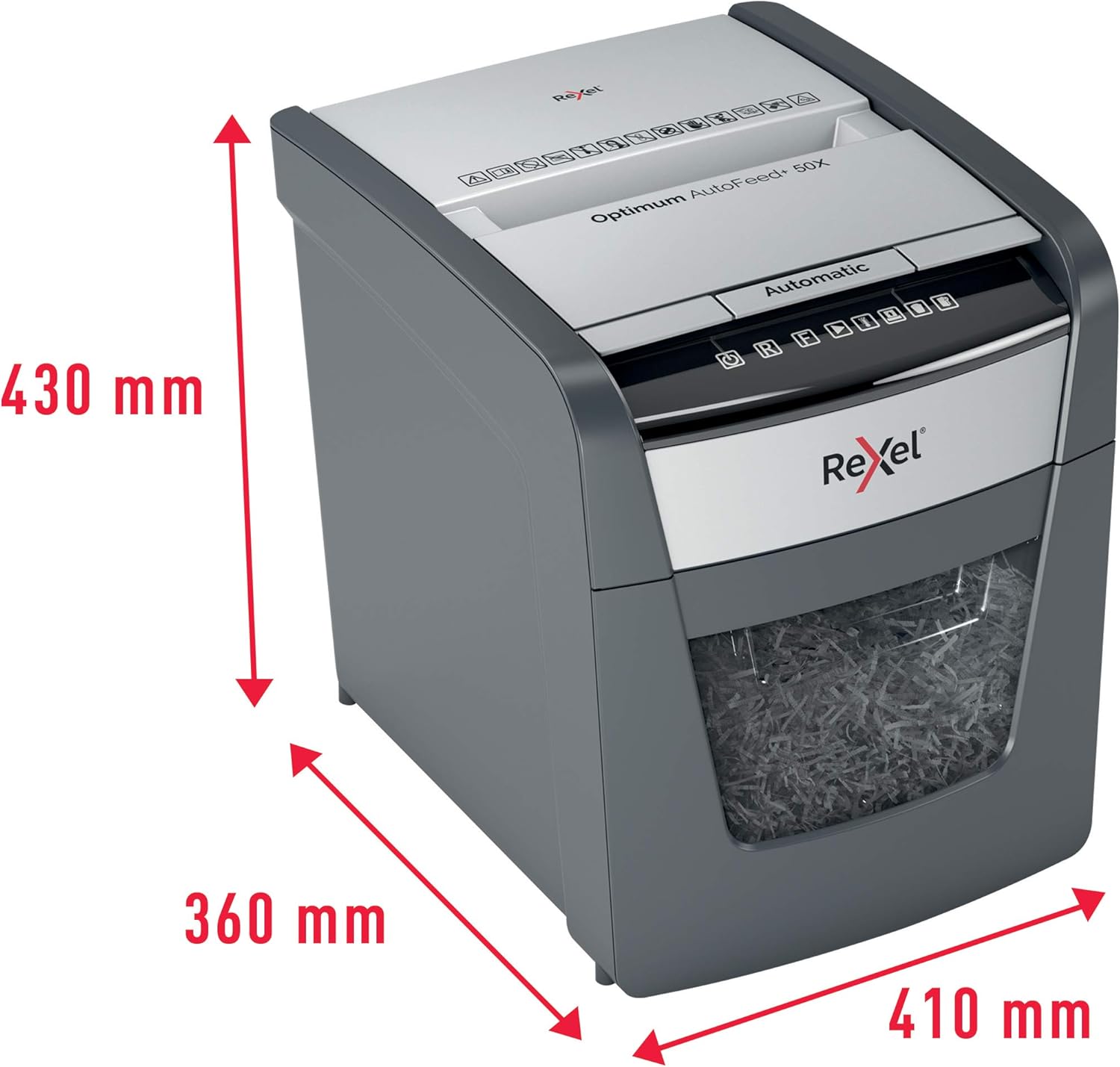
Image Description: A perspective view of the Rexel AutoFeed Shredder with red arrows and measurements indicating its dimensions: 430mm in height, 360mm in depth, and 410mm in width.
Warranty and Support
This Rexel AutoFeed Shredder comes with a 2-year warranty, ensuring peace of mind regarding its quality and performance. For any technical assistance, troubleshooting beyond this manual, or warranty claims, please refer to the contact information provided with your purchase documentation or visit the official Rexel support website.