
MSI GF75 Thin 10UEK-029
MSI GF75 Thin 10UEK-029 Gaming Laptop User Manual
Model: GF75 Thin 10UEK-029
1. Introduction
This manual provides essential information for the proper setup, operation, and maintenance of your MSI GF75 Thin 10UEK-029 gaming laptop. Please read this manual thoroughly before using your new device to ensure optimal performance and longevity.
The MSI GF75 Thin 10UEK-029 is a high-performance gaming laptop featuring a 17.3-inch Full HD 144Hz display, an Intel Core i7-10750H processor, NVIDIA GeForce RTX 3060 graphics, 16GB of DDR4 RAM, and a 512GB NVMe SSD, designed for an immersive gaming experience.
2. What's in the Box
Upon unpacking your MSI GF75 Thin 10UEK-029, please verify that all items listed below are present and in good condition:
- MSI GF75 Thin 10UEK-029 Gaming Laptop
- Power Adapter
- User Manual (this document)
3. Initial Setup
3.1. Connecting the Power Adapter
Before first use, ensure the laptop battery is fully charged. Connect the power adapter to the laptop's power input port and then plug the power cord into a wall outlet. The charging indicator light will illuminate.
3.2. Powering On
Open the laptop lid. Locate the power button, typically above the keyboard or on the side. Press the power button to turn on the laptop. The system will begin its boot sequence.
3.3. Operating System Setup
Upon first boot, you will be guided through the Windows 10 Home setup process. Follow the on-screen instructions to configure your language, region, network connection, user account, and other preferences. An active internet connection may be required for certain setup steps and updates.
4. Components Overview
Familiarize yourself with the various components and ports of your MSI GF75 Thin 10UEK-029 laptop.
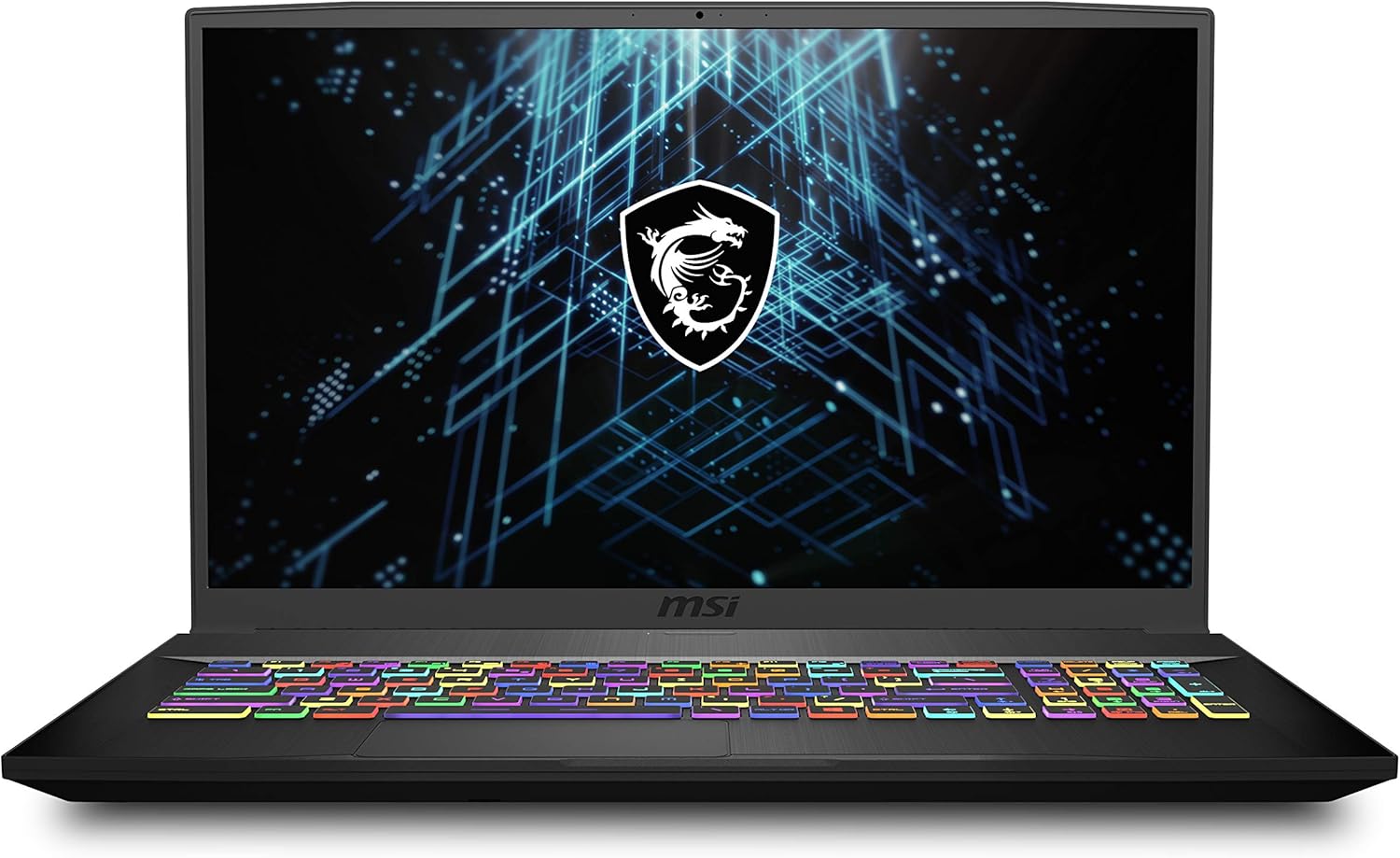
Figure 4.1: Front view of the MSI GF75 Thin 10UEK-029 Gaming Laptop, showcasing the 17.3-inch display with thin bezels and the RGB backlit keyboard.
4.1. Display
The laptop features a 17.3-inch Full HD (1920x1080) IPS-Level display with a 144Hz refresh rate, providing smooth visuals for gaming and multimedia.
4.2. Keyboard and Touchpad

Figure 4.2: Top-down view of the MSI GF75 Thin 10UEK-029 keyboard, highlighting the multi-color RGB backlighting and full numeric keypad.
The integrated keyboard features per-key RGB backlighting, allowing for customization and enhanced visibility in various lighting conditions. The precision touchpad supports multi-touch gestures for intuitive navigation.
4.3. Ports and Connectors

Figure 4.3: Side view of the MSI GF75 Thin 10UEK-029, illustrating the various input/output ports including USB, HDMI, and audio jacks.

Figure 4.4: Rear-side view of the MSI GF75 Thin 10UEK-029, showing additional ports and cooling vents for efficient heat dissipation.
The laptop is equipped with multiple ports for connectivity:
- USB 3.0 Ports: Three (3) USB 3.0 ports for high-speed data transfer and peripheral connections.
- HDMI Port: For connecting to external displays or projectors.
- Audio Jacks: Separate microphone and headphone jacks.
- Ethernet Port: For wired network connectivity.
- Power Input: For connecting the AC adapter.
5. Operating Your Laptop
5.1. Keyboard Functions
The keyboard includes a full numeric keypad and function keys (F1-F12) that can be activated in combination with the Fn key. These provide quick access to features such as:
- Fn + F3/F4: Adjust display brightness.
- Fn + F5/F6: Adjust speaker volume.
- Fn + F7: Toggle display output (internal/external/duplicate/extend).
- Fn + F10: Enable/disable touchpad.
- Fn + F11: Enable/disable Wi-Fi.
5.2. Touchpad Usage
The touchpad supports standard Windows gestures:
- Single Tap: Left-click.
- Two-Finger Tap: Right-click.
- Two-Finger Scroll: Scroll up/down or left/right.
- Pinch-to-Zoom: Zoom in or out.
5.3. Connecting Peripherals
Connect USB devices such as mice, keyboards, or external storage to the available USB ports. For external displays, use the HDMI port. Ensure the external display is powered on and set to the correct input source.
6. Maintenance
6.1. Cleaning
- Screen: Use a soft, lint-free cloth lightly dampened with water or a screen cleaner. Avoid harsh chemicals.
- Keyboard and Chassis: Use a soft cloth. For dust in crevices, use compressed air.
- Vents: Regularly clean the cooling vents with compressed air to prevent dust buildup and maintain optimal airflow.
6.2. Battery Care
- Avoid completely discharging the battery frequently.
- If storing the laptop for an extended period, charge the battery to approximately 50-60% and store in a cool, dry place.
- Use only the original MSI power adapter.
6.3. Software Updates
Regularly update your operating system (Windows 10 Home) and device drivers (especially graphics drivers from NVIDIA and system drivers from MSI) to ensure system stability, security, and optimal performance.
7. Troubleshooting
This section addresses common issues you might encounter with your laptop.
7.1. Laptop Does Not Power On
- Ensure the power adapter is securely connected to both the laptop and a working power outlet.
- Verify the power outlet is functional by plugging in another device.
- If the battery is completely drained, allow it to charge for at least 30 minutes before attempting to power on.
7.2. Display Issues
- If the screen is blank, try pressing Fn + F7 to cycle through display output modes.
- Ensure display brightness is not set to minimum (use Fn + F4).
- If using an external monitor, check its cable connection and input source.
7.3. Performance Issues
- Close unnecessary applications running in the background.
- Ensure the laptop is well-ventilated and not overheating. Clean vents if necessary.
- Update graphics drivers and Windows.
- Check for malware or viruses.
7.4. Wi-Fi Connectivity Problems
- Ensure Wi-Fi is enabled (use Fn + F11).
- Restart your router and modem.
- Check if other devices can connect to the Wi-Fi network.
- Update your wireless adapter drivers.
8. Specifications
Detailed technical specifications for the MSI GF75 Thin 10UEK-029:
| Feature | Specification |
|---|---|
| Model Name | GF75 Thin 10UEK-029 |
| Standing Screen Display Size | 17.3 Inches |
| Screen Resolution | 1920 x 1080 pixels (FHD) |
| Max Screen Resolution | 1920x1080 Pixels |
| Processor | Intel Core i7-10750H (2.6-5.0 GHz) |
| RAM | 16 GB DDR4 (3200 MHz) |
| Hard Drive | 512 GB NVMe SSD |
| Graphics Coprocessor | NVIDIA GeForce RTX 3060 |
| Graphics Card Ram Size | 6 GB GDDR6 |
| Wireless Type | Intel Wi-Fi 6 AX201 (2*2 ax), Bluetooth 5.1 |
| Number of USB 3.0 Ports | 3 |
| Operating System | Windows 10 Home |
| Item Weight | 4.85 pounds |
| Product Dimensions | 15.63 x 0.9 x 10.24 inches |
| Batteries | 1 Lithium Polymer battery (included) |
9. Warranty and Support
For detailed warranty information, please refer to the warranty card included with your product or visit the official MSI website. MSI provides technical support and resources for product assistance.
You can find further support and driver downloads on the official MSI support page: www.msi.com/support
Related documentsGF75 Thin 10UEK-029


Ask a question about this manual
Ask about setup, troubleshooting, compatibility, parts, safety, or missing instructions. Manuals+ will review the question and use this page’s manual context to help answer it.