
LIENS B08SW4RWWQ
LIENS Laptop Cooling Pad Instruction Manual
Model: B08SW4RWWQ
Introduction
Thank you for choosing the LIENS Laptop Cooling Pad. This device is designed to enhance your laptop's performance and user comfort by providing efficient cooling and an ergonomic viewing angle. This manual provides essential information for setting up, operating, maintaining, and troubleshooting your new cooling pad.
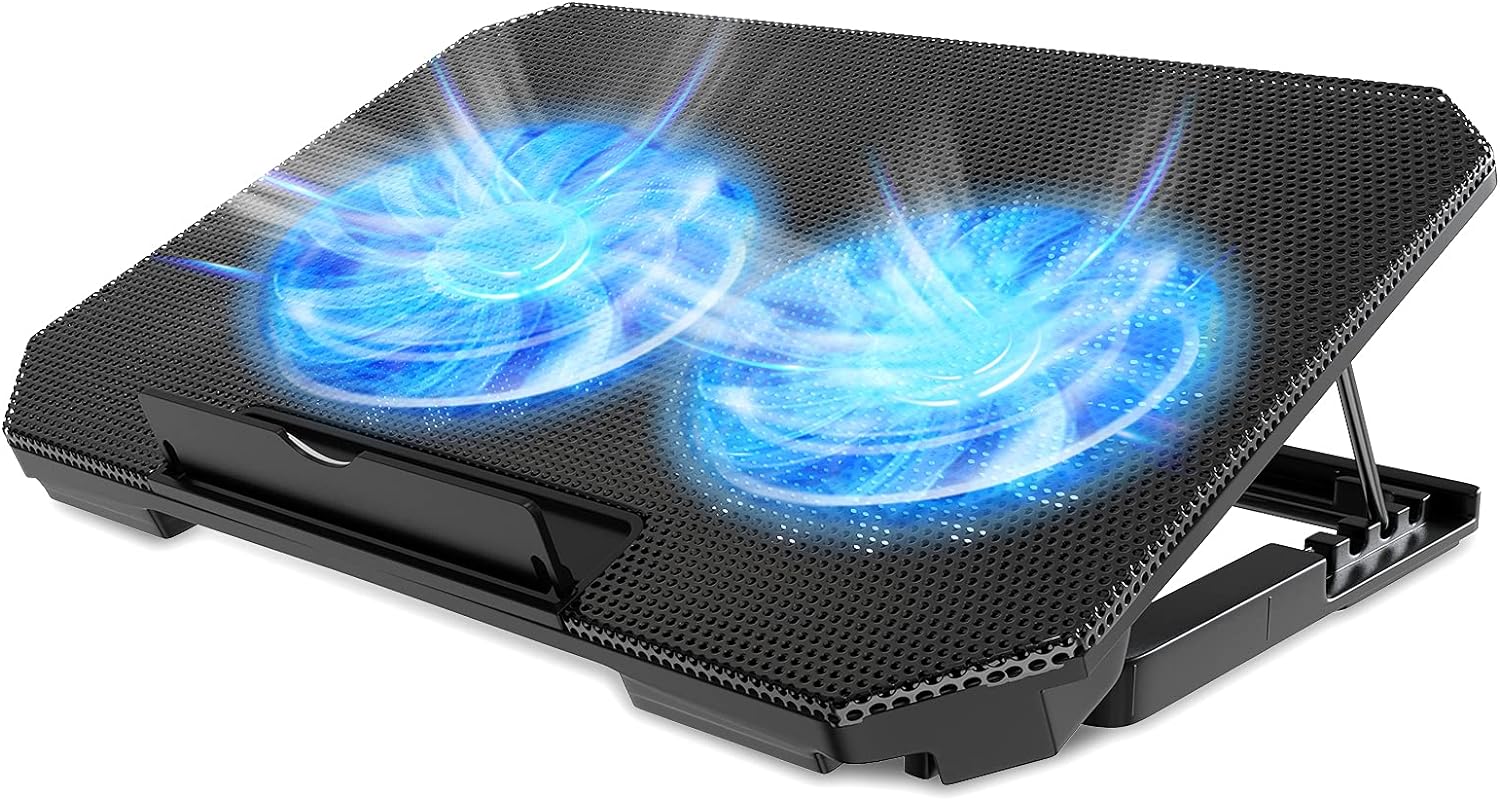
An overhead view of the LIENS Laptop Cooling Pad, showcasing its mesh surface and two illuminated blue LED fans. The cooling pad is set on an adjustable stand.
Package Contents
Please verify that all items are present in the package:
- LIENS Laptop Cooling Pad (Model: B08SW4RWWQ)
- USB Power Cable
- Detachable Non-slip Baffle
Key Features
- Ergonomic Design: Features 4 height-adjustable settings (2.3"-5.1" / 6-12cm) and an angle range of 9-28 degrees to improve posture and comfort. Includes a detachable non-slip baffle to secure your laptop.
- Dual Efficient Fans: Equipped with two 5.1-inch (12.8cm) fans that operate quietly (5-15dB) and feature blue LED lights. Fan speed is freely adjustable from 800-2000 RPM.
- Unique USB Port Design: Includes two built-in USB ports. One port connects to your laptop for power, and the other allows connection of additional USB devices such as a mouse or keyboard.
- Wide Application & Support: Compatible with most 12"-15.6" laptops, including Dell, MacBook Pro, Alienware, ThinkPad, Lenovo, HP, and ASUS. Suitable for various environments like home, office, or outdoor use.
- Easy to Carry: Weighing approximately 1.65 pounds, its flat design makes it convenient for transport in a backpack or briefcase.
Setup Instructions
1. Unpack the Cooling Pad
Carefully remove the cooling pad and all accessories from the packaging.
2. Connect Power
Connect one end of the provided USB cable to the USB port on the cooling pad and the other end to an available USB port on your laptop. The fans will begin to operate, and the blue LED lights will illuminate.
3. Adjust Height
The cooling pad features an adjustable stand. Lift the cooling pad to your desired height setting. There are 4 adjustable height levels to choose from, allowing you to find an ergonomic angle for comfortable viewing and typing.

This image highlights the LIENS Laptop Cooling Pad's 5 adjustable height settings. It includes diagrams demonstrating correct ergonomic posture with the cooling pad (green checkmark) versus incorrect posture without it (red X), emphasizing improved viewing and typing experience.
4. Position Laptop
Place your laptop securely on the cooling pad. Attach the detachable non-slip baffle to the front edge of the cooling pad to prevent your laptop from sliding off, especially when using higher angle settings.
Operating Your Cooling Pad
Fan Control
The cooling pad's fans are powered directly via the USB connection to your laptop. The fan speed can be adjusted using the integrated speed control dial, typically located on the side of the cooling pad. Rotate the dial to increase or decrease fan speed. The brightness of the blue LED lights may also change with fan speed, indicating the current operational intensity.
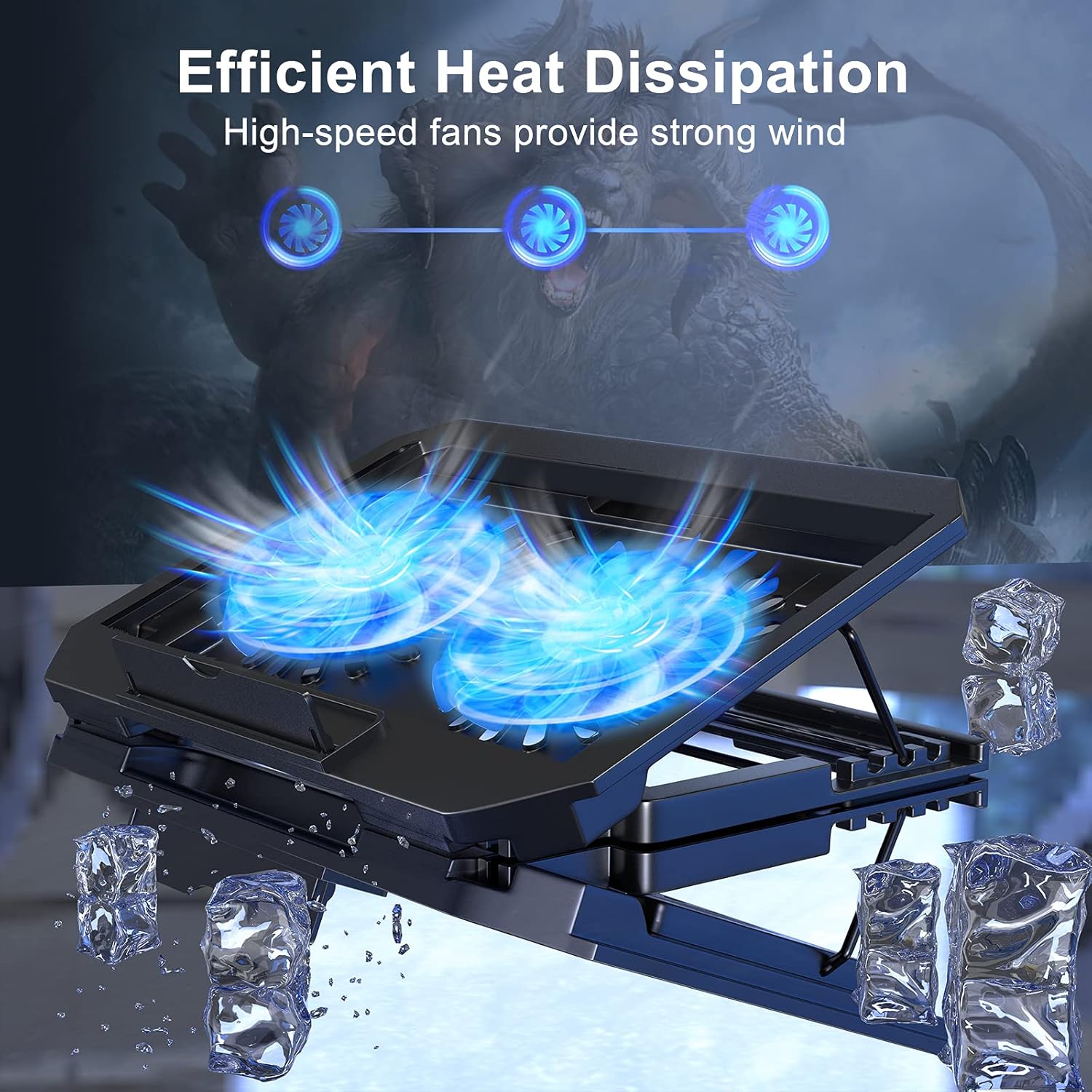
An image illustrating the efficient heat dissipation of the LIENS Laptop Cooling Pad. Blue airflow lines emanate from the two fans, suggesting strong cooling performance. Ice cubes are depicted around the pad to symbolize cooling.
USB Ports
The cooling pad includes two USB 2.0 ports. One port is used to draw power from your laptop. The second port functions as a pass-through, allowing you to connect other USB devices such as a mouse, keyboard, or USB flash drive, without occupying an additional port on your laptop.

A close-up view of the LIENS Laptop Cooling Pad's side, showing its two integrated USB 2.0 ports. One port is connected to a laptop for power, and the other is shown connecting to external devices like a mouse and keyboard, illustrating its expandability.
Maintenance and Care
To ensure optimal performance and longevity of your cooling pad, follow these maintenance guidelines:
- Cleaning the Surface: Use a soft, dry cloth to wipe down the mesh surface and plastic body of the cooling pad. Avoid abrasive cleaners or solvents.
- Cleaning the Fans: Periodically inspect the fan blades for dust accumulation. Use compressed air or a soft brush to gently remove dust from the fan blades and grilles. Ensure the cooling pad is disconnected from power before cleaning.
- Storage: When not in use, store the cooling pad in a clean, dry place away from direct sunlight and extreme temperatures.
- Handling: Handle the cooling pad with care. Avoid dropping it or placing heavy objects on it, as this may damage the internal components or the adjustable stand mechanism.
Troubleshooting Guide
If you encounter any issues with your LIENS Laptop Cooling Pad, please refer to the following common problems and solutions:
| Problem | Possible Cause | Solution |
|---|---|---|
| Fans are not spinning or LED lights are off. | No power supply; loose USB connection; fan speed dial set to minimum. | Ensure the USB cable is securely connected to both the cooling pad and a functioning USB port on your laptop. Check if the fan speed dial is turned up. Try a different USB port on your laptop. |
| Laptop is still overheating. | Insufficient fan speed; laptop's own vents are blocked; excessive dust inside laptop. | Increase the fan speed on the cooling pad. Ensure your laptop's intake and exhaust vents are clear and not obstructed. Consider cleaning your laptop's internal fans if dust buildup is suspected. |
| USB pass-through port is not working. | Device incompatibility; insufficient power from laptop USB port. | Ensure the device you are connecting is compatible with USB 2.0. Try connecting the device directly to your laptop to verify its functionality. Some high-power devices may require a direct connection to the laptop or a powered USB hub. |
| Cooling pad stand feels unstable. | Incorrect height adjustment; uneven surface; heavy laptop. | Ensure the adjustable stand is locked into place at the desired height. Use the cooling pad on a flat, stable surface. Verify that the non-slip baffle is correctly installed to prevent laptop movement. |
Product Specifications
| Feature | Detail |
|---|---|
| Product Dimensions | 13.58"L x 9.84"W x 1.57"H (345mm x 245mm x 40mm) |
| Item Weight | 1.65 pounds (0.75 kg) |
| Material | ABS Plastic, Metal |
| Fan Size | Two 5.1 inches (12.8 cm) fans |
| Fan Speed | Adjustable 800-2000 RPM |
| Fan Noise Level | 5-15 dB |
| LED Lights | Blue LED, 10LM brightness |
| Working Voltage | 5V |
| Current | 0.22A |
| USB Cable Length | 60 cm |
| USB Ports | 2 x USB 2.0 (1 for power, 1 for pass-through) |
| Adjustable Height | 4 levels, 2.3"-5.1" (6-12cm) |
| Compatible Laptop Sizes | 12"-15.6" |

This image provides a visual representation of the LIENS Laptop Cooling Pad's dimensions (13.58"L x 9.64"W, with adjustable height from 1.34"-3.54"). It also shows a range of laptop sizes from 12 to 16 inches, indicating compatibility for 12-15.6 inch laptops.
Warranty and Customer Support
For warranty information and customer support, please refer to the documentation included with your purchase or contact LIENS customer service directly. Contact details can typically be found on the product packaging or the official LIENS website.
Ask a question about this manual
Ask about setup, troubleshooting, compatibility, parts, safety, or missing instructions. Manuals+ will review the question and use this page’s manual context to help answer it.